
Embed WiFi in EMM Enrollment QR
If you have an Android EMM Google Policy Fileset with network settings, select it while generating an enrollment QR code. FileWave embeds that WiFi profile in the QR enrollment payload so the device can join the network during enrollment.
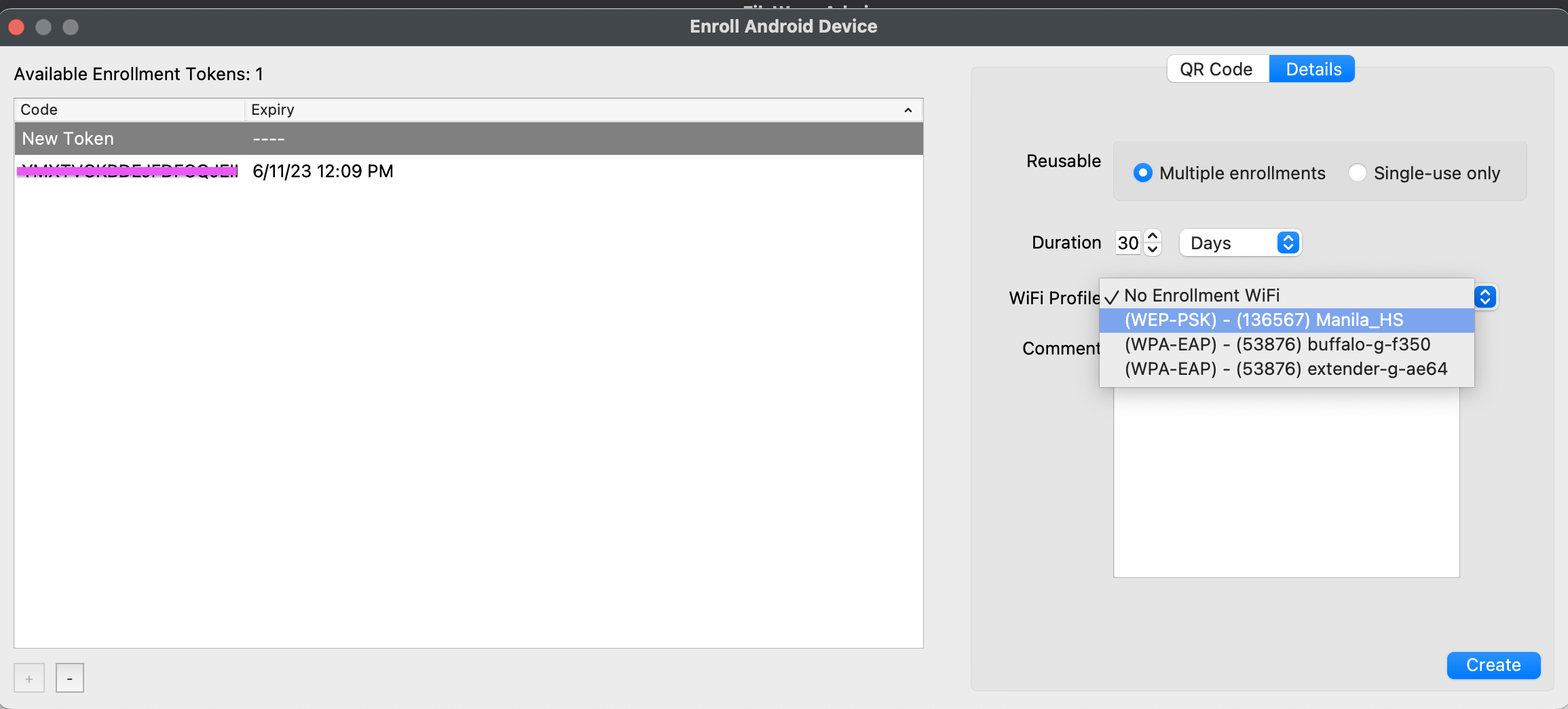 |
|---|
| Figure 1.1 - WiFi selected in enrollment QR |
Steps
- Create or verify a Google Policy Fileset with WiFi network settings (Android EMM Policies and Permissions).
- Generate a new enrollment QR code:
- Open Assistant > Enroll Android Devices....
- Click + in the bottom left.
- Select the needed WiFi Profile from the drop-down menu.
- Enroll the device as normal (Quickstart Guide for Android EMM).
Most Android 8+ devices include a QR reader during setup. Older devices may need to connect to WiFi after the seven-tap setup flow before they can download a QR reader app.
The generated QR code contains the WiFi password in plain text.
Treat the QR code like a credential. Do not leave it displayed, printed, or shared beyond the enrollment window.