
Assign Apple Books to Managed Apple Accounts with VPP
Description
Managed Apple IDsAccounts and Licensesuser-assigned licenses
GuideThis willguide goexplains overhow settingto upuse VPP Useruser assignment forto deploymentdistribute ofApple iBooksBooks with(formerly iBooks) to Managed Apple IDs.Accounts This guide will also implement new functionality starting in FileWave 12.7 for silent invites for VPP. If you are not using(formerly Managed Apple IDsIDs). youFileWave willcan needsilently associate the VPP user with the matching managed account, so the user does not have to accept a separate organization invitation. For personal Apple Accounts, use the steps on Apple’s Volume Purchase Plan (VPP) and License Management under "VPP Managed Distribution User Management".Management workflow instead.
Silent inviteaccount association
WhileMost mostapps ofsupport device-based assignment, but Apple Books must be distributed to users and cannot use device-based assignment. Apple also does not let organizations revoke and reassign managed book licenses the appsway nowthey supportcan Devicewith Basedmanaged assignment, a few apps still require user basedapp licenses. All iBooks for instance require VPP User assignment and can not be assigned based on Device.The Managed Apple IDsAccount canmust be associated to VPP User assignment apps and have to be associated towith a VPP user for the corresponding VPPApps and Books token sobefore the tokenthat organization can assign licenses to the Apple ID.license.
ToApple's easemanaged Manageddistribution Appleworkflow IDs and VPP user management, Apple introduced a change in VPP to automatically, silentlycan link a VPP user andto a Managed Apple ID.Account Thiswithout makesasking the user to join the organization life easier as they don't have to rely on human interaction to link their Apple ID and all possible organizations using the Apple App storemanually on each device.
WithAfter aFileWave associates the VPP user associated towith the user's Managed Apple IDAccount, -it andcan thereforedeploy user user-based licenses, including thoseApple for books, can be deployed,Books, without thea needmanual oforganization manually joining the organization.invitation.
WhenThe workingManaged onApple thisAccount, everythingVPP user, and Apps and Books token must be relatedbelong to the same Apple School Manager or Apple Business Manager organization. Do not associate an account from one organization - i.e. you can only assignwith a Managedlegacy Appletoken ID from "Organization A" to an ASM VPP Account from "Organization A".A Managed Apple ID can't be associated to aor VPP user from a Legacy token for instance, or from another organization.
Steps
1. Assign a user inIn the Classroom tabtab, assign the student device to the student device. This will need to be the user that is assigned to thewhose Managed Apple ID thatAccount will besign loggedin intoon the iOS or iPadOS device.

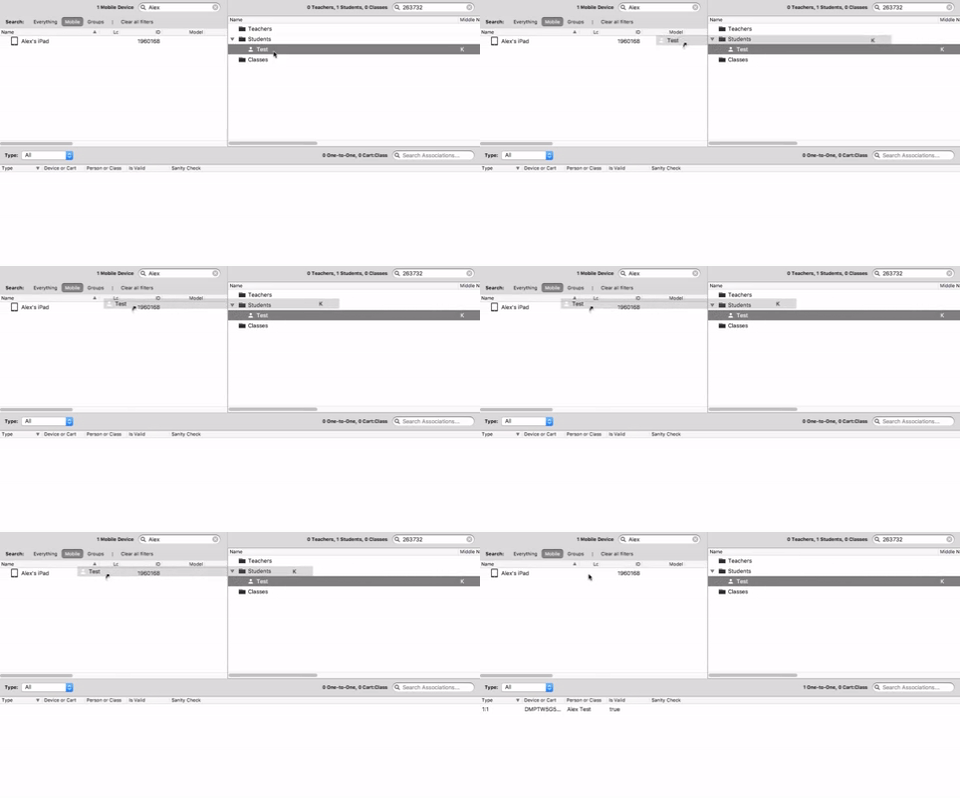
2. Sign in on the device with the Managed Apple ID that isAccount assigned to the user associated infrom step 1.
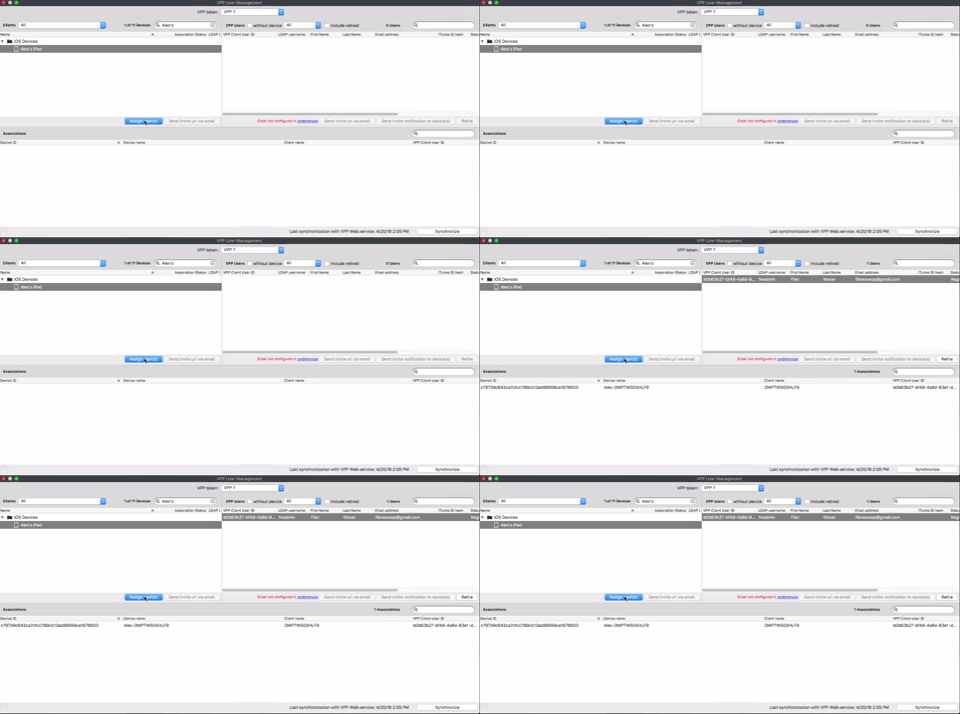
3. CreateIn FileWave Central, open Assistants → VPP User Management and create a VPP Useruser for the deviceApps forand Books token that owns the VPPApple Book or user-assigned app.
Use an Apps and Books token youfrom wantthe tosame assignApple iBooksSchool Manager or UserApple VPPBusiness appsManager to.organization This window is found inas the FileWaveManaged AdminApple under "Assistants" → "VPP User Management".
This token must be an ASM account token.Account.

4. Associate the VPP Fileset for the iBookApple Book or VPPuser-assigned Applicationapp towith the iOS or iPadOS device.
The ApplicationApple Book or app must be purchasedcome from the same ASMApps and Books token used for the VPP Token that you assigned the device touser in step 33.
5. Update the modelmodel.
6. YouFileWave are done andassociates the Managed Apple IDAccount on the device willwith automaticallythe bedeployed associatedVPP license without asking the user to theaccept VPPan License you are deploying without input from the user. invitation.