
Assign Apple Books to Managed Apple Accounts with VPP
Description
Managed Apple Accounts and user-assigned licenses
This guide explains how to use VPP user assignment to distribute Apple Books (formerly iBooks) to Managed Apple Accounts (formerly Managed Apple IDs). FileWave can silently associate the VPP user with the matching managed account, so the user does not have to accept a separate organization invitation. For personal Apple Accounts, use the VPP Managed Distribution User Management workflow instead.
Silent account association
Most apps support device-based assignment, but Apple Books must be distributed to users and cannot use device-based assignment. Apple also does not let organizations revoke and reassign managed book licenses the way they can with managed app licenses. The Managed Apple Account must be associated with a VPP user for the corresponding Apps and Books token before that organization can assign the license.
Apple's managed distribution workflow can link a VPP user to a Managed Apple Account without asking the user to join the organization manually on each device.
After FileWave associates the VPP user with the Managed Apple Account, it can deploy user-based licenses, including Apple Books, without a manual organization invitation.
The Managed Apple Account, VPP user, and Apps and Books token must belong to the same Apple School Manager or Apple Business Manager organization. Do not associate an account from one organization with a legacy token or VPP user from another organization.
Steps
1. In the Classroom tab, assign the student device to the user whose Managed Apple Account will sign in on the iOS or iPadOS device.
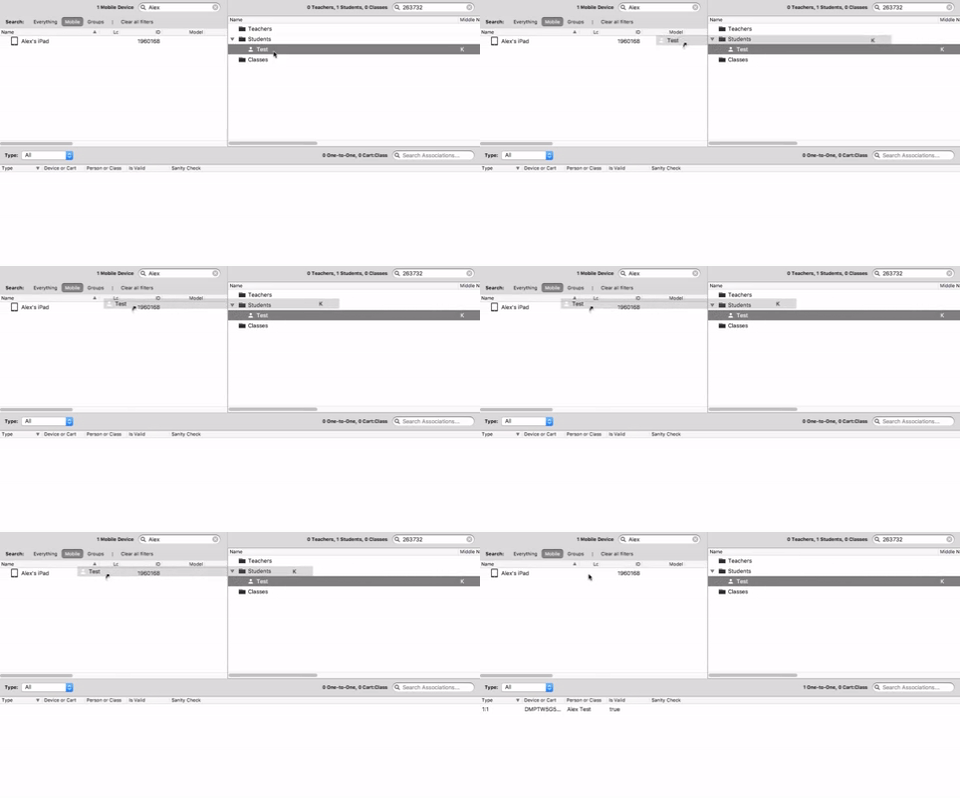
2. Sign in on the device with the Managed Apple Account assigned to the user from step 1.
3. In FileWave Central, open Assistants → VPP User Management and create a VPP user for the Apps and Books token that owns the Apple Book or user-assigned app.
Use an Apps and Books token from the same Apple School Manager or Apple Business Manager organization as the Managed Apple Account.
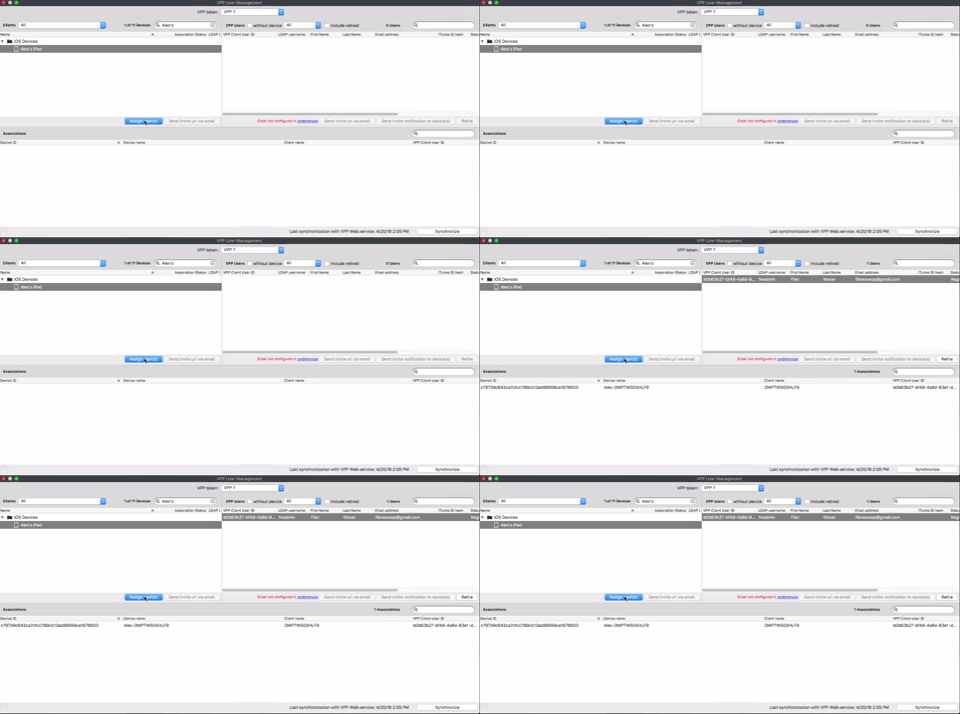
4. Associate the VPP Fileset for the Apple Book or user-assigned app with the iOS or iPadOS device.
The Apple Book or app must come from the same Apps and Books token used for the VPP user in step 3.
5. Update the model.
6. FileWave associates the Managed Apple Account on the device with the deployed VPP license without asking the user to accept an invitation.
No comments to display
No comments to display