
DEP/ADE Forbidden Error
Description
OnWhen creating an ADE (Formerlly known asformerly DEP) Associationassociation or fromrunning any otheranother ADE synchronisationsynchronization action, the following errorFileWave may beshow observed:this error: DEP error: Forbidden.
The most likely causes are:
- The FileWave Server SSL certificate
change.changed. Check Preferences > Mobiletabtoensureconfirm that the server SSL certificate is not revoked or expired. A change to theThe external IP address of the FileWaveServer.Server changed.
Apple storestores the external IP address of the FileWave Server from the last successful contact. If thisthat IP address differs atduring the time of a synchronisation ,synchronization, the action willcan fail and the ADE Server Token will need tomust be replaced.
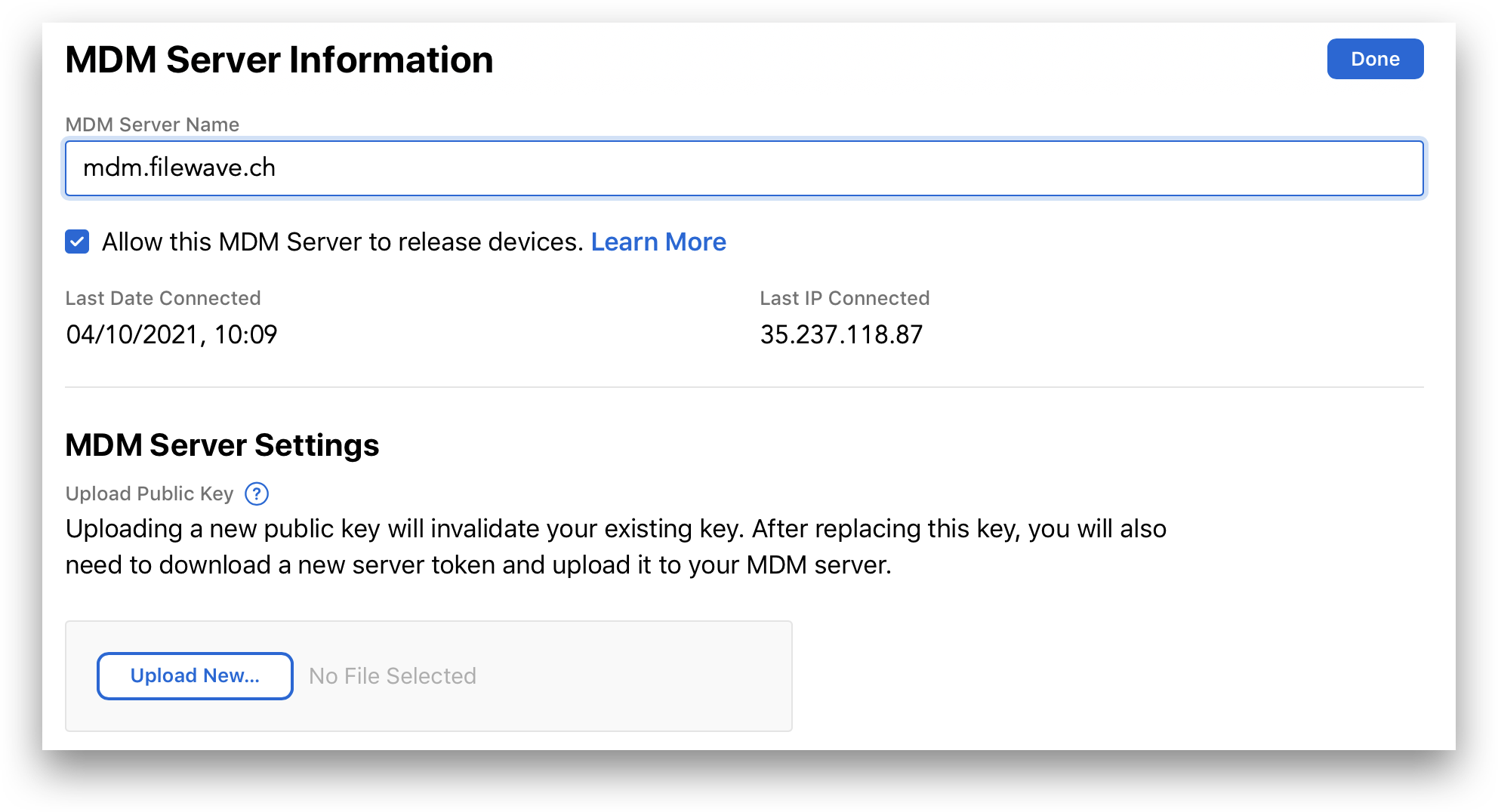
TheYou can check the stored IP mayaddress be observed fromin the relevant ADE account:
The Last Date and IP Connected may be seen fromIn the Apple portal, open Settings view;, select the MDM Serverserver, and choose Edit.Edit. The Last Date Connected and Last IP Connected values appear in the MDM Server Information view.
Requirements
- FileWave MDM ADE
Certificatecertificate
Resolution
A Forbidden error requires replacing the tokenADE beServer replaced andToken, not updated.updating it in place.
FromIn FileWave AdminCentral, >go to Preferences > VPP & ADE:ADE:
- Choose
'Downloadcertificate'certificate (requires the fwadmin password)toand save thecertificatecertificate.
FromIn the relevant Apple ADE accountaccount, Apple Business Manager or Apple School Manager:
- Select
'Settings'Settings. - Highlight the MDM server from the list and choose Edit.
- Select
'Upload New...'and select thesavedcertificate downloadedfilefromaboveFileWave. - When prompted,
select todownload the ADE ServerTokenToken.
FromBack in FileWave AdminCentral, go >to Preferences > VPP & ADE:ADE:
- Click
'ConfigureAccounts'Accounts (requires the fwadmin password). - Select the Forbidden token and use the
'-'button to removethat tokenit. - Select the
'+'buttontoandselectchoose the ADE Server Token downloaded fromAppleApple. - Run
aan ADESynchronisationFullSyncSync.(HolddownAlt/OptionALT(macOS),whileOption(Windows)),choosingthen select to synchronise (thenamesynchronizationofaction; the buttonwillnamechange)changes to indicate a full sync.
AtAfter thisthe stagetoken synchronisationis replaced and the full sync completes, synchronization should now be successful.succeed.
If the ADE Server Token is currently configured in the Education tab of Preferences, thisremove that association will need to be removed prior tobefore removing the ADE token,token. butYou maycan beadd re-addedit again afterwards.afterward.