
Device Details - Booster Client Preferences Reporting
What
WantUse tothese ensureCustom thatFields yourwhen clientsyou areneed connectedinventory tovisibility your boosters? Maybe even ensure yourinto FileWave ClientsClient areBooster settings, including configured withBooster the proper FileWaveconnections, tickle time interval, iscurrent theupstream “server, and whether Route server messages via boosters” checked, or the current upstreamboosters is reporting to the correct server? FileWave can report these data values with custom fields.enabled.
When/Why
After youdeploying haveBoosters, setthese upfields boosters,help you mayconfirm want to wonder if thesewhich clients are connectingusing to them. With custom fields, we can reportthem and gather inventory data from the device details to confirm thatwhich clients are indeedstill communicatingtalking withdirectly to the FileWave serverServer. and your newly configured boosters. In addition, providing other details thatThey can bealso vital to ensure properexpose check-in times,timing, routingroute-server-message messaging,state, upstream server, and evenmemory-usage memorydetails usage.for reporting or troubleshooting.
How
Below are the custom fields that may be imported into FileWave Central (native admin). Navigate to Assistants > Custom Fields > Edit Custom Fields… > Import and select the custom fields file to import.


Once imported, you will see listed Client Config fields ready to be assigned to your devices.

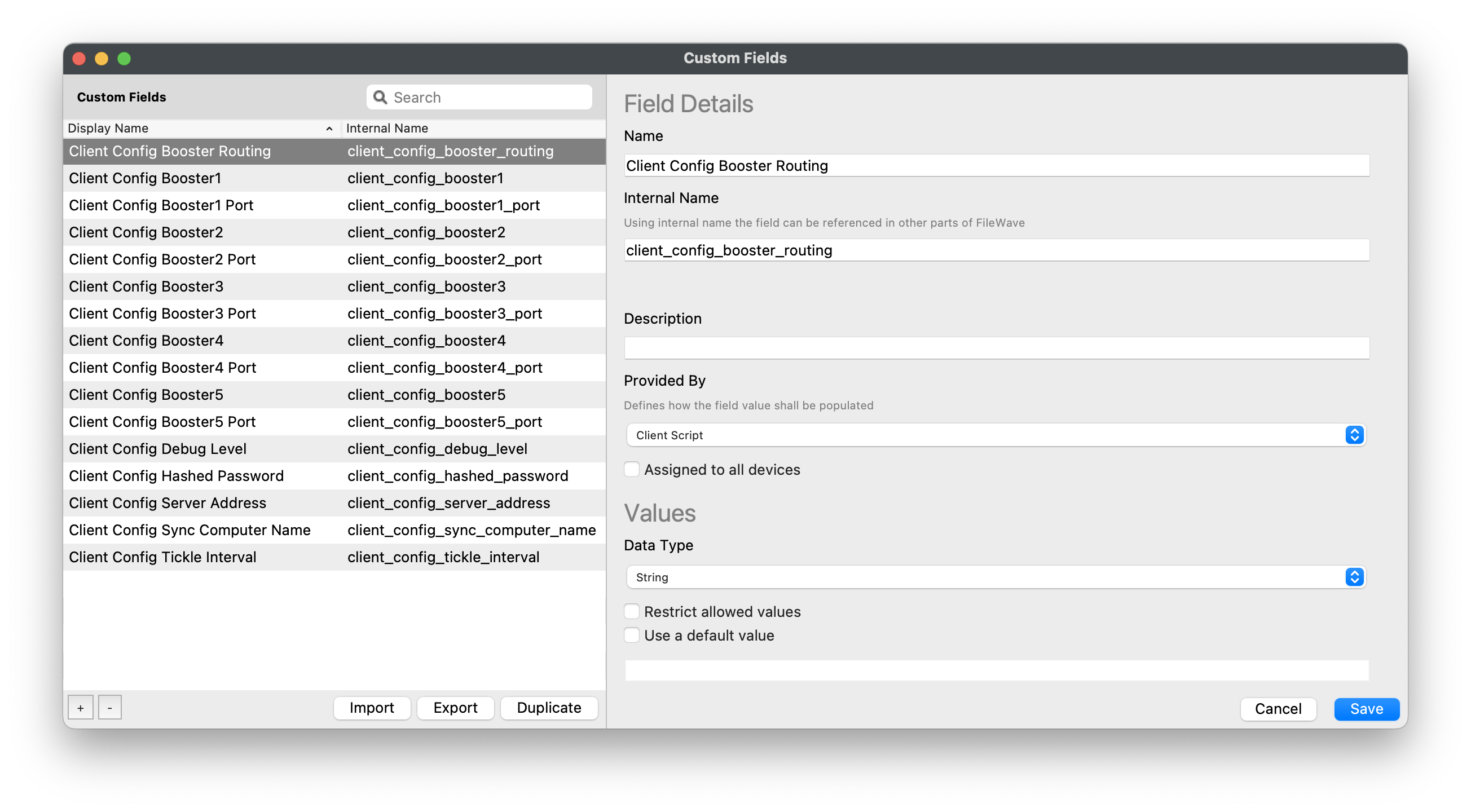
After importing, highlight the Client Configuration fieldfields you would likewant to assignassign. toAssigning yourthem devices.broadly Recommendis assigninguseful towhen allyou deviceswant toa confirmfleet-wide thatview clientsof areBooster connecting to your Boostersuse and tickle-interval timessettings. areAfter set properly. Once you have selected allselecting the Clientdesired Configuration fields desired,fields, click on Save.Save.
Give the devices time to check in and acquire the new custom fields to report their data values.
As theeach device checks in, you may view these custom field values in FileWave Client Info > Device Details. Scroll down through the list forto Client Config Booster1, Booster2, etc.and related fields to viewsee what the dataclient valuesreported. reportedThe byscreenshot thebelow client. Below isshows an example inventoryInventory queryReport to(formerly viewQuery) your device booster configurations:for routing messagesmessages, enabled, booster 1, booster 2, and/or booster 3Booster upstream connectionsconnections, alongand withtickle interval.
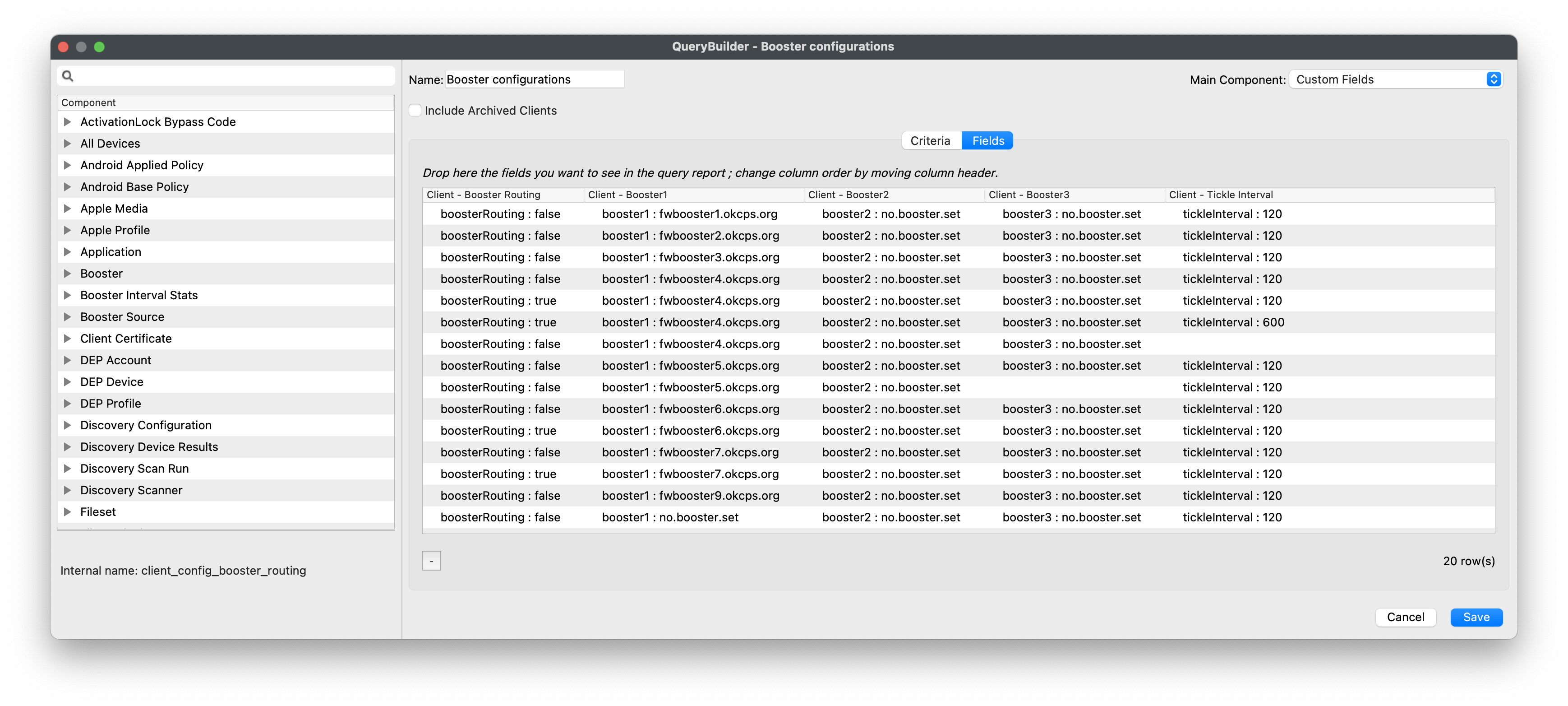
After the Tickle Interval.

Note that now that you have these fields youpopulate, canbuild createReports queries thatto show which devices are connected to whicheach BoostersBooster and if anywhich clients are still going to the FileWave Server when you thoughtexpected they shouldn’t be. This should be an easy waythem to showuse youra configuration.Booster.
Digging Deeper
These custom fields report the .plist data from the FileWave Client directly so the values will be accurate unless a device has not submitted inventory. Check when it last connected to see if it has and use Verify to ask a device to check in now.