Upgrading a Single Booster
What
The Booster upgrade feature gives FileWave administrators a centralized way to upgrade Boosters from within FileWave.
When/Why
Having to use SSH or remote control for every Booster upgrade takes too much time. Starting with FileWave 14.4, the Boosters and Booster Details tabs provide a manual upgrade action when an applicable upgrade is available. Starting with FileWave 16.3.0, compatible outdated Boosters can also be scheduled automatically after a FileWave Server upgrade. The default delay is seven days and can be changed in FileWave Central > Preferences > General before upgrading the Server. A value of 0 days schedules eligible Boosters immediately. The value is evaluated when the Server upgrade creates the Booster schedule; changing it afterward does not retroactively move already scheduled work.
FileWave 16.4 makes automatic Booster upgrades more resilient. FileWave now checks both the reported upgrade status and the installed Booster version before treating an upgrade as complete. A failed attempt can be retried automatically within defined limits, and the attempts are logged. If the Booster remains below the target version or reports Failed after the automatic retries, investigate the logs and manually schedule the upgrade again.
Some criteria used to determine whether an applicable upgrade is available are:
- Booster has to be at least 14.4
- The operating system version has to be supported by the target version
- The booster has to be running in order to trigger an upgrade
- The version number of the target version has to be higher than the currently installed version (i.e you cannot use this feature to reinstall/downgrade to a specific version)
This article discusses manually upgrading a single Booster immediately. In FileWave 16.3.0 and later, this is especially useful when you do not want to wait for the automatic post-Server-upgrade schedule or when you want to handle one Booster separately.
How
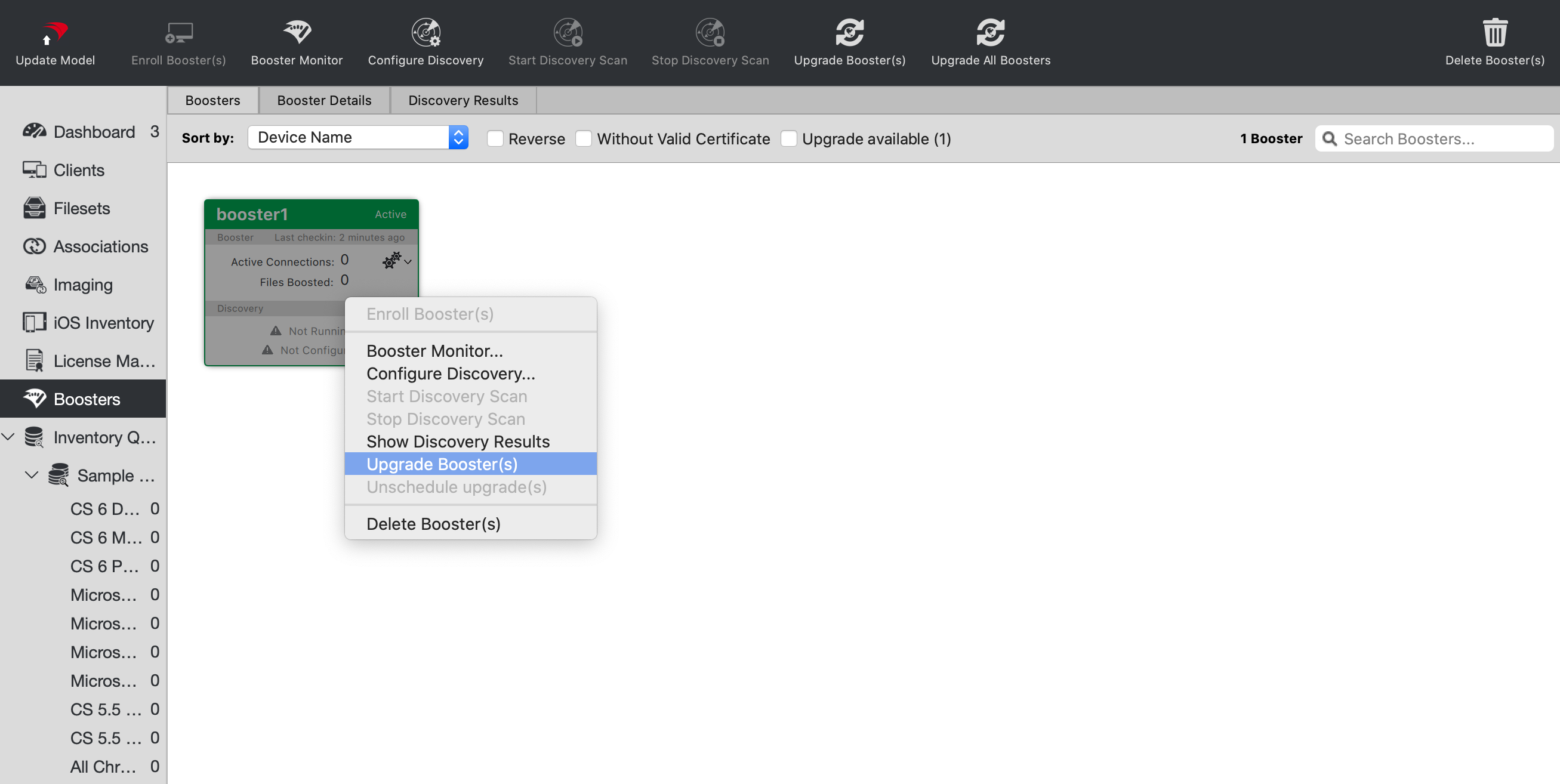
To upgrade a particular booster, just right-click it and select "Upgrade Booster". You can also right-click the booster in the "Booster Details" tab.