
Self Signed Certificate Error during iOS OTA Enrollment
This article shows how to resolve anthe certificate-trust error ifthat can appear when you are manually enrollingenroll 10.3+iOS or iPadOS devices inthrough OTA enrollment while the FileWave withServer uses a self-signed certificate.
ItFor isproduction consideredenvironments, use a best practise to have a rootpublicly trusted server certificate definedwhen inpossible. If the FileWave>server Preferences>still Mobile> HTTPS certificate section. In FileWave v12+ it is easy to determine whether you haveuses a self-signed certificatecertificate, or not. Simply log intoconfirm the FileWavecertificate Admin, open the preferences, go to the "Mobile" tab, and you will seeshown in theFileWave Central → Preferences → Mobile → HTTPS section, the following line:certificate.


IfAutomated Device Enrollment can still work with this iscertificate thestate, case,but youmanual willOTA stillenrollment bemay ablefail to enroll iOS 10.3+ devices through DEP. But ifuntil the device is iOS 10.3+ and you try a manual web enrollment (OTA), you will gettrusts the followinginstalled error.root certificate.

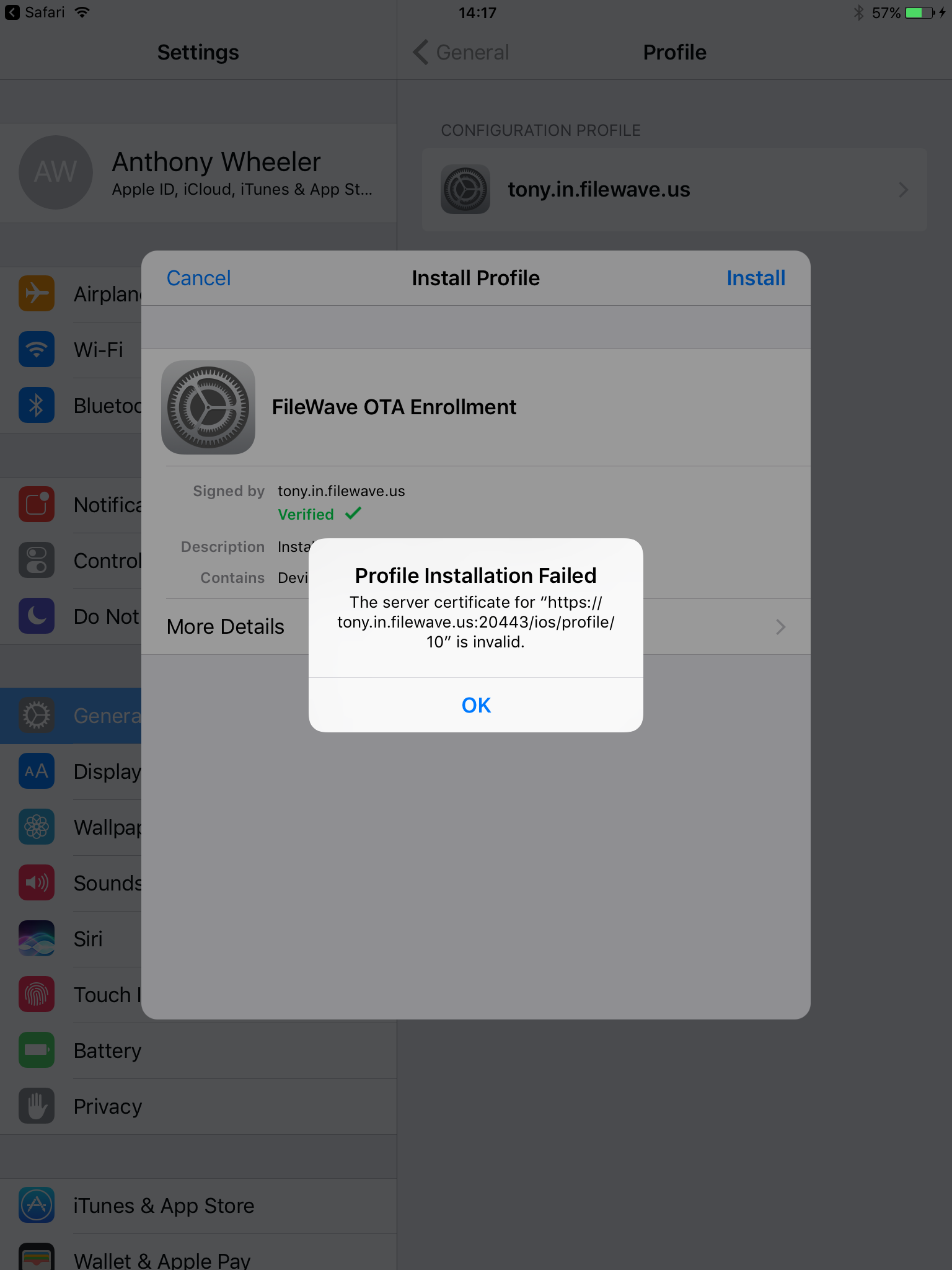
If you choosekeep to retain yourthe self-signed certificate, you will have to use the steps below to resolveon the error.device Alternatively,before youstarting canthe purchaseenrollment step. Replacing the self-signed certificate with a root trusted certificate, and you will not encounter this issue. Again, it is highly recommended that you purchase a rootpublicly trusted certificate (can include a wildcard) so that you don't have to work aroundavoids this manual trust issue, as described below. workflow.
Steps to Resolveresolve (ifwhen you choose to keepkeeping a self self-signed certificate in place)
Navigate toOpen theyourmanual enrollmentaddress:address on the device: https://your.fw.server.DNS.here:20443/iosSelect:Select"Step 1 - InstallCertificate"Certificate.
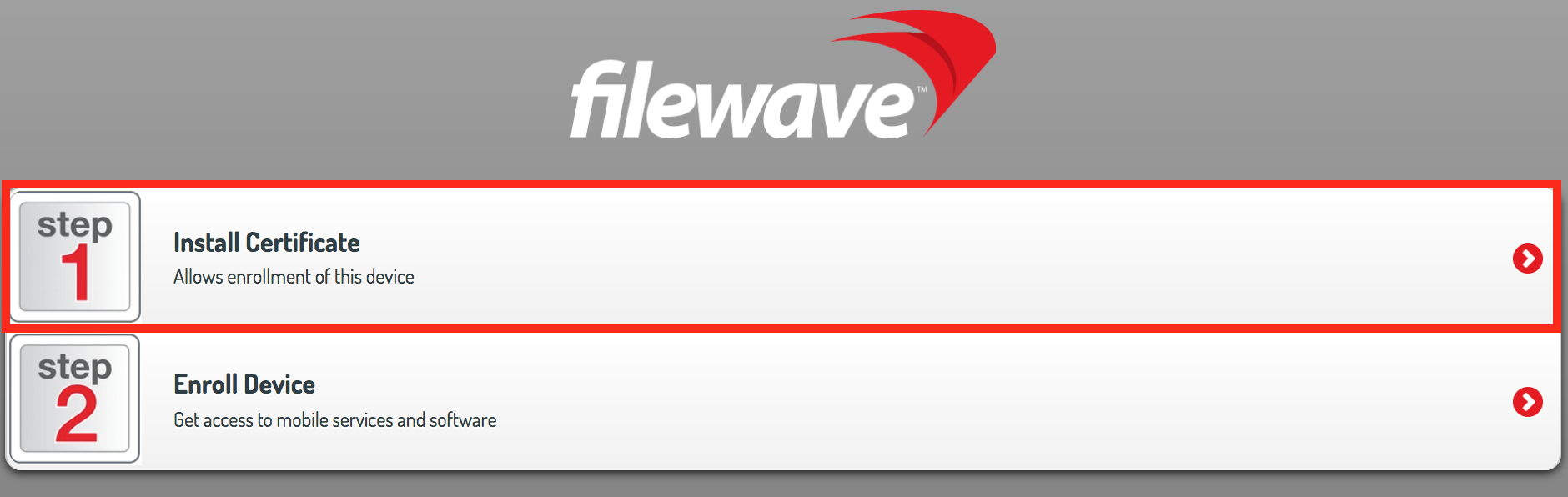
Once you have selected step one,Follow the devicewill ask youprompts toInstallinstall thecert,certificate.goTap Install throughthosethethreeprompts,promptsthenbytaphitting Install each time and finally Done.Done.- After the certificate
has beenis installed, open the"Settings"Settingsapp on the iOS device.app. Do not start Step 2(This-willEnrollpromptDevice yet, because theerror).device has not trusted the certificate. - Go
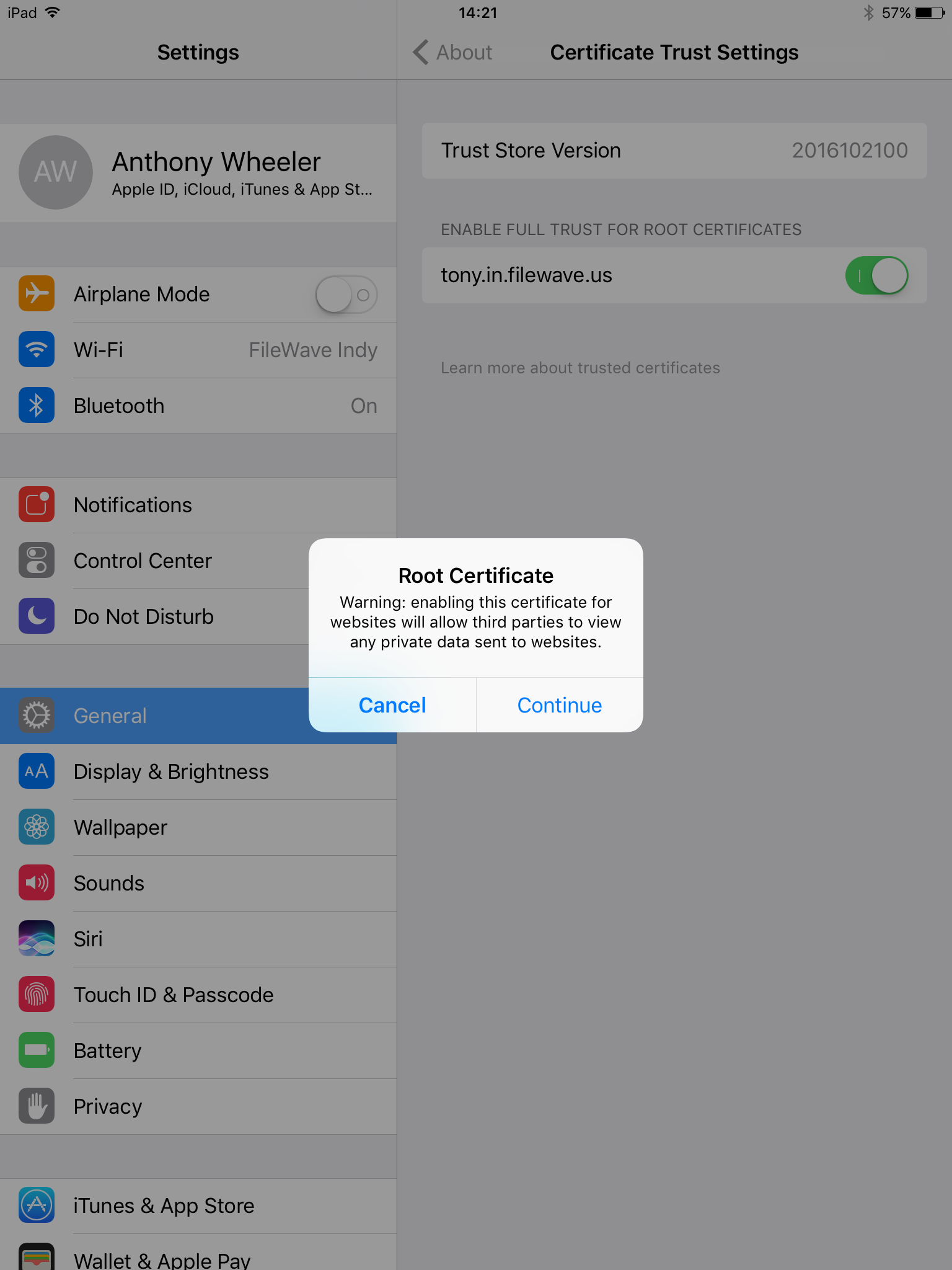
intoto General=>→ About. - At the bottom of
the "About" section,About, tapthe sub section called "Certificate TrustSettings"Settings. YouUnderwill see an option calledENABLE FULL TRUST FOR ROOT CERTIFICATES
certificate.

Now go backReturn to the manual enrollment page and finish the stepscontinue with "Step 2 - Enroll Device"Device.