
Chromebook Management
FileWave hassyncs supportChromebook data from Google Admin Console so you can view Chromebook inventory alongside the rest of your managed devices. FileWave does not replace Google Admin Console, but it gives you reporting, inventory, custom field, and location tools for Chromebook management with the data that syncs from the Google Admin Console. Though this is not a total replacement for the Google Admin, FileWave does arm you with helpful tools and assets guaranteed to help your Chromebook deployment.management.
So what can we do?
With FileWave youcan willreport get all the same greatChromebook inventory data yousuch areas usedavailable todisk withspace, anythe otherlast typeslogged-in ofuser, devicesand login timing. You can use that data in FileWave.Reports, Maybescheduled youemails, wouldcustom like to know how much disk space is left on those devices, or what userfields, and at what time did they logged into any Chromebook? With exports.
FileWave allcan thisalso gather location data and more is available at your fingertips to run reports, scheduled email with this data, apply custom fields, or maybe you would likeshow it easily exported out to a txt file.Inventory is just the beginning of what you can do with Chromebooks in FileWave, you also have the ability to gather a location and then view it right in the FileWave Admin on a map. map in FileWave Central.
How do I set all this up?
To startBefore managing your Chromebooks in FileWaveFileWave, therecomplete isthe someGoogle backendAdmin Console sync and preplicense work that needs to be done:setup.
MakeConfirmsurethatyouFileWavehavehas enough ChromebookLicenseslicenses.inInFileWave,FileWaveyou canCentral, check thisby selectingunder Server > Activation Codeunder theServer menuin the FileWave Admin:.
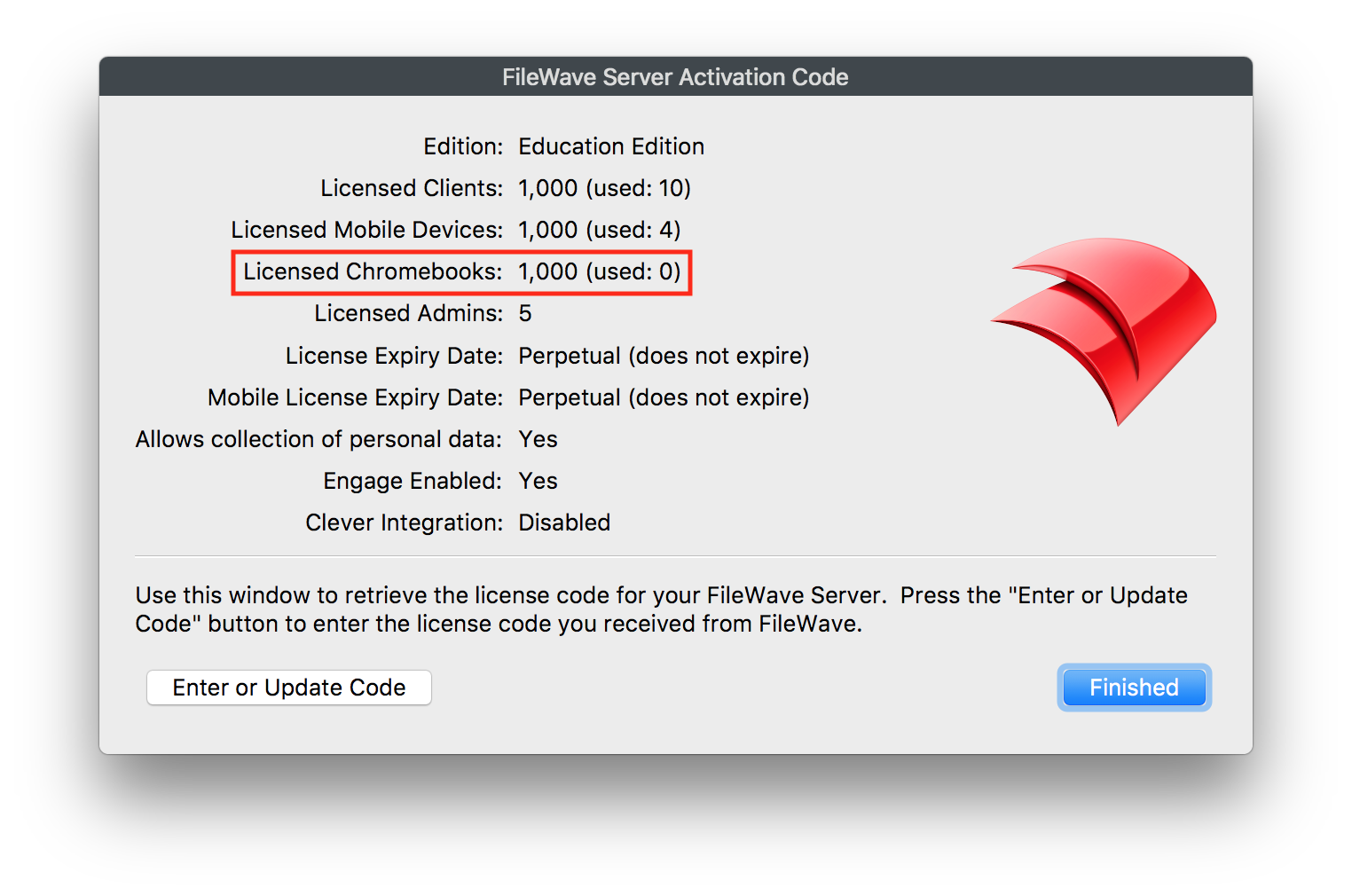
*YouFileWave willsyncs needthe tofull beChromebook suredevice youlist from Google Admin Console. If FileWave does not have enough Chromebook licenses in FileWave to matchfor the number of Devicesdevices you are managingmanage in the Google Admin.Admin We will sync over the full list of devices, andConsole, you will not be able to update the model if FileWave does not have sufficient licenses.model.
YouFollowwilltheneedlinked quick start guide tofollow the Quick Start Guide linked here to fullysyncwithGoogle Admin Console with FileWave andgetenroll yourChromebooks talking to FileWave:Chromebooks: Quick Start Guide for Chromebooks
WithAfter allthe that done you will notice theresync is nowcomplete, aFileWave newCentral groupshows structurethe synced Chromebook groups in your Clients view that you can see all of your sync Chromebook devices:Clients.

These devices and groups are synced withfrom Google andAdmin thereforeConsole, so they cannot be deleted directly out offrom FileWave.