
Detecting the Display Model using a Custom Field
Use a FileWave Custom Field to storecollect the display model ofreported by Mac and Windows devices. This is useful when you want display connectedinformation toavailable ain Macinventory, Smart Groups, or Windowsdevice system.lists without manually checking each computer.
Adding the Custom Field
- Download the
followingCustom Fieldexport -export: Display Model Custom Field.customfields. - In FileWave Admin, go to Assistants > Custom Fields > Edit Custom Fields > Import and import the downloaded
file into "FileWave Admin>Assistants>Custom Fields>Edit Custom Fields>Import".file. - Save the changes
withinin the Custom Fields dialog. AssociateAssign the Custom Fieldwithtodesired Windowsthe devicesviathat"should report display model information. You can right-click>selected devices and choose Edit Custom Field(s)Associations"Associations, use a Smart Group to target the field, orcheckenablethe "Assigned to alldevices"devicescheckbox whenwhile editing the Custom Field.A Smart Group is very helpful to quickly associate Custom Field

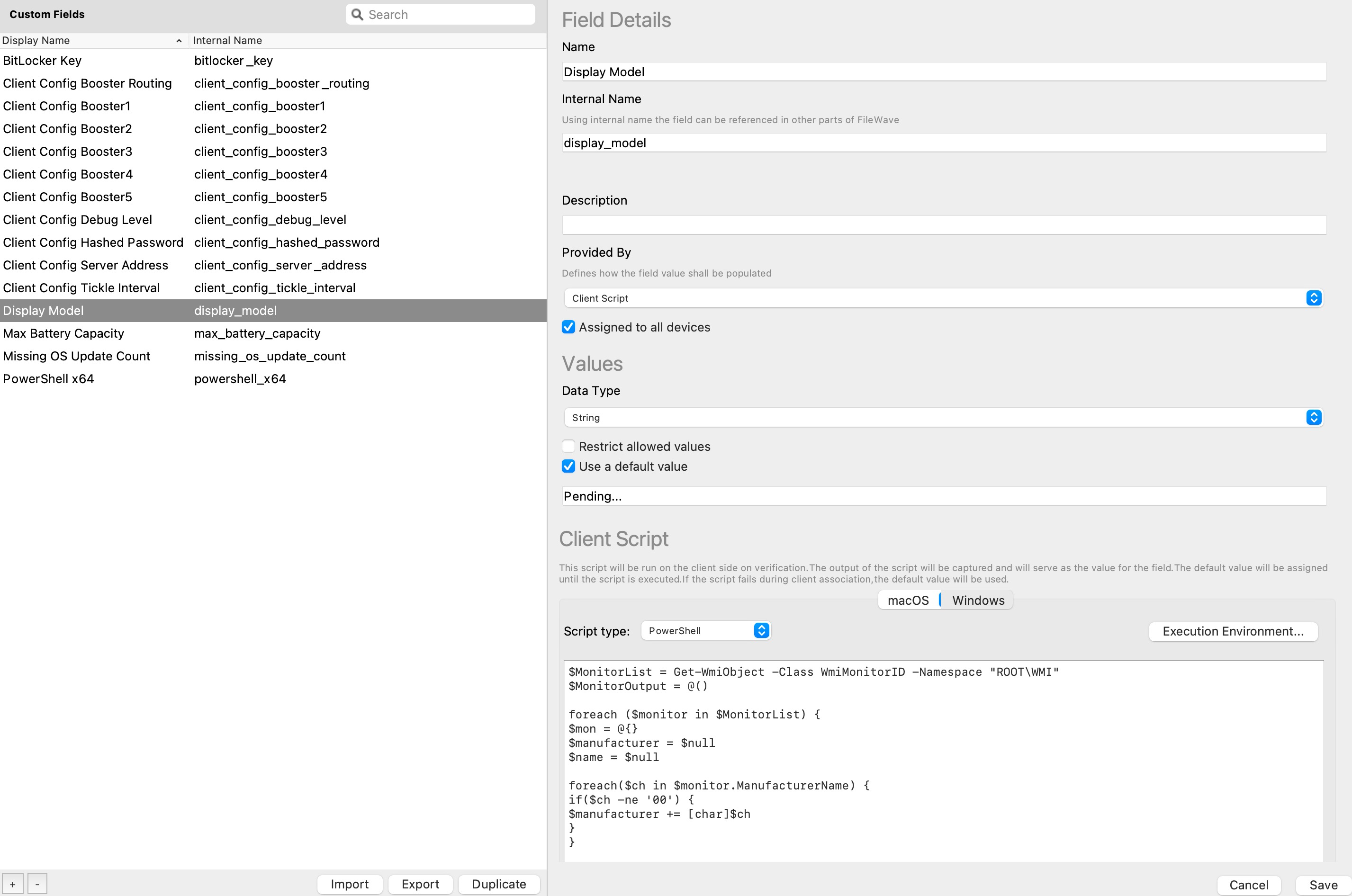
The
ROOT\WMI:
$MonitorList = Get-WmiObject -Class WmiMonitorID -Namespace "ROOT\WMI"
$MonitorOutput = @()

foreach ($monitor in $MonitorList) {
$mon = @{}
$manufacturer = $null
$name = $null

foreach($ch in $monitor.ManufacturerName) {
if($ch -ne '00') {
$manufacturer += [char]$ch
}
}

foreach($ch in $monitor.UserFriendlyName) {
if($ch -ne '00') {
$name += [char]$ch
}
}
$mon = $manufacturer + " " + $name
$MonitorOutput += $mon
}
$MonitorOutput=$MonitorOutput -join ', '
$MonitorOutput
exit 0
The
system_profiler:
#!/bin/bash
DisplayModel=`system_profiler SPDisplaysDataType | grep "Resolution:" -B1 | awk -v n=3 'NR%n==1' | sed "s/^[ \t]*//" | sed 's/:/,/g' | tr '\n' ' '`
echo ${DisplayModel}
exit 0
After
Results
