
Android Integration
Obtaining JSON File
Android EMM Quickstart(Enterprise GuideMobility Management) is built into FileWave as of version 13.1. This feature requires activation. Activation may be generated from the following link:
Add the FileWave Server Activation Code in the Customer ID box and select Generate Key. On doing so, the required JSON file will be downloaded.
This process cannot be repeated. If you have an issue with activation, please contact support.
Setup
It’s
Requirements
A Google account may only be registered to a single EMM instance:
Unlike standard Google or Gmail accounts, a G Suite administrator manages all accounts associated with each of these editions. G Suite provides access to a core set of apps that include Gmail, Calendar, Drive, Docs, Sheets, Slides, Forms, Google+, Hangouts Meet, Hangouts Chat, Sites, and Groups.
You are not required to setup Google Cloud Messaging (GCM/Firebase) for Android EMM to work
Configure Service Account
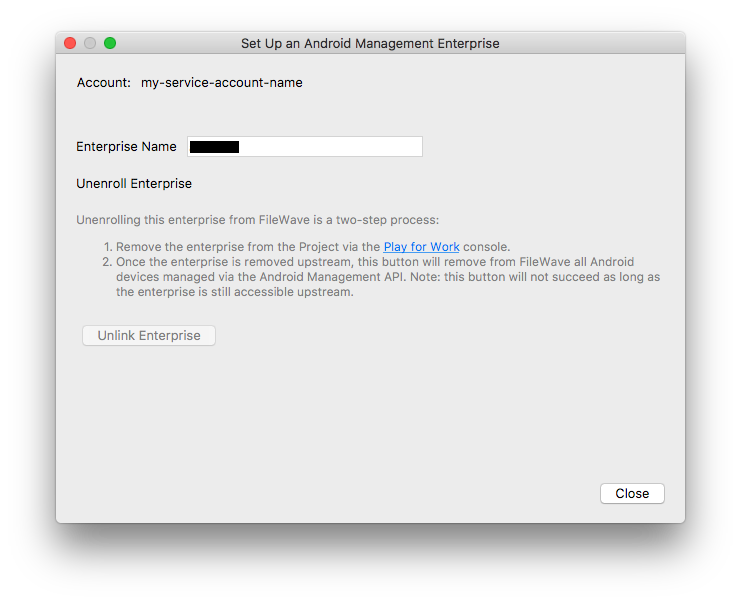
Open FileWave Admin 'Preferences' > 'Google' tab and click 'Configure Enterprise' under the EMM Configuration section. If the Google tab is not yet apparent, the FileWave server service will require a restart after requesting the JSON.
The FileWave Admin should now display the successfully configured Android EMM account:
Enrolling Android devices to FileWave
Devices in Safe Mode may not be enrolled
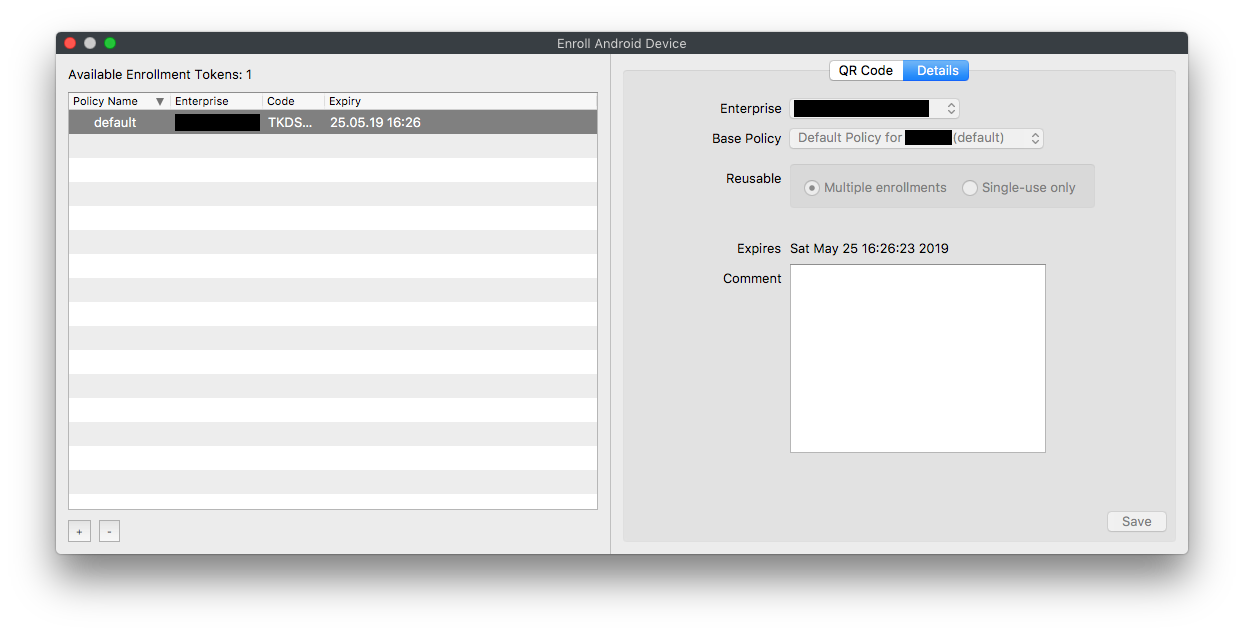
First create an enrolment token from the menu item: 'Assistants' > 'Enroll Android Device...'
Multiple tokens may be created, but one token may be configured for multi-use with an expiration of 30 days (recommended)
Make sure the device is fully wiped to factory settings and is not yet activated. Most modern Android versions can commence the process by either:
- Tap times (in the same spot)
afw#setup in place of a Google account.
Enter the Wi-Fi code and scan the QR code. A few minutes later, accept the prompt to Install Work Apps. This will instal the FileWave Client.
On completion a summary will appear. Click Setup.
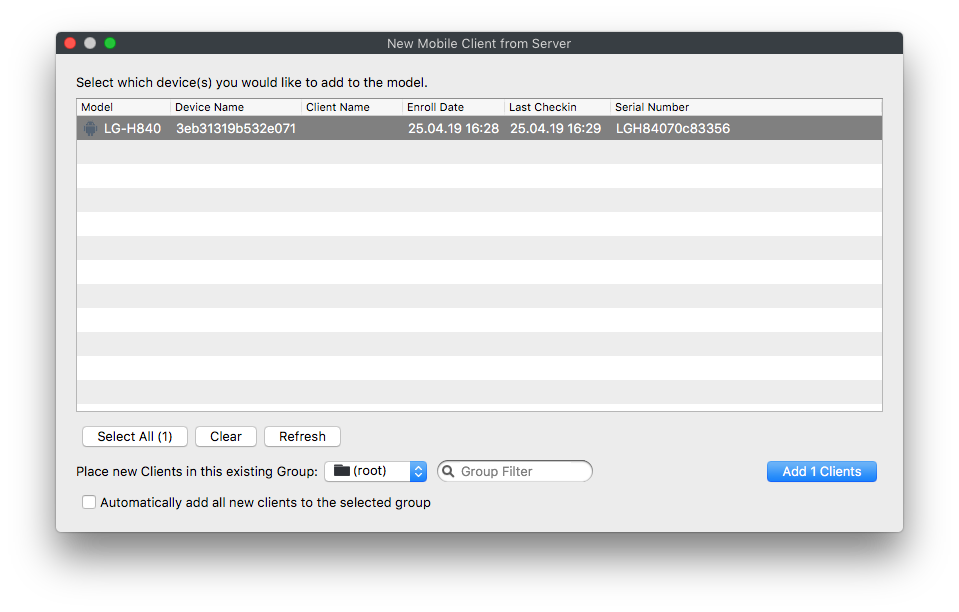
Where auto enrolment is configured in the New Client > Enrolled Mobile Devices, the device should appear within a few minutes. Otherwise use the New Client window to accept the device and then Update Model.
Android BYOD (EMM)
Android BYOD (Bring Your Own Device) Enrollment, also known as Android Enterprise Work Profile, is a method of enrolling personal Android devices in an Enterprise Mobility Management (EMM) system. This allows organizations to manage and secure corporate data and apps on employees' personal devices, while maintaining user privacy and keeping personal data separate from work data.
To setup Bring Your Own Device follow the article here.
Congratulations! Enjoy EMM device management.