
Organize Filesets into Groups
Optional: broader Fileset organization. Plan this structure after one device has completed a first deployment. You do not need a full hierarchy, group-to-group deployment, or automatic Apps and Books imports for a first deployment. If your first deployment needs a Fileset group, create one with a clear test name using Filesets → New Fileset Group, keep it unassigned to broad targets, and return to Fileset Creation and Deployment. For the device target, use the single static test-group guidance.
Group names do not create a deployment or limit its reach. Review the actual assignments, parent/child relationships, current Client membership, and every Fileset in a group before targeting it. Adding content to an already assigned group can affect every device reached by that assignment. Before a required Update Model, review all administrators’ pending work; the confirmation dialog is not a preview and a test group does not make the shared commit private.
Why Fileset groups matter
Organize Filesets as deliberately as Client groups. Matching group structures support group-to-group deployments. When a Fileset is added to the Interactive Media Fileset group and that group is assigned to the corresponding Client group, the Fileset can deploy to every device in that Client group. When a device joins that Client group, it receives the Filesets already assigned to the group.
Create Fileset groups
Choose a structure that administrators can maintain. Platform is a useful first level, followed by department, site, application owner, or deployment purpose where those distinctions affect targeting.
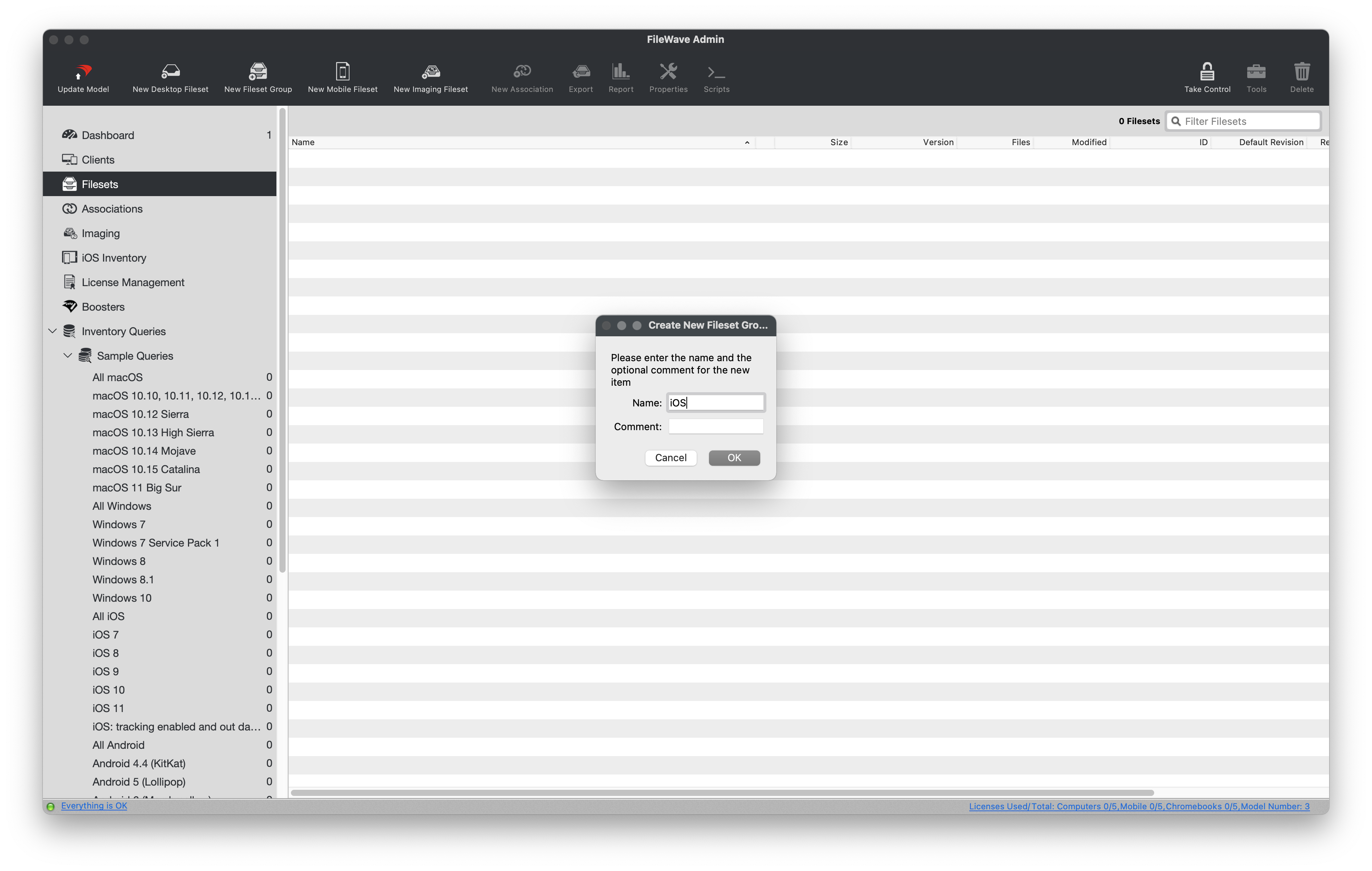
Create a group
- In FileWave Central, open Filesets.
- Select New Fileset Group from the toolbar and enter a meaningful name, such as iOS.
- Create subgroups where they make targeting or ownership clearer. Parent and child relationships are honored when Fileset groups are assigned for deployment.
Choose a Fileset group for automatic Apps and Books imports
When FileWave syncs Apple Apps and Books licenses (VPP), each location token can create its Filesets in a selected group. This keeps content from different departments or sites separated. Complete the Apple client prerequisites before configuring the token.
Configure this only if your approved Apple workflow needs automatic Fileset creation. Check the destination group’s existing assignments first: imported content must not enter a broadly deployed group by accident. The VPP & DEP path below refers to the older interface; confirm the matching Apps and Books token controls for your installed version in the prerequisites article. Do not replace a working service token simply to practice group organization.
In the service-token dialog, Auto create filesets → Choose selects the destination Fileset group. Keep token values and account details private when sharing screenshots.
Configure automatic Fileset creation
- Create the destination Fileset group first. This example uses iOS - VPP.
- In FileWave Central, open Preferences > VPP & DEP. Under Volume Purchase Program, select Configure tokens and authenticate.
- Open the existing VPP service token.
- Under Auto create filesets, select Choose and pick the destination Fileset group.
- Save the VPP service token, then close and save the remaining Preferences dialogs.
- Repeat the group selection for each token that should import into a different destination.
Return to your chosen workflow
Confirm the intended group hierarchy and assignments before adding more content. Return to your first deployment or Inventory Reports to record the device result. OS software updates are a separate optional maintenance pilot, not the required next task.
No comments to display
No comments to display