Windows Enrollment
How to enroll Windows Clients into FileWave
If you haven't already, pleasereview consultthe the Platform Integrations > Windows section for guidance on how to installinstalling the Windows FileWave client.Client. If your organization uses Microsoft Entra ID and your users authenticatesign usingin to Windows with Entra ID credentials, consider enrolling Windows devices through Microsoft Entra ID credentialsinstead. intoThat their Windows machines, please consider enrolling your Windows machines into FileWave via Microsoft Entra ID. This willpath also allow forenables Windows MDM management withinin FileWave. Learn more onin our the Windows MDM article.
FileWaveAfter Clientsa communicatingWindows desktop client checks in, it waits for approval before it can receive associations. Add it to the FileWavemodel server will not be able to connect until you add them to the model. We will now allow our new client to join thefrom FileWave server.Central.
- Open FileWave Central.
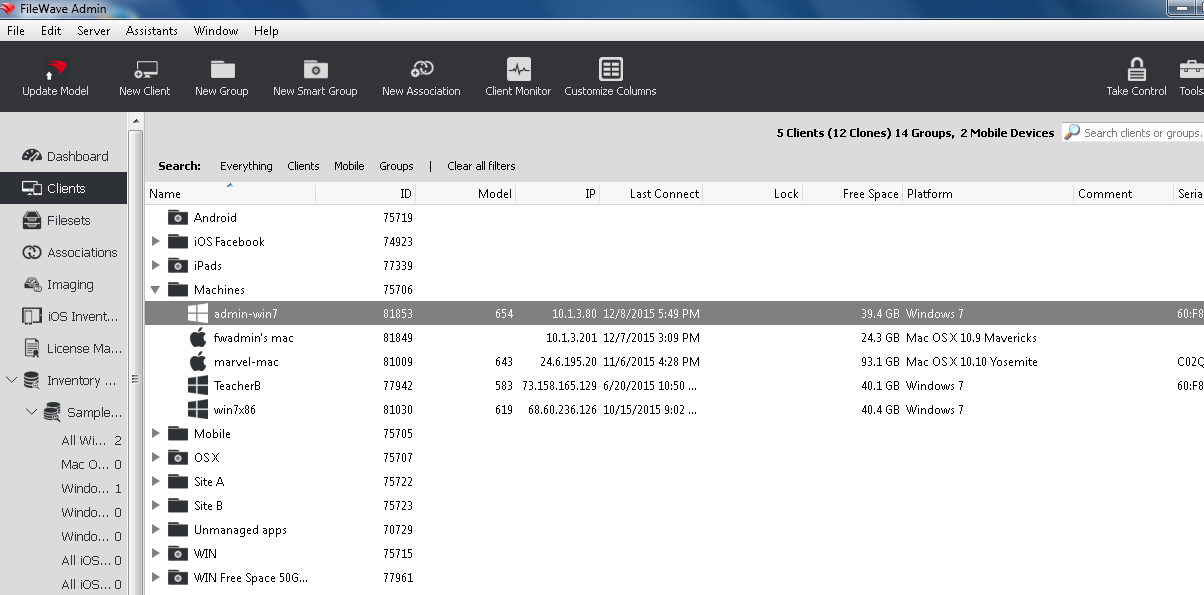
- Click
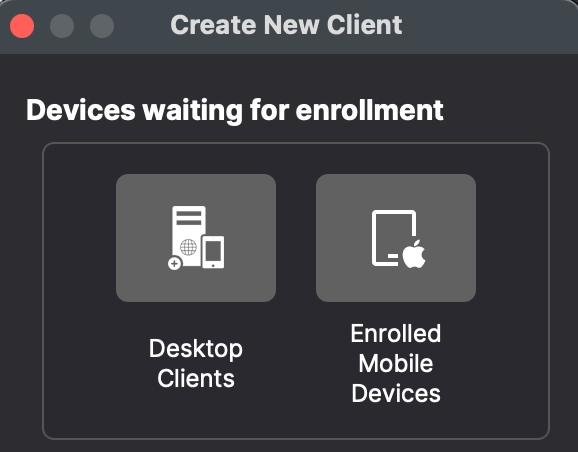
onthe “New Client” button in thetool bartoolbar. - Select
either "“DesktopClients"Clients”.orThe"“Enrolled MobileDevices"Devices”from the dialog box depending on whether itoption is for MDM-enrolled devices, not amacOSstandardorWindowsiPad.desktop client. - Select
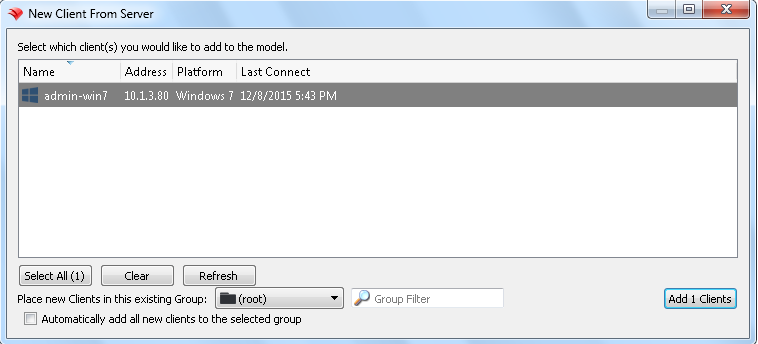
yourthe new Windows client from thelist presented.list. ClickOptionally choose the group for the new client, then click “Add Clients”button in the lower right..
OnceAfter you have selectedclick “Add Clients”, youFileWave willCentral be taken toopens the Clients viewview. in FileWave Admin. By addingAdding a client tochanges the server,model, weso have made changes to the model. In order for those changes to take effect, we need to performrun a model update. update before expecting the Windows client to receive Filesets or settings.
You can also decideconfigure FileWave to automatically add new clients toautomatically and skip the stepmanual ofapproval adding devices.step. This is discussedcovered here:in Conflict Resolution.
Making Changes to the Model
Remember that you will need to updateUpdate the model anytime thatwhenever you want FileWave to apply changesmodel you have made.changes. You can update theafter modelone change or after a singlebatch changeof orchanges, multiplesuch changesas (adding multiple clients, creating groups, etc.)or assigning Filesets.
Congratulations! Your FileWave environment iscan now upmanage the Windows client. From here, continue adding clients, organizing groups, and running!deploying From here you can continue to add clients, build and deploy Filesets!Filesets.