
Android Apps
What
Android Filesets can be created from public or private Google Play apps. Web apps can also be added when you need to publish a managed web shortcut.
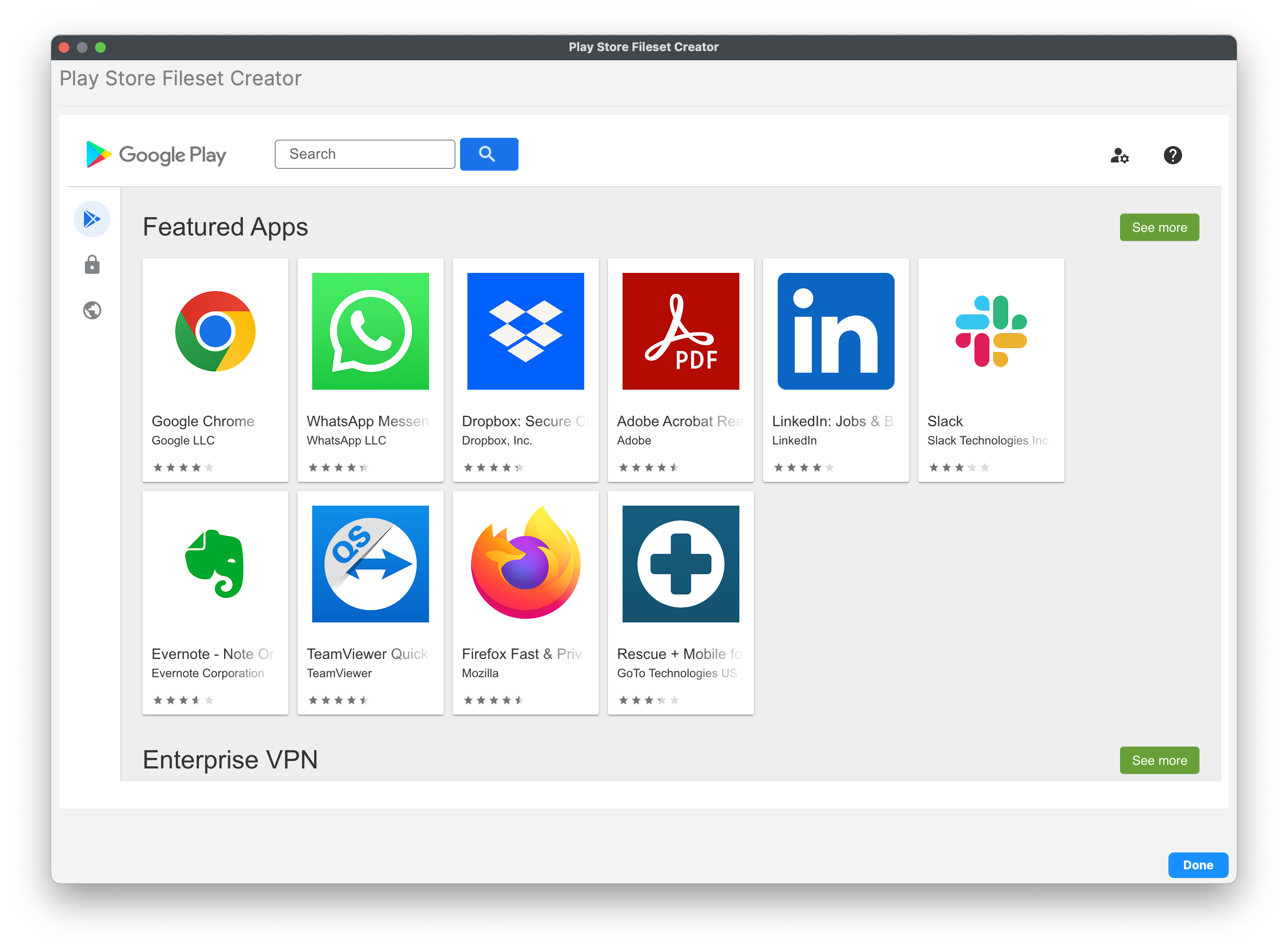
A Play Store App Fileset has Configuration, Permissions, and Managed Properties controls. Managed Properties appear only when the app developer exposes managed configuration settings.
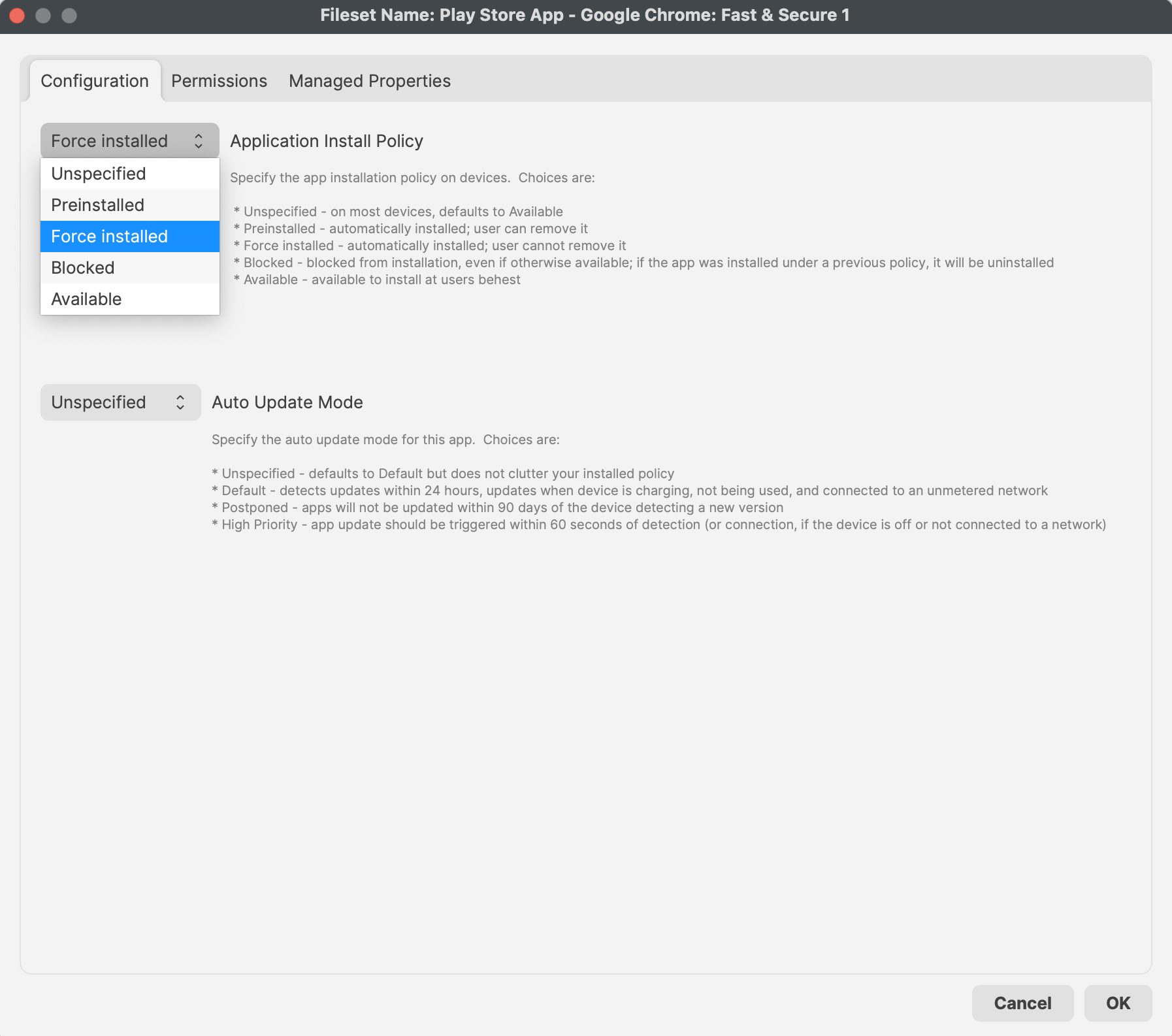
FileWave 16.4 app policy controls
App Update Mode
Set App Update Mode in the Android app Fileset Properties when an app needs behavior different from the fleet default.
| Fileset value | Result |
|---|---|
| Unspecified | The Android Default Policy’s App Update Mode is deployed. |
| Explicit mode | The app-specific Fileset value overrides the Android Default Policy for that app. |
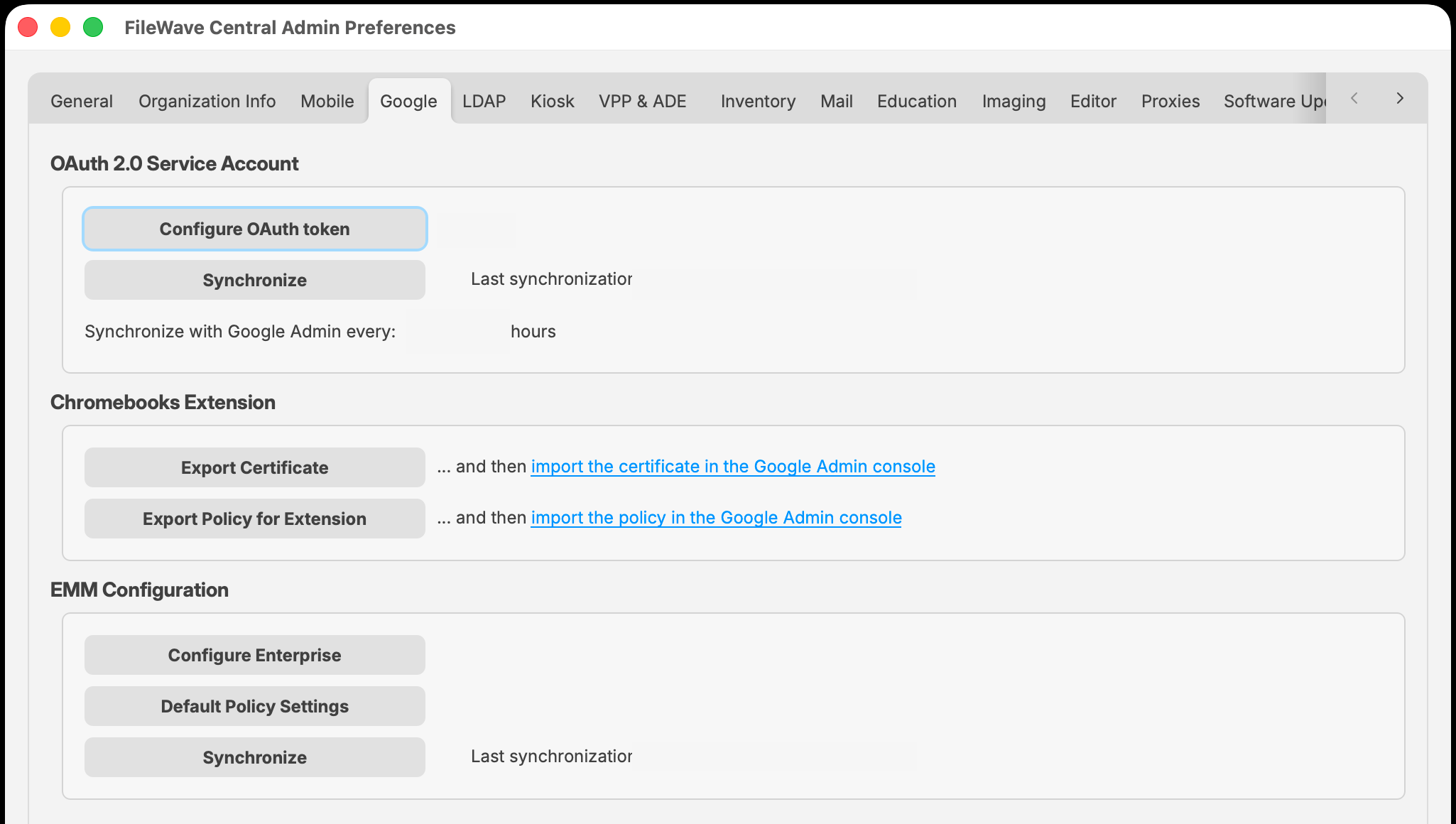
Configure the fleet baseline in FileWave Central > Preferences > Google > ConfigureEMM Configuration > Default Policy Settings. Keep individual app overrides rare and documented so update behavior remains predictable.
Credential Provider
For Android 14 and later, FileWave 16.4 can allow a specific app to supply credentials when Android displays an authentication prompt. Configure this only for a trusted password-management or credential-provider app.
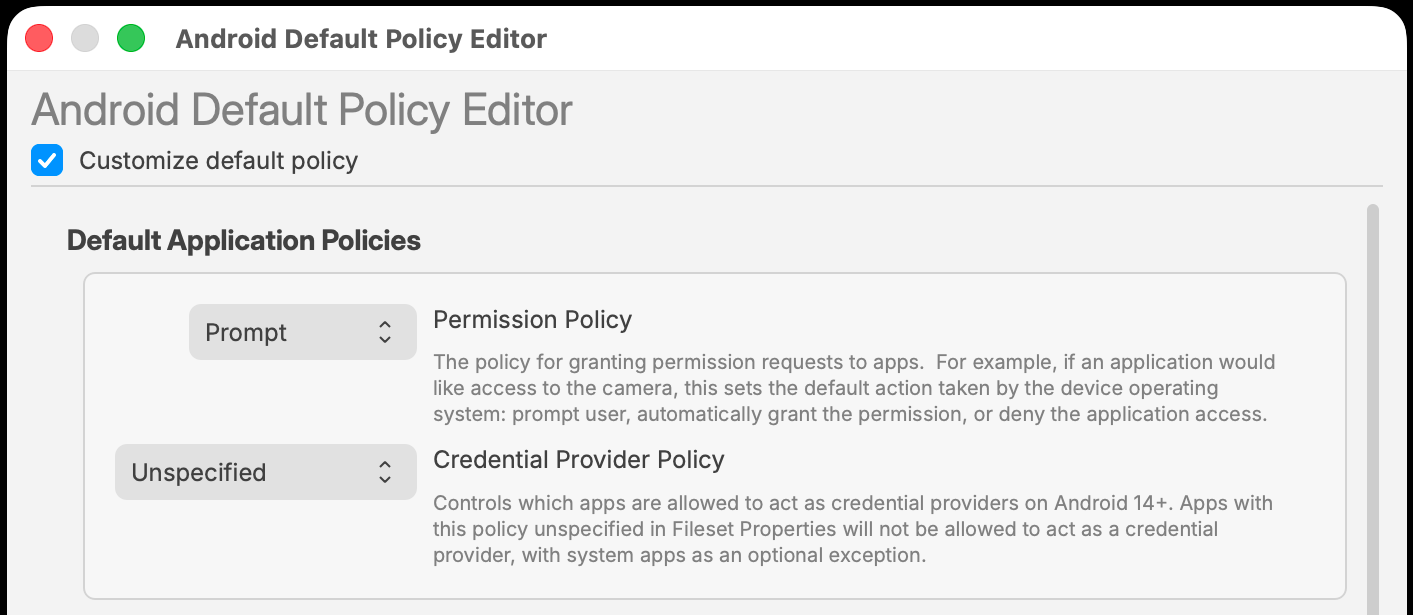
- The Android Default Policy provides the baseline for all apps.
- An app Fileset’s Properties can override that baseline for the specific app.
- The default behavior does not allow apps to act as credential providers.
Do not globally allow credential-provider behavior merely to enable one password manager. Keep the global default denied and allow the approved app specifically.
Review before deployment
- Review Configuration, Permissions, App Update Mode, Credential Provider, and any Managed Properties.
- Confirm whether each app-level value inherits the Android Default Policy or intentionally overrides it.
- Deploy first to a representative test device with the same Android version and enrollment mode as production.