
Android Apps
What
Android Filesets can be created from public or private Google Play apps. Web apps can also be added when you need to publish a managed web shortcut.
Before creating an app Fileset, complete Android Enterprise setup and enroll the target device. Use the existing enterprise binding if one is already configured. For a first app deployment, follow Android Software and Policies, which covers Fileset creation, targeting, Model Update, and device-side verification.
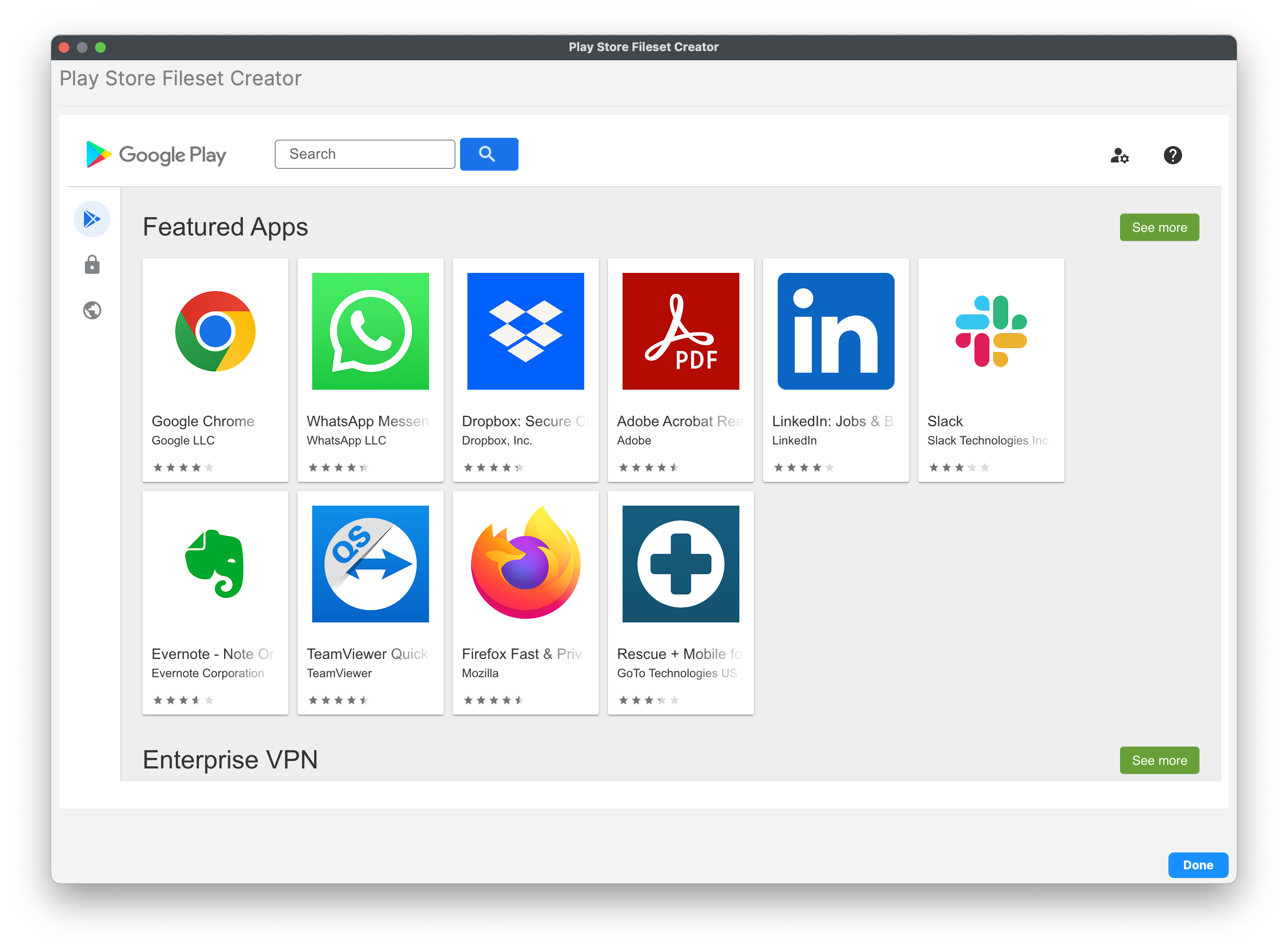
A Play Store App Fileset has Configuration, Permissions, and Managed Properties controls. Managed Properties appear only when the app developer exposes managed configuration settings.
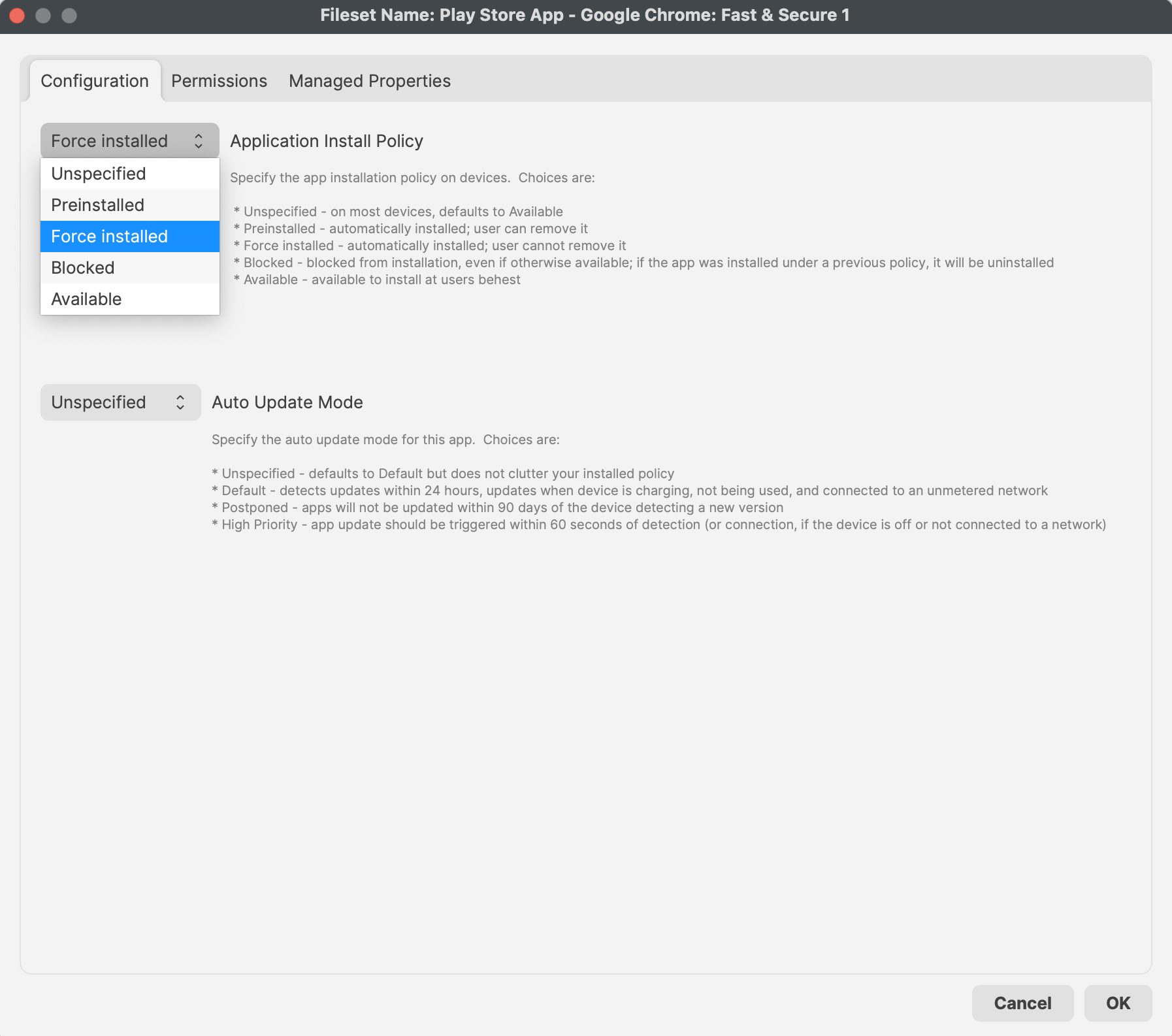
FileWave 16.4 app policy controls
Auto Update Mode
FileWave 16.4 exposes Auto Update Mode in each Android Play Store app Fileset’s Properties > Configuration tab. This is an app-specific setting.
| Mode | Behavior |
|---|---|
| Unspecified | Leaves the value unspecified in the installed policy; Android uses its Default update behavior. |
| Default | The device is notified of an app update within 24 hours after the developer publishes it. Installation waits until the device is charging, not in use, and on an unmetered network, with the app out of the foreground. |
| Postponed | Defers automatic updates for up to 90 days after the app becomes out of date. The user can still update it manually in Google Play. At the end of the deferral, the latest available version installs under Default conditions. |
| High Priority | Requests the app update within 60 seconds of detection, or after the device reconnects if it was offline. |
Update requests are not completion deadlines. The 60-second High Priority description refers to triggering an update, not a guaranteed installed version within one minute. Google describes High Priority as updating as soon as possible and notes that large app rollouts can take up to 24 hours. See Google’s app update modes. Check the installed app version on the device; a saved setting or an Installed Policy entry alone does not prove the update finished.
There is no separate App Update Mode in the Android Default Policy Editor shown in FileWave Central 16.4. Configure this value on the Android app Fileset. Unspecified falls back to Android’s Default behavior; it does not inherit a FileWave Default Policy value.
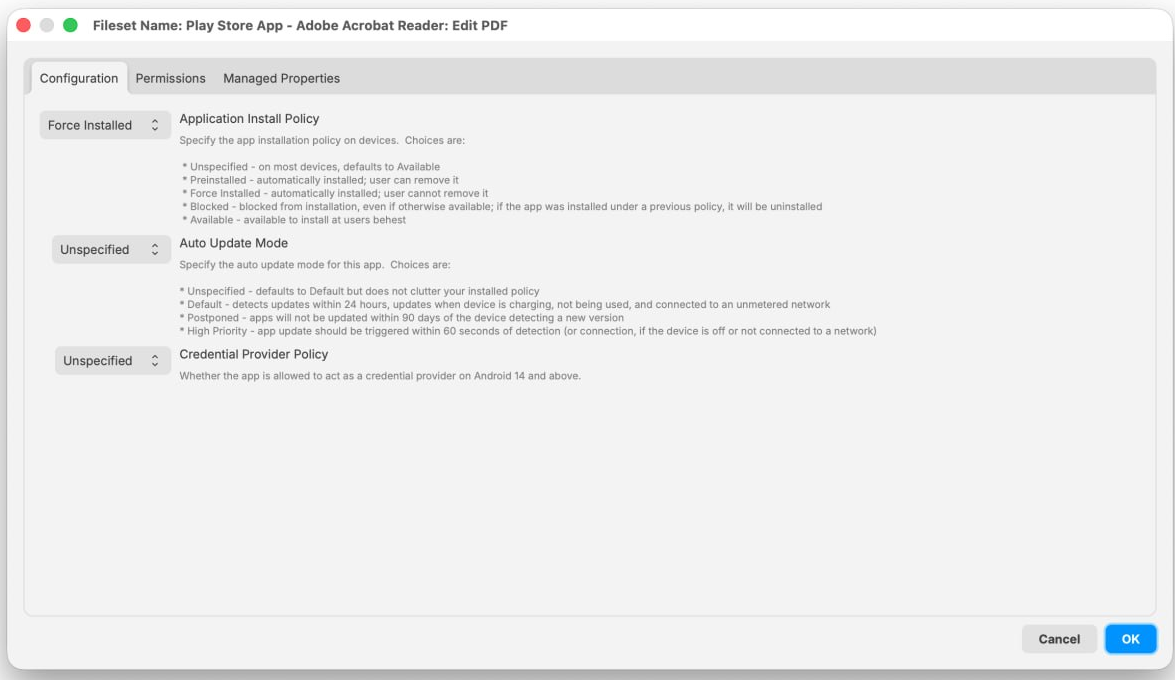
Credential Provider
For Android 14 and later, FileWave 16.4 can allow a specific app to supply credentials when Android displays an authentication prompt. Configure this only for a trusted password-management or credential-provider app.
- Per app: Set Credential Provider Policy in the Android app Fileset’s Properties > Configuration tab.
- Global default: Open FileWave Central > Preferences > Google > EMM Configuration > Default Policy Settings.
- Default posture: Apps are not allowed to act as credential providers unless explicitly permitted.
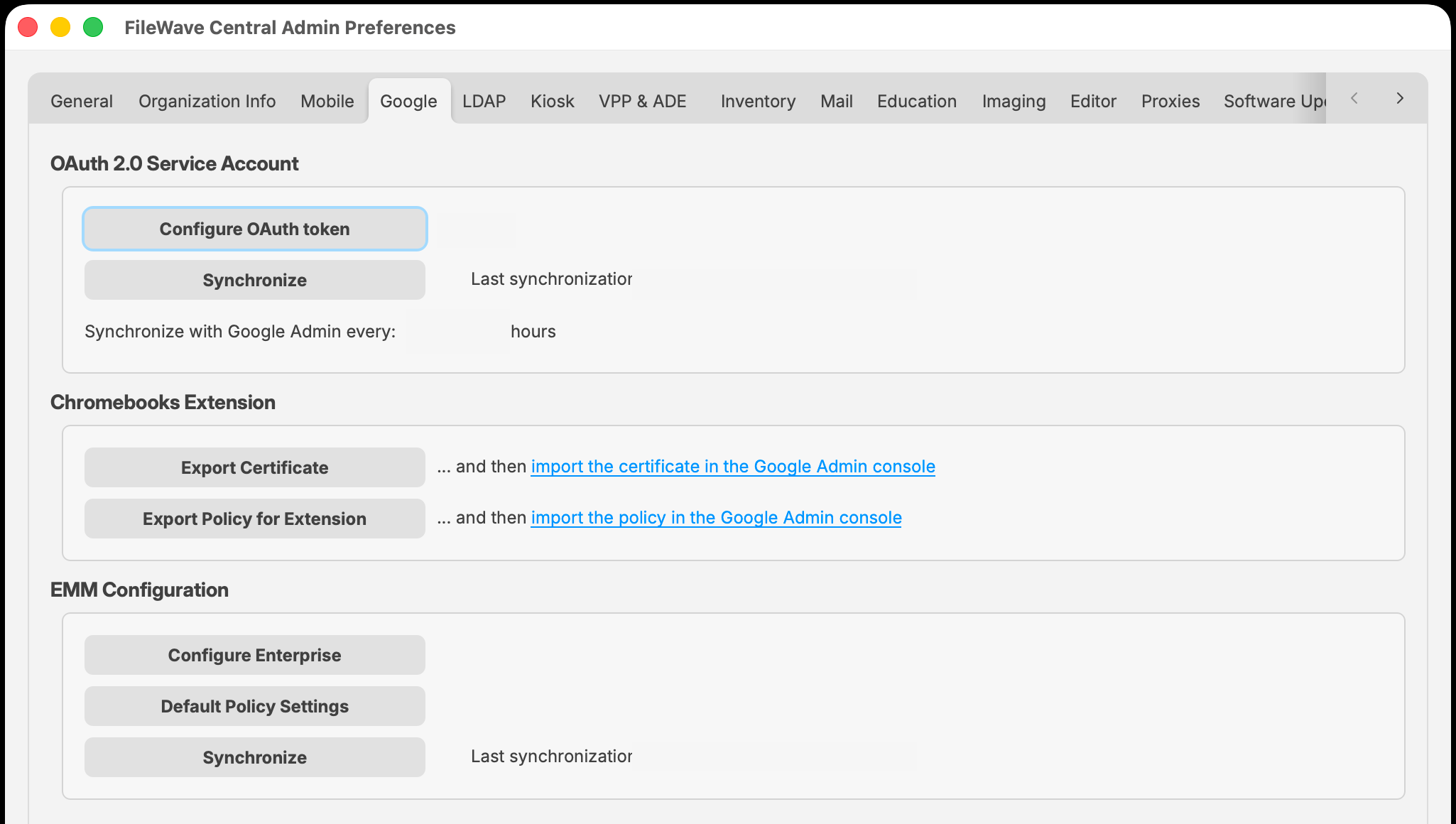
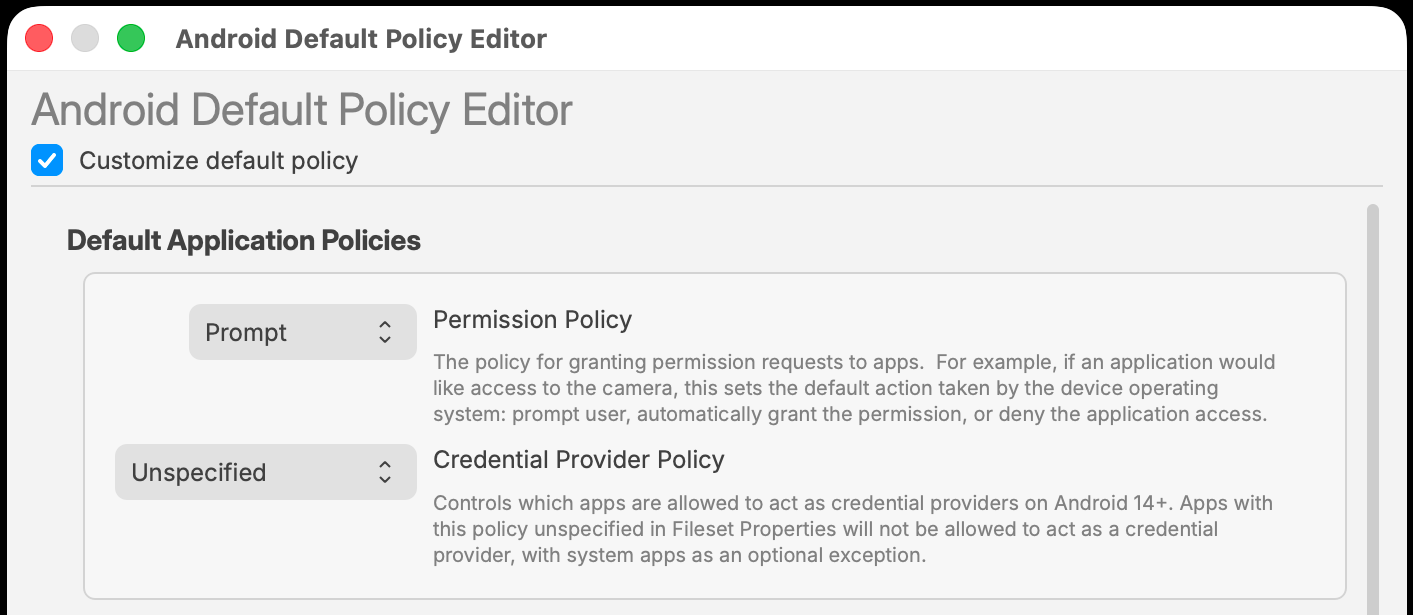
Do not globally allow credential-provider behavior merely to enable one password manager. Keep the global default denied and allow the approved app specifically.
Review before deployment
- Review Configuration, Permissions, Auto Update Mode, Credential Provider, and any Managed Properties.
- Confirm the intended Auto Update Mode for the app and whether Credential Provider should inherit the global default or use an explicit app value.
- Deploy first to a representative test device with the same Android version and enrollment mode as production.
No comments to display
No comments to display