
Convert Associations to Deployments
What the conversion tool does
We’ve covered in other articles what types of content we might put together in a singular deployment, and we’ve discussed best practices for deployments in general. But some of you may be asking: “I have 1000 associations currently, is there a way for me to convert those into deployments instead?”. And the answer, thankfully, is “Yes!”.
When/Why
You'll use the web adminThe Associations conversion tool wheneverin FileWave Anywhere turns selected legacy Associations into a Deployment without forcing you wantto rebuild each target and payload manually.
When to convertuse previouslyit
Use associationsthe intotool deployments:during a planned move from Associations to Deployments. Start with a small, representative set whose timing, installation type, and other metadata are already consistent.
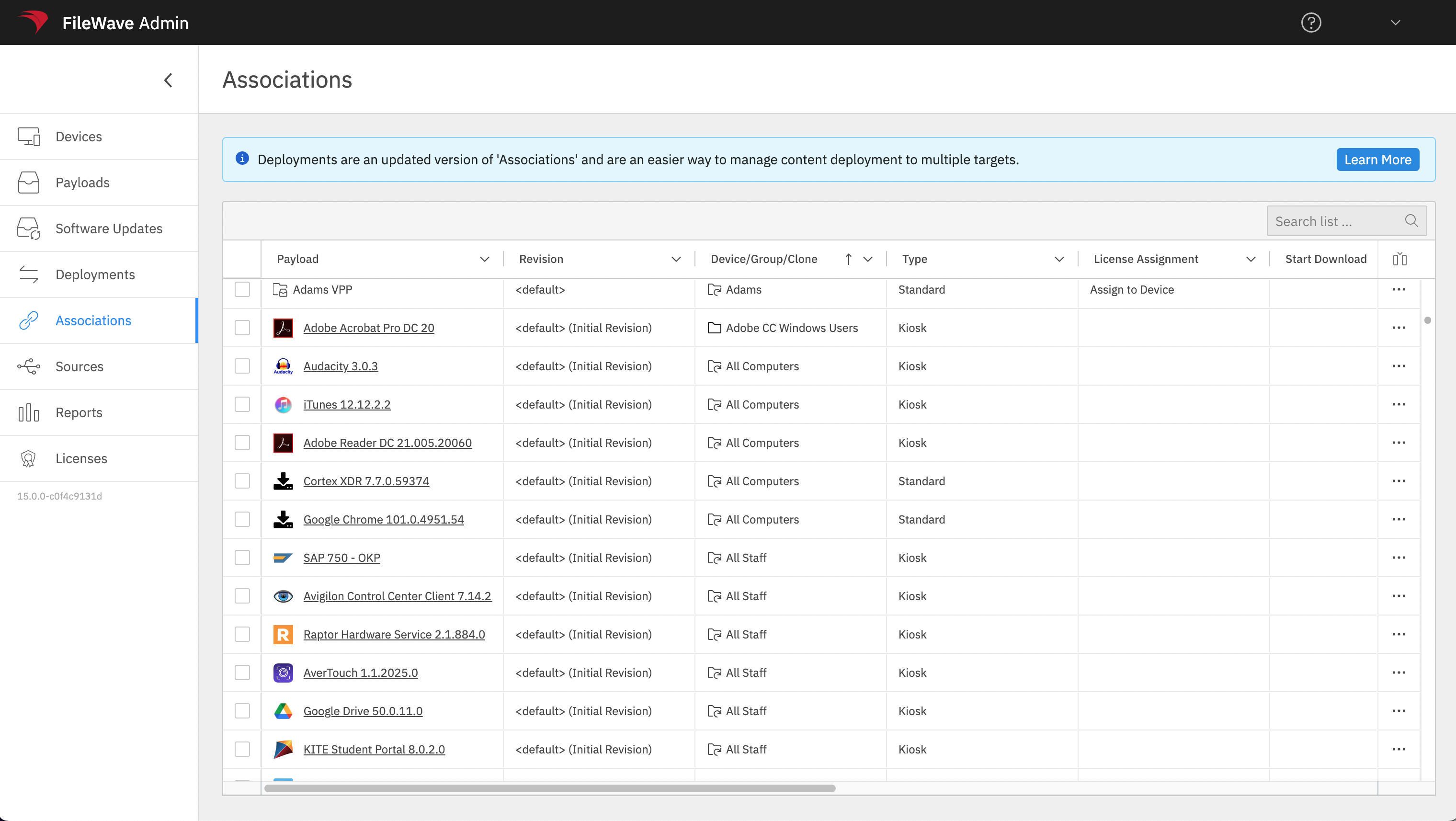
HowConvert a test set
ConversionSelect ofAssociations associationswith ismatching quite simple…if metadata matches, then you can simplymetadata, add the associationsthem to ana new or existing (or new) deployment, choose toDeployment, preview the result, and save.save Aonly after the targets, payloads, timing, and installation behavior match the original intent. The video below shows a simple example is shown below:conversion.
If metadata does not match, for instance if theWhen timing options, installation types, or installationother typemetadata are different, you’ll need todiffer, resolve the conflicts tobefore savesaving. See Resolving Conflicts in Associations Conversion for the deployment.conflict Thatworkflow.
Conversion is included inreplaces the belowselected linked document.
Remember: Conversion of association(s) REPLACES themAssociations with a deployment.Deployment. AlwaysPilot testa small set, compare the preview with the original assignments, and convertverify slowlydevice tobehavior ensurebefore you getconverting the behaviornext you expect.batch.