
Create and Manage Fileset Associations
TheUse FileWave Central's Associations pane to connect Filesets with Clients, device groups, Smart Groups, and clones. The pane also controls deployment timing, Kiosk availability, deactivation, and removal behavior.
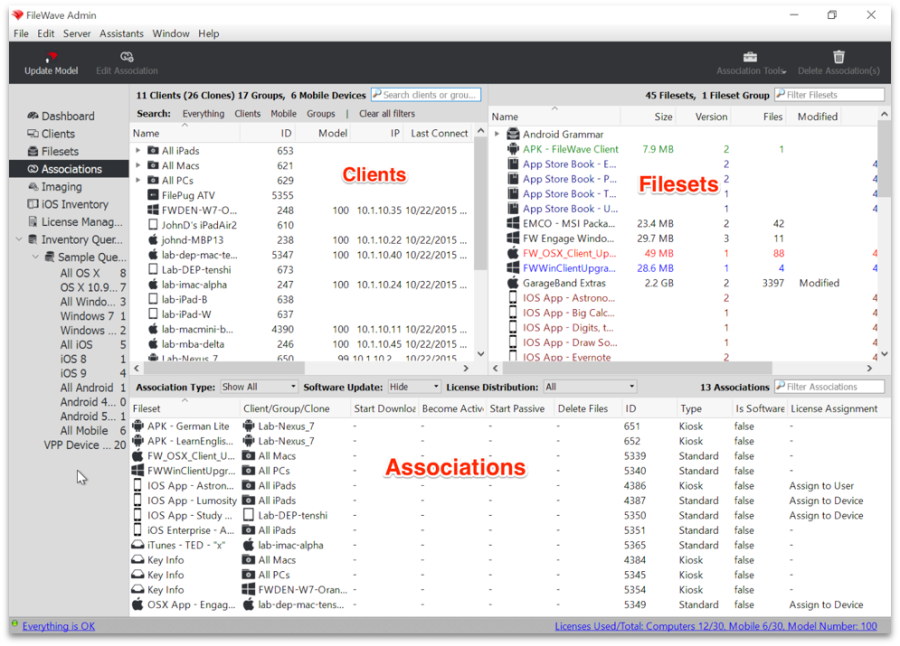
An association is the primary location where you connect your Filesets to your Clients. The window has three primary sections:

The link between a Fileset and a Client,Client or clientgroup. Group,FileWave isdistributes calledthe anFileset Association. In orderaccording to distributethe settings on the contentswinning ofassociation.
Basic association workflow
Select a Fileset, youassociate associateit a Fileset towith a Client or Group.
Basic Association Workflow
The basic workflow is select a Fileset, link it to a Client/Group, thethen update the server model.Model.
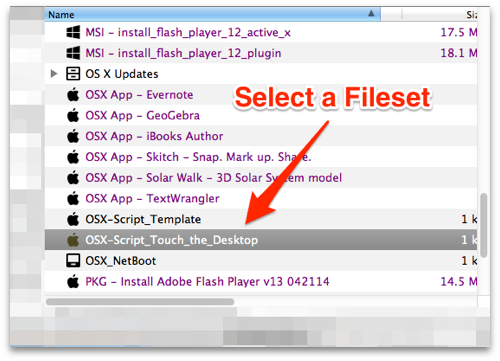
- You choose a Fileset from the upper right pane:

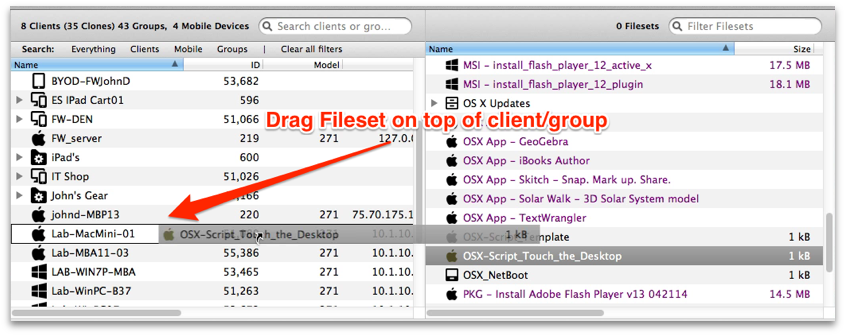
Click and dragDrag the Filesetto the leftinto the Clientswindowpane and drop it ontoptheoftargetclientClient orclient Group you want to associate it to.group.

Finally, click onSelect Update Modelin the main toolbar,, or useCmd-Command-U(macOS)on macOS or Ctrl-U(Win),on Windows, tolock inpublish thechange.association.
Customizing the Association
The basic workflow will associate a Fileset with a Client. WhenAfter the Client checks in following the server modelModel update, the Client will getreceives a new Manifestmanifest fromat thecheck-in. Server containing a list of any new Filesets to be associated or changes in existing Fileset associations. The ClientIt compares thethat Manifestmanifest towith its Cataloglocal (current state after previous check-in)catalog and buildbuilds a work list iffor thingschanges havesuch changed,as whichdownloading, canactivating, includedeactivating, pullingor downremoving new Filesets, deactivating existing Filesets, etc
Filesets.
TheEdit powerthe ofassociation Filesetswhen you need staged downloads, an activation window, Kiosk availability, or a defined deactivation and associationsremoval is that you can enhance the basic workflow with options that provide significant improvement in the deployment process, as well as expanded control of the workflow.schedule.
ViewingView Associationsassociations for a single client / Group
The first improvement over the basic workflow is being able to look at the Filesets that are associated with a specificone Client or Group.group
You
Right-click do this by right-clicking on thea Client or Group in the Clients portion of the Associations windowgroup and selectingchoose Show Associated Fileset. This will change the Associations view in the bottom part of the window toshow you all of the Filesets that have been directly associated with that specific Client. We stress directly because you can associate Filesets with Groups of clients also. Those associations would not show up in this view. This concept is important because you may find yourself in a situation where you see something happening to a Client; but you don't see the Fileset that would create the situation in its direct associations. TheFilesets solutioninherited tothrough thisa situationparent isgroup, toSmart lookGroup, fromor clone may not appear in that direct view. If a Client receives a Fileset you cannot find there, select the "otherFileset side"and byshow selectingall of its associations instead.
View Clients associated with one Fileset
Select a Fileset and asking to view all of its associations. Associations may also be made to Smart Groups and or to Clones in regular Groups.
Viewing clients associated with a single Fileset
If you select a Fileset, you can right-click to viewshow all associations thatto havetrace beenevery madeClient, forgroup, Smart Group, or clone path that specific Fileset. Doing this can resolvedeliver the problem you may have in tracking down how many different places a Fileset has gone.it.
Searching and filtering the Associations window
Another powerful function is in the Search / Filter window. You can enter any text into the Search window, press Return, then choose the criteria for your view of any association that is active. Your criteria can be to look for a Fileset with that text, a client, Group or Clone, a Fileset ID, of Fileset type (such as Kiosk), or just select All Columns to let the search find every association that has that text in it no matter what it applies to.


Editing the Association
Another capability of the Associations window is the ability to edit Fileset associations. Within this functionality, you have the power to designate the deployment schedule, change the type of Fileset from standard to self-service Kiosk, and choose when the Fileset is deactivated and removed from the client.
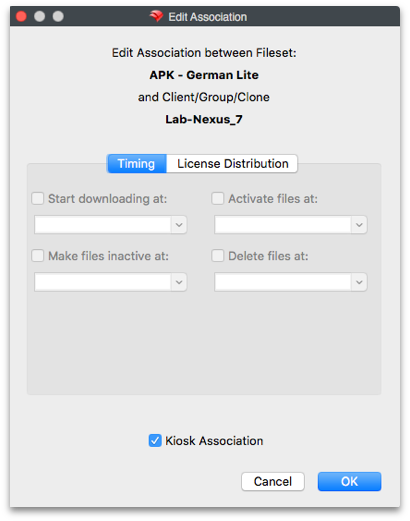

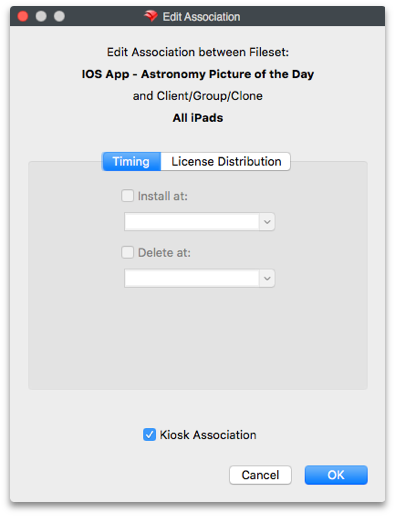
There are two Edit windows available, depending on the type of Fileset being deployed. Most computer and Android Filesets have the ability to designate a full range of settings:
- Start downloading at – This tells the Client to start downloading the Fileset at a specific date and time. The Fileset will be downloaded and cached locally, but is inert; i.e., it will have no impact on the Client (other than storage space on the drive) until it is activated. This allows the FileWave administrator to pre-stage Filesets out on clients using a staggered deployment schedule prior to activation. Using a staggered schedule would allow systems administrators to minimize network traffic bottlenecks when distributing large deployment sets. This action can also be used when you have staged a Fileset that is still being tested, and there was a problem with the test results. Instead of having to reset devices, you just delete the Fileset prior to activation.
- Activate files at – This tells the Client when (date and time) to activate the Fileset. Installers will run, shell scripts will execute, and any files will be placed into their proper places. Since this command is only a signal to the client to have the Fileset perform its action, the network traffic is minimal.
- Make files inactive at – This tells the Client to locate and move all components of that Fileset back into the local cache, so that the Fileset no longer has an
affecteffect on the operation of the Client computer or device. - Delete files at – This tells the Client to delete the Fileset at a specific
datadate and time. - Kiosk Association – This converts the Fileset from a standard distribution to a self-service Kiosk item. Filesets that have been distributed as standard items can be converted to Kiosk mode and vice versa.
iOS Filesets can be installed, deleted, and changed to Kiosk items. Apple iBooks can be installed by time or changed to be Kiosk items. iBooks cannot be deleted - once deployed, they are the property of the end user.
LicenseApple DistributionApps (FWand 10+)Books license distribution
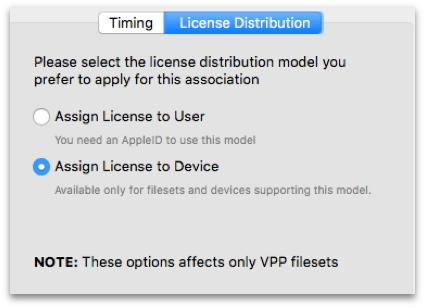
You have the ability to designate thatFor an Apple VolumeApps Purchaseand ProgramBooks "Managedapp, Distribution"License licenseDistribution becontrols appliedwhether managed-distribution licenses are assigned to either an Apple ID that is associated with a macOS computerdevices or iOS device or to the device directly. This applies only to applications controlled by Apple's VPP, with the additional requirement that the application developer configured the application to support direct device assignment. You can see if the application is device assignable in the App Store under the application.
You can set a default value of User orusers. Device assignment inis FileWaveavailable Admin'sonly Preferences, inwhen the VPPapp &supports DEPit.
Set the default settingsuser onor adevice per-licensing method in FileWave Central Preferences, then override it per Fileset basis,when ifthe app supports both optionsmethods. are supported forIn the application in the Fileset. As you can see from theolder example below, one of the chosen applications has the Assign License to Device greyedis out,unavailable meaningfor an app that thissupports specificuser applicationassignment mustonly.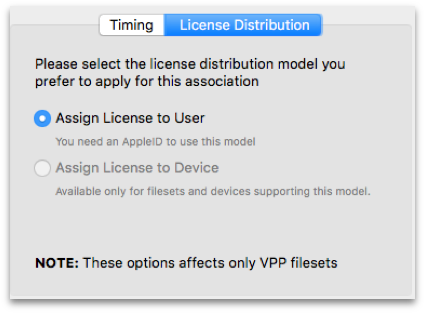
be assigned to a designated Apple ID, because it does not support direct device assignment.

Note: If you want to provide custom settings for deployment times to a large number of Filesets, using a Fileset Group is the best way to achieve this goal. Filesets within Fileset Groups that are associated to Clients or Client Groups will all get the same settings you designate with the Edit Association pane for that Group.
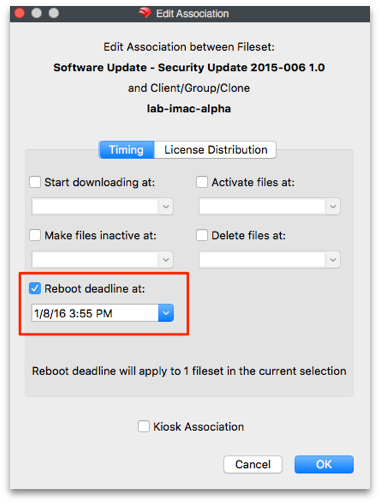
SpecialSet settinga forreboot the Requires Reboot propertydeadline
When you haveFor a Fileset, such as a system software update,Fileset that requires a reboot of the client, the user may try to cancel that update to avoid the reboot. In FW 10.1+, a feature was added to the Fileset Associations editor window that allows you toreboot, set a deadline forin the reboot.Associations Thiseditor. editor propertyYou can be set for a Group of Filesets, or for a single Fileset. Whenapply the deadline comes,to one Fileset or a Fileset Group. At the deadline, the device will reboot automatically in orderrestarts to complete the installationinstallation, ofso plan the designatedschedule Fileset.
and user communication before deployment.

Association Tools
The tools and actions available to associations allow you to see the various aspects of the association:
- Reveal Client/Group/Clone – This displays and highlights the Client/Group/Clone related to this association in the upper-left portion of the window.
- Show all Associations of this Client/Group/Clone – This displays and highlights all associations related to the client/Group/Clone in the lower portion of window.
- Reveal Fileset – This displays and highlights the Fileset in the upper-right portion of window.
- Open Fileset – This displays the contents of the Fileset (same as double-clicking on Fileset in the Filesets view).
- Open Fileset Report Window – This displays the report showing the status of a Fileset, Filesets, or Fileset Group's distribution.
- Show all Associations of this Fileset – This displays all of the Clients associated with this Fileset
- Delete Association(s) – This removes the linkage between the Client/Group and the Fileset. In most cases, this will result in the Fileset contents being removed from the Client/Group. With VPP managed distribution, the license is revoked and added back to the list of available licenses.
Association Conflict Resolution
The algorithm for computing which Client receive which associations is quite complex. As a result, you may end up "double associating" a Fileset to a Client (e.g. if it is cloned into two Groups, both Groups are associated with the same Fileset). We have solved this issue by allowing only one Association-Fileset-Client chain. A Fileset can only be associated to a client via one Association. The chosen Association's commands will be followed, and all other associations ignored. The "winner" association is determined by association distance.
Association Distance
The FileWave Server resolves conflicting associations by choosing the most direct association. For example, an association directly from a Fileset to a Client is more direct than to its Group, and an association to a Client's direct parent is closer than an association to its grandparent. Clones also increase distance. Closer associations always win. Equidistant Associations are treated by ID-descending, meaning that new associations (higher ID numbers) beat older ones. This is discussed further in Fileset Association types and precedence.
Smart Groups
Smart Group associations are calculated separately, following the same distance method. However, if a Client is associated by both a Smart Group and a regular association, the regular association will always win. When you view Associations, you will only see the Filesets that are directly associated with that Client or Group. Associations made to a Smart Group will not show up when viewing the Client associations and vice versa.
Imaging associations
Imaging Filesets and their associations are covered in Network Imaging / IVS.