Merge updates to a Fileset with Fileset Magic
Summary
ThisUse knowledgeFileset base article describes the steps to use filesetMagic's merge feature in Fileset Magic to merge an update directly to the existing fileset. An example of when this might be useful isoption when you need to deploycapture an update and merge the changed files back into an existing Fileset instead of building a softwareseparate updatereplacement forFileset. a software package thatThis is currentlyuseful when an application is already controlled by FileWave.FileWave Deployingand softwarea updatesnormal topackage clientupdate machineswould usingbe pkgreverted filesetby canFileset causeself-healing.
Before merging, duplicate the changesoriginal toFileset revertand back iftest the softwareduplicate. filesetA filesmerge arechanges setthe toselected self-heal.Fileset contents, so keep a known-good copy available until testing is complete.
Procedure
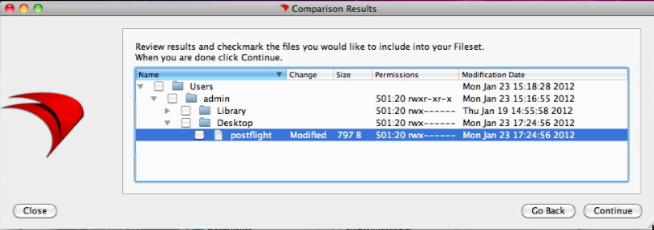
First,Start you need to havefrom a machine withthat has the originaloriginal, (non-updated)updated software installedinstalled. onRun itthe first Fileset Magic snapshot, install and test the update, then run the firstsecond snapshot.Second, run an update and make sure the software is up to date. Now a second snapshot will capture the changes, usually, theThe comparison
view displaysshows added, modified, and deleted files. Added files (are selected by default, while modified and deleted files are not checkedselected by default).default. CheckReview allthe differences carefully and select the modified files(keep addedthat filesshould checked)become and insteadpart of saving the fileset,updated click the Merge button and choose the fileset you want to merge the changes to.Fileset.
Steps
MakeDuplicatesurethe Fileset youbackupplanyourtofilesetupdate.

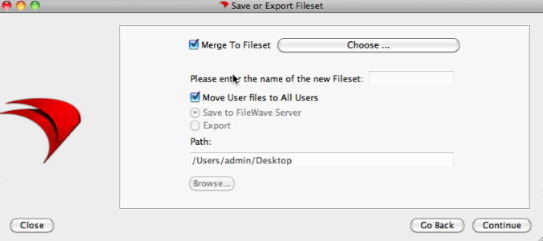
CheckEnable"Merge ToFileset"Fileset and clickthe button "Choose" (fig2)Choose....- Select
your fileset ( usethe duplicatefileset )Fileset and click"OK"OK. VerifyContinue through the assistant and verify thatyourthe selected changesarewere mergedtointo thefileset.Fileset.- Test
yourthefileset.updated Fileset before deploying it broadly.