
Windows Requirement Script Examples
Requirement scripts are executedrun on client devices withat each tickle interval, 2 minutes by default, to check if thewhether installation conditions outlined have beenare met. ForA example, itscript can usedcheck tofor verify if somea file, registry key, service, or process isbefore orallowing isFileset notactivation. presentCommon anduses decide whether to proceed with fileset activation or not, because you may want toinclude:
- Block redundant installations if the app is already present or
- Ensure prerequisites are present or
- Enforce a particular installation order.
If thea requirement script returns any other exit code butother 0than (e.g.0, such as 1 or -1)1, FileWave treats it is consideredas a failure and willreports be reported as a "Requirements Failure: Script"Script in the Client Info window and Fileset Report. ThisThe prevents theFileset contents ofwill thenot filesetdownload fromor downloadinginstall anduntil installing. As mentioned previously,all requirement scripts will be executed every tickle interval and the fileset will be installed only when they all return 0. To check for multiple conditionsconditions, simply specifyadd multiple requirement scripts.

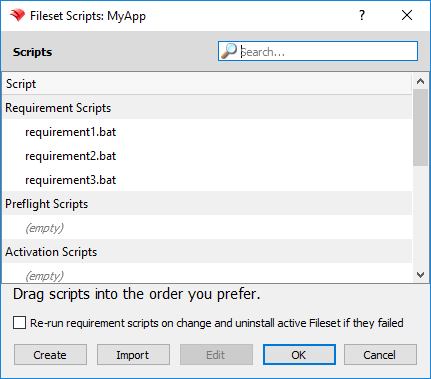
BelowThe examples below are some sampleWindows requirement scripts for Windows thatyou can be customized for your own use.adapt. If you wantneed the opposite condition, then flipswap the exit error codes in the examples.example.
Install if registry key present
::Replace HKLM\path\to\registry\key with the actual path to the registry key, e.g. HKLM\SOFTWARE\Macromedia\FlashPlayer

reg query "HKLM\path\to\registry\key"
if %ERRORLEVEL% EQU 0 (
    exit 0
) else (
    exit 1
)
Install if registry value present
::Replace HKLM\path\to\registry\key with the actual path to the registry key containing your value, e.g. HKLM\SOFTWARE\Macromedia\FlashPlayer
::Replace <value> with the actual name of the value, e.g. CurrentVersion in this example

reg query "HKLM\path\to\registry\key" /v <value>
if %ERRORLEVEL% EQU 0 (
    exit 0
) else (
    exit 1
)
Install if file or folder present
::Replace <drive>:\path\to\file\or\folder with the actual path to the file or folder, e.g. %ProgramFiles(x86)%\Mozilla Firefox\firefox.exe

if exist "<drive>:\path\to\file\or\folder" (
    exit 0
) else (
    exit 1
)
Install if application present in Programs & Features
::Replace <AppName> with the name of your app, e.g. Adobe Acrobat Reader DC
::Be as specific as possible because partial app names may provide a match when you don't necessarily want it to, e.g. Adobe will match both Adobe Acrobat Reader DC and Adobe Flash

reg export HKLM\Software\Microsoft\Windows\CurrentVersion\Uninstall %temp%\applist1.txt
reg export HKLM\Software\Wow6432Node\Microsoft\Windows\CurrentVersion\Uninstall %temp%\applist2.txt
copy %temp%\applist1.txt + %temp%\applist2.txt %temp%\applisttemp.txt
find "DisplayName" %temp%\applisttemp.txt > %temp%\applist.txt

find "<AppName>" %temp%\applist.txt
if %ERRORLEVEL% EQU 0 (
    del %temp%\applist*
    exit 0
) else (
    del %temp%\applist*
    exit 1
)
Install if service present
::Replace <service> with the name of your service from the Services control panel, e.g. Adobe Acrobat Update Service
::Be as specific as possible because partial service names may provide a match when you don't necessarily want it to, e.g. FileWave will match both FileWave Client and FileWave UltraVNC Server

sc query | find "DISPLAY_NAME" | find "<service>"
if %ERRORLEVEL% EQU 0 (
    exit 0
) else (
    exit 1
)
Install if process present
::Replace <process> with the name of your process, e.g. notepad.exe

tasklist /FI "IMAGENAME eq <process>" 2>NUL | find /I /N "<process>"
if %ERRORLEVEL% EQU 0 (
    exit 0
) else (
    exit 1
)
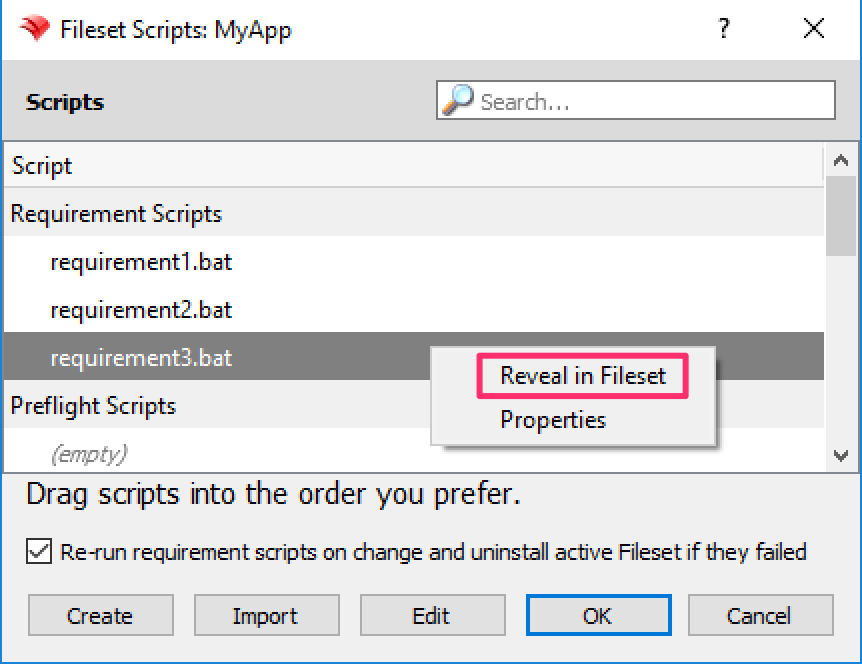
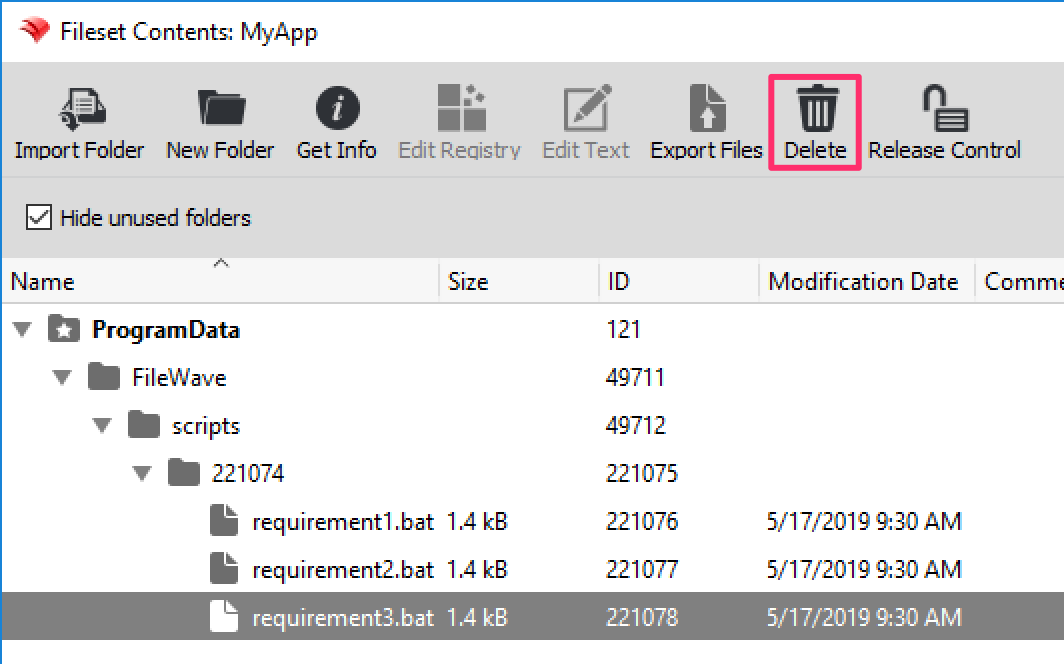
If you find that you need to delete a requirement script for any reason, right-click that script and choose Reveal in Fileset. That will open the Fileset Contents window with the script file highlighted. Click the Delete icon in the toolbar to delete your script.


Remember to always test yourTest requirement scripts locally first before adding them to a fileset.Fileset. WithThese theexamples aboveprovide building blocks as examples, you'll quickly be on your way to taking advantage of requirements scripts for providing conditional intelligence to your Windows filesets.Filesets that should install only when specific local conditions are true.