
Basic Filtering
What
OperatingIn SystemFileWave and manual filters inAnywhere, the Devices view helphas youOS isolatefilters and manual column filters. Use them to narrow the device list to a platform, group, or specific platformvalue andsuch deviceas subsetsan fromasset your client pool. For instance, if we were in a role only responsible for Windows devices, we would probably always filter for Windows devices only.tag.
When/Why
The primary time we'll useUse these filters is when weyou careneed aboutto find one device quickly or work with a singularsubset platformof ordevices, a singular device. For instance, looking very quickly for a singular device by asset tagsuch as shownWindows below:

Noteone thatgroup. The screenshot below shows a manual filter for an asset tag.
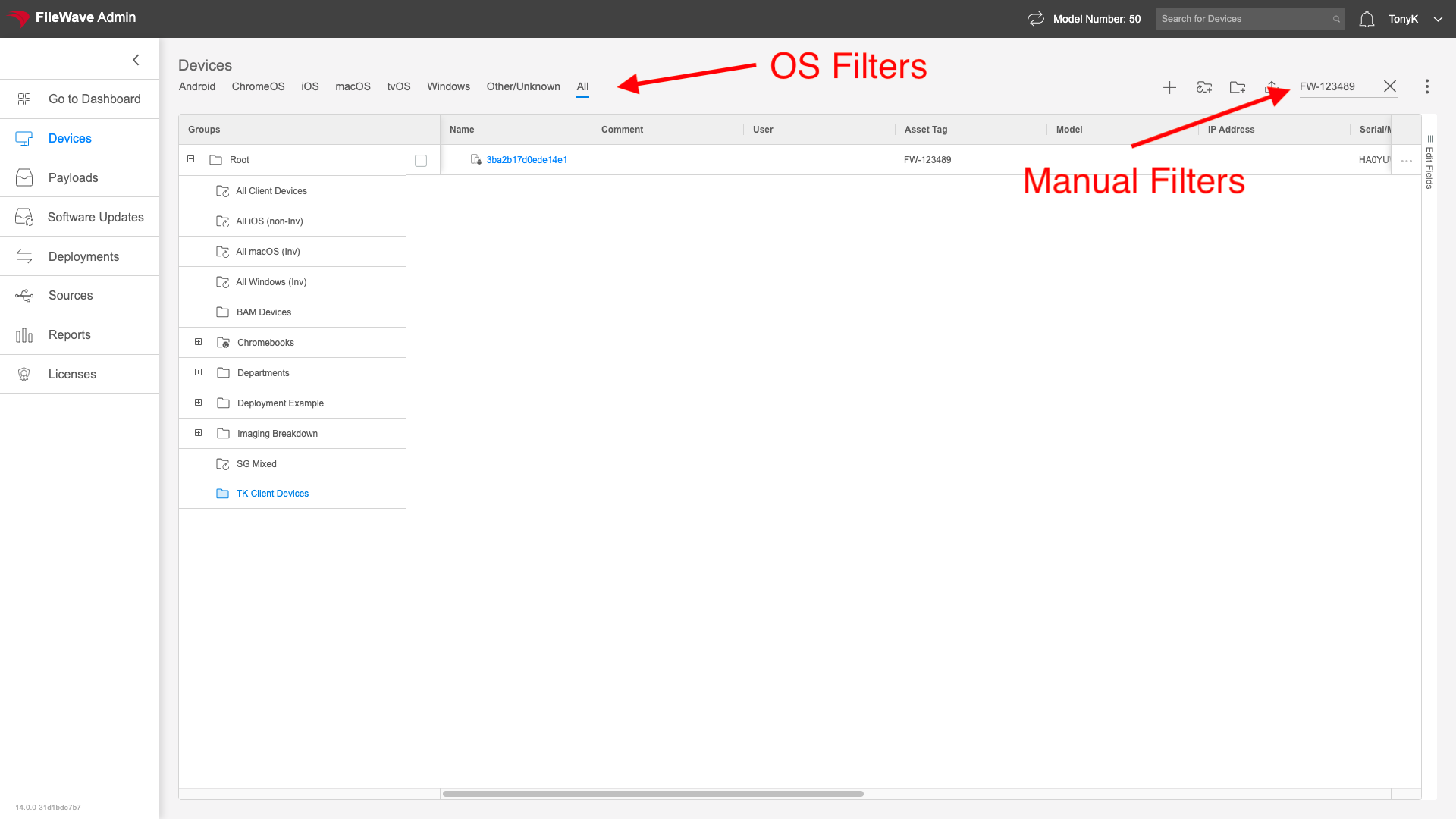
A manual filter only functions onsearches fields that are actuallyvisible in the current view...the tool only evaluates fields thatIf you canwant see.to filter So,by inAsset Tag, add the above example, Asset Tag (a custom field) was addedcolumn to the view.view first.
Also note that theseManual filters are "sticky",sticky. meaningIf thatyou movingleave tothe anotherDevices view and thencome backback, willFileWave NOTAnywhere removekeeps thesethe filtersfilter automatically.until you clear it.
TheOS OSfilters, group selection, and manual filters arecombine. additive to each other and toIf the relativeresults locationlook intoo thenarrow, Group navigation. Meaningcheck all three itemsplaces combinebefore toassuming showa youdevice results.is missing.
How
SelectingSelect a group aton the left willto show only items in that groupgroup. at right; addingAdd an OS filter willto narrow by platform, then additionally isolate for that platform; filtering on top of both of those withuse a manual filter canto furthernarrow isolatethe asvisible shownresults below:further.