Configure Windows Imaging Associations
What
ImageA AssociationsWindows areimaging howassociation we assignlinks a captured Windowsimage, Imageany torequired adriver devicepacks, for re-imaging. Every association has three basic properties:and the image, driver packs (if used), and what devices areor assigned.groups that should receive that image.
When/Why
WeReview will edit thethese properties when we initiallyyou create an association,association and whenever weyou editchange one.its image, drivers, or targets.
How
TheChoose image selected is limited by thefrom images that have been previouslyalready created (creation can only be done in FileWave Central),Central. butKeep mostseparate organizationsimages havewhen one image peryour Windows version,release, and per bios type (MBRhardware, or UEFI),boot dependingmode on(UEFI devices.or legacy MBR) requires different content.
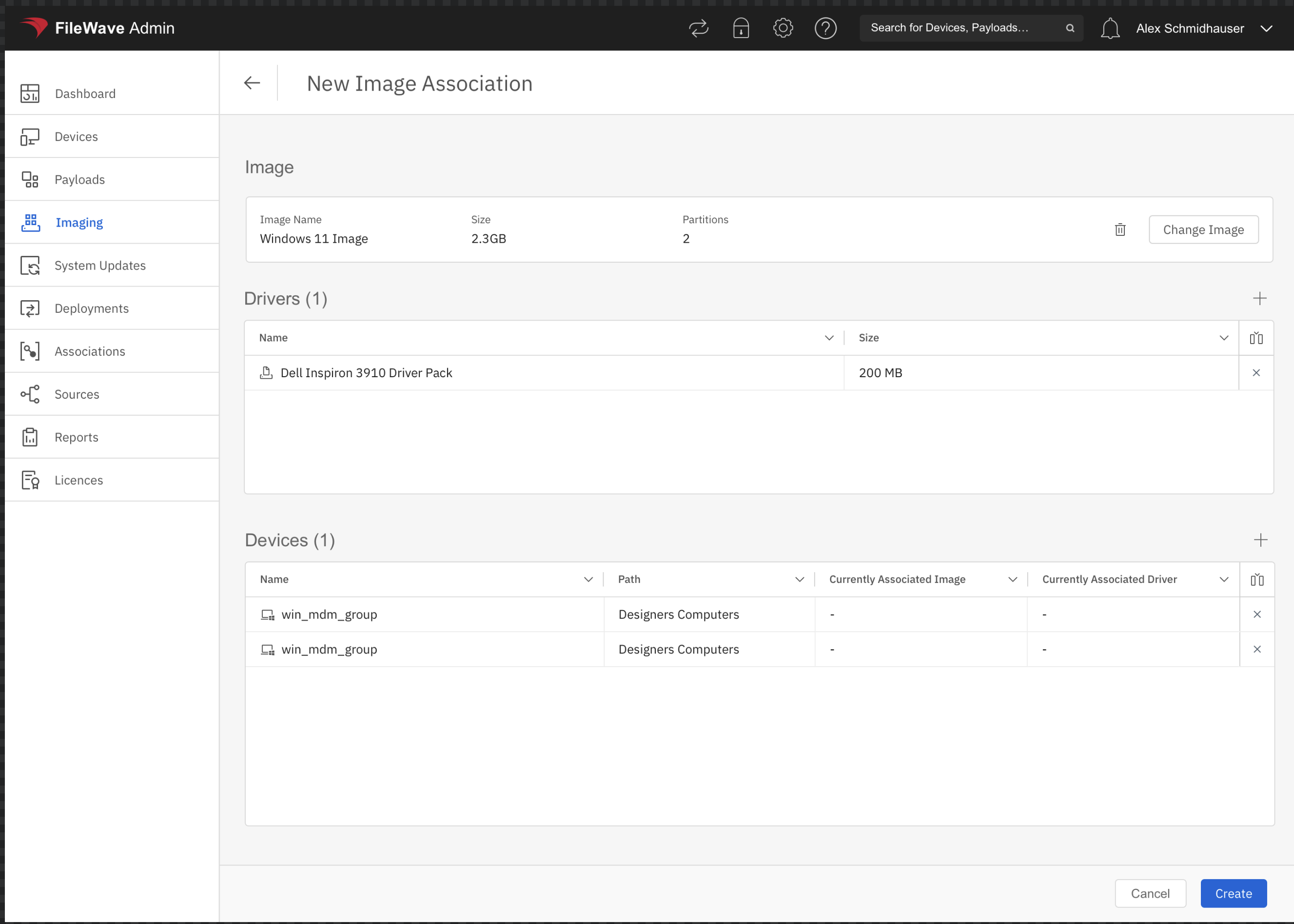
Driver packs don’t always have to be used, but best practice would be to do so. In practice that means that you would have an imaging association for every combo of image/device type. The below example shows assignment ofAdd a driver pack forwhen the target hardware needs model-specific drivers. The example below pairs a specificWindows device11 type.image with a Dell driver pack.
MultipleYou can add multiple devices canor begroups assignedwhile in one association addition so that you don’t have to repeatcreating the processassociation. individually…conceptuallyFileWave you’llthen seestores thesethe areresulting handled very much like Deployments, although after creation they are storedtargets as individual imaging associations.