Create Imaging Association
What
By clickingUse the 
the upper right-hand corner of the imaging association view,view weto assign a Windows image to one or more devices. A driver pack can createalso abe newselected association.when the device model requires one.

When/Why
We'llCreate createan imaging association when a newWindows associationdevice every time we wantneeds to assignbe an image/driver packlinked to athe deviceimage thatit doesn’tshould havereceive one.during imaging. Each device can have one and only one active imaging association.association at a time.

How
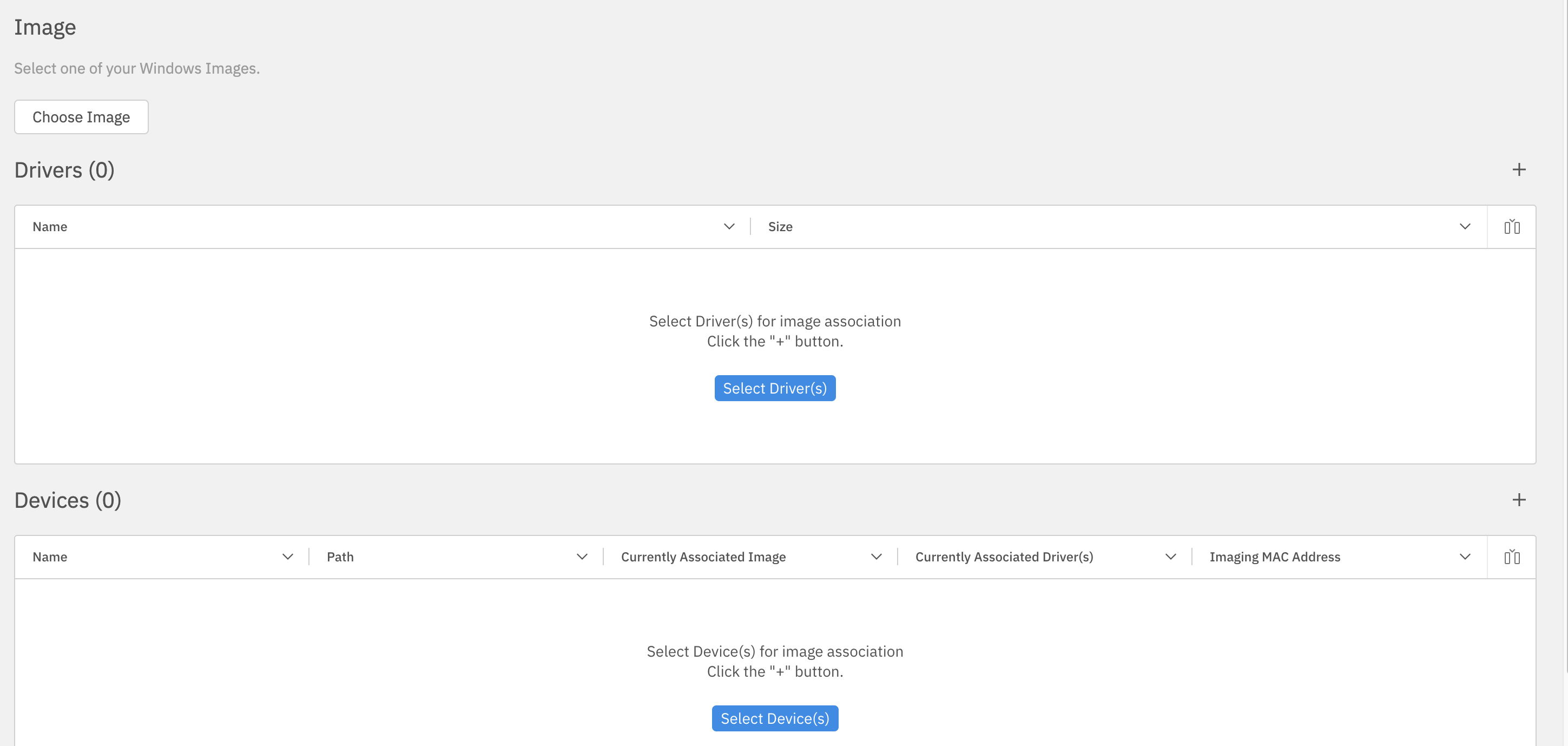
We'llChoose the image with Choose Image, add an optional driver pack with Select Driver(s), and choose the imagetarget todevice useor fromdevices with Select Device(s). Save the "Chooseassociation Image" button shown above,after the driverrequired pack (optional) in the center,image and thedevice device(s)selections atare the bottom. The process is shown in brief below:complete.
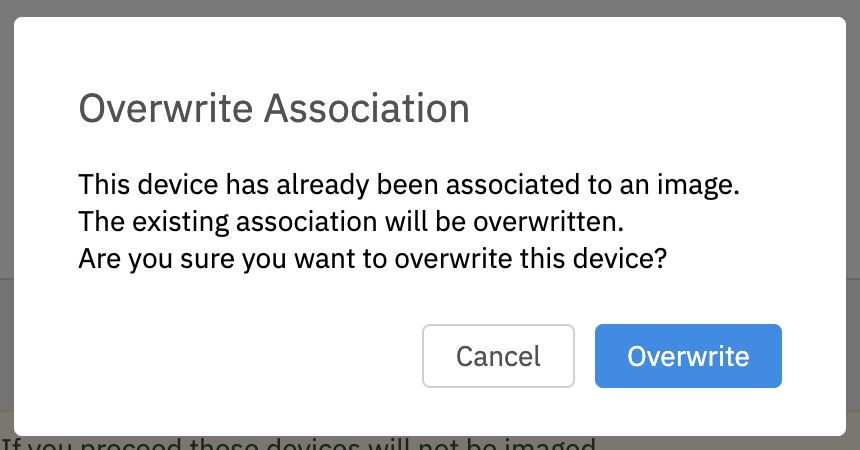
Note: If you add an association for a device that already has one, FileWave prompts you willto beeither promptedoverwrite forthe overwite/cancelexisting asassociation follows:or cancel.