
Brute Force Protection
What
Starting in FileWave 16.3.0, FileWave Central and FileWave Anywhere include brute force protection for sign-in attempts.
When it is enabled, repeated failed logins place that user account on a temporary lockout timer. The lockout is tied to the username, not the source IP address, and the timer increases after additional failed attempts.
If one account is locked, other accounts are not affected unless they also hit the failed-attempt threshold. The lockout clears automatically when the timer expires.
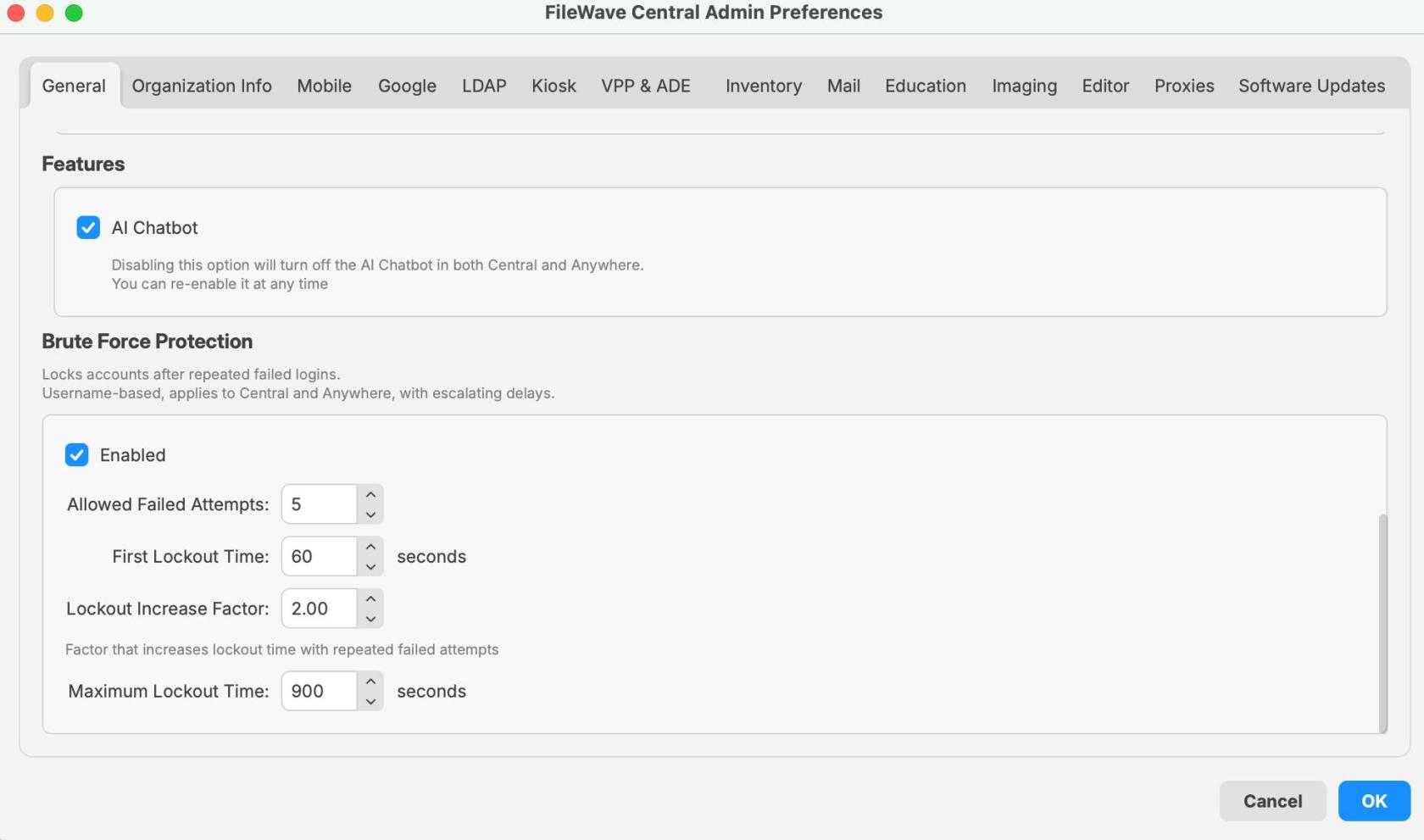
This setting is enabled by default. You can find it in FileWave Central > Preferences > General, and it applies to sign-in attempts for both Central and Anywhere.
When/Why
Leave this enabled in most environments.
It matters most when FileWave Central or FileWave Anywhere can be reached from the internet or another network you do not fully trust. In that situation, it slows down password-guessing and dictionary attacks against exposed login pages.
You may also run into it during testing or troubleshooting if the wrong password is entered several times. That usually means the protection is working as designed, not that the server is broken.
Default values shown in FileWave 16.3.0:
- Allowed failed attempts: 5
- First lockout time: 60 seconds
- Lockout increase factor: 2.00
- Maximum lockout time: 900 seconds
With those settings, the first lockout lasts 1 minute. If failed attempts continue after that, the lockout time increases until it reaches the configured maximum.
If you disable the feature temporarily for troubleshooting, turn it back on afterward.
How
Configure brute force protection
- Open FileWave Central.
- Go to Preferences.
- On the General tab, scroll to the Brute Force Protection section.
- Review or change the settings.
- Click OK to save.
Available options
-
Enabled
- Turns brute force protection on or off.
- Enabled by default in 16.3.0.
-
Allowed Failed Attempts
- Sets how many failed logins are allowed before a lockout starts.
- Value shown in the 16.3.0 UI example: 5.
-
First Lockout Time
- Sets the length of the first lockout.
- Value shown in the 16.3.0 UI example: 60 seconds.
-
Lockout Increase Factor
- Multiplies the lockout time after later failed attempts.
- Value shown in the 16.3.0 UI example: 2.00.
-
Maximum Lockout Time
- Sets the longest lockout time that can be reached.
- Value shown in the 16.3.0 UI example: 900 seconds.
What users see when a lockout occurs
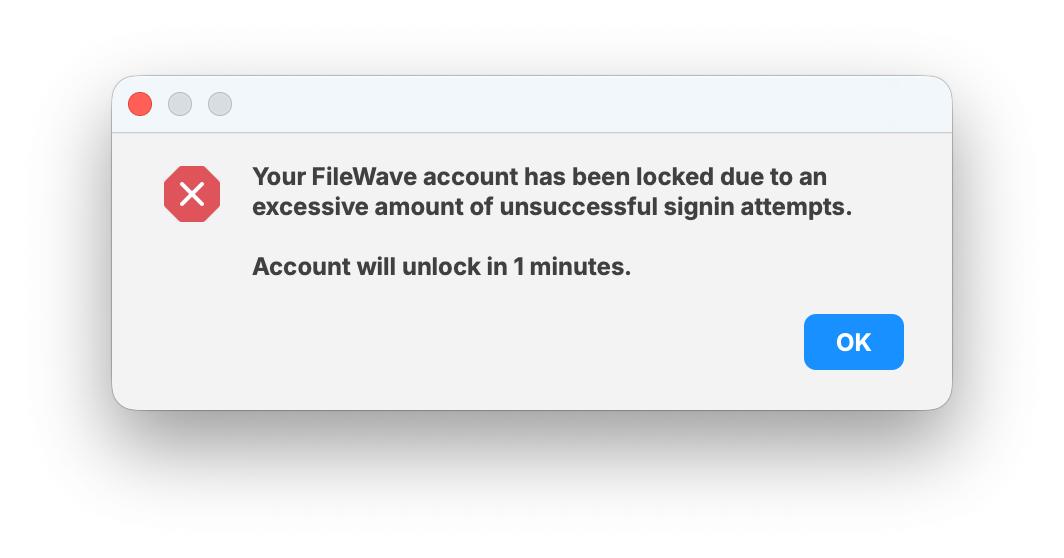
After the failed-attempt threshold is reached, the user sees a message that the account has been locked because of too many unsuccessful sign-in attempts.
The message also shows how long remains before the account unlocks. In the example below, the timer is 1 minute, which matches the default first lockout time.
Only that account is locked. Other users can still sign in unless they trigger their own lockout.
Recommended guidance
- Leave the setting enabled unless you have a specific reason to change it.
- If someone reports a lockout, check whether that account had repeated failed password attempts.
- Remember that the lockout is per user and timer-based. It is not an IP-based block.
- If you change the defaults, record the new values so support and administrators know what to expect.
- When testing, keep in mind that lockout times increase after repeated failures.
Related Content
- Securing FileWave Server on the Internet for Remote Device Management
- TCP and UDP ports used by FileWave
- FileWave Security
Digging Deeper
This is a small setting, but it does real work when a FileWave server is reachable over public networks. It adds friction to repeated login attempts and gives you a safer default on exposed sign-in pages.
Public-facing error messages are also handled carefully. During normal failed logins, the response does not disclose whether an account exists. The one exception is an active lockout, because that state is intentionally tied to a specific account.
Failed login attempts and lockout events are written to the server audit log. Each entry includes the username, the client type, the source IP address when available on a best-effort basis, and the lockout expiry time.
Log file location:
/usr/local/filewave/log/audit.log
To watch the audit log in real time on the server:
tail -f /usr/local/filewave/log/audit.log
If you want to review or test the behavior through the API, you can use the authentication endpoints below.
Set the lockout parameters:
curl -s -X PUT \
  -H "Authorization: ${APPTOKEN}" \
  -H "Content-Type: application/json" \
  https://${HOSTNAME}:20445/auth/admin-lockout-params \
  -d '{"enabled":true,"threshold":6,"base":51,"multiplier":4,"maximum":900}'
Test a login attempt:
curl -s \
  -H "Content-Type: application/json" \
  https://${HOSTNAME}:20445/auth/login \
  -d '{"username":"fwadmin","password":"test"}'