
Brute Force Protection
What
BeginningStarting within FileWave 16.3.0, FileWave Central and FileWave Anywhere include brute force protection is available for FileWavesign-in Central and FileWave Anywhere to reduce password-guessing and dictionary-attack risk.attempts.
When this protectionit is enabled, FileWaverepeated temporarilyfailed lockslogins aplace that user account afteron repeateda failedtemporary sign-inlockout attempts.timer. The lockout is username-based,tied to the username, not IP-based,the source IP address, and the delaytimer increases withafter additional failed attempts.
AIf one account is locked, other accounts are not affected unless they also hit the failed-attempt threshold. The lockout affects only the user account that triggered it. It does not lock out other users, and itclears automatically clears when the timer expires.
By default, the feature is enabled.
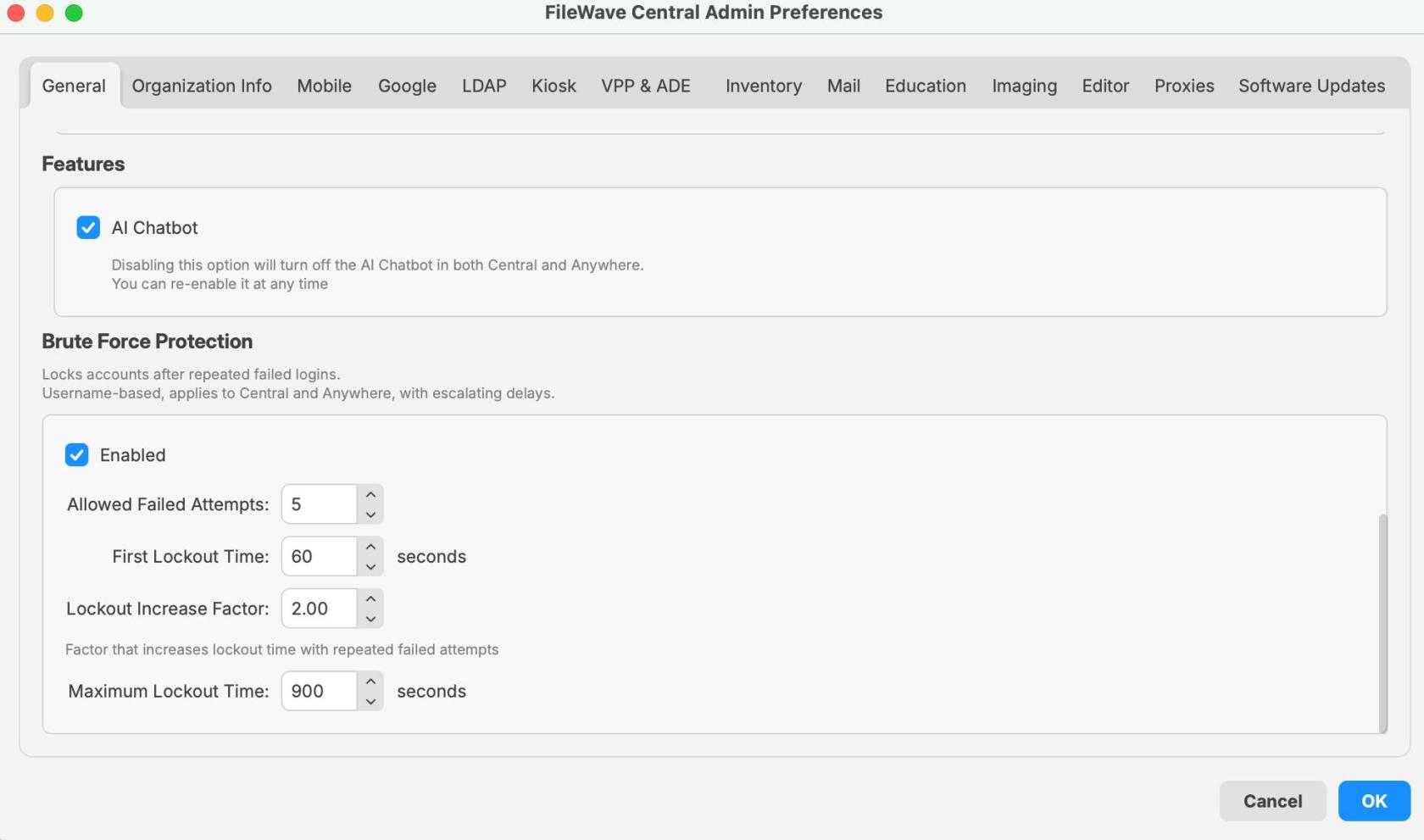
TheThis setting is configuredenabled by default. You can find it in FileWave Central > Preferences > General, and it applies to sign-in attempts for both Central and Anywhere.
When/Why
ThisLeave featurethis shouldenabled generallyin remainmost enabled.environments.
It ismatters especiallymost useful ifwhen FileWave Central or FileWave Anywhere can be reached from publicthe internet or otherwiseanother untrustednetwork networks,you includingdo thenot Internet.fully trust. In that kind of exposure,situation, it helpsslows protectdown accountspassword-guessing and dictionary attacks against repeated password-guessing, brute-force, and dictionary-styleexposed login attempts without requiring additional manual intervention.pages.
You may also seerun thisinto behaviorit during testing or troubleshooting if the wrong password is entered repeatedly.several Intimes. That usually means the protection is working as designed, not that case, the lockoutserver is expected behavior, not necessarily a system fault.broken.
WithDefault the default settingsvalues shown in FileWave 16.3.0:
- Allowed failed attempts: 5
- First lockout time: 60 seconds
- Lockout increase factor: 2.00
- Maximum lockout time: 900 seconds
ThatWith meansthose settings, the first lockout beginslasts at 1 minuteminute. byIf default and escalates with additional incorrect loginfailed attempts continue after that, the lockout time increases until it reaches the configured maximum.
If
Note:youThedisable the featurecan be disabled, but this is not recommended excepttemporarily foratroubleshooting,deliberate,turntemporaryittroubleshootingbackneed.on afterward.
How
Configure brute force protection
- Open FileWave
Central.Central. - Go to
Preferences.Preferences. Stay onOn the Generaltab.
Available options
The Brute Force Protection section includes the following settings:
-
Enabled
- Turns brute force protection on or off.
DefaultEnabled by default in 16.3.0:enabled.0.
-
Allowed Failed Attempts
DefinesSets how many failed logins are allowed before a lockoutbegins.starts.- Value shown in the 16.3.0 UI example:
5.5.
-
First Lockout Time
DefinesSets theinitiallengthlockoutofduration.the first lockout.- Value shown in the 16.3.0 UI example: 60
seconds.seconds.
-
Lockout Increase Factor
- Multiplies the lockout
durationtimeforafterrepeatedlater failedattempts after the first lockout.attempts. - Value shown in the 16.3.0 UI example: 2.
00.00.
- Multiplies the lockout
-
Maximum Lockout Time
CapsSets the longest lockoutdurationtime that can be reached.- Value shown in the 16.3.0 UI example: 900
seconds.seconds.
What users see when a lockout occurs
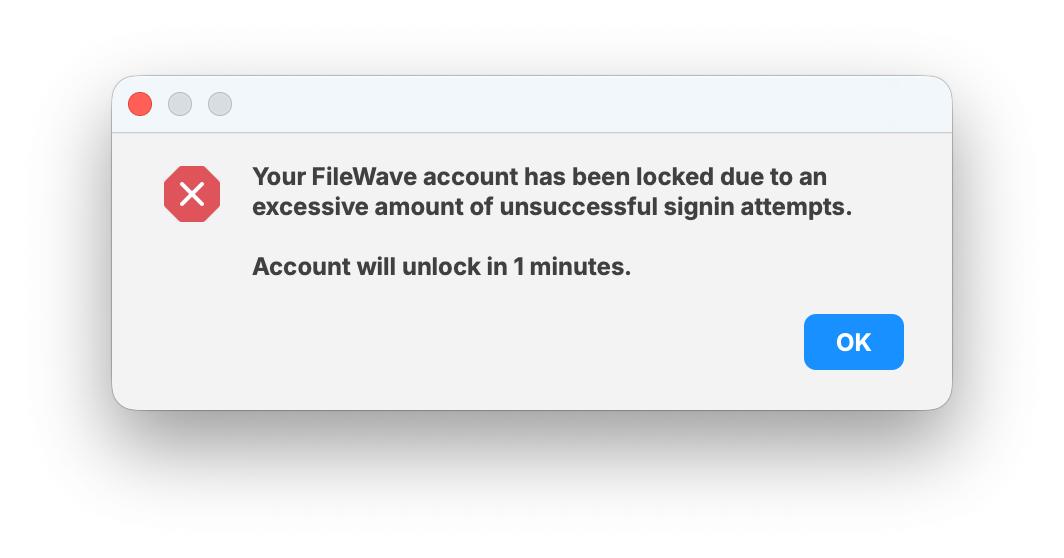
WhenAfter the failed-attempt threshold is exceeded,reached, the user sees a lockout message showing that the account has been locked duebecause toof too many unsuccessful sign-in attempts.
The dialogmessage also shows how long remains before the account will remain locked.unlocks. In the example below, the accounttimer unlocksis in 1 minute,minute, which matches the default first lockout time.
This lockout applies only toOnly that user account foris the duration of the timer.locked. Other users arecan notstill lockedsign outin unless they separately trigger their own failed-attempt threshold.lockout.
Recommended guidance
- Leave
brutetheforce protectionsetting enabled unless you have aspecific, temporaryspecific reason todisablechange it. - If
a usersomeone reportsbeingalockedlockout,out, first confirmcheck whether that account had repeated failed passwordattempts occurred for that specific account.attempts. - Remember that
thisthe lockout isaperper-user and timer-basedbased.lockout,It is not an IP-basedlockout affecting all users.block. - If you change the defaults,
documentrecord the new values so support and administrators know what to expect. - When
testingtesting,loginkeepbehavior,inaccountmindfor escalatingthat lockoutdelaystimes increase after repeated failures.
Related Content
- Securing FileWave Server on the Internet for Remote Device Management
- TCP and UDP ports used by FileWave
- FileWave Security
Digging Deeper
This feature is a straightforwardsmall hardening control,setting, but it mattersdoes becausereal itwork changes the default login behavior for both administrators and users after repeated failures.
Its main security value is simple: ifwhen a FileWave server is reachable over public networks,networks. thisIt adds afriction default control that makesto repeated login attempts materially harder and slowergives for an attacker. It should be described asyou a protectivesafer hardeningdefault feature, not as a guarantee that anon exposed system cannot be compromised.
For support and internal documentation, it helps to call out four things clearly:
Public error messaging behavior
pages.
Public-facing error messagingmessages isare designedalso handled carefully. During normal failed logins, the response does not to disclose whether an account existsexists. duringThe normal failed login handling.
Theone exception is when the system reports an active lockout,lockout, because that state is intentionally account-tied to a specific by design.account.
Audit logging
Each failedFailed login attemptattempts and each lockout eventevents isare written to the server audit loglog. withEach detailsentry thatincludes canthe helpusername, administratorsthe investigate repeated login failures.
Logged details include:
Log file location:
/usr/local/filewave/log/audit.log
To monitorwatch the audit log in real time on the server:
tail -f /usr/local/filewave/log/audit.log
API
If examplesyou
Administratorswant can alsoto review or automatetest testingthe and configurationbehavior through the API, you can use the authentication endpoints.endpoints below.
Set the lockout parameters:
curl -s -X PUT \
  -H "Authorization: ${APPTOKEN}" \
  -H "Content-Type: application/json" \
  https://${HOSTNAME}:20445/auth/admin-lockout-params \
  -d '{"enabled":true,"threshold":6,"base":51,"multiplier":4,"maximum":900}'
Test a login attempt:
curl -s \
  -H "Content-Type: application/json" \
  https://${HOSTNAME}:20445/auth/login \
  -d '{"username":"fwadmin","password":"test"}'
That keeps the article useful for admins configuring the setting, support teams responding to lockout questions, and anyone reviewing the security intent and operational behavior behind the feature.