Exporting & Importing Inventory Reports
Description
FileWave can export and import Reports (formerly Queries) definitions, which makes it easier to share reporting work between FileWave Servers.
If a Report uses Custom Fields, export and share those Custom Fields with the Report definition.
Importing & Exporting Custom Fields
Each Custom Field has a unique name: 'Internal Name'. When uploading a Custom Field, if another Custom Field already exists with the same Internal Name, the newly imported Custom Field Internal Name will be altered to prevent conflict.
Imported Reports reference Custom Fields by Internal Name. If FileWave changes an imported Custom Field Internal Name to avoid a conflict, update the Report to reference the new Internal Name.
Information
Earlier workflows used API commands to copy Inventory Query definitions between FileWave Servers. Current FileWave versions provide export and import actions in the right-click contextual menu in FileWave Central.
Directions
From FileWave Central > Reports:
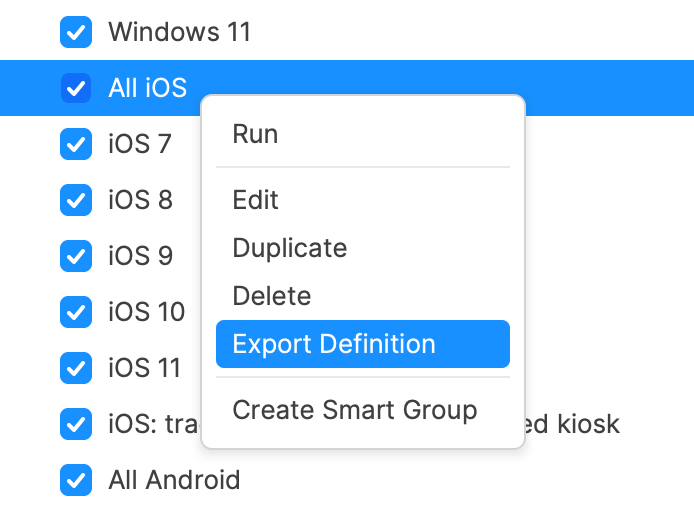
Export Query
- Select a Report from the main window.
- Right click
- Choose Export.
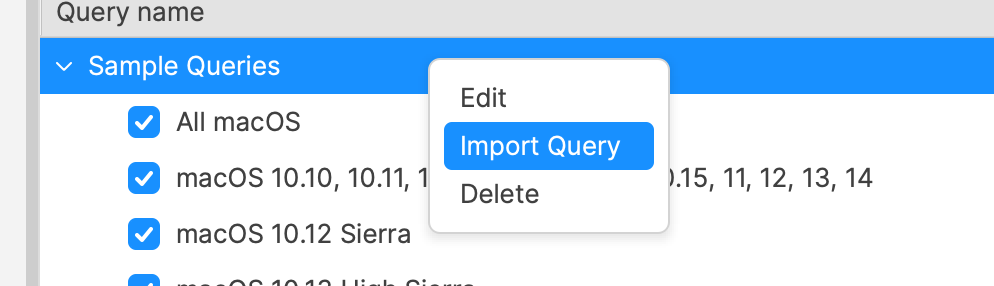
Import Query
- Select the category where the imported Report should be added.
- Right click
- Choose Import Report.