Exporting & Importing Inventory Reports
Description
As of FileWave version 15.4, it is now possible tocan export and import InventoryReports Query(formerly definitions.Queries) Thisdefinitions, which makes sharing themit easier thanto ever.share reporting work between FileWave Servers.
AlsoIf a Report uses Custom Fields, export and share any includedthose Custom Fields utilisedwith inthe anReport exported query.definition.
Importing & Exporting Custom Fields
Each Custom Field has a unique name: 'Internal Name'. When uploading a Custom Field, if another Custom Field already exists with the same Internal Name, the newly imported Custom Field Internal Name will be altered to prevent conflict.
Imported InventoryReports Queriesreference referencingCustom Fields by Internal Name. If FileWave changes an imported Custom Field Internal Names,Name willto beavoid referencinga conflict, update the Internal Name. Where a conflict has occurred, the Query must be updatedReport to reference the new, alterednew Internal Name of the newly imported Custom Field.Name.
Information
PriorEarlier workflows used API commands to 15.4, sharingcopy Inventory QueriesQuery relieddefinitions upon abetween FileWave APIServers. commandCurrent toFileWave grabversions provide export and import actions in the definition from one FileWave Server and then subsequently import that definition into another FileWave instance also using API. However, exporting and importing is now available via the right right-click contextual menu within thein FileWave Central Admin Console.Central.
Directions
From the FileWave Central > Inventory Queries view...Reports:
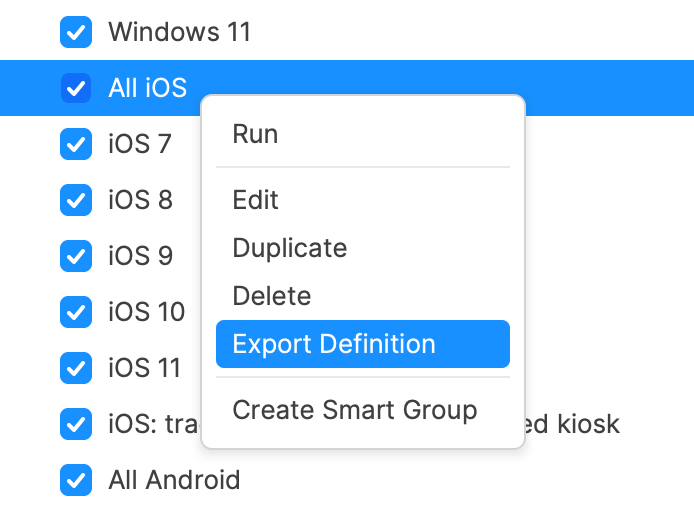
Export Query
- Select a
queryReport from the mainwindowwindow. - Right click
- Choose
ExportExport.
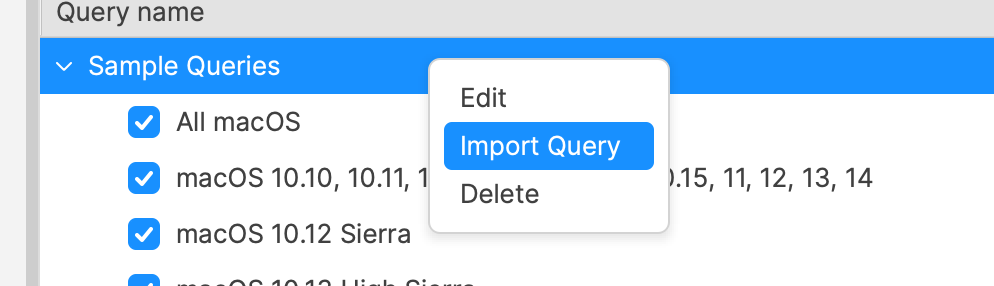
Import Query
- Select
athe categoryto includewhere thequeryimportedforReportimportshould be added. - Right click
- Choose Import
QueryReport.