Generating scheduled reports
BeingScheduled ableReports send FileWave report results to lookone ator themore variousemail queriesaddresses whileon loggeda schedule, so an admin does not have to sign in toand the FileWave Admin is one thing. Being able to have the results of a query automatically sent to your or someone else's email inbox atrun the same timereport everymanually. weekThey iscan muchbe better.used FileWavefor supports creating scheduledlicense reports fromor queriesinventory andReports the(formerly process is very simple.Queries).
How to create Scheduled Reports
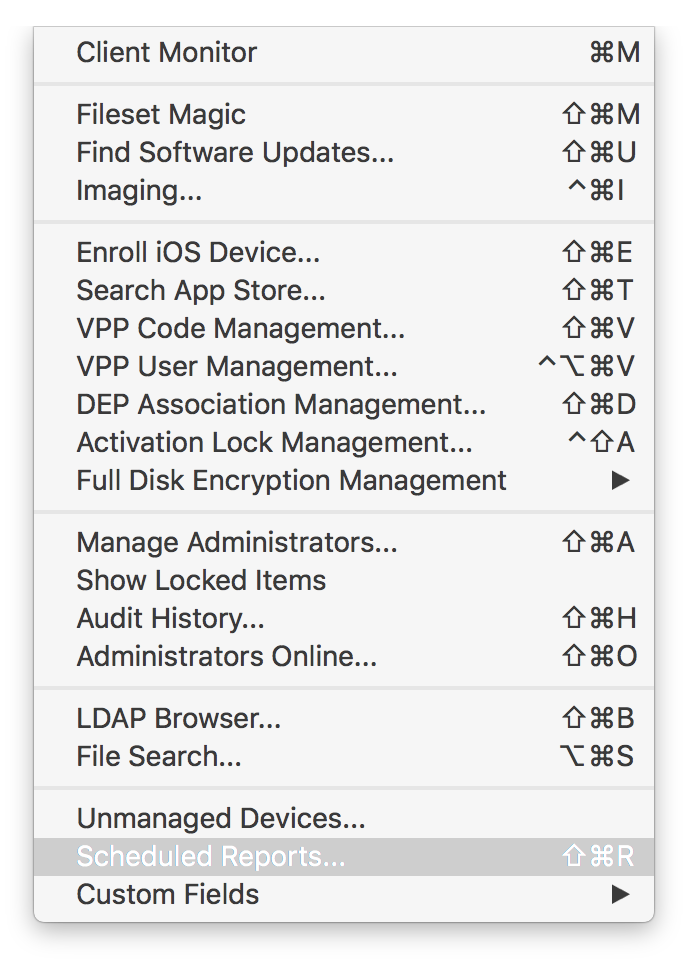
First,InyouFileWave Central, select Assistants → Scheduled Reports… from theFileWavemenuAdmin menubar.bar.

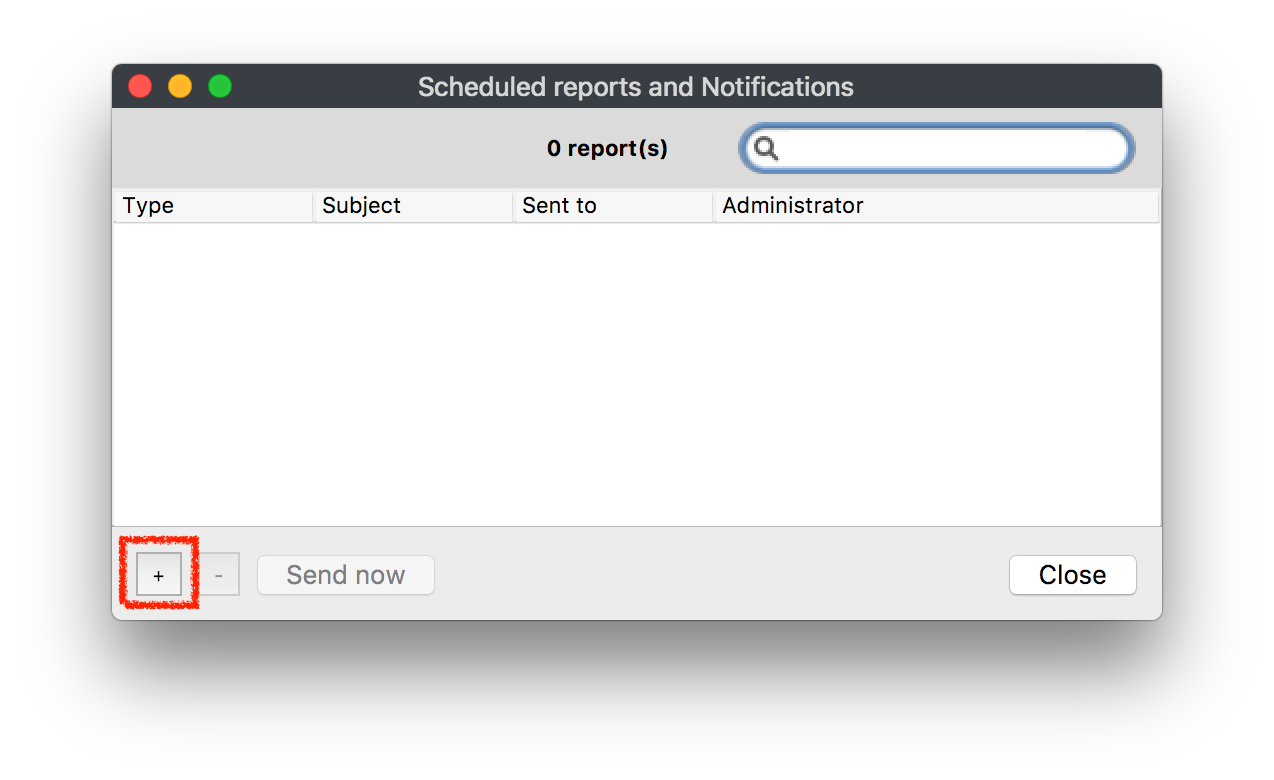
Then clickClick the "+" in the lower left of the window to create a new scheduled report.If you had existingExisting reportstheyappearwouldinbethisvisiblesamehere.list.

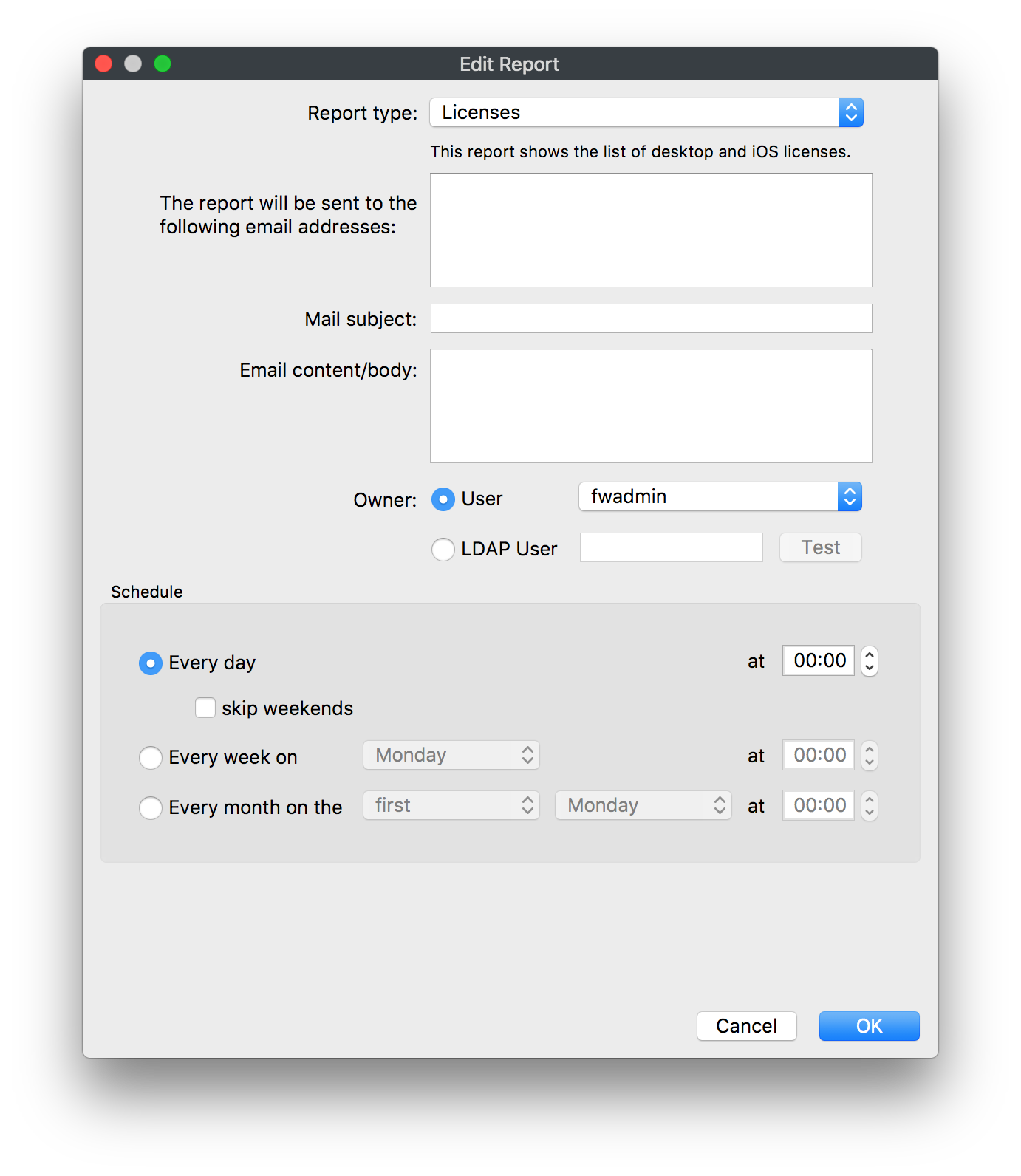
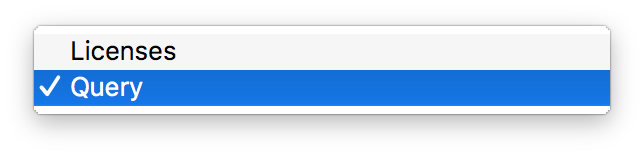
You can now chooseChoose a Report Typewhich are a License or Query report.:- License:
Thissendswillthecreate a report of everything that isinformation listed inyourLicense Management,section in FileWave. This includes allincluding VPP licenses and manually created licenses from Filesets or inventory. Query:Report:This option will send a report withsends the results of aspecificselected inventoryqueryReport.thatInwasoldercreatedFileWaveinversionstheandInventoryolderManagementscreenshots,sectionthisinmayFileWave.
appear as Query.
- License:

NextEnteris to type in whatthe email addressyouthatwantshouldtoreceivesendthethesescheduledreports too.report.
|
Multiple Email Addresses
|


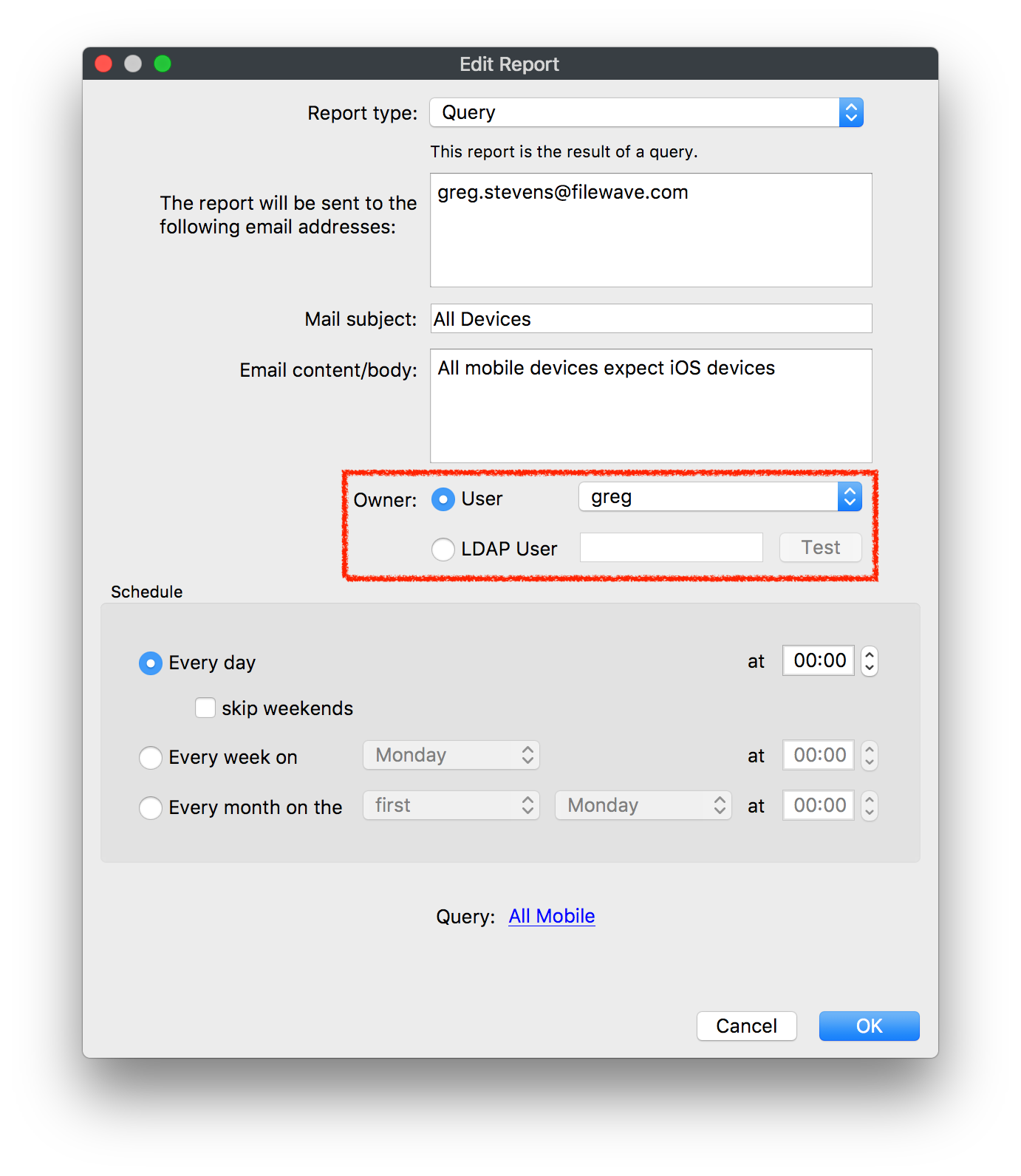
Then add inEnter a Mail Subject and the Email content/body,thesesowillrecipientsgiveknowsome definition towhat thereportsscheduledsent.report is for.Next ifIf you are signedintointheto FileWaveAdminCentral as the Superuser,youthewill see aOwner sectionforisOwner.visible.Whichever user account isThe selectedwillowneraffectaffects scheduled-report results because theresultsreportofrunsthe Scheduled Report based onwith thatusersuser's permissions.
Example: Ifthe userGreg Stevenswasownsselected as the owner of thisa report fora query ofall devices butGregdoes not haveaccesspermission toseeviewanyiOS devices, iOS devicesthen the reportwill notshowappeariOS.in that report.
|
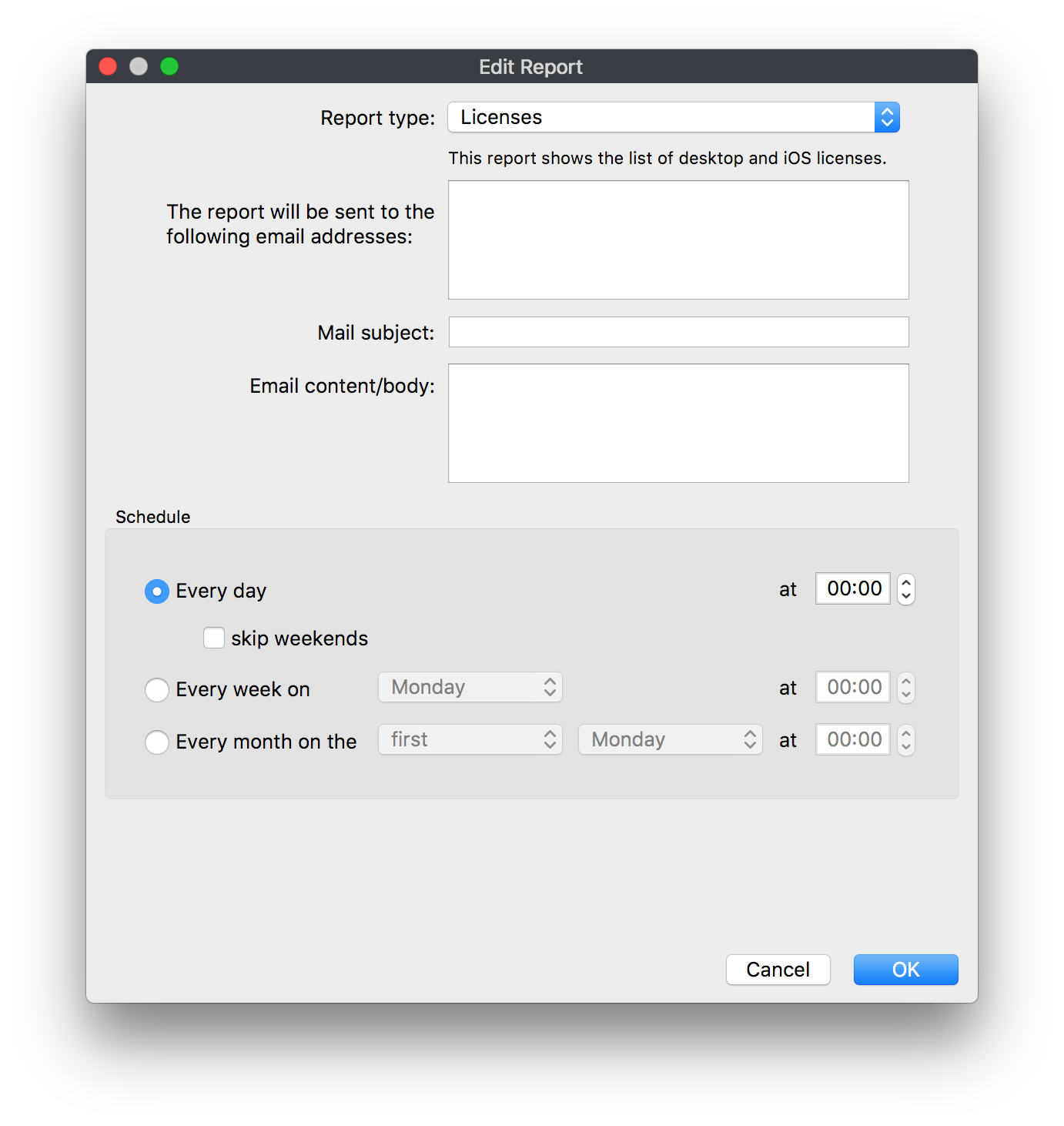
If you are not the Superuser you will NOT see the Owner section at all; as you can see in the screenshots below, only the Superuser can assign a user to reports. |


- After you
have selectedselect an Owneryou will need to, set when the reportis going toshould besent outsent:- Every day
- skip weekends
- Every week on
- Every month on
- Every day
Optional -Optional: if the Report Type is set toQueryReportyou will need to, select whichqueryinventorytheReportreportshouldwillbesendsent.


- Click OK to save
thisthe scheduledreport,report.youYouwillcan thenbe able toviewany previously createdexisting reportsas well as the option toor send the reportoutimmediately.


Scheduled Reports Results
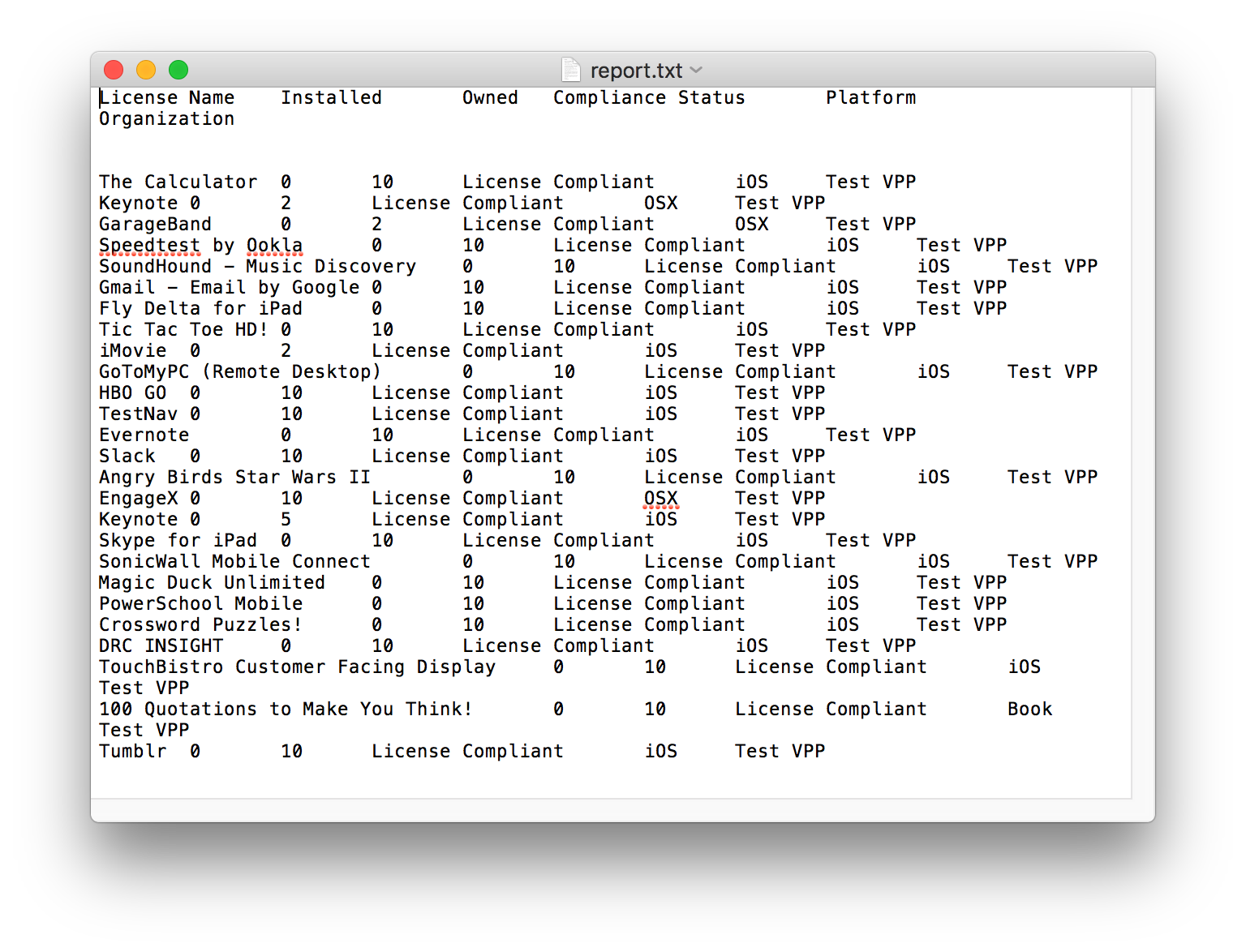
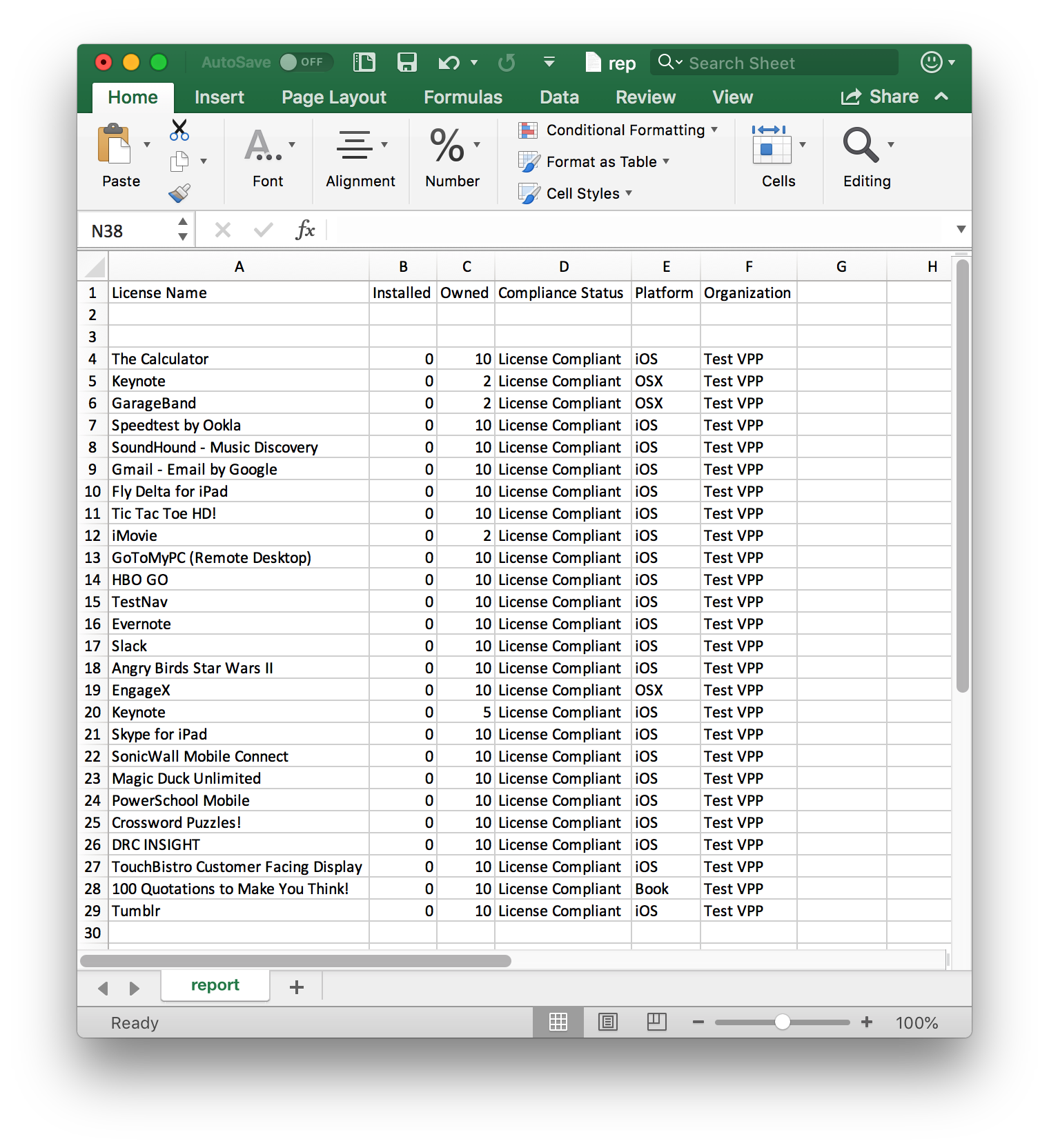
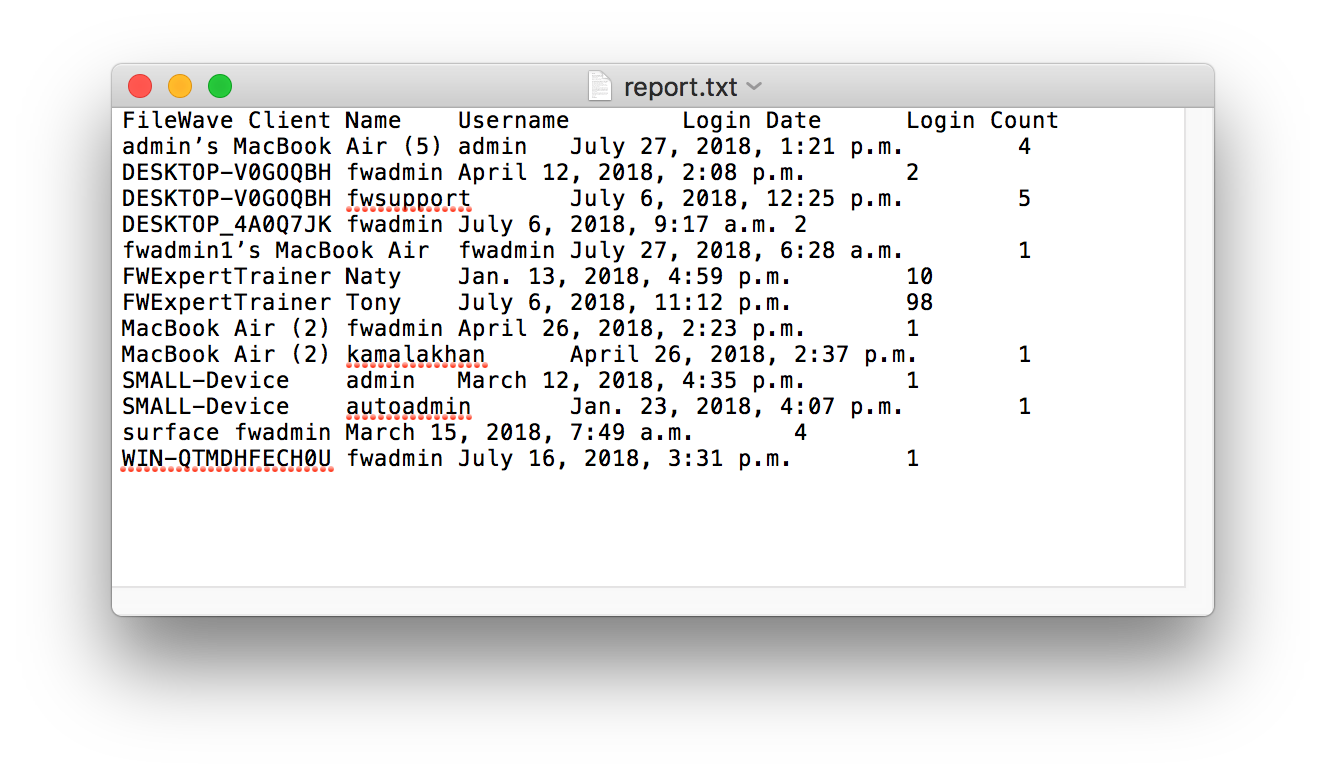
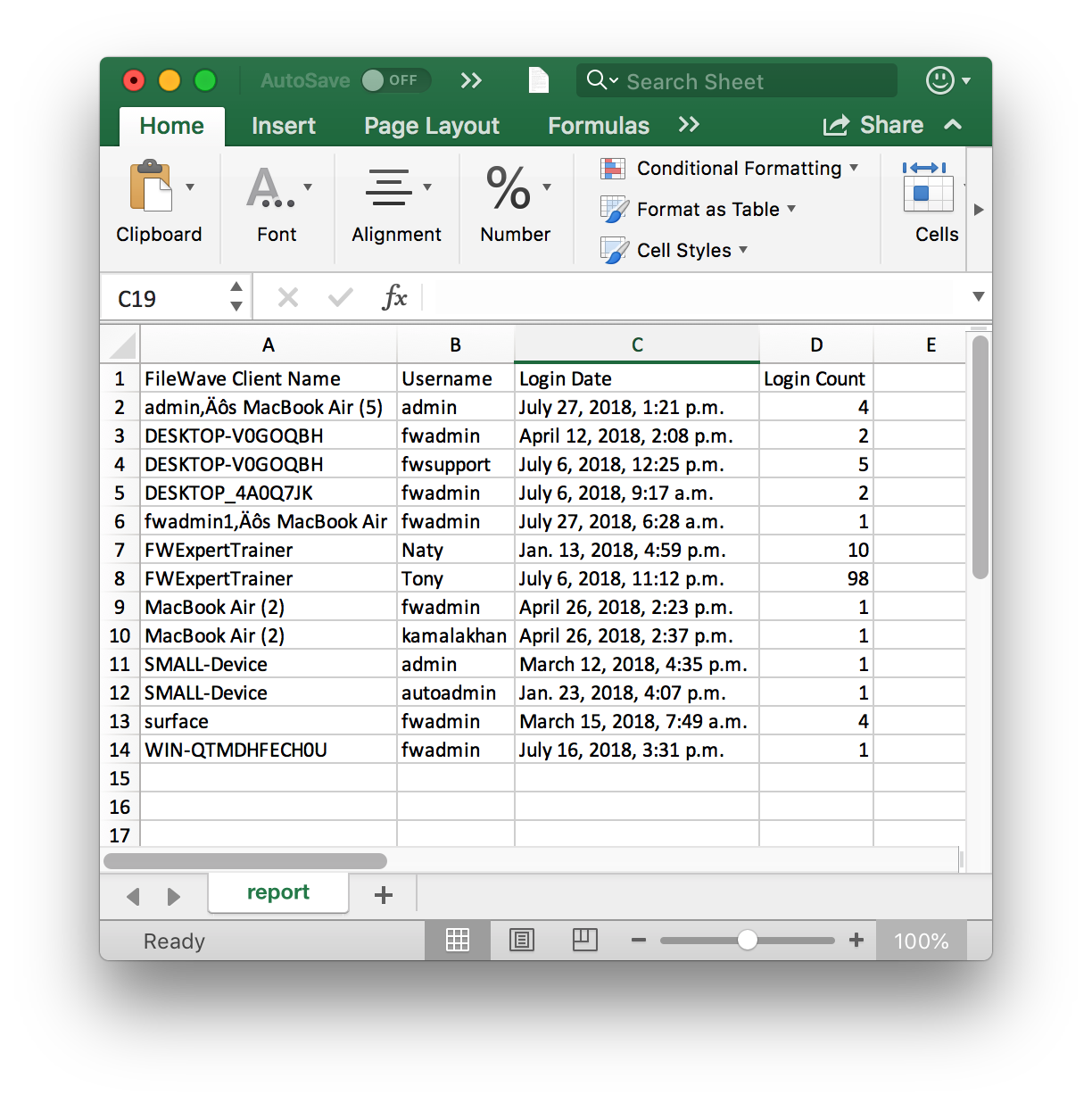
TheScheduled reports that getare sent will beas tab-delimited text files that you can easily convertopen or import into anyspreadsheet editorand youtext-editing like to use.tools.
QueryReport Results


License Results