Sending Scheduled Reports to More Than One Address
YouIf mayyou find that when setting upwant a scheduled report on an inventory query or a license report that you may need to send it to more than one recipient..
Problem
Frequently, if not always, you may need to send scheduled report results to more than one email recipient. Of course, you can always use a generic email address that goesgo to more than one recipient, enter all email addresses in the recipient field and separate them with semicolons.
Problem
Scheduled report results often need to go to more than one person. A shared mailbox can work, but thatsometimes isyou notneed alwaysto feasible.send the same report directly to several recipients.
Environment
This issueapplies impacts allto scheduled reports created from inventory queries and license reports.
Resolution
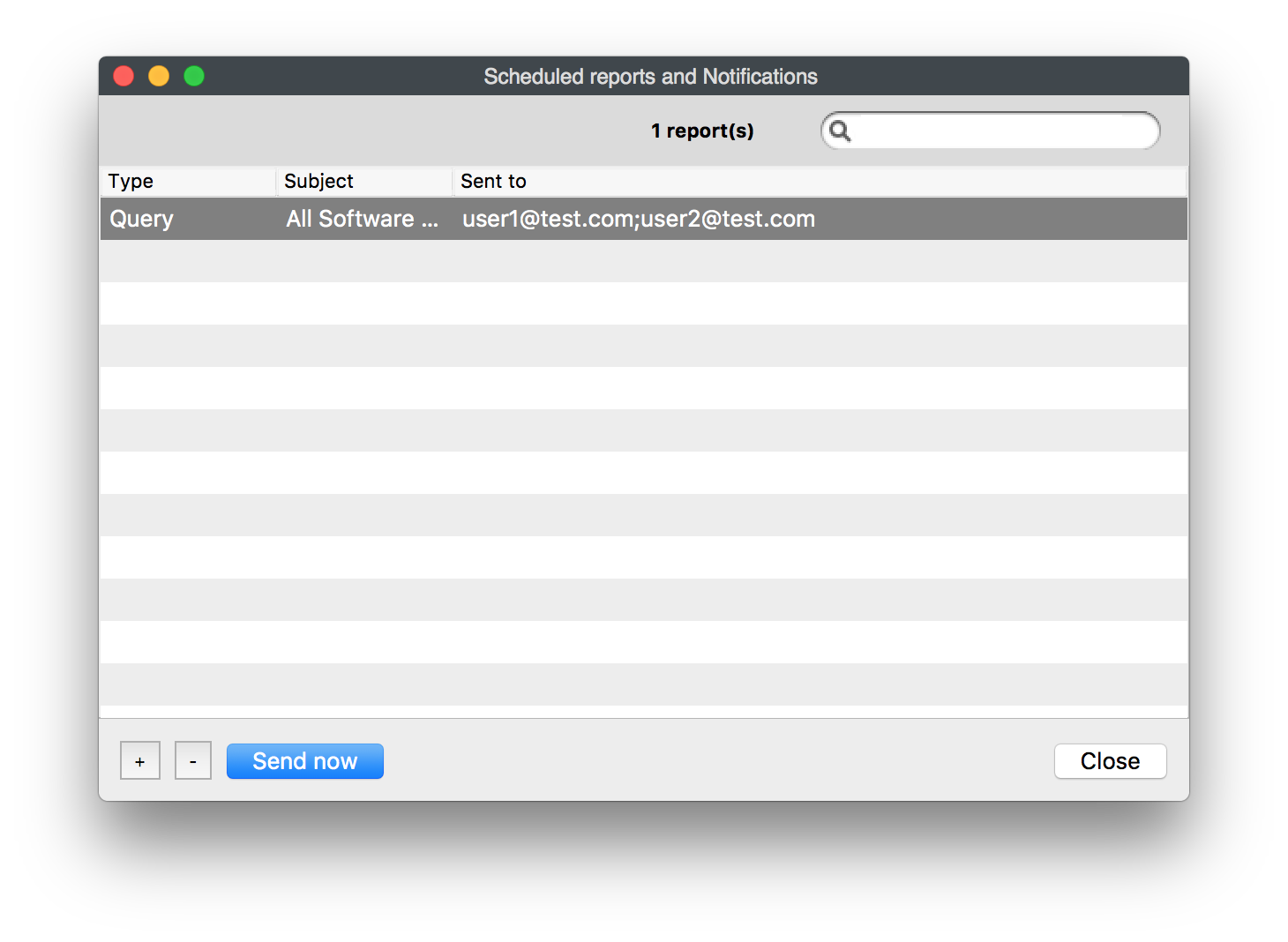
TheIn syntax to add multiplethe recipient email addresses is simple...just use semi-colons tofield, separate theeach addresses,email asaddress follows:with a semicolon (;).
user1@mail.com;com; user2@mail.com;com; user3@mail.com;com; user4@mail.com
Additional Information
Remember that Scheduled Reportsreports are sent on their definednormal schedule, but you can also be sent immediately by use of the Send Now button in the Scheduled Report Assistant asto youconfirm seethe below. Using Send Nowreport is a great waydelivered to test your scheduled report to multipleall recipients immediately!before relying on the schedule.