Use Dark Mode in FileWave Central
WhatChoose a FileWave Central theme
OnceFileWave uponCentral can use a time,light theme, a dark theme, or follow the appearance selected for your computer. The choice is local to the computer running Central, so each administrator can use the theme that suits their workspace.
Dark mode reduces bright interface backgrounds when you work in a brightlydim litroom. worldLight ofmode screens, a shadowy figure emerged, promising salvation to our eyes: Dark Mode. As legends of its comfort and sleekness spread acrosskeeps the realmsstandard ofbright softwareappearance, applications,while weAutomatic at FileWave decided it was time to embracefollows the darkoperating side.system Here'ssetting.
Change the taletheme
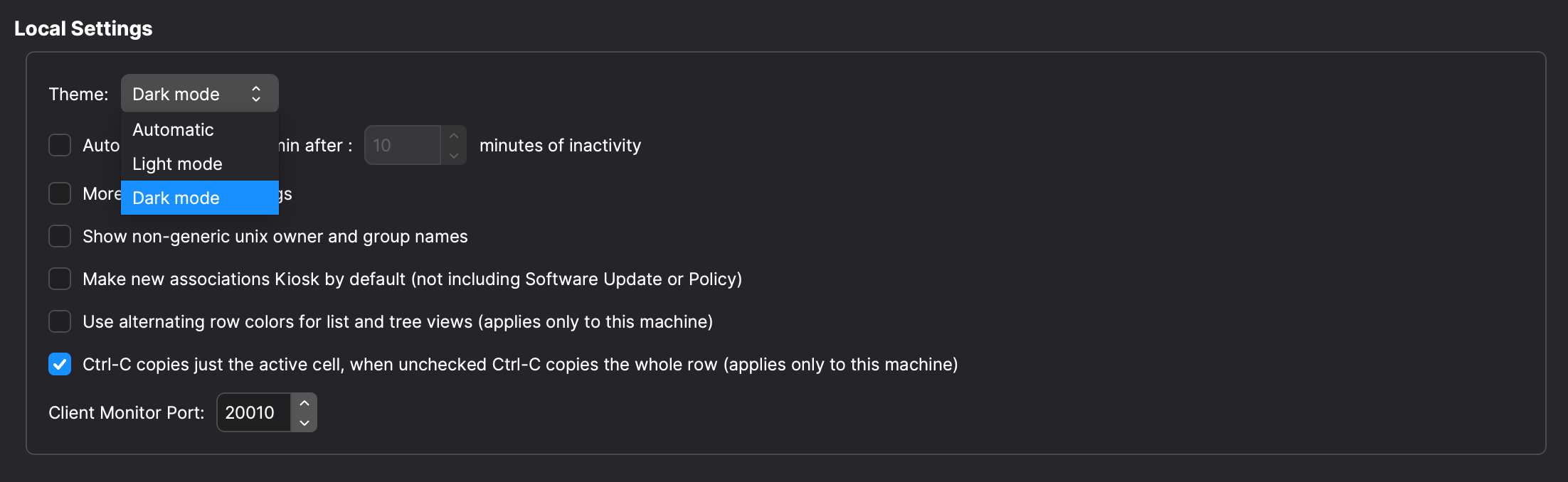
In FileWave Central, turningopen nightPreferences into> aGeneral. friendlierUnder placeLocal forSettings, allset administrators.
to Automatic, Light mode, or Dark Mode,mode. The screenshot below shows the knightexact in shining armor (or should we say, 'shimmering darkness'?), transforms the blinding lights of your screen into a soothing, shadowy oasis. It’s not just a fashion statement; it’s a guardian of your eyesight, a curator of concentration, and a promoter of power saving. By inverting the bright white backgrounds into deep, dark hues, Dark Mode makes nighttime work less of a nightmare.
When/Why
As the clock struck midnight on yet another session of late-night device management, it dawned on us: our users deserved the option to go dark. Following a cascade of requests and after noticing the shift towards dark themes across the tech landscape, we knew the time was right. Our decision was fueled by the desire to not only keep up with modern UI trends but to also offer our hardworking administrators a visually comfortable and customizable working environment, proving our commitment to not just meeting but exceeding user expectations.
How
To embrace the dark side or bask in the light, journey to **Preferences -> General** in FileWave Central. There, under the Theme setting, select your allegiance: Automatic, Light Mode, or Dark Mode. Choose wisely, for each setting casts FileWave Central in a different aura, from the bright, welcoming light of day to the mysterious, serene shadows of night.
options.