PSExec as a Helper in Troubleshooting
What
The PS Tools from Microsoft (fromPsTools SysInternals)includes arePsExec, a terrificallyremote powerfulcommand-line tool to help you troubleshoot when all else fails. In this article we'll look at how youthat can use PSExec to help troubleshoot ana ill-behavingWindows device when the FileWave Client.Client is not responding through normal FileWave channels.
When/Why
FromUse timePsExec towhen time,you thingsneed don'tan workinteractive right.command None of us would be employed if this weren't the case, so let's look on the bright-side of that! But what to do if a FileWave clientprompt on a Windows deviceclient to inspect services, logs, processes, network state, or user sessions. The examples below focus on FileWave Client troubleshooting, but the same approach is misbehaving,useful andfor youother can'tWindows communicateservice through normal FileWave channels? PSEXEC to the rescue.issues.
How
Assumptions made infor the following:examples below:
1) You havedownloaded download PSTools,PsTools and unzipped it.
2) That youYou launched aCommand cmd promptPrompt as a domain admin useror (makesanother credentialsaccount issuewith easierthe toneeded dealrights with)on the remote device.
3) That you haveYou changed directory into the directory where PSToolsPsTools is locatedlocated.
We'll start by simply connectingConnect to the remote computer by name in an interactive PSEXECPsExec shell:
psexec64 \\computername -h cmdYou'llYou should end up in a shell like the belowone ('exit'below. willType allow youexit to leave thatthe shell)remote shell.
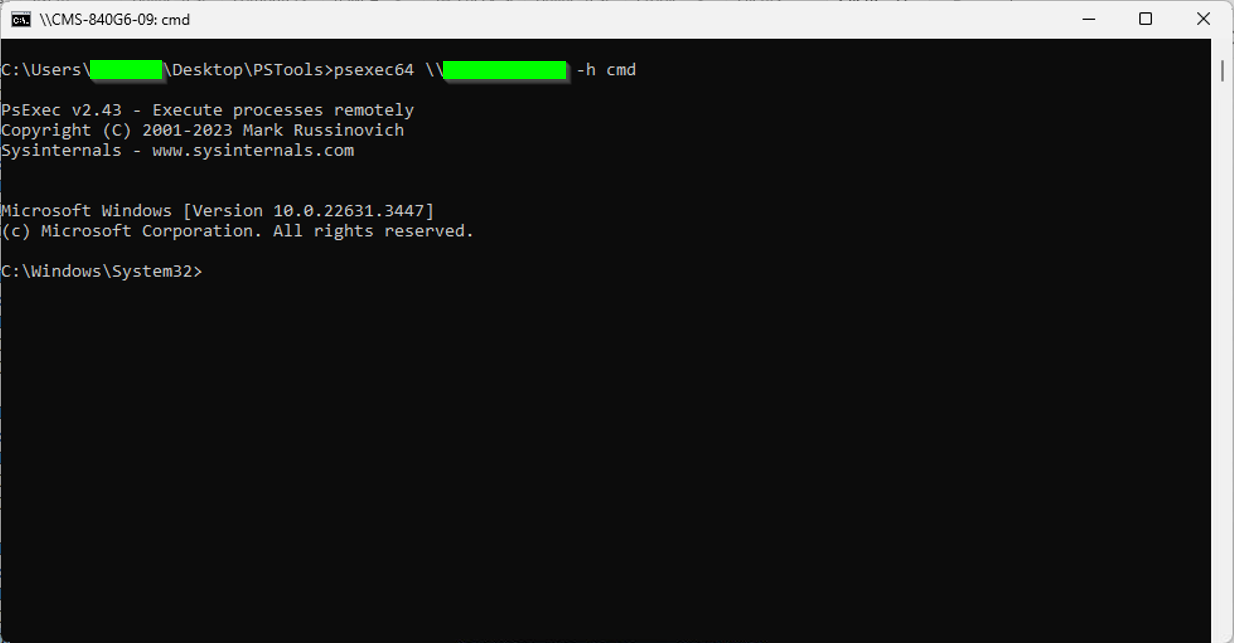
Now, what's remarkable about this isFrom that shell is running as your domain admin account, andshell, you can dorun anythingnormal Windows command-line tools on it you can do from the commandremote line.device. These Thisexamples articleare isn'tuseful meant to bewhen a Windows CLIclient primer,is but the following are some examples of things we could do if we assume we have a device that isn'tnot reporting in correctly:correctly.
- Check the FileWave Client
Service:service:-
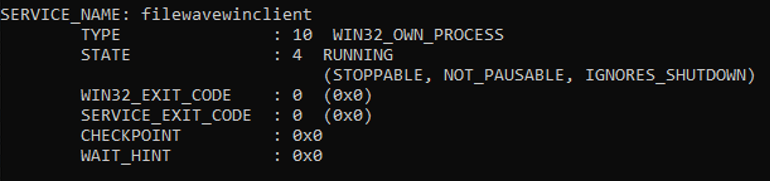
sc query filewavewinclient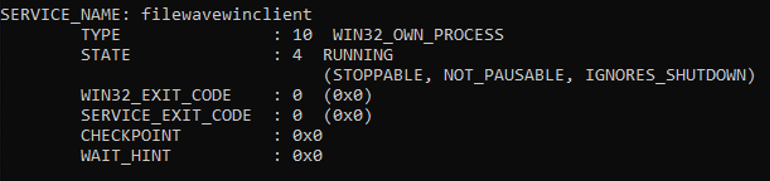
-
- Stop the
FWFileWave ClientServiceservice:
sc stop filewavewinclient
RestartStart theFWFileWave ClientServiceservice:
sc start filewavewinclient
- If the service
won'twill not start or stop,maybeidentifyweandneedstoptothekillprocessit forcefully by:directly:Looking forFind theclientFileWaveprocessClient process.-
tasklist | findstr fwcld -

-
AndKillthenthekilling itprocess byPIDPID.-
taskkill /PID 16264 /F -
Note that thisThe sameprocedurepattern canbehelpvery helpful to clear upwith amisbehavingstuck Windows Update agent.hangs,hangs and the serviceitselfwillusuallynotwon'tstop,stop. Taskkilltasklist /SVCsvc |findfindstr wuauservwill identifyidentifies theproperprocesstaskthattoownsstopthetoservice.correct this. (A rebootiscan alsocorrectiveclearforthethis,condition, butonviouslyitimpactsinterrupts whoever is using theuse of the device)device.
-
- Check the
FWFileWave ClientLoglog for entries fromtodaytoday:-
type c:\programdata\filewave\fwclient\fwcld.log | findstr mm-dd (whereReplacemm-ddiswith today'sdatemonth and day, such as05-.16)16
-
- Get the IP address of the
workstationworkstation:-
ipconfig
-
- Restart the device
(whichimmediately.isThisobviously destructive tointerrupts anyexistingactiveuser)user session, so check before running it on a device in use.-
shutdown -r -t 0 -f
-
DetermineCheckif there arewhether other users are loggedinin:-
quser 
-
- Get the last boot
timetime:-
Get-CimInstance -ClassName Win32_OperatingSystem | Select-Object LastBootUpTime -

-