
Superprefs Fileset
DescriptionWhat
When creatingyou create a Custom Client installer, clientthe FileWave Client preferences are packaged insideinto thethat installer, e.g.installer: server name, ports, Boosters, etc.and However,related itclient settings. That is useful for the base configuration, but one preference set is not always the case that one set of preferences is appropriateright for allevery devices.device.
A Superprefs isfile alets plistyou file,deploy whichselected canFileWave beClient deployedpreference changes to macOS or Windows devices toafter alterthe settings.client is installed. You can use one Superprefs Fileset for a broad change, or multiple Superprefs Filesets for different groups of devices.
TheOnly the settings included in the Superprefs file are changed. Settings that are not included remain untouched on the client.
When to use this
Alternatively, future changes may require alteration to the settings defined.
This means, one single Superprefs Fileset can configure FileWave Clients en masse, when associated.
Ingredients
- FileWave Clients
(on macOS orWindows)Windows - FileWave Superprefs Editor
- FileWave Central Admin App
Directions
The process involves creatingCreate the Superprefs plist
and
The then adding this into a Fileset for association with devices.
Superprefs Editor
Default installation of the editor is ininstalled the same location aswith the FileWave Central Admin Application:App:
ItWhen isthe possibleeditor opens, it may ask you to editopen currentan plistexisting files.plist. WhenCancel opening the software a navigationthat window willif openyou offering that choice. This may just be cancelled ifare creating a new Superprefs.Superprefs file.
Only itemssettings added/editedthat you add or edit in the editorSuperprefs willEditor beare includedwritten ininto the plistplist. fileThis keeps the deployment focused and avoids overwriting unrelated client preferences.
Example: set Debug Level to deployed. All other items will be excluded. On deployment, only these included items will be set on the device; all other settings will remain untouched.
Example
99
Consider altering the Debug Level. DebugLevel has 3three possiblecommon values:
ImagineTo enable debug logging, open the desireSuperprefs toEditor, set Debug logging level on a client for further analysis.
After opening the editor and cancellingcancel the Finder or Explorer window,window thereif you are severalcreating tabsa new file, go to choosethe from.Options Thetab, Optionsset tabDebug containsLevel to 99, and save the Debug Level. Set this as 99 and Save.file.
The name of the file must be:be named fwcld.newprefs.plist.

The contentssaved ofplist should contain only the filechanged should show as:key:
Dict {
    debugLevel = 99
}
As suggested, only
Package the item alteredplist in thea editor has been saved to the file.Fileset
The fwcld.newprefs.plist file maycan be placed in any locationreasonable withinpath ainside Fileset,the howeverFileset. considerA wherededicated sensibleSuperprefs locationsfolder couldmakes be.the
Forclear example:and lets you keep separate folders for different preference sets.
ByYou creatingcan aadd Superprefs folder, it makes it clear what this contains. By adding subfolders, it is then possible to have multiple subfolders with differing Superprefs if desired.
One Superprefsthe file could contain all desired changes or multiple files could be created for differing types of preferences.
The created file could be added to an existing Fileset, but ita maydedicated beFileset betteris usually easier to createtarget, atest, Filesetand dedicatedremove to this use. Taking the latter as an example.later.
Create Fileset
From the FileWave Central Admin Application:App:
- Create a new
'Empty'Empty Fileset and nameappropriatelyit clearly. 'Hide unusedfolders'folders.- Select or create the desired location for the plist
filefile. - Drag
the filefwcld.newprefs.plist from Finder or Explorer intothisthat location in theFilesetFileset.
Using the abovedebug Debug Log Levellogging example for macOS, the Fileset could look like:like this:
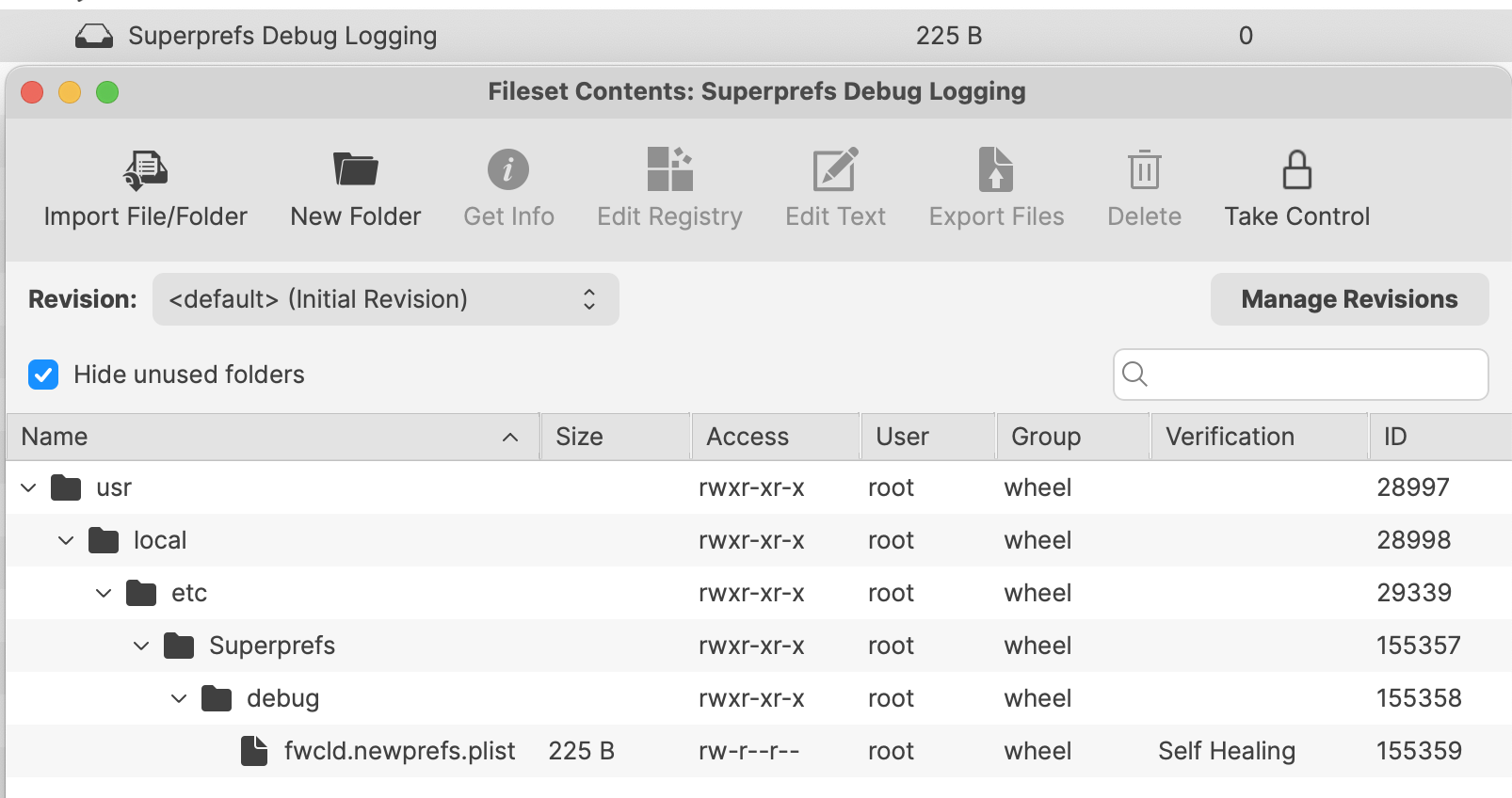
When deployedthe toFileset activates on a client, the Debug Log Level should switch to 99 and the client log file should reflect thisthe change immediately on Fileset activation.change.
Always test with one device or a small subsetpilot of devices,group before deployingassociating further.the Superprefs Fileset more broadly.
ConsiderFor makingtemporary anothertroubleshooting, similarcreate a matching Superprefs toFileset returnthat thereturns deviceDebug backLevel to the Standardstandard Log Levelvalue of 10,10 oncewhen analysis hasis been completed.complete.
GUI Observation
observation
When using theSome Superprefs Editor, someEditor entries are Boolean,Boolean e.g.values, such as Booster Routing. As a Boolean entryentries therecan arebe onlyset twoto possibleTrue, values,set Trueto False, or False.left Whereunset. aA '-'dash is shown, this is standard GUI practice to indicate thatmeans the value is not set.included in the Superprefs file.
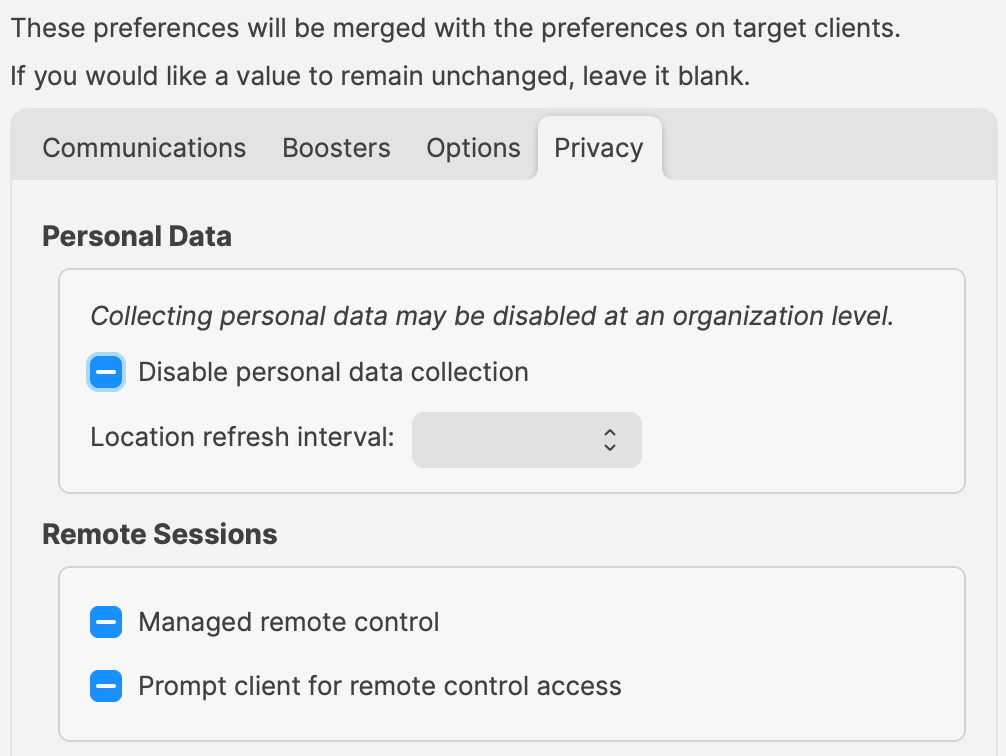
With each press, one ofThe three imagesstates willappear be shown:as:


Related Content
The