
Technical Bulletin 2026-004: Recover FileWave Client on macOS
Scope: Recovery installs the corrected macOS FileWave Client package that matches the FileWave Server version; it does not require a Server upgrade. Development rebuilt corrected FileWave Client packages from 15.5.0 through 16.4.0, but this procedure covers environments running the generally supported FileWave Server 16.2.x, 16.3.x, and 16.4.x release lines listed below. Macs already running the Client version that matches the Server remain on that version after recovery, so a version change alone does not show whether recovery has been completed. If the FileWave Server runs a version earlier than 16.2.x, contact FileWave Support before attempting recovery. iOS, iPadOS, tvOS, visionOS, Windows, Android, ChromeOS, and Linux are not affected.
Important: Do not run the recovery command until the corrected macOS FileWave Client package has been prepared in FileWave Central using the version-specific path in Step 1. Running the command first can redeploy the affected package.
Background
Beginning July 30, 2026, macOS may block FileWave Client on managed Macs and warn that the software may be malicious.
This is a code-signing certificate issue, not malicious FileWave software or a broader security compromise. As part of a planned transition coordinated with Apple, FileWave closed its original Apple Developer account. Kiosk-related code distributed with FileWave Client for macOS had not been moved to the replacement signing certificate before that account was closed. macOS treats the affected code as untrusted and may block FileWave Client.
Because Apple MDM communication is independent of the FileWave Client connection, the FileWave Server can use the existing MDM channel to install a corrected client package on affected devices.
Does this recovery procedure apply?
This procedure covers environments running one of these supported FileWave Server versions. A corrected Client package is available to match each listed Server version:
| FileWave Server release line | Server versions with matching corrected Client packages |
|---|---|
| 16.2.x | 16.2.1, 16.2.2, 16.2.3, 16.2.4, and 16.2.5 |
| 16.3.x | 16.3.1, 16.3.2, and 16.3.4 |
| 16.4.x | 16.4.0 |
Use the corrected Client package that matches the exact FileWave Server version, regardless of the Client versions shown in inventory. A Mac already running that Client version continues to report the same version after recovery, so use your recovery records rather than a version change alone to determine whether it has received the corrected package.
Package preparation by FileWave Server version
Where you prepare the corrected package depends on the FileWave Server version. Prepare the corrected Client package that matches the exact FileWave Server version rather than a separate package for each Client version found in inventory. Use the row that matches your Server:
| FileWave Server version | Required action |
|---|---|
| Earlier than 16.2.x | Corrected Client packages were rebuilt as far back as 15.5.0, but FileWave Server release lines earlier than 16.2.x are unsupported and outside this procedure. Contact FileWave Support before attempting recovery and to plan an upgrade to a supported release. |
| 16.2.x or 16.3.x | No FileWave Server or component upgrade is required. At FileWave Custom Packages, generate the rebuilt Client package that matches the exact FileWave Server version. Upload it in FileWave Central, then continue with the recovery script. |
| 16.4.0 | No FileWave Server or component upgrade is required. In FileWave Central, rebuild the macOS client package as version 16.4.0, then continue with the recovery script so the Server pushes the refreshed same-version package. Do not use custom.filewave.com for this path. |
Before you begin
You need:
- Administrative shell access to the FileWave Server for a self-managed environment. FileWave Hosted customers do not need shell access; FileWave Support performs the Server-side commands.
- A working Apple MDM connection for the affected Macs.
- The attached
send_reinstall_fwcld_apn.pyrecovery command. FileWave Hosted customers do not need to download this file; FileWave Support installs it on the Hosted Server. - A corrected macOS FileWave Client package prepared through the version-specific workflow in Step 1.
- FileWave Central inventory identifying the affected Macs. Use your recovery records to exclude Macs that have already received the corrected package; Macs already running the Client version that matches the Server will not show a version increase after recovery.
- The serial number of each target Mac, or a serial-number list, unless you deliberately intend to target every managed Mac.
- Confirmation that no other administrator is running this recovery command. Run only one instance at a time.
FileWave Hosted Server checkpoint: Prepare the corrected package and identify the target Macs, then stop before Step 2 and contact FileWave Support. No Server upgrade is required for FileWave Server 16.4.0. Step 2 explains the Hosted responsibilities and execution process.
1. Prepare the corrected macOS client package
Use the path that matches the FileWave Server version. The corrected package must be ready in FileWave Central before you install or run the recovery command.
FileWave Server 16.2.x or 16.3.x
No FileWave Server or other component upgrade is required for this path.
- Open FileWave Custom Packages and generate the macOS FileWave Client installer that matches the exact FileWave Server version.
- Confirm that the generated package shows the Client version that matches the Server. Do not reuse a previously generated or cached installer.
- In FileWave Central, open Preferences → Mobile → macOS.
- Upload the corrected installer and save the preference change.
Use one corrected Client package for the environment: the package that matches the FileWave Server version. If inventory contains Macs on different or older Client versions, do not prepare a separate package for each group. Before each recovery run, confirm that the Server-matching package is configured in FileWave Central and that every targeted Mac is intended to receive it.
FileWave Server 16.4.0
No FileWave Server or other component upgrade is required. Do not use custom.filewave.com with a FileWave 16.4 Server.
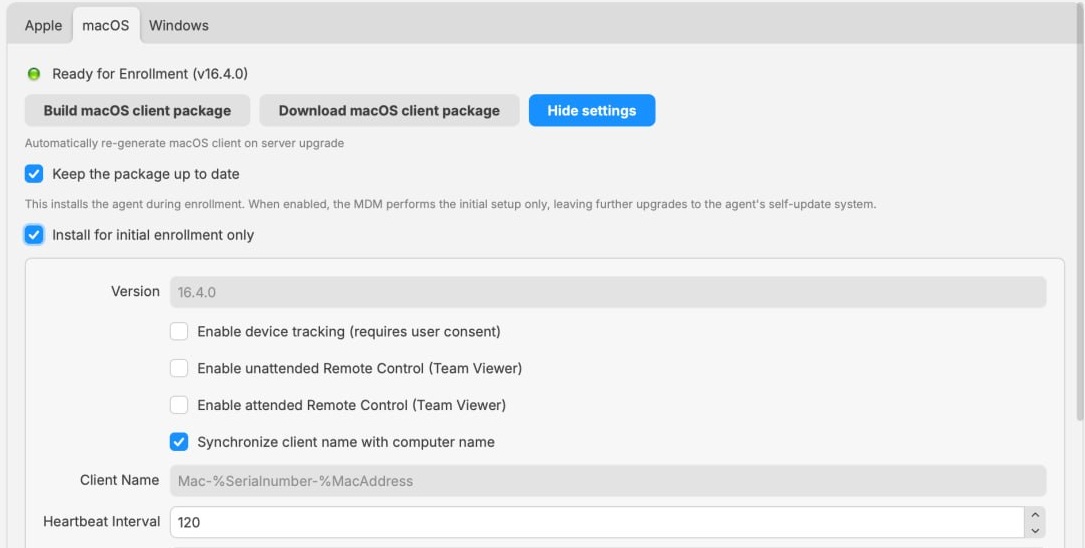
- In FileWave Central, open Preferences → Mobile → macOS and select Build macOS client package. This integrated workflow is documented under FileWave Server 16.4 or later.
- Wait for the build to complete and confirm that the package is ready for enrollment as FileWave Client 16.4.0. Rebuilding refreshes the corrected package but does not change its version number.
If Central reports that the package configuration already exists
FileWave Central 16.4.0 may report “A package with the same configuration already exists.” when you select Build macOS client package.
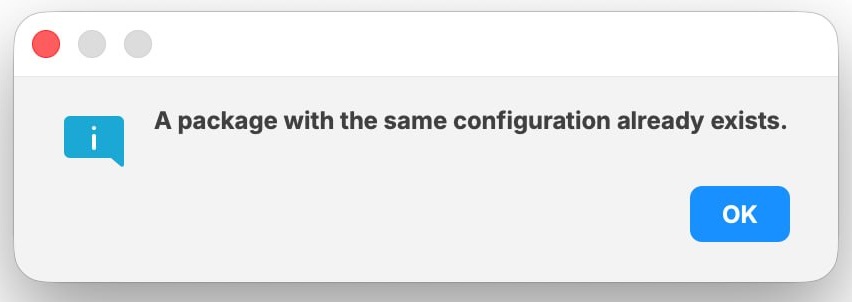
- Select OK, then select Show settings.
- Record the current value of a package setting such as Heartbeat Interval, then temporarily change that value.
- Select Build macOS client package again and wait for the build to finish.
- Restore the original setting value and build the package once more. Wait for that final build to finish before continuing.
Do not continue to Step 2 until the corrected package is configured in FileWave Central. A corrected package rebuilt on FileWave Server 16.4.0 will still display version 16.4.0.
2. Install the recovery command on the FileWave Server
FileWave Hosted customers: After the applicable package-preparation path in Step 1 is complete, identify the intended target devices and contact FileWave Support. Reference Technical Bulletin 2026-004. FileWave Support must install and run the recovery command on the Hosted Server, including the dry run in Step 3 and the approved execution in Step 4. Review the dry-run device count and serial numbers with Support before the command is executed. Afterward, complete the Validate recovery checks in this article.
For a self-managed FileWave Server, run the following one-line command on the Server. It works on macOS and Debian 12 or 13. The command confirms that the FileWave Server management entry point exists, downloads the attached script over HTTPS, verifies its SHA-256 checksum using sha256sum or shasum, determines the root account's platform-specific primary group (wheel on macOS or root on Debian), creates the custom-command directory if needed, and installs the file with the correct ownership, permissions, path, and filename only after the checksum matches.
sudo sh -c 'set -eu; url="https://kb.filewave.com/attachments/544"; expected="1c16f0375f6c67749bc5012b92e809c6d0a2f2c55e384d1a77bcfd139266efc2"; base="/usr/local/filewave/django"; manage="$base/manage.pyc"; command_dir="$base/filewave/management/commands"; dest="$command_dir/send_reinstall_fwcld_apn.py"; [ -f "$manage" ] || { printf "FileWave Server management entry point not found: %s\n" "$manage" >&2; exit 1; }; tmp=$(mktemp); cleanup() { rm -f "$tmp"; }; trap cleanup EXIT HUP INT TERM; command -v curl >/dev/null 2>&1 || { echo "curl is required." >&2; exit 1; }; curl -fsSL --proto "=https" --tlsv1.2 "$url" -o "$tmp"; if command -v sha256sum >/dev/null 2>&1; then actual=$(sha256sum "$tmp"); elif command -v shasum >/dev/null 2>&1; then actual=$(shasum -a 256 "$tmp"); else echo "sha256sum or shasum is required." >&2; exit 1; fi; actual=${actual%% *}; [ "$actual" = "$expected" ] || { printf "Checksum mismatch: expected %s, got %s\n" "$expected" "$actual" >&2; exit 1; }; root_group=$(id -gn root); install -d -o root -g "$root_group" -m 0755 "$command_dir"; install -o root -g "$root_group" -m 0644 "$tmp" "$dest"; printf "Installed %s (SHA-256 %s)\n" "$dest" "$actual"'
If you are already signed in as root on a Debian server where sudo is not installed, omit the leading sudo. The command exits without installing the file if the download fails or the checksum does not match. A successful run prints the installed path and verified SHA-256 value.
3. Preview the target devices
Run a dry run before queuing anything. A dry run lists matching devices but does not create commands or send APNs. Preview with the same targeting option you plan to use in Step 4. --serial or --serial-file is the normal path; use --all only when you deliberately intend to review every managed MDM Mac.
Targeting check: The recovery command does not filter Macs by their current FileWave Client version. Compare the dry-run serial numbers with FileWave Central inventory and confirm that the corrected package matching the FileWave Server version is configured in Preferences → Mobile → macOS and is intended for every target Mac. Use your recovery records to exclude Macs that have already received the corrected package.
Preview a single Mac by serial number
sudo /usr/local/filewave/python/bin/python /usr/local/filewave/django/manage.pyc send_reinstall_fwcld_apn --dry-run --serial SERIAL_NUMBER
Preview Macs from a serial-number file
Create a text file containing one serial number per line, then run:
sudo /usr/local/filewave/python/bin/python /usr/local/filewave/django/manage.pyc send_reinstall_fwcld_apn --dry-run --serial-file /path/to/serials.txt
Preview every managed MDM Mac
sudo /usr/local/filewave/python/bin/python /usr/local/filewave/django/manage.pyc send_reinstall_fwcld_apn --dry-run --all
Review the output and confirm that the device count and serial numbers match your intended scope.
4. Queue the corrected client installation
Target the smallest scope that covers the affected Macs. For staged recovery, use --serial or --serial-file. The configured corrected Client package should match the FileWave Server version. If inventory contains Macs on different Client versions, do not switch package versions between groups; instead, confirm that each target Mac is intended to receive the Server-matching package. Reserve --all for when every returned Mac should receive that one configured package, and only after validating the dry-run results.
To target a single Mac:
sudo /usr/local/filewave/python/bin/python /usr/local/filewave/django/manage.pyc send_reinstall_fwcld_apn --serial SERIAL_NUMBER
To target a list of Macs:
sudo /usr/local/filewave/python/bin/python /usr/local/filewave/django/manage.pyc send_reinstall_fwcld_apn --serial-file /path/to/serials.txt
To target every managed MDM Mac returned by the command:
--alldeploys the one package currently configured in FileWave Central to every managed MDM Mac returned by the command. This can include Macs running another Client version or Macs that have already received a corrected package. Use it only when deploying that configured package across the full returned scope is deliberate.
sudo /usr/local/filewave/python/bin/python /usr/local/filewave/django/manage.pyc send_reinstall_fwcld_apn --all
Use only one targeting option at a time. The script requires --all, --serial, or --serial-file so that it cannot target devices accidentally without an explicit scope.
What the command does
The command:
- Finds managed macOS devices matching the selected scope.
- Queues an
InstallApplicationcommand for the FileWave Client package currently configured under Preferences → Mobile → macOS. - Commits all queued commands to the database.
- Sends an APN to each selected device through its existing Apple MDM connection.
APNs are sent one device at a time with a brief pause between devices. Large fleets can take significant time to process. If an APN fails for a device, the installation command remains queued and can be received at that device's next natural MDM check-in.
Validate recovery
After the command completes:
- Allow online devices time to receive the MDM command and install the corrected package.
- In FileWave Central, confirm that recovered Macs resume normal FileWave Client check-ins and report the Client version delivered by the corrected package that matches the FileWave Server. Macs already on that version will not show a version increase, so do not rely on a version change alone to confirm recovery.
- On representative Macs, confirm FileWave Client starts normally and the macOS blocking warning no longer appears.
- If your organization uses Kiosk, confirm Kiosk opens normally on a representative device.
Troubleshooting
No matching device.Verify the serial number, confirm the device is macOS, and confirm it is enrolled through Apple MDM.No InstallApplication commands queued.The matching device may not have a linked MDM client. Confirm its MDM enrollment and contact FileWave Support if needed.- macOS reports an
INS@...: No such file or directoryinstall path. This is the temporary filename used internally by macOSinstall; it means the destination command directory did not exist. Rerun the current one-line installation command, which verifies the FileWave Server management entry point and creates the command directory before installing the file. - APN failures are reported. The installation command is already queued. Allow the device to check in naturally or contact FileWave Support for help with the MDM push. Do not repeatedly run the recovery command without first reviewing the device's command queue.
- The blocking warning persists after recovery. Confirm that the package configured under Preferences → Mobile → macOS is the corrected installer, not a cached or previously generated package.
- A recovered Mac still reports the same Client version. This is expected when the Mac was already running the Client version that matches the FileWave Server. The corrected rebuild retains that version; confirm recovery through normal Client check-ins, normal Client and Kiosk operation, and the absence of the macOS blocking warning.
- You ran the command before preparing the corrected package. Stop and contact FileWave Support before continuing.
Optional cleanup
After all affected Macs have recovered and you no longer need the command, remove the management-command file from the FileWave Server:
sudo rm /usr/local/filewave/django/filewave/management/commands/send_reinstall_fwcld_apn.py
Keep the downloaded attachment with your incident records if your organization requires it.