
Using AutoPkgr with FileWave for Advanced macOS Software Deployment
DescriptionWhat this integration does
AutoPkg is an automation framework forautomates macOS software packaging andfrom distribution,community orientedor towardorganization-maintained therecipes. tasksThe oneFileWave wouldimporter normallycan performturn manuallya tosuccessful preparerecipe third-partyrun softwareinto a Fileset for masstesting deploymentand to managed clients. An important use in conjunction with FileWave is to provide a way to turn 3rd party software updates into Filesets on an automated basis.deployment.
AutoPkgUse is an automation framework for macOS software packaging and distribution, designed to automate the tasks one would normally perform manually to prepare third-party software for mass deployment to managed clients. While FileWave version 15.5 and later introduces an integrated AutoPkg feature for simplified package creation (as detailed in our new articleFileWave's “Integrated AutoPkg (v15.5+)”),workflow power users seeking advanced functionality may prefer usingfor the fullsimpler built-in path. Use the standalone AutoPkg and AutoPkgr tools.workflow Thisbelow articlewhen focusesyou onneed leveragingits AutoPkgrscheduling, withrecipe-repository, FileWave to automate the process of turning third-party software updates into Filesets on an automated basis, providing greater controloverride, and customizationtrust-management options for sophisticated deployment scenarios.controls.
Ingredients
FWFileWaveAdminCentral and a dedicated FileWave administrator account for the importer- Current AutoPkg and AutoPkgr
Installerinstallers AnA'alwaysdedicatedon'Maccomputerthat remains available for scheduled recipe runs
Directions
Complementing the below setup, there is also a Foundry presentation about this and, additional configuration and typical stumbling blocks: FileWave and AutoPkg
Setup FileWave
- Go to FileWave Admin -> Assistants -> Manage Administrators
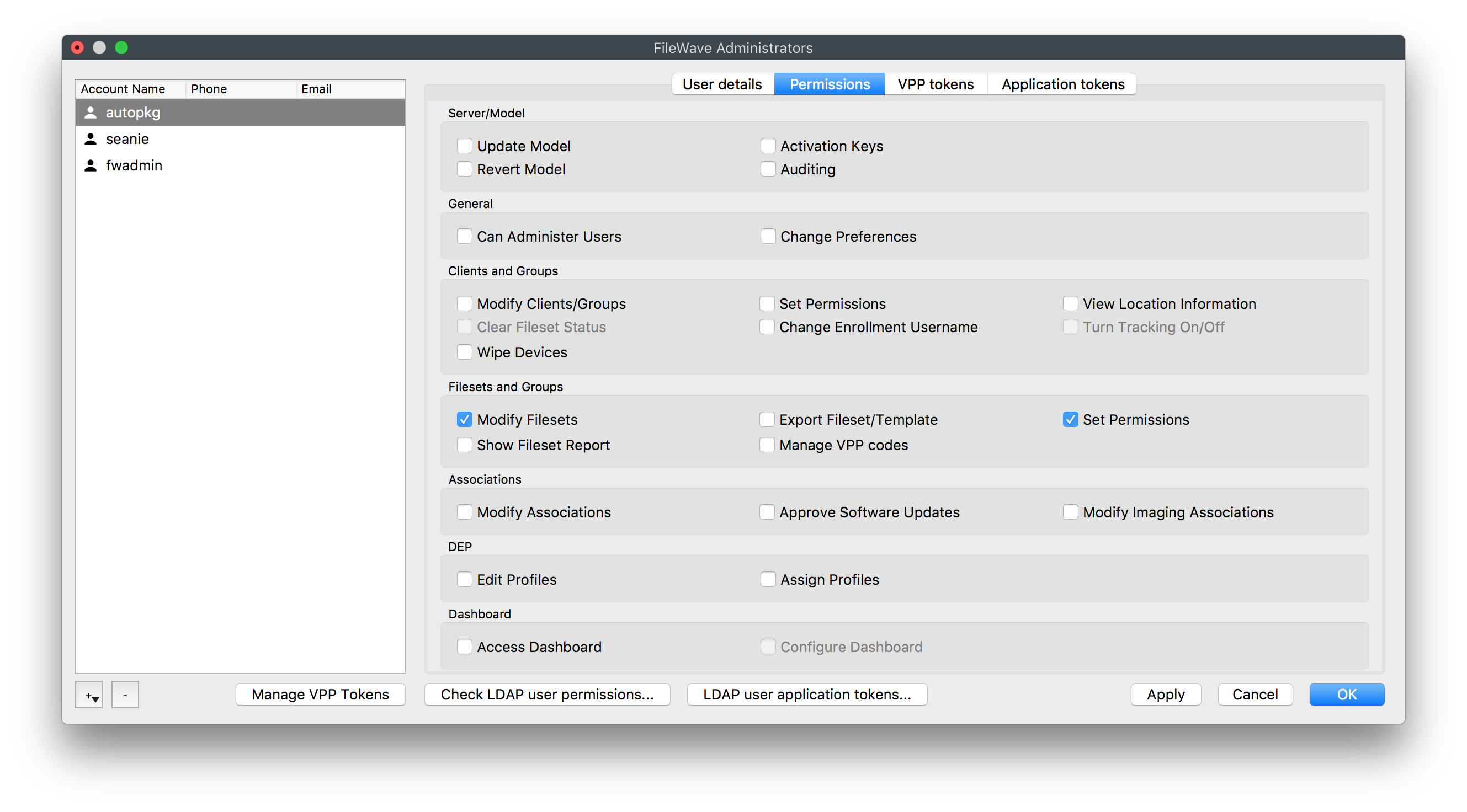
- Click on the + button to add a new Administrator
Select LocalAccount,Account,(forgiveexampletheautopkgimporter a dedicated username, andthegenerate a unique passwordautopkg as well) - Go to Permissions tab and click on Select None
- Allow the autopkg user to 'Modify Filesets' and 'Set Permissions' as per the above screenshot.
- Click Apply
- Confirm with OK
Setup AutoPkgr
- Go
toto https://github.com/lindegroup/autopkgr/releases/latest - Download, install and launch AutoPkgr
- Launch AutoPkgr, Click on "Install AutoPkg" , and "Install Git"
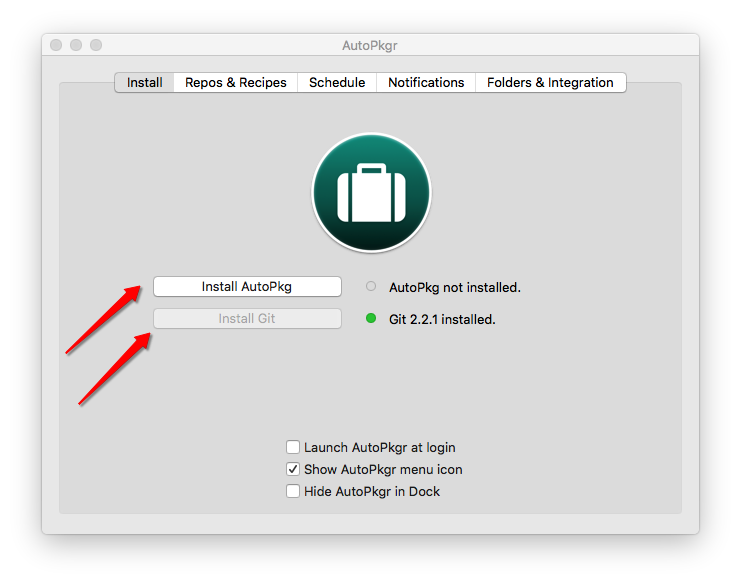
- Go to Folders & Integration and click on Install FileWaveImporter:
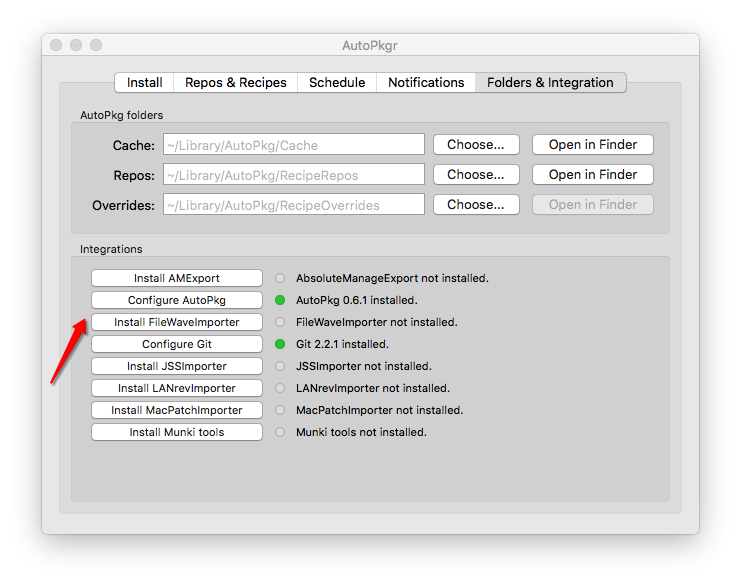
- Click on Configure FileWaveImporter:
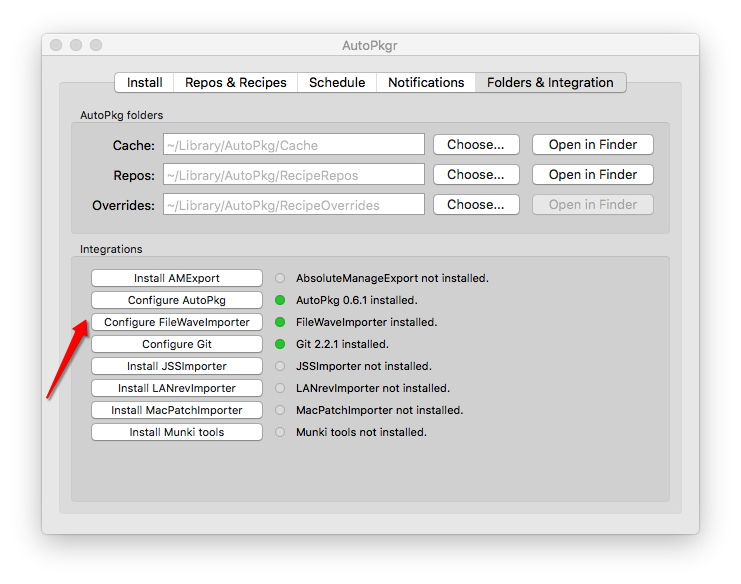
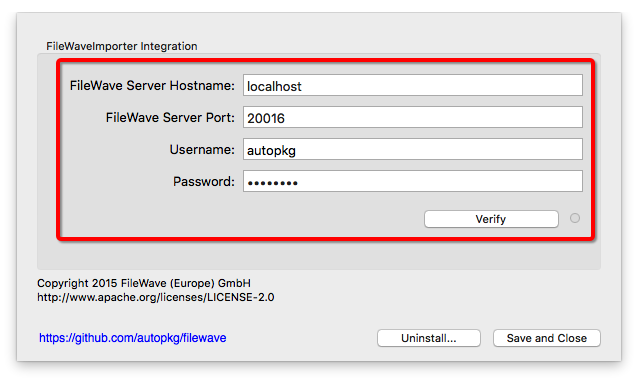
- Enter your FileWave Server Hostname
-
- FileWave Server Port is already set to 20016
UsernameEnteristhee.g.dedicatedautopkgimporter usernamePasswordEnterisitse.g.uniqueautopkgpassword- Click on Verify to validate the setup
- Click on Save and Close
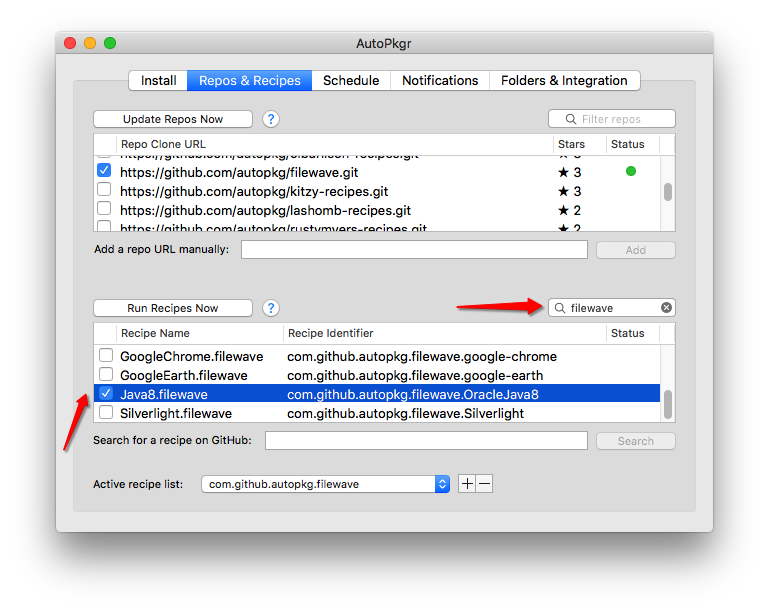
- Go to Repos & Recipes and verify that https://github.com/autopkg/recipes.git and https://github.com/autopkg/
filewave/filewave.git are checked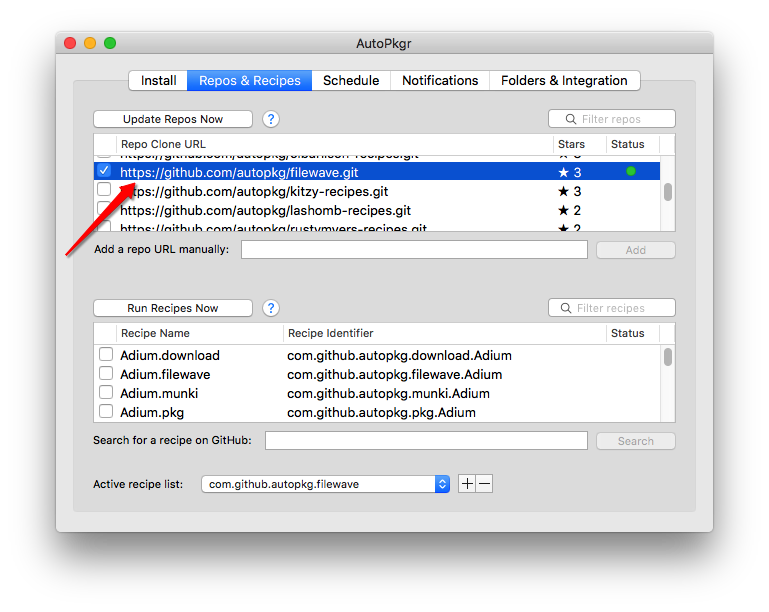
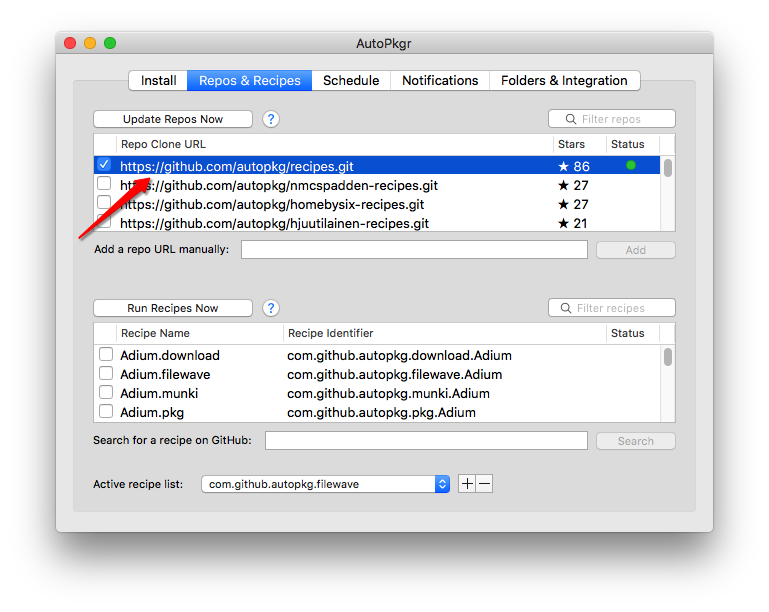
- Make sure that 'Active recipe list' has added com.github.autopkg.filewave:
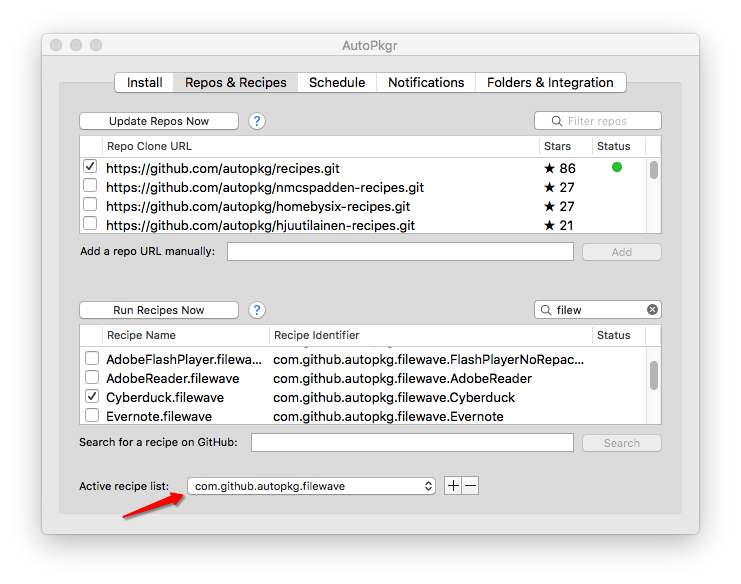
Now You can runSelect aRecipecurrentforFileWaveexamplerecipeJava8.thatTomatchesfindsoftwareityouquicklyuse.enterThefilewavescreenshoton search bar and checkuses theJava8historicalrecipe:Java 8 recipe only to show where FileWave recipes appear in AutoPkgr.
Security and Trust Relationship
Running recipes directly from a cloned repo will bypass AutoPkg's security mechanism. As such an Override recipe should always be created and run. This builds a local recipe with a trust relationship between this and any linked 'parent' recipes, see below. For additional information on Override recipes and more, please view the Foundry video: FileWave and AutoPkg
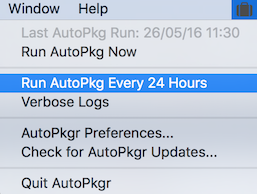
- Congratulations ! Your AutoPkgr setup is now complete. Choose the recipes you would like to run on a regular basis , and then schedule AutoPkgr to run every 24 hours.
Recipe Updates
On occasion recipes that were working will fail to run. Typically this is because something has changed regarding the 3rd party's website or download. This will require the author of the relevant recipe to update their recipe to implement this change. In this instance of failed recipes, check for recipe updates 'Update Recipes Now'. For any updated recipe, changes should be observed and then the trust relationship will need to be updated too; see below.
Override recipes can additionally customise the Fileset, Fileset groups, etc.
Override Recipes & Trust Relationship
For security, a trust relationship was added between recipes. The idea is the child recipe is made to trust it's parent recipes. If an updated version of a parent recipe is pulled from a repository, then this parent will no longer be trusted by that child, until the trust relationship is manually manually updated. AutoPkgr does not offer the ability to change trust and so this must be done via the command line.
With no trust, when a recipe is run that relies on parent recipes you will see an error similar when running the recipe from Terminal:
$ autopkg run -v OracleJava8.filewave.local
Processing OracleJava8.filewave.local...
Failed local trust verification.
Receipt written to /tmp/receipts/OracleJava8.filewave-receipt-20180409-141621.plist

The following recipes failed:
    OracleJava8.filewave.local
        No trust information present.

Nothing downloaded, packaged or imported.
In this example, Creating a Recipe Override will create a recipe that has trust added for us. Using the above Java8 example, first make an Override recipe. The Override recipe and initial trust can be created in either AutoPkgr or using the command line. The Java 8 override recipe will be called "Java8.filewave.override". The last entry is reference to the parent recipe to be overridden (this can be either be recipe name or it's identifier, recipe name used in this example):
$ autopkg make-override -n Java8.filewave.override Java8.filewaveBy making the override file in this way, the trust relationship has been added automatically to the Override recipe. Now there is a trust relationship, the override file can be used to run the recipe (either through Terminal or AutoPkgr):
$ autopkg run -v OracleJava8.filewave.override
Processing OracleJava8.filewave.override...


[lines removed]


The following fileset was imported:
    Fw Fileset Id  Fw Fileset Group  Fw Fileset Name

    -------------  ----------------  ---------------
    194266         Root              Java - 1.8.161.12

The following packages were copied:
    Pkg Path

    --------
    /Users/Shared/Autopkg/Cache/local.override.filewave.OracleJava8/Java-1.8.161.12.pkg

The following new items were downloaded:
    Download Path

    -------------
    /Users/Shared/Autopkg/Cache/local.override.filewave.OracleJava8/downloads/Java.dmg
If after updating repos, the trust relationship error is flagged against any recipes, this indicates that a parent has been updated and trust is no longer in place. At this point, the parent should be reviewed to observe the changes made. Changes to a recipe can easily be viewed by navigating to the relevant recipe on GitHub and viewing the 'History'.
Once confirmation has been made that the changes are acceptable, a new trust relationship should be created. As an override file already exits, the trust will need to be updated for the Java 8 override recipe; as such re-trusting all parents:
$ autopkg update-trust-info Java8.filewave.overrideAlthough it is possible to disable trust relationship, this should not be recommended for security reasons. Current status can be seen by running the following and checking the value of 'FAIL_RECIPES_WITHOUT_TRUST_INFO':
$ autopkg infoIt is possible to temporarily override the trust relationship, such that it is ignored:
$ autopkg run --ignore-parent-trust-verification-errors [name of recipe]Important
FORReview SECURITYbefore REASONS,deployment.
Inspect ITrecipe ISchanges ALWAYSbefore RECOMMENDEDallowing THATAutoPkg RECIPESto AREimport CHECKEDthem BEFOREinto INGESTINGFileWave. INTOTest YOURevery FILEWAVEcreated SERVERFileset ANDon CREATEDrepresentative FILESETSMacs AREbefore SUBSEQUENTLYexpanding CHECKEDthe ON TEST MACHINES BEFORE DEPLOYING TO LARGER GROUPS OF MACHINESDeployment.
Related Content
- Integrated AutoPkg (v15.5+)
- Autopkg(r) FAIL_RECIPES_WITHOUT_TRUST_INFO
- FileWave & AutoPkg Instructions - https://github.com/autopkg/filewave
- The primary site for AutoPkg -
- Github Site for AutoPkg -
- AutoPkgr website -
- AutoPkg Trust - https://github.com/autopkg/autopkg/wiki/AutoPkg-and-recipe-parent-trust-info