
Create AutoPkg Filesets in FileWave
What
FileWave's integrated AutoPkg workflow creates Apple Filesets from a curated software catalog. Administrators can search the available recipes, create a Fileset, choose a version strategy, and deploy it without running a separate AutoPkg service.
Fileset properties control whether a supported recipe uninstalls the software when its Deployment becomes inactive. Revision settings can track the latest recipe version or hold a specific version until an administrator chooses to move forward.
Traditional AutoPkg installations can add recipe repositories on a macOS host. FileWave instead exposes a curated set of repositories. This reduces repository sprawl, but it also means the integrated catalog may not contain every product available to a standalone AutoPkg workflow.
Use the integrated catalog for common recipes and a controlled version workflow. For custom repositories or recipes outside that catalog, use a standalone AutoPkg workflow and import the resulting package as a PKG Fileset.
When/Why
When to Use
Use the integrated workflow when the required software is available in the curated catalog and you want FileWave to manage its recipe versions. Use standalone AutoPkg when you need custom repositories, recipe overrides, or software not offered in the integrated catalog.
Why This Feature Matters
The curated repository set gives FileWave administrators a consistent catalog and removes the need to maintain a separate AutoPkg host for supported recipes. Version controls let a Fileset follow the latest catalog revision or hold a selected version until testing and change control are complete.
The curated catalog limits repository choices, but administrators should still inspect the Recipe URL, verify the package source, and pilot installation before broad deployment. Test removal separately if you intend to use passive uninstall.
How
Creating an AutoPkg Fileset:
Create the AutoPkg Fileset from FileWave Central, inspect its recipe source, choose the version strategy, and deploy to a pilot Mac. After publishing the Deployment, confirm the installed application and version, then keep the assignment in place while it should remain managed. Removal is a separate operation.
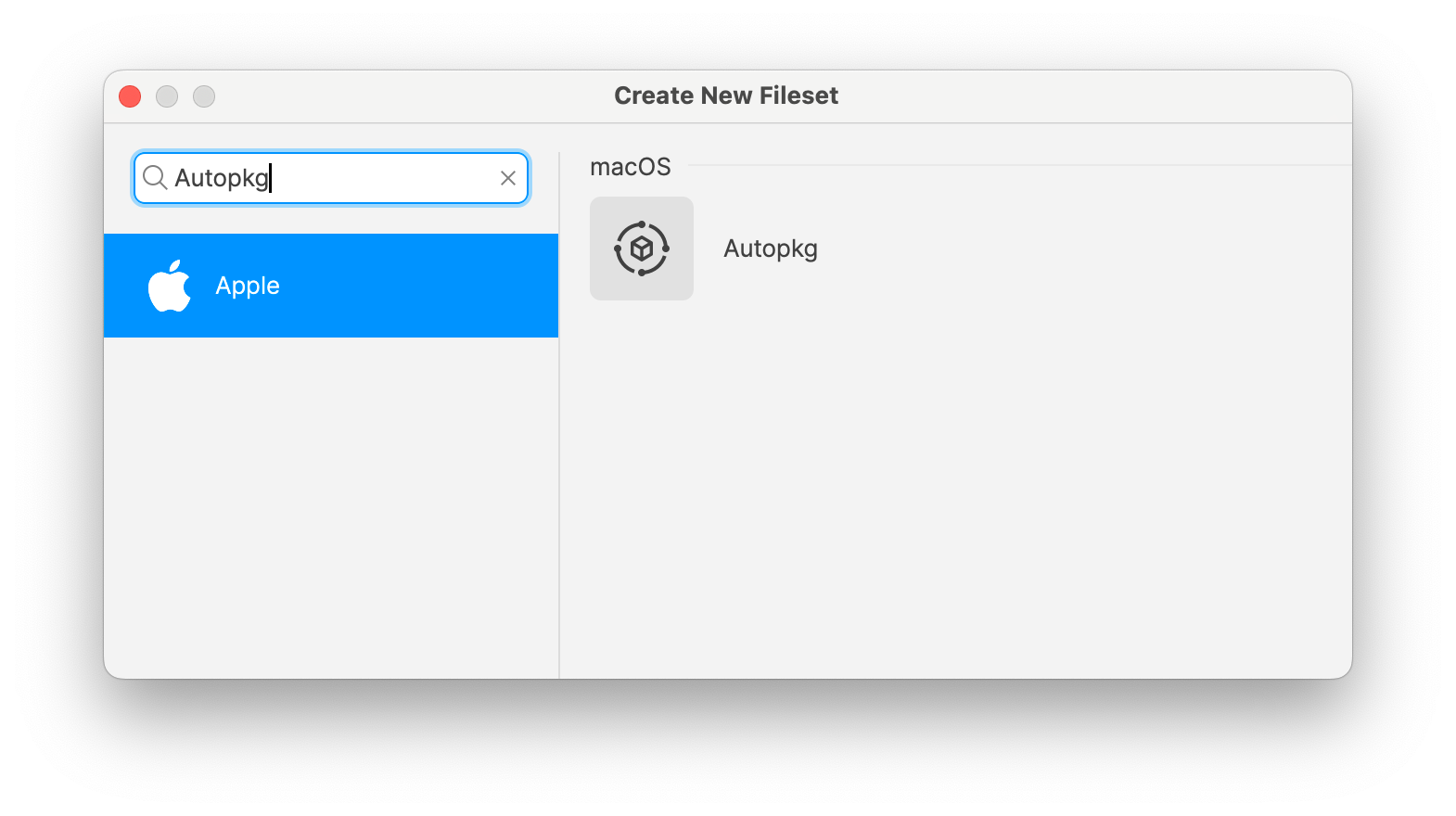
- Create a new Fileset, select Apple, and choose AutoPkg as the type:
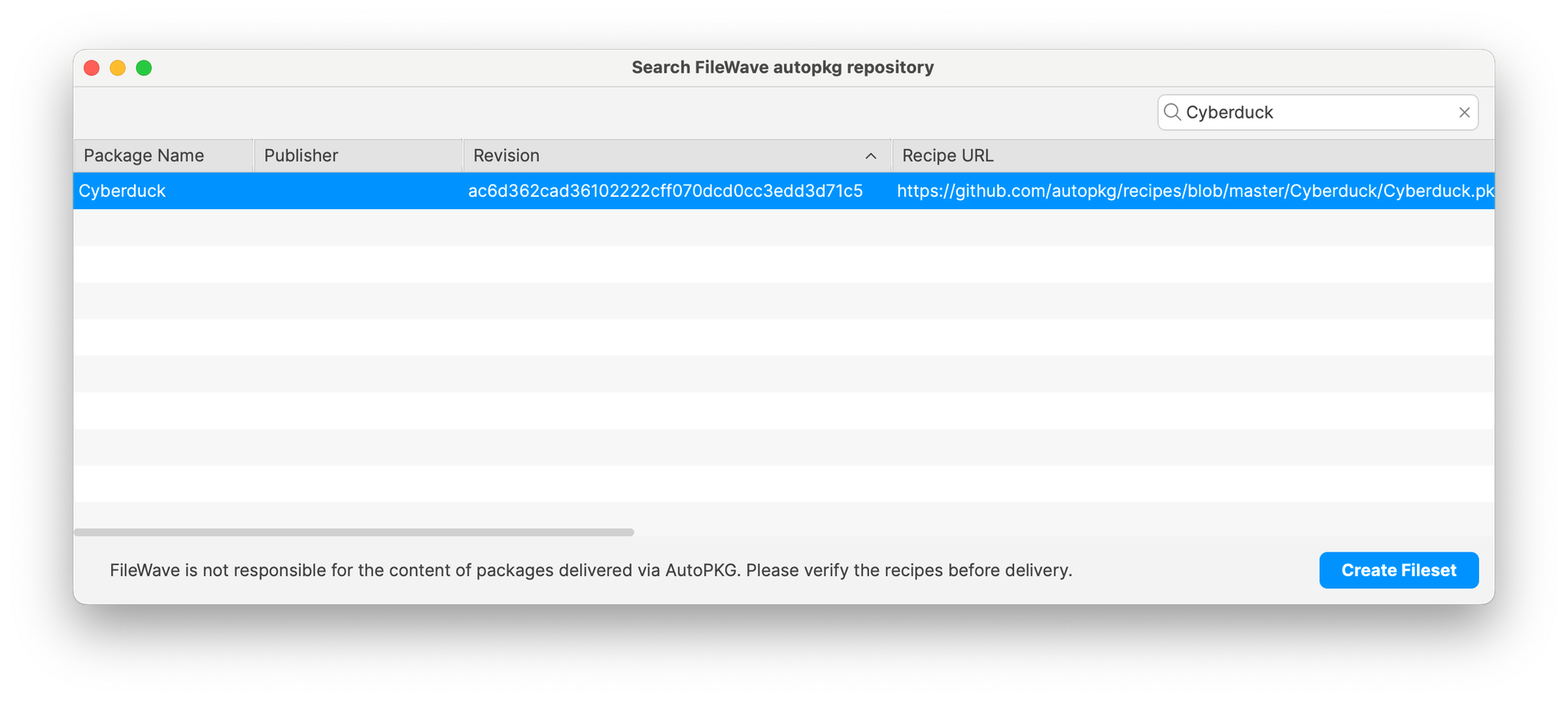
- Search for the software. Catalog entries may not include a description, so inspect the Recipe URL to identify the source and review the recipe before creating the Fileset.
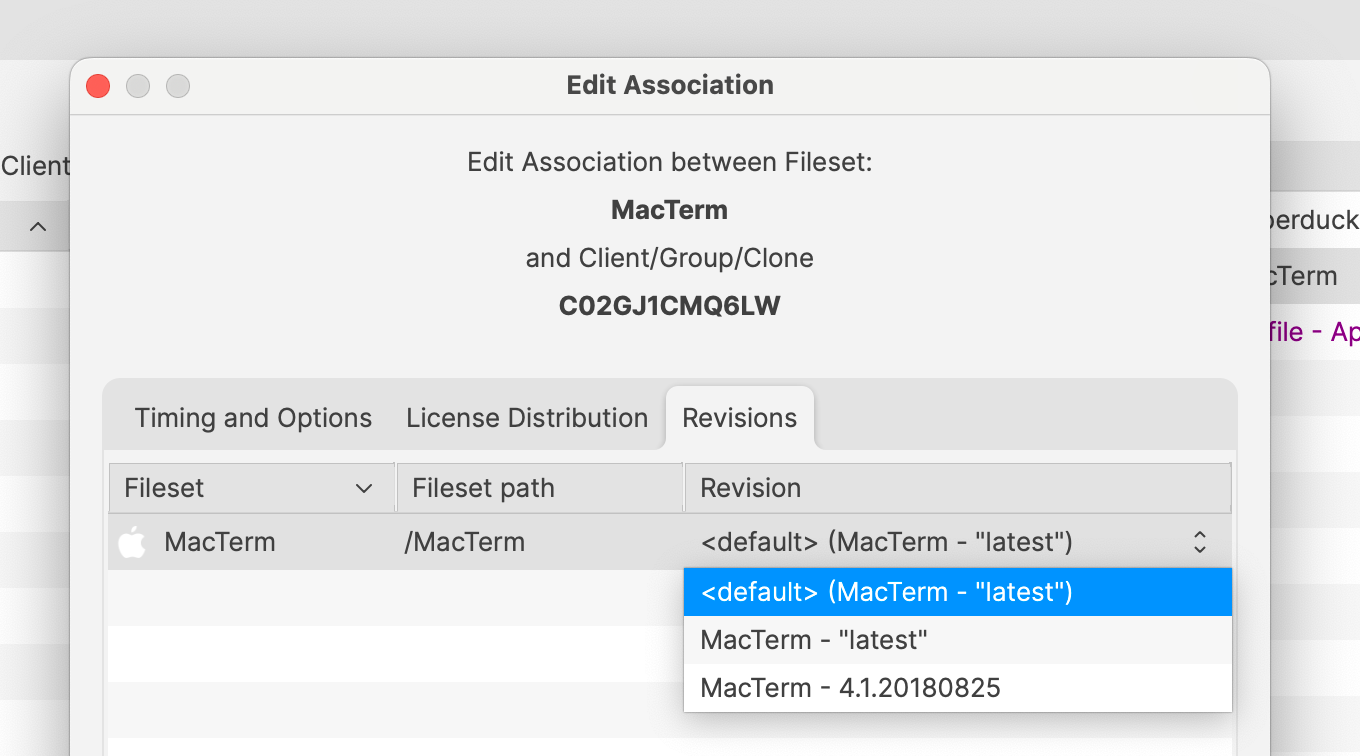
- Create a Deployment. Select latest when the Fileset should follow new catalog revisions, or select a specific version when upgrades must remain administrator-controlled.
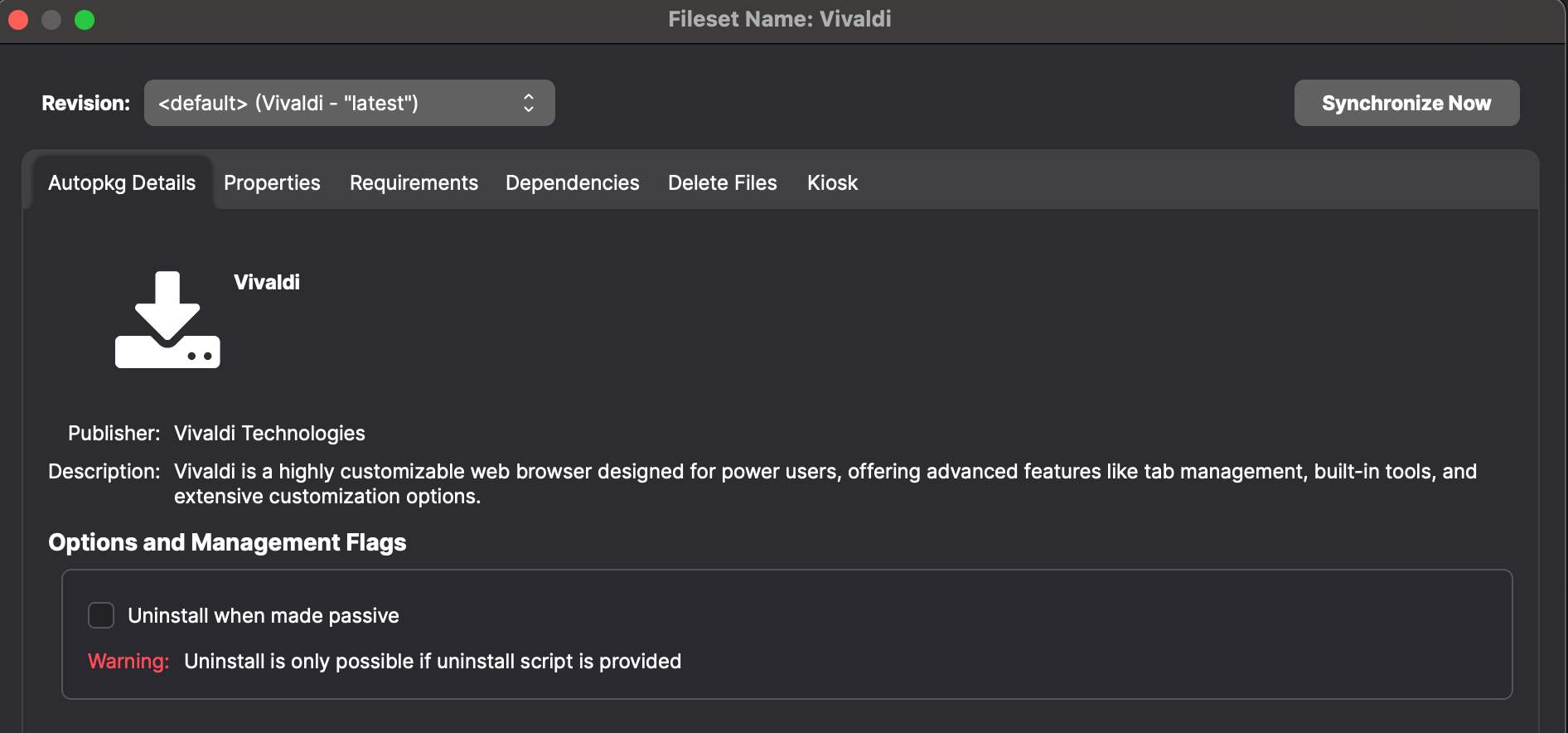
- In Fileset Properties, enable Uninstall when made passive only when the recipe includes a tested uninstall script and removal is the intended result.
If you intend to remove the software later, test that removal first. The passive-uninstall option works only when the recipe author included a functional uninstall script. Verify the result on a pilot device before relying on it for software removal.
Related Content
Digging Deeper
For integrated AutoPkg package lookup, FileWave Server 17.0 and later contacts autopkg.filewave.com. Through FileWave 16.4, the metadata destination is le7bqzikha.execute-api.us-east-1.amazonaws.com. Allow the destination for your Server version; starting the workflow in Central does not make Central the component that fetches the 17.0 metadata.
Package downloads are separate from metadata lookup. The installer comes from the package-download URL supplied by the selected recipe's metadata, which may use a different host or CDN. Reaching the metadata service alone does not establish that the installer can be downloaded.
FileWave 17.0 AutoPkg caching: The native macOS Client can download AutoPkg packages through a configured Booster and cache the content there. Plan this route with a 17.0 Client and Booster. The Booster needs access to the selected package-download host and any required redirects. If no Booster connection is available, or the Booster download fails, the Client can fall back to the original package URL, so retain the required direct-download access for that fallback. This differs from a Server-hosted Fileset falling back to FileWave Server.
No comments to display
No comments to display