FileWave Kiosk Displays Company Information
DescriptionWhat
As an enhancement to the FileWave Kiosk / App Portal oncan display Company Information configured in FileWave Central. Use this to give users a consistent place to find your organization name, support contact details, address, or other help desk information from macOS, Windows, iOS, and iPadOS/iOS,iPadOS version 15.4 includes a view for Organisation Information.devices.
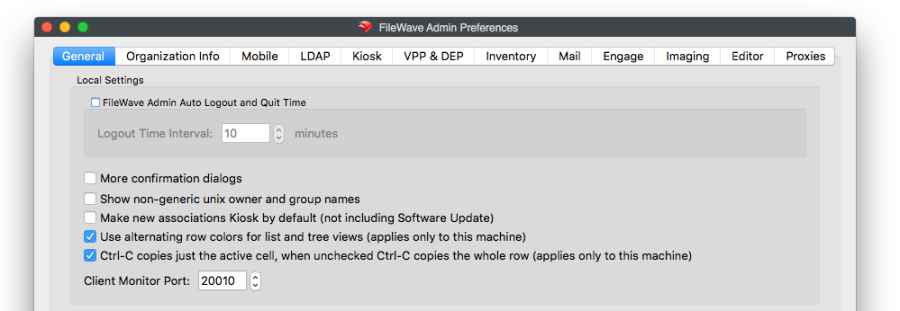
InformationWhere to configure it
DetailsIn forFileWave Central, open Preferences and select the organisationOrganization mayInfo betab. filled out inUpdate the Preferences tab of FileWave Central for Organisation Info. Theseorganization details wereyou already available forwant users to observesee in the iOS Kiosk App./ Now,App they are available also in the the computer Kiosk for a uniform experience. To edit what is shown simply go to Preferences -> Organization Info in FileWave Central and you can update the information.Portal.
What users see
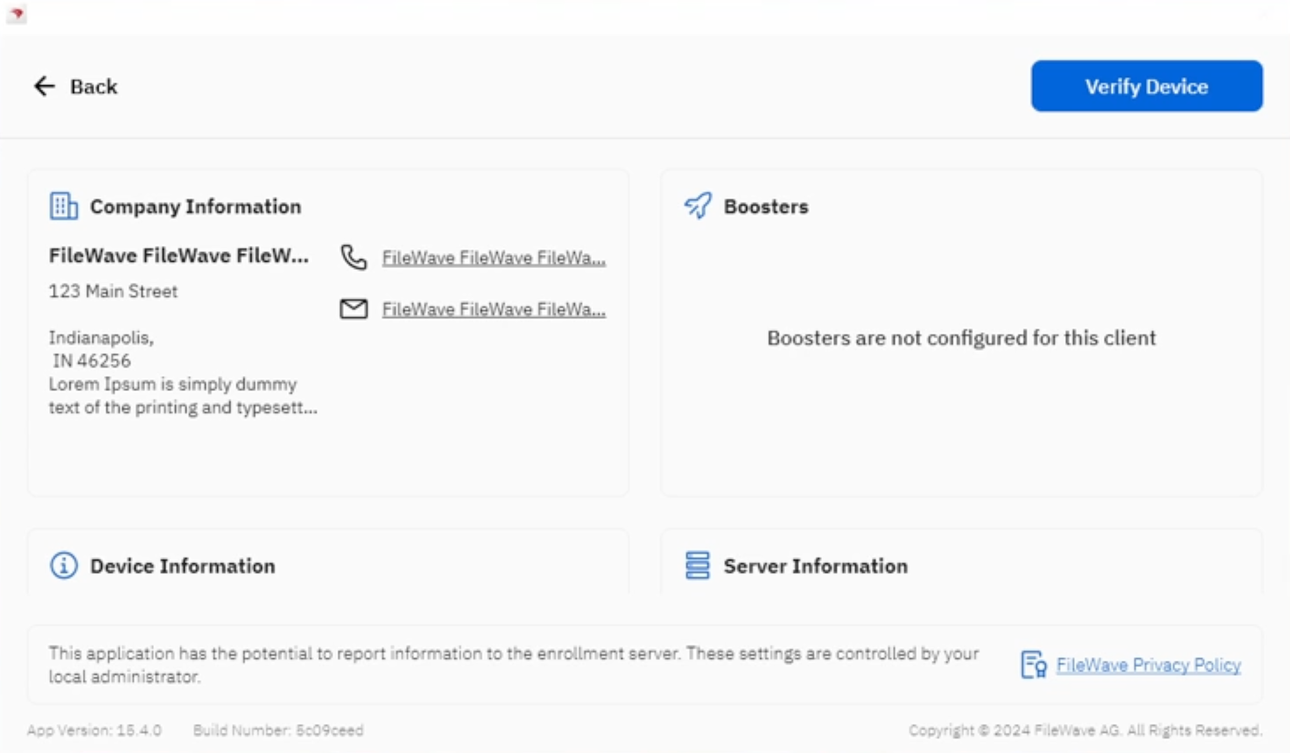
macOS and Windows
On macOS and Windows computers, the Company Information panel appears in the Kiosk / App Portal device information view.
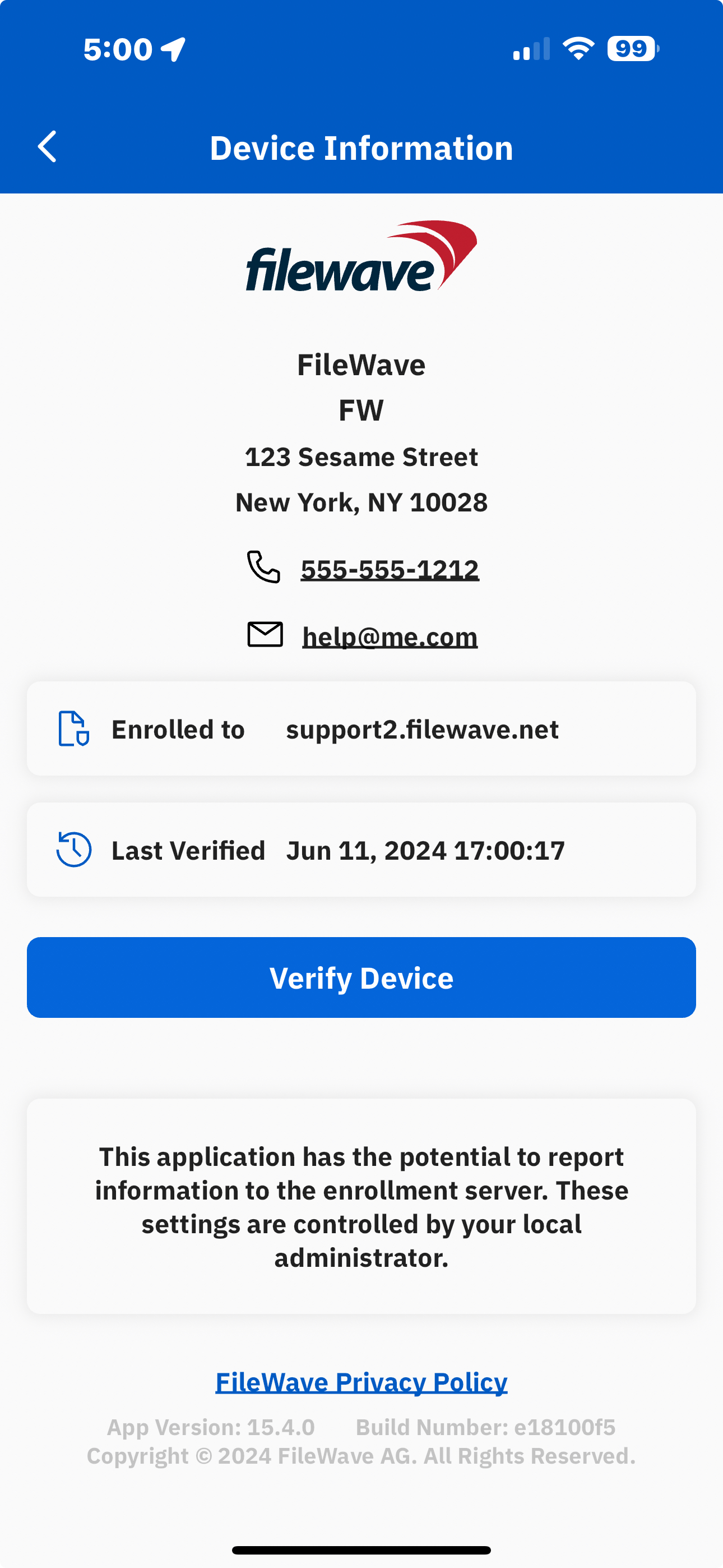
Mobile like iOS and iPadOS
On iOS and iPadOS devices, the same organization details appear in the Device Information view along with enrollment and verification information.