Missing Device Message in Kiosk for macOS and Windows (16.0+)
What
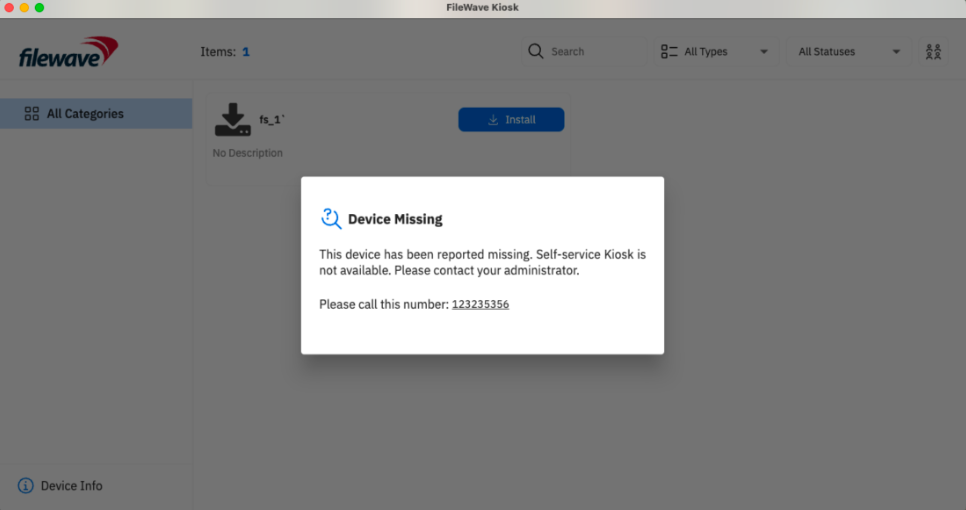
As a FileWave Administrator, you sometimes need a reliable method to signal that a device is no longer available for normal use. The “Missing Device” message inUse the KioskMissing isDevice designedstate precisely for this purpose. Whenwhen a macOS or Windows client is flagged as “Missing” in FileWave Admin—by right-clicking the device inshould stop offering self-service Kiosk actions and show return or contact instructions instead. In FileWave Central, selectingright-click the device, choose Client State > Missing, and then performingrun a Model Update—the. systemThe automaticallynext updatestime FileWave Kiosk opens on the Kioskclient, displayit withshows athe dedicatedMissing Device message. ThisThe message can includeuse athe custom Lost Mode Message, and an optional Lost Mode Footnote,Footnote, allowing yourand organization tocontact providenumber tailoredfrom instructions.Preferences In> theOrganization absenceInfo. ofIf no custom messaging,text theis defaultset, notificationKiosk reads:shows: “This device is currently marked as missing. Self-service Kiosk is not available. Please contact your administrator.”
This feature is an initial implementation of what aThe Missing Device workflowmessage couldappears lookonly like.when Itthe isuser notopens completeKiosk. yet,If butusers weneed welcomeinstructions yourbefore feedbackthey aboutopen howKiosk, toalso expandsend ona this.FileWave End-User Notification.
When/Why
ImagineThis is useful for end-of-year student device returns, overdue loaner laptops, leased-device turn-ins, or any managed device that should display clear return instructions when the scenariouser inopens anKiosk.
For institutionexample, ata school can set the end of the school year. Devices issuedmessage to students must be returned, and as the FileWave Administrator, you need to provide clear, actionable instructions. With the new “Missing Device” message, the Kiosk offers a friendly yet authoritative reminder—such as “End of Year Reminder: Please return your device to the school’s IT office”—ensuringoffice.” studentsA knowcorporate exactlyIT team can use the same state to tell an employee where and how to return their equipment.
Similarly, consider a loaner laptopor thatlease-replacement isdevice.
How
In aFileWave corporateCentral, setting, a leased device approachingright-click the end of its lease requires a seamless turnover. By marking the device as “Missing,” the Kiosk alerts the employee that the current device must be surrendered for replacement, streamlining the process and minimizing downtime.
How
When you mark a macOS or Windows client as “Missing” in FileWave Admin, the process is straightforward. Right-click on the device in FileWave Central,client, select Client State > Missing, and then executerun a Model Update. Once this action is completed, theThe next time the user launches theopens FileWave Kiosk, theKiosk interface updates to displayshows the “Missing Device”Device message.message instead of normal self-service content.
For example, in an educational setting, the Kiosk might display a custom message like:
“End of Year Reminder: Please return your device to the school’s IT office. This device is needed for inventory and future student use.”
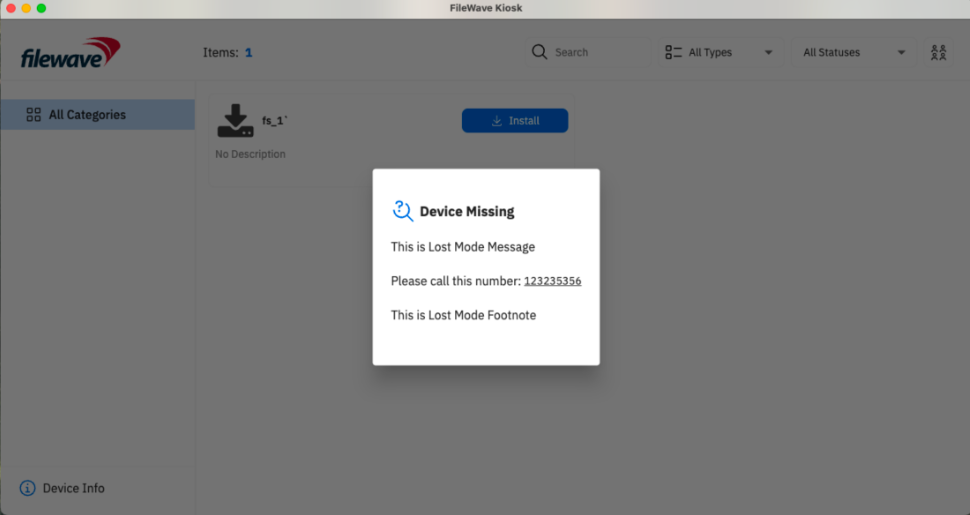
ThisConfigure customthis text isin configurable inFileWave Central Adminunder underPreferences > Organization Info,Info. where youYou can alsoset the Lost Mode Message, add a footnoteLost withMode furtherFootnote, instructionsand orinclude an organization contact number that appears as a clickable contact number.link.
It’sKiosk importantshows the Missing Device message only after Kiosk opens. If you need the user to notesee thatreturn theinstructions “Missing Device” message is only visible when the Kiosk is opened. To ensure that users receive immediate instructions—even if they are not actively in the Kiosk—you may want to leverage the FileWave Notifications feature. With FileWave Notifications, you canimmediately, send a pop-up message directly to the device. This message can include a clickable link that directs users to a webpage with detailed instructions on how to turn in the device or even a form to fill out. For more details on how to configure and send these notifications, see thethrough FileWave End-User Notifications article.and include a link to your return form or internal instructions.
While the device remains in the “Missing”Missing state, the Kiosk restrictsblocks allinstallation, Kiosk operations—preventing user-driven installations, uninstallations,uninstallation, and access tonormal self-service options—thusaccess ensuring thatuntil the device cannot be misused until it is recoveredrecovered, replaced, or replaced.moved out of the Missing state.
Notes on "the Missing Device"Device Message in Kiosk for macOS and Windows
message
-
When a macOS or Windows client is marked as
“Missing”Missing in FileWaveAdmin,Central, a“MissingDevice”Device messagewill now be displayedappears intheKiosk, similar to the“DeviceLocked”Locked message. -
The
“MissingDevice”Device messagewill includeincludes any custom Lost Mode Message and Lost Mode Footnote set in FileWave CentralAdminunder Preferences > Organization Info. -
By default, if no custom message is set, the following message appears: “This device is currently marked as missing. Self-service Kiosk is not available. Please contact your administrator.”
-
Kiosk
Restrictionsrestrictions::While in the"Missing"Missing state,theKioskwill preventprevents installation, uninstallation, and normal access to self-service options, similar to“DeviceLock”Lockfunctionality.behavior. -
SettingTo set thetextdisplayedseen.text,Inopen FileWave Central and go to Preferencesand then> OrganizationInfo:Info:-
If only the Lost Mode Message is set, it will display alone.
-
If only the Lost Mode Footnote is set, the default lost mode message will appear with the custom footnote.
-
If an organization contact number is set, it will be displayed as a clickable link for easy access.
-