
Missing Device Message in Kiosk for macOS and Windows (16.0+)
What
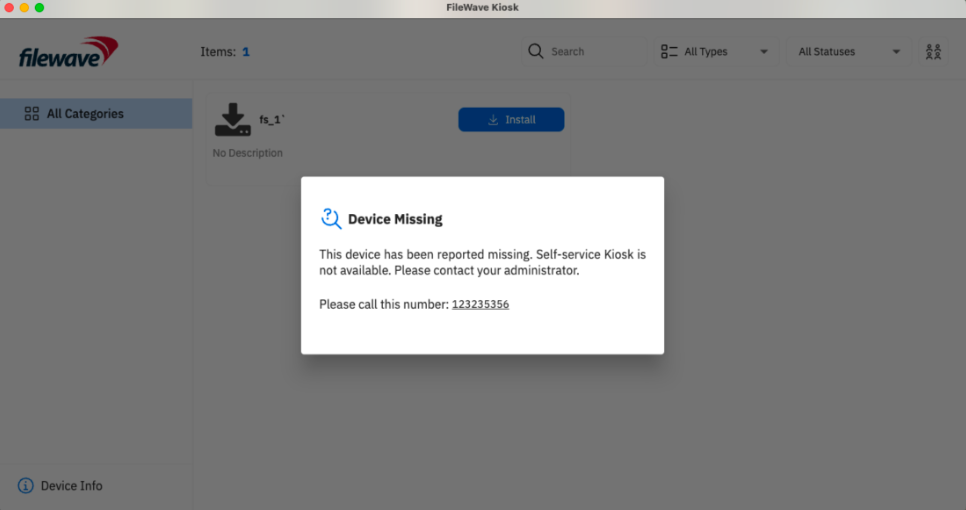
Use the Missing Device state when a macOS or Windows device should stop offering self-service Kiosk actions and show return or contact instructions instead. In FileWave Central, right-click the device, choose Client State > Missing, and run a Model Update. The next time FileWave Kiosk opens on the client, it shows the Missing Device message. The message can use the Lost Mode Message, Lost Mode Footnote, and organization contact number from Preferences > Organization Info. If no custom text is set, Kiosk shows: “This device is currently marked as missing. Self-service Kiosk is not available. Please contact your administrator.”
The Missing Device message appears only when the user opens Kiosk. If users need instructions before they open Kiosk, also send a FileWave End-User Notification.
When/Why
This is useful for end-of-year student device returns, overdue loaner laptops, leased-device turn-ins, or any managed device that should display clear return instructions when the user opens Kiosk.
For example, a school can set the message to “End of Year Reminder: Please return your device to the school’s IT office.” A corporate IT team can use the same state to tell an employee where to return a loaner or lease-replacement device.
How
In FileWave Central, right-click the macOS or Windows client, select Client State > Missing, and run a Model Update. The next time the user opens FileWave Kiosk, Kiosk shows the Missing Device message instead of normal self-service content.
For example, in an educational setting, the Kiosk might display a custom message like:
“End of Year Reminder: Please return your device to the school’s IT office. This device is needed for inventory and future student use.”
Configure this text in FileWave Central under Preferences > Organization Info. You can set the Lost Mode Message, add a Lost Mode Footnote, and include an organization contact number that appears as a clickable link.
Kiosk shows the Missing Device message only after Kiosk opens. If you need the user to see return instructions immediately, send a pop-up through FileWave End-User Notifications and include a link to your return form or internal instructions.
While the device remains in the Missing state, Kiosk blocks installation, uninstallation, and normal self-service access until the device is recovered, replaced, or moved out of the Missing state.
Notes on the Missing Device message
-
When a macOS or Windows client is marked as Missing in FileWave Central, a Missing Device message appears in Kiosk, similar to the Device Locked message.
-
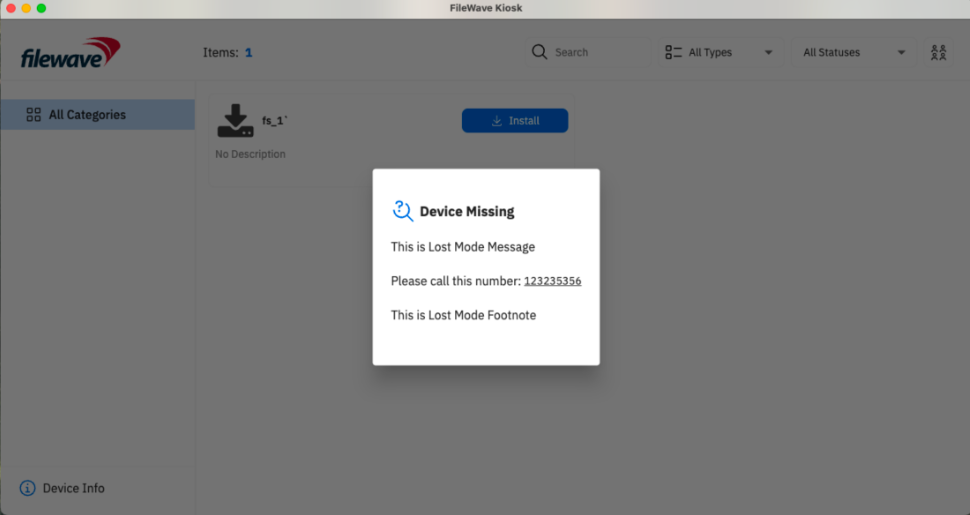
The Missing Device message includes any custom Lost Mode Message and Lost Mode Footnote set in FileWave Central under Preferences > Organization Info.
-
By default, if no custom message is set, the following message appears: “This device is currently marked as missing. Self-service Kiosk is not available. Please contact your administrator.”
-
Kiosk restrictions: While in the Missing state, Kiosk prevents installation, uninstallation, and normal access to self-service options, similar to Device Lock behavior.
-
To set the displayed text, open FileWave Central and go to Preferences > Organization Info:
-
If only the Lost Mode Message is set, it will display alone.
-
If only the Lost Mode Footnote is set, the default lost mode message will appear with the custom footnote.
-
If an organization contact number is set, it will be displayed as a clickable link for easy access.
-
No comments to display
No comments to display