
Windows 11 Compatible Devices
Description
Use this recipe to report whether managed Windows devices meet Microsoft's Windows 11 hardware requirements. Microsoft maintains the authoritative Windows 11 system requirements, including processor, TPM 2.0, Secure Boot, memory, and storage criteria.
Because hardware combinations vary, the supplied FileWave Custom Fields use Microsoft's Hardware Readiness PowerShell script to evaluate each device.
Choose the method that matches the reporting detail you need: the unaltered script returns Microsoft's full result, the simplified Custom Field returns Pass or Fail, and the advanced Fileset method stores detail locally while updating a short administrator-managed Custom Field.
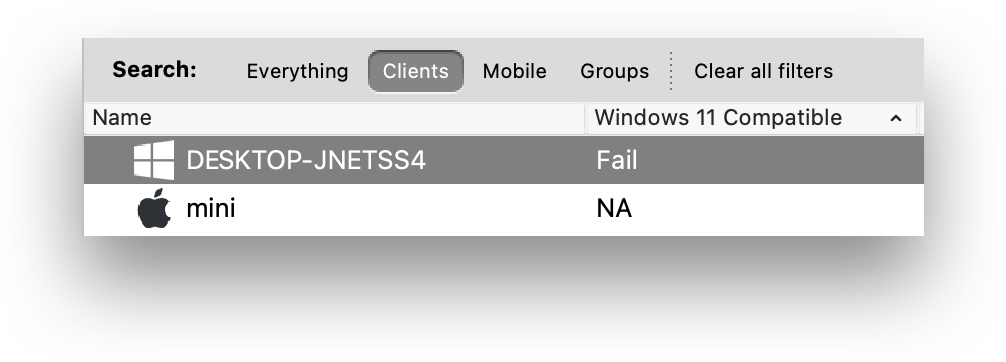
Custom Field values may be added to the Client View:
Unaltered Version
This Custom Field uses the Microsoft-supplied readiness script without shortening its output. The result can be lengthy, but an Inventory Report (formerly Query) can filter for the word Fail.
Ingredients
- Following Custom Field
Directions
- Download the provided Custom Field: Windows 11 Readiness Unaltered.
- In FileWave Central, open Assistants > Custom Fields > Edit Custom Fields.
- Select Import and choose the downloaded Custom Field from step 1
- Change Name if desired
- Save
Example failed value:
{"returnCode":1,"returnReason":"TPM, Processor, ","logging":"Storage: OSDiskSize=98GB. PASS; Memory: System_Memory=4GB. PASS; TPM: TPMVersion=False. FAIL; Processor: {AddressWidth=64; MaxClockSpeed=2494; NumberOfLogicalCores=4; Manufacturer=GenuineIntel; Caption=Intel64 Family 6 Model 70 Stepping 1; }. FAIL; SecureBoot: Capable. PASS; ","returnResult":"NOT CAPABLE"}Simplified Method
The information output by the default script is lengthy and can be considered as inappropriate as a single Custom Field value. This method alters the script, which when used as a Custom Field will return either Pass or Fail. However the details of why it failed will not be provided.
Ingredients
- Following Custom Field
| ↓ Windows |
|---|
Directions
- Download the provided Custom Field: Windows 11 Readiness.
- In FileWave Central, open Assistants > Custom Fields > Edit Custom Fields.
- Select Import and choose the downloaded Custom Field from step 1
- Change Name if desired
- Save
Advanced Method
Because device hardware changes infrequently, the advanced method runs the readiness check from a Fileset instead of during every inventory. The Fileset stores the detailed result in a local log and updates an Administrator Custom Field with only Pass or Fail.
As a Fileset, the script will run only once without intervention, preventing the script from unnecessarily running over and over again.
Ingredients
- Administrator Custom Field with an internal name of 'windows_11_compatible'
| ↓ Windows |
|---|
- Following Fileset:
| ↓ Windows |
|---|
Directions
Custom Field
- Download the provided Custom Field: Windows 11 Compliance.
- In FileWave Central, open Assistants > Custom Fields > Edit Custom Fields.
- Select Import and choose the downloaded Custom Field from step 1
- Change Name as desired, but ensure the Internal Name is not altered and association is to all devices
- Save
- After saving the Custom Field, add the Fileset to a test Deployment.
Fileset
- Download the provided Fileset
- Edit the Fileset's script Environment Variables (details below)
- Deploy to representative test devices, review the results, and then expand the Deployment.
Fileset Editing
- Open the Fileset, select the script and choose Get Info
- Select the Executable tab and then Environment Variables
- Replace the Values as appropriate
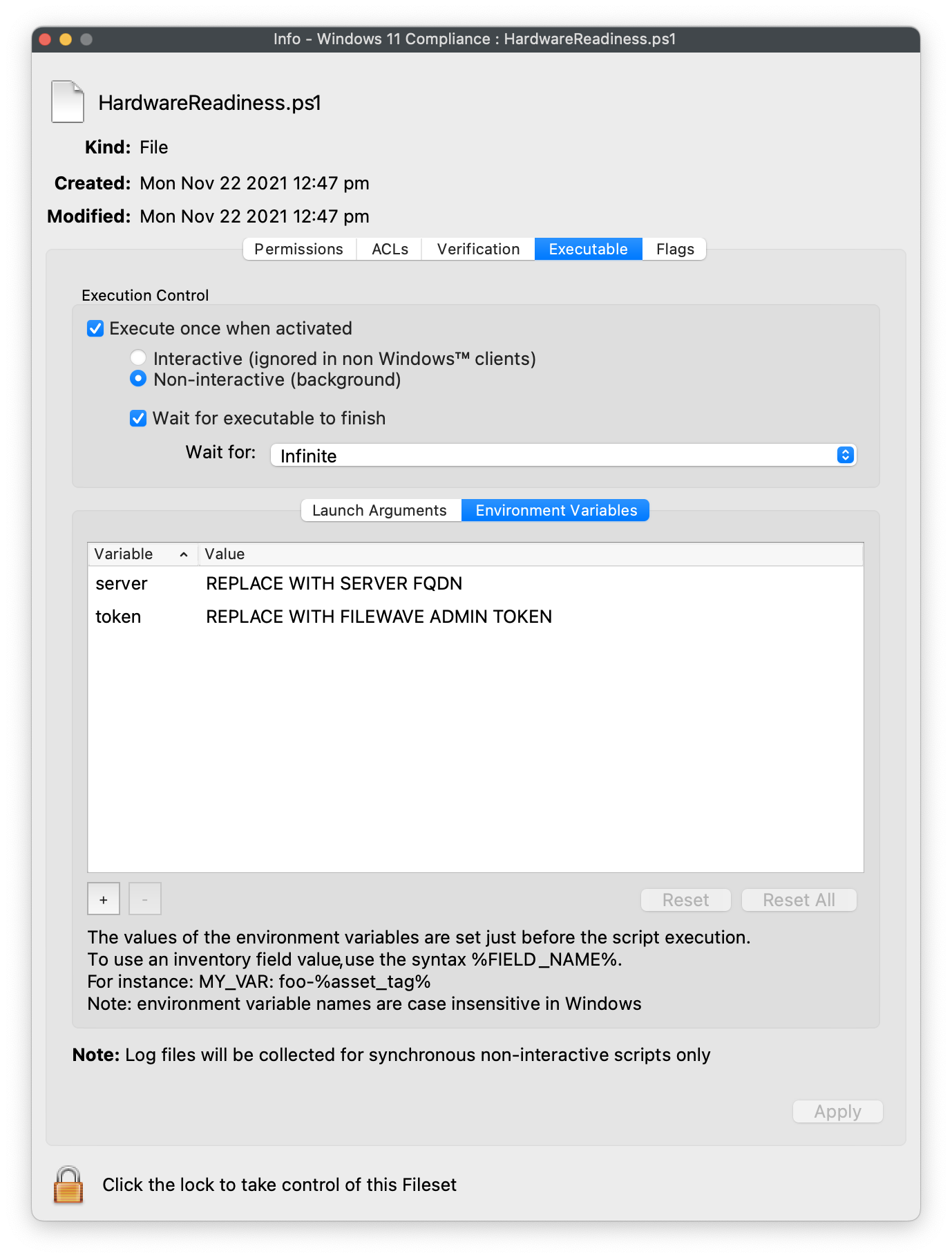
- The 'value' for the 'server' variable should be replaced with the name of the server as seen in Preferences > Mobile of the Admin console
- The 'value' for the 'token' should be replaced with a chosen Admin token from: Assistants > Manage Administrators > (Chosen Account Name) > Application Tokens. Copy the 'Token (base64)'
Additional Information
The Fileset will use the FileWave API to report back the current status of the device's compatibility during Fileset activation. If devices are addressed to change their compatibility status, it is possible to run a 'Reinstall Fileset' which will cause the API to update the current information, refreshing the Custom Field.
The full output of the script will be available in the script log, accessible from the right click menu item of a Fileset's script status view from Client Info (local network between Admin device and selected machine is required). A failure example:
{"returnCode":1,"returnReason":"TPM, Processor, ","logging":"Storage: OSDiskSize=98GB. PASS; Memory: System_Memory=4GB. PASS; TPM: TPMVersion=False. FAIL; Processor: {AddressWidth=64; MaxClockSpeed=2494; NumberOfLogicalCores=4; Manufacturer=GenuineIntel; Caption=Intel64 Family 6 Model 70 Stepping 1; }. FAIL; SecureBoot: Capable. PASS; ","returnResult":"NOT CAPABLE"}
Self-Signed Certs
The Fileset Activation Script 'HardwareReadiness.ps1' must be edited to allow for Self-Signed Certificates. The following section should have the mentioned lines updated to remove the leading hashes. After removal it should look like the following:
#####################################################
# Beginning of ammendment for FileWave Custom Field report

# REMOVE HASHES FROM FOLLOWING 12 LINES IF USING A SELF-SIGNED CERTIFICATE
add-type @"
using System.Net;
using System.Security.Cryptography.X509Certificates;
public class TrustAllCertsPolicy : ICertificatePolicy {
public bool CheckValidationResult(
ServicePoint srvPoint, X509Certificate certificate,
WebRequest request, int certificateProblem) {
return true;
}
}
"@
[System.Net.ServicePointManager]::CertificatePolicy = New-Object TrustAllCertsPolicy
The client must be able to reach the server on port 443 to be able to post the API update back to the server.
Result
The Custom Field for the Simplified and Advanced methods actually provides 3 possible values:
- NA – Default value
- Fail — One or more items failed the check
- Pass – All items passed the check and the device is ready for Windows 11
Notes
These options are by no means the only options available. The script could be used within an Upgrade Fileset for Windows 11, for example, and the script may run prior to confirm if the device satisfies the requirements. However, requirement scripts should only be used where they will eventually become true, to prevent them from running forever and being a constant draw on the server.
No comments to display
No comments to display