
Using Native Windows Tools to Troubleshoot
What
Windows includes several tools that can help you inspect a remote device when the FileWave Client is not responding as expected. Use them to confirm service state, scheduled tasks, files, events, processes, and registry settings without relying on FileWave alone.
When/Why
Use these tools when you need an independent view of a remote Windows device. The list is a practical starting point rather than a complete Windows troubleshooting reference.
Remote access requires authorization. Sign in with a Windows account that has the required administrative rights on the target device. Firewall rules, Windows services, and organizational security policy can also limit remote access.
How
Choose the tool that matches the symptom you need to verify:
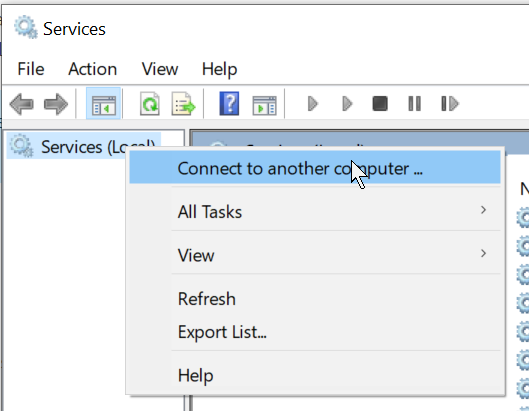
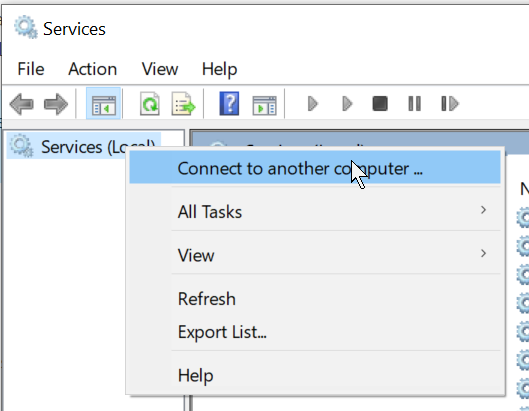
- Services App: Everyone knows the services app, but did you know you can use it against remote machines too? Just right-click on Services and choose to connect to another computer (by name or IP). Great for checking, starting and stopping services.
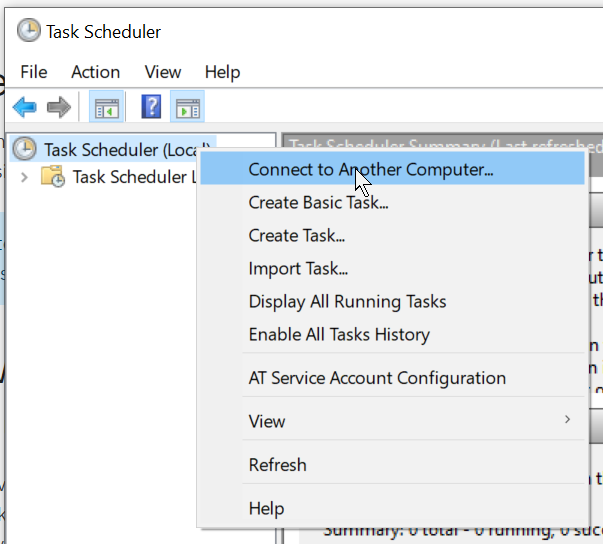
- Task Scheduler: Task scheduler is also available for remote connection:
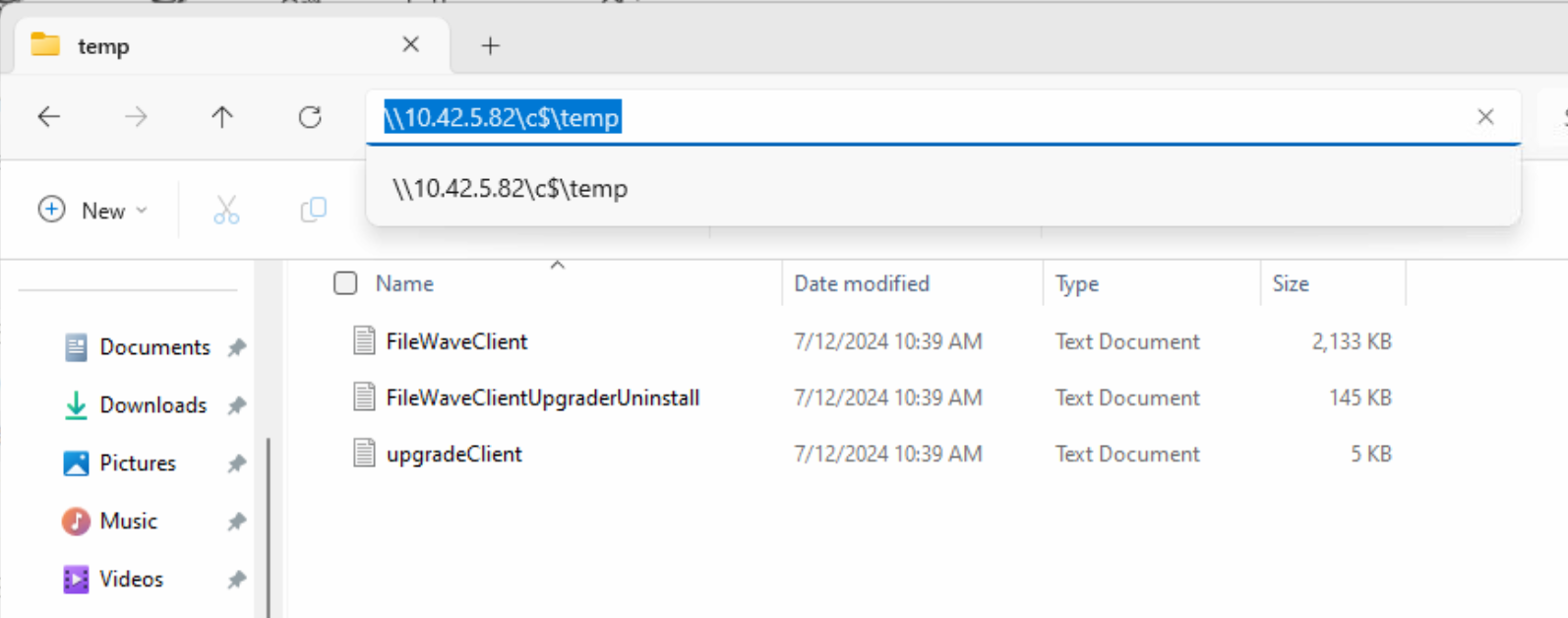
- Remote file system: In File Explorer, open
\\computer-name\c$to inspect logs and confirm file state through the administrative share. Replacecomputer-namewith the device name or IP address.
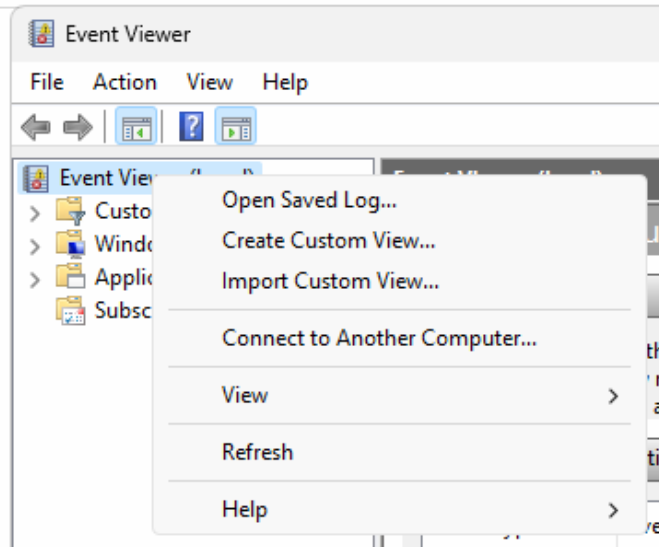
- Event Viewer: You can also remotely connect to Event Viewer, which is an excellent tool for MSI troubleshooting in particular:
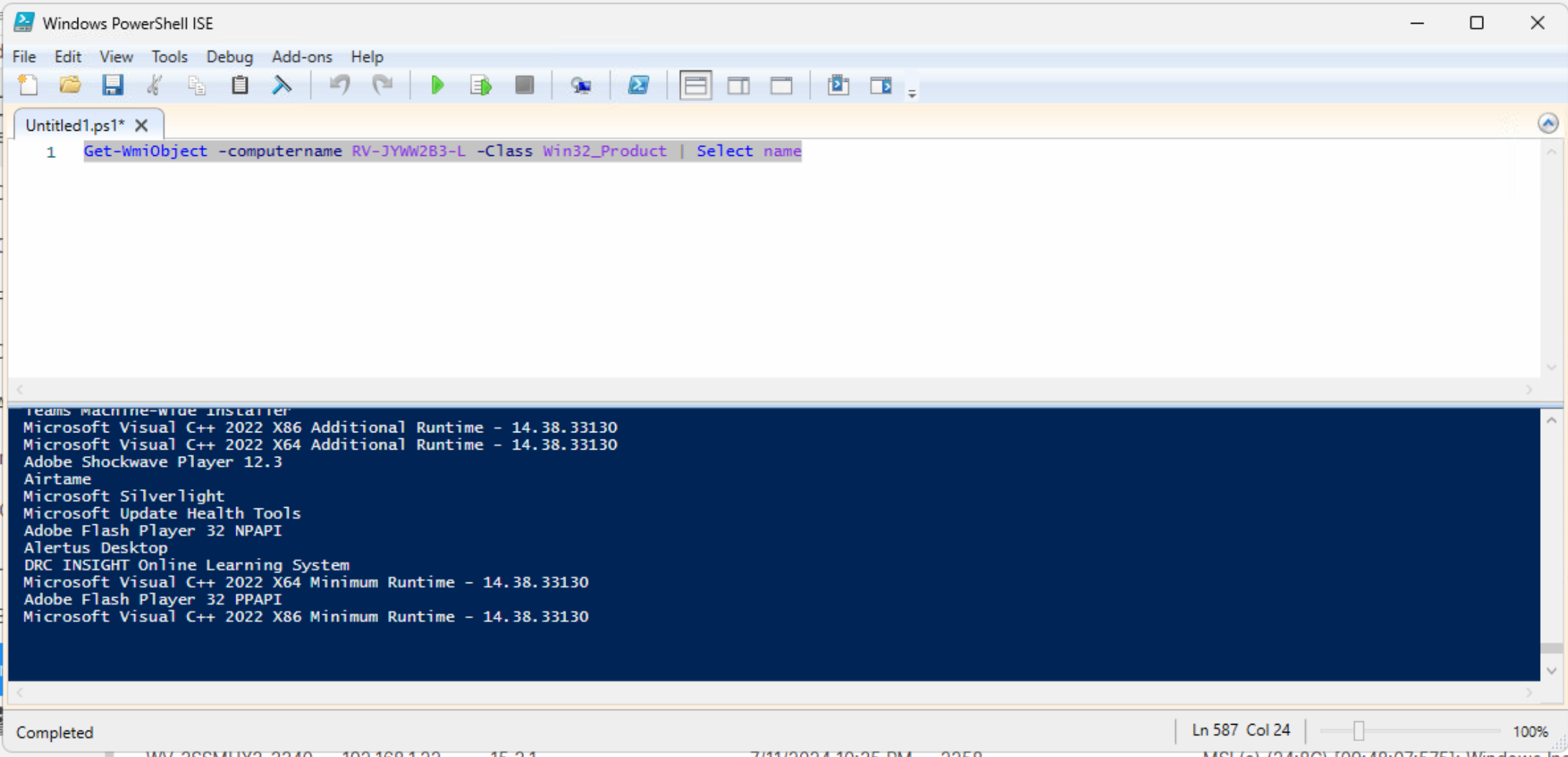
- PowerShell: Use PowerShell remoting to inspect installed software and other device state that the graphical Add or Remove Programs view cannot query remotely:
- PsTools: Microsoft's Sysinternals PsTools suite is not built into Windows, but utilities such as PsExec can be useful for remote troubleshooting. See the related PsExec article below.
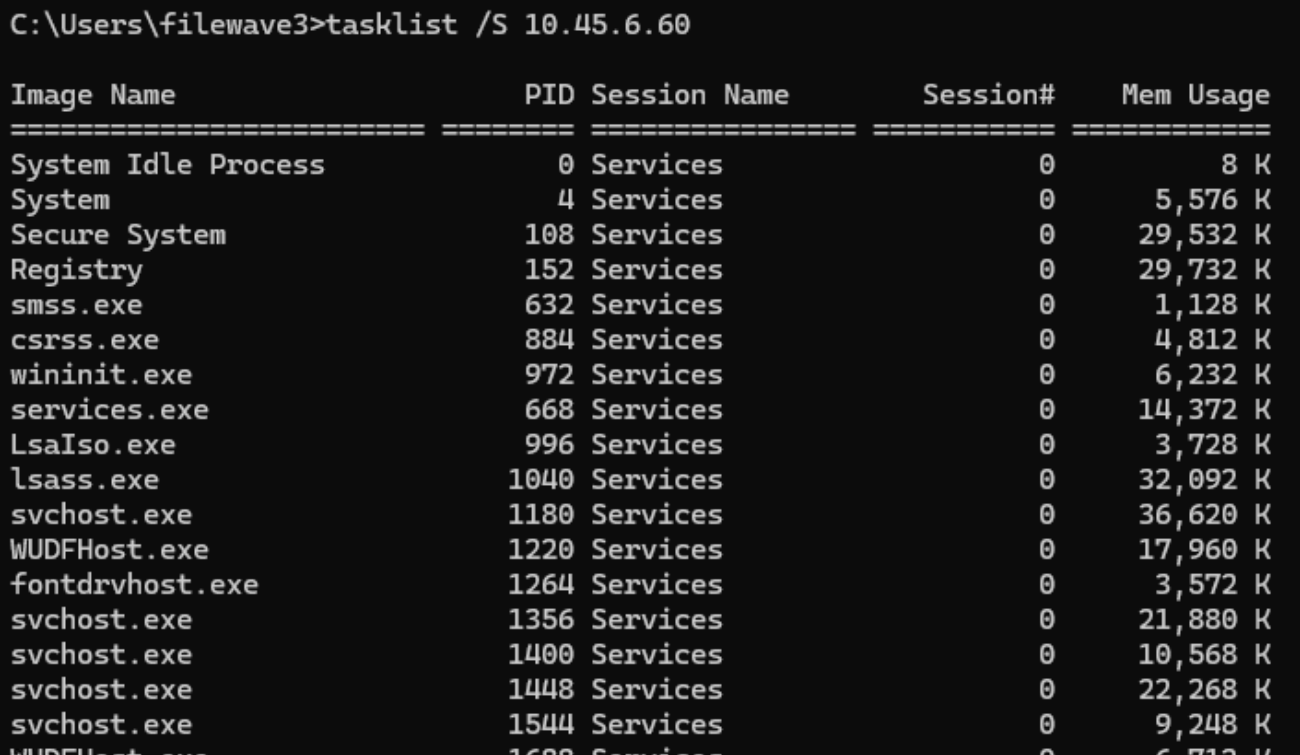
- tasklist and taskkill: Use these commands to list or stop processes on a remote device. Run
tasklist /?ortaskkill /?for syntax and remote-target options.
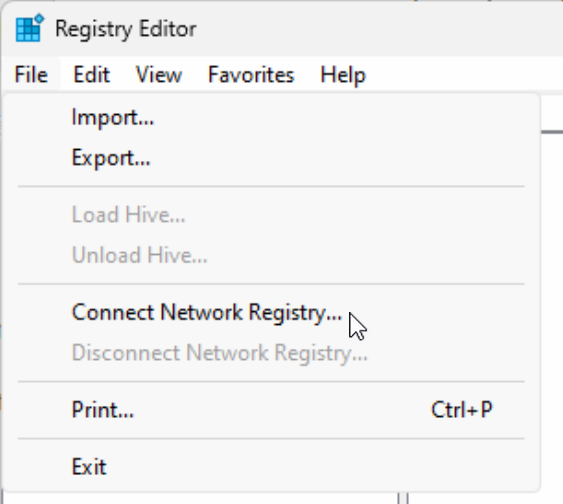
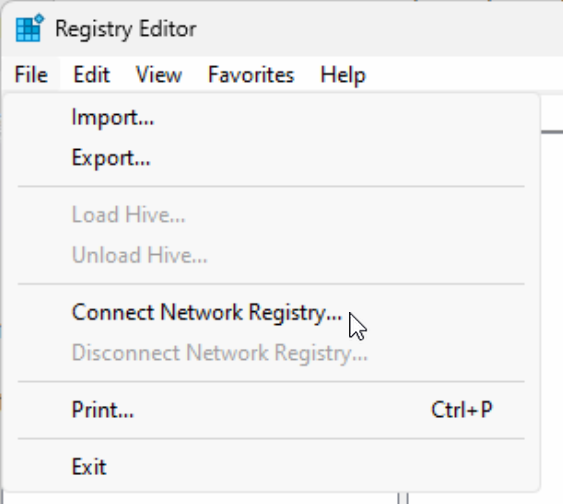
- Registry Editor: Connect to a remote registry to inspect FileWave Client preferences when Client Monitor is unavailable. Change values only when you understand the setting and have a rollback plan:
No comments to display
No comments to display