Manually Enroll a Windows Device in FileWave MDM
What
WindowsThis MDM allows you toworkflow manually enrolljoins a supported Windows device based on appropriateto Microsoft Entra ID credentials.
When/Why
triggers Enrollingautomatic aMDM deviceenrollment into this manner isn't scalable. You would probably never use this methodFileWave for a productionuser who is in the configured MDM scope.
When to use it
Use manual enrollment for a pilot device or to verify the Microsoft Entra and FileWave Windows MDM configuration. For a larger rollout, butuse itWindows isAutopilot exceptionallyor handyanother toplanned testprovisioning yourprocess. initialAutopilot configurationprovisioning toand ensureMDM youenrollment canare enroll.separate stages; Andthis itarticle doesn't havecovers the AutoPilotmanual complexityMicrosoft added.Entra join and resulting FileWave enrollment.
HowRequirements
Manual Device Enrollment
At this point,Complete the hardFileWave partWindows of the setup of the link between FileWaveMDM and Microsoft Entra isconfiguration behindfirst. us,The andenrolling weuser justmust simplybe have to enroll our devices. These steps are similar for both new (not previously enrolledincluded in FileWave) and existing (via fwcld) FileWave clients.
Make sure your client can communicate with your server (you can ping server, correct ports are opened on firewall, etc.)
Also make sure you are not using Windows Home or Starter editions because they do not allow you to bind them tothe Microsoft Entra inMDM user scope, and the device must be able to reach the FileWave Server over the required enrollment and management ports.
These steps apply to a new FileWave device record and to a Windows computer that already reports through the FileWave Client (fwcld).
Windows Home editions cannot join Microsoft Entra ID through this way.workflow. Use a supported Windows Pro, Enterprise, or Education edition.
Join and enroll the device
-
Navigate to Settings → Accounts → Access work or school
-
ClickSelectonConnectbutton. -
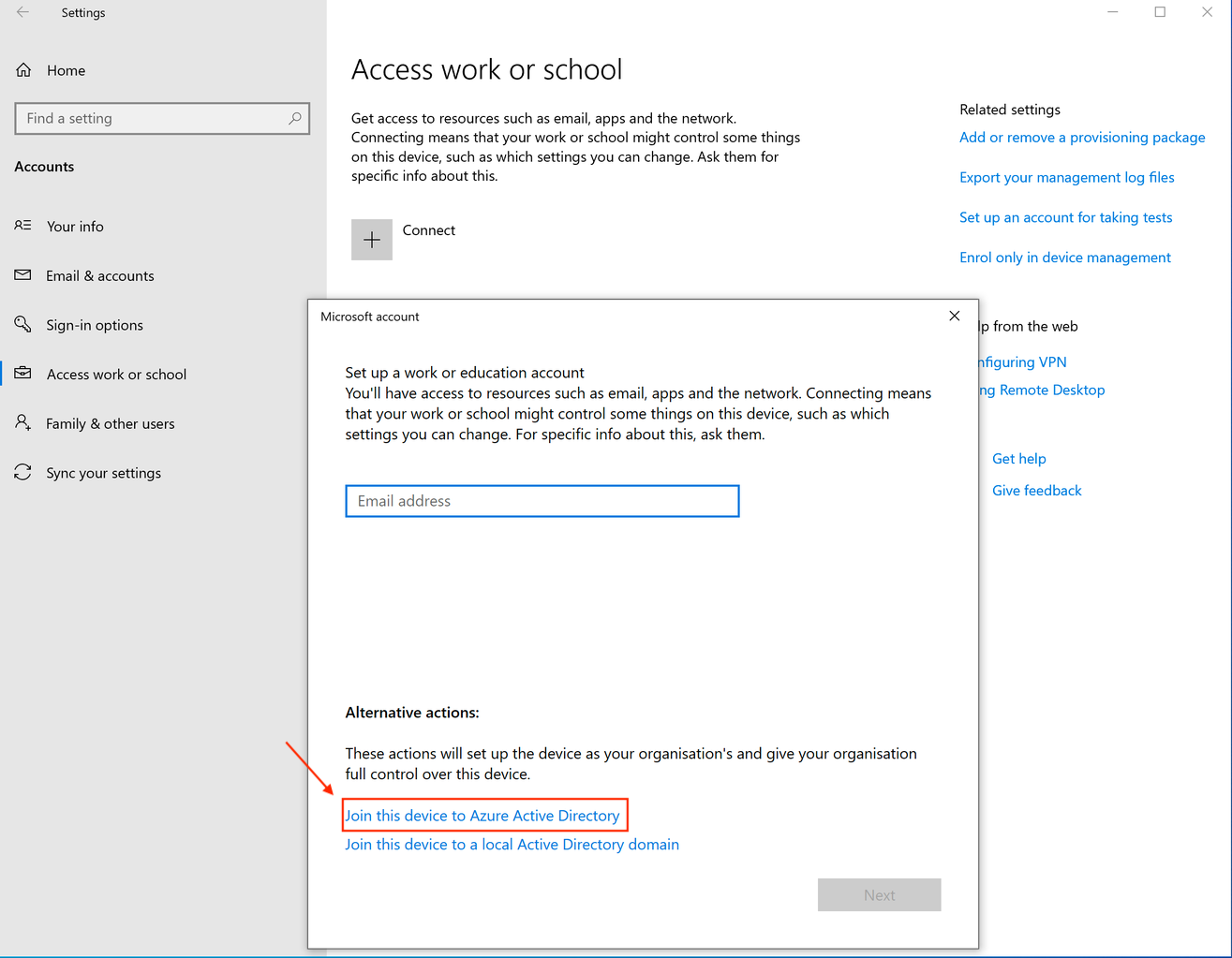
InUndertheAlternateopenedactions,dialog, click on theselect Join this device to Microsoft Entra ID.ActiveThedirectory.layout varies by supported Windows release; the current and earlier layouts are shown below.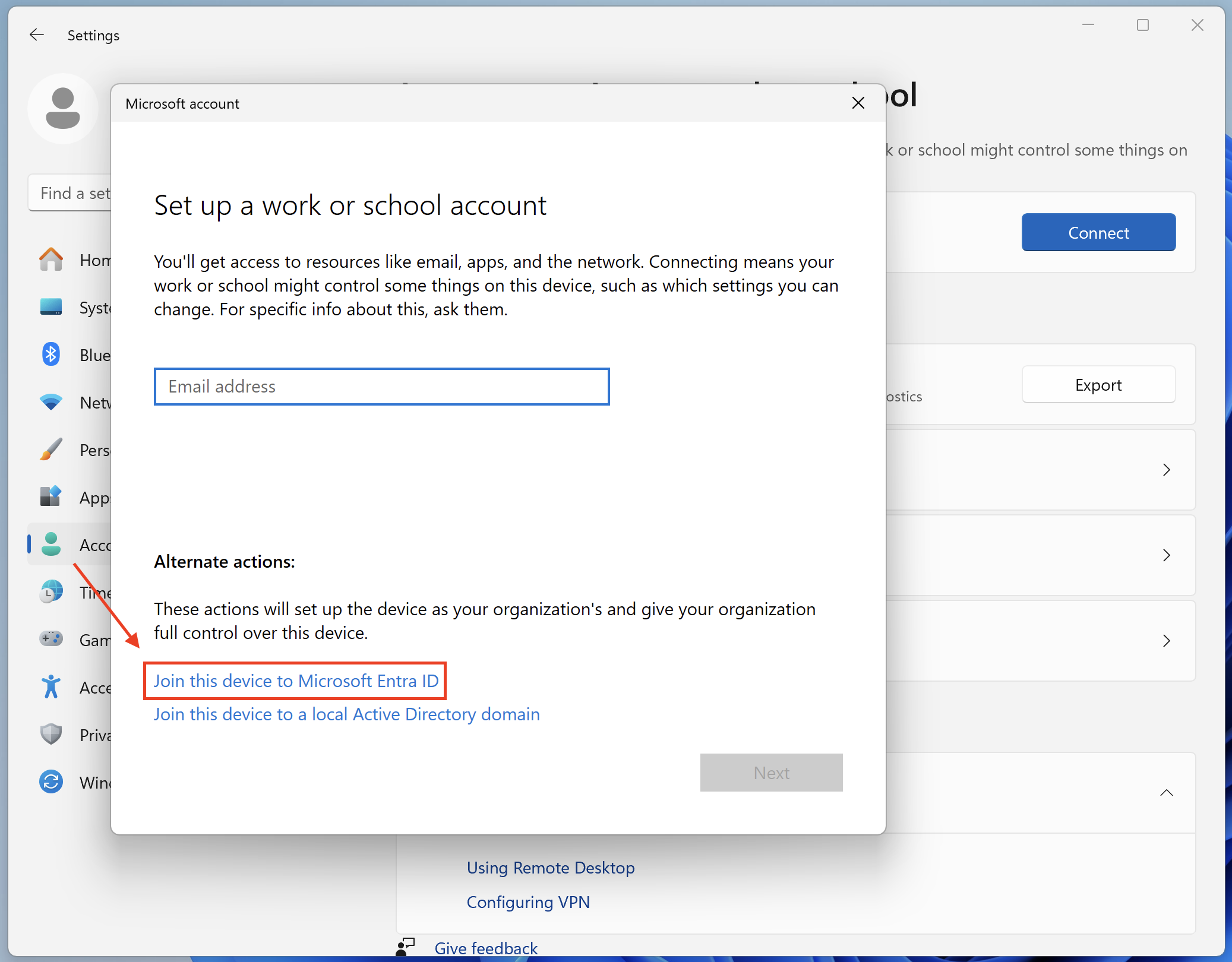
-
FromEnterhere, just enter yourthe Microsoft Entra credentials(asfor the user whowants towill enrolltheirthedevice)device,andthenfollowcomplete thestepsjoinin the wizard until you're done.wizard. -
YouBackcaninverifyAccess work or school, select thedetailsconnectedofaccount and open Info to review the MDMenrollment by clicking on the new account and openingInfo.connection.
If your device is newly enrolled, afterAfter a few minutes, youa device without an existing FileWave record should be able to see the client show upappear as a new Client on the FileWave Serve.Server. Add it to yourthe server.managed model.
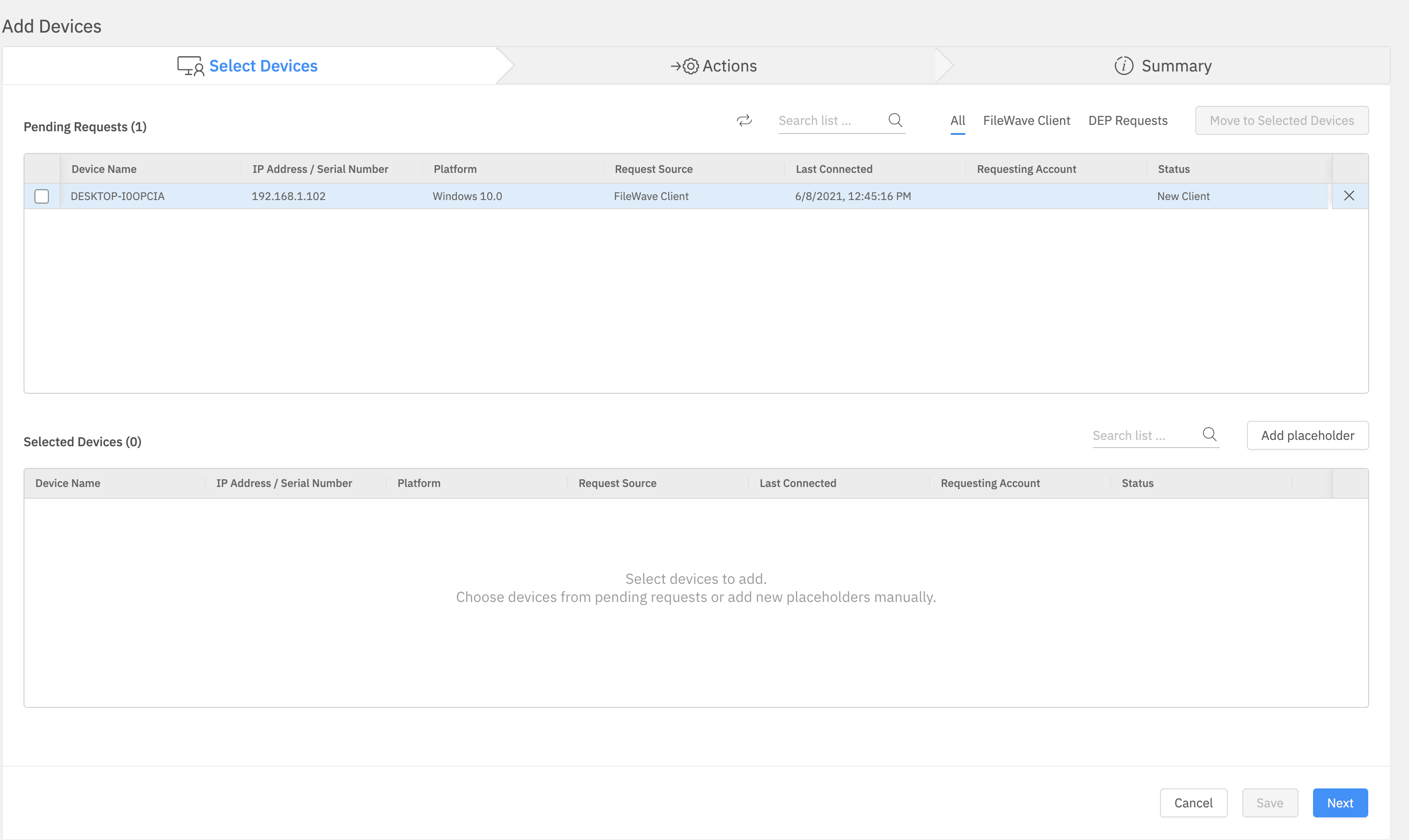
ExistingA computer that already reports through the FileWave clientsClient willdoes not show upappear as a second new client.Client. TheyIts simplyexisting arerecord is updated towith the newWindows version.MDM enrollment.
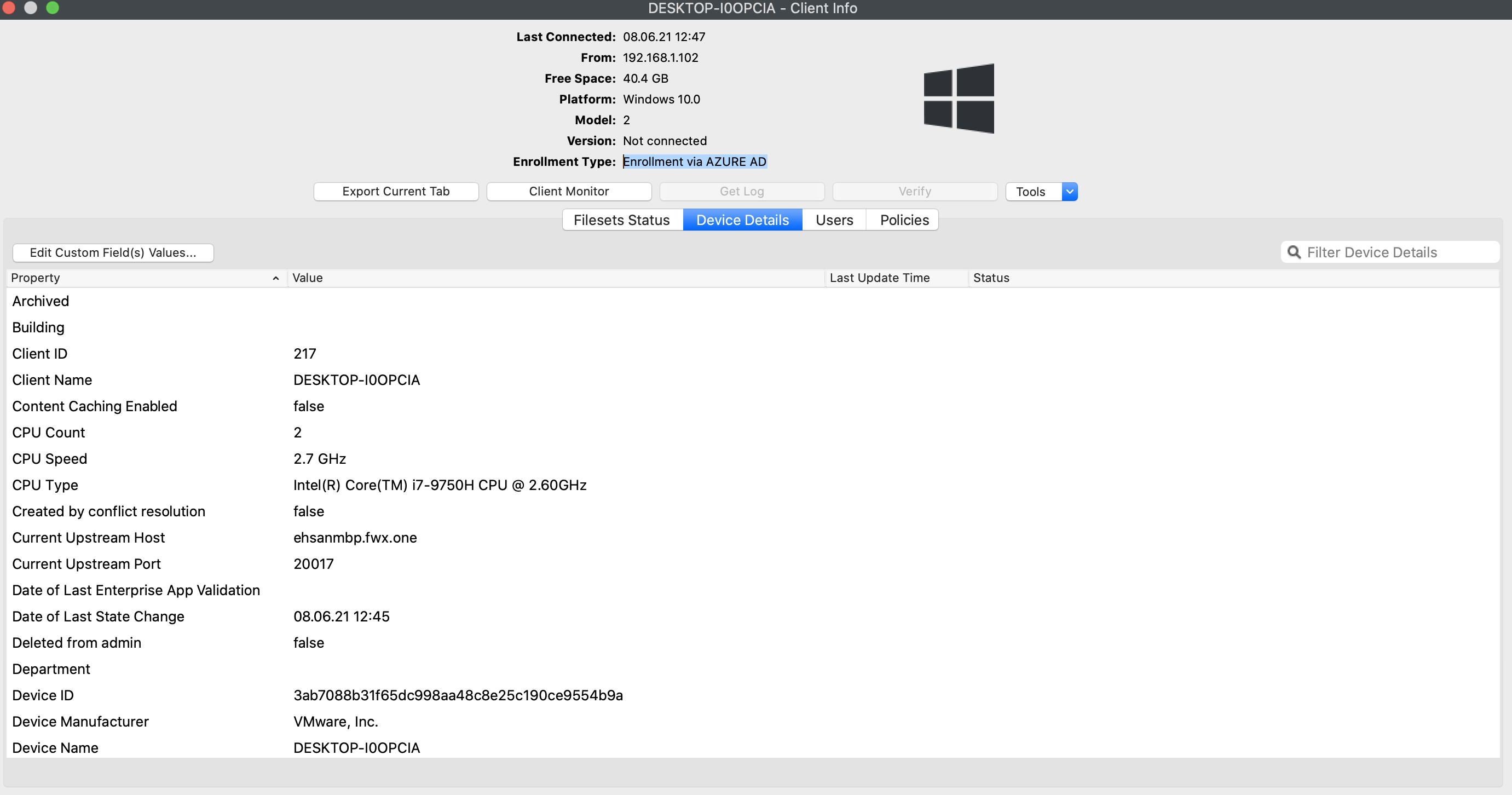
YouIn canFileWave verifyCentral, ifopen athe device isdetails trulyand MDMconfirm enrolled by checkingthat the enrollment type inreports deviceWindows info in Native Admin, as seen below:MDM: