
Manually Enroll a Windows Device in FileWave MDM
What
This workflow manually joins a supported Windows device to Microsoft Entra ID and triggers automatic MDM enrollment to FileWave for a user who is in the configured MDM scope.
When to use it
Use manual enrollment for a pilot device or to verify the Microsoft Entra and FileWave Windows MDM configuration. For a larger rollout, use Windows Autopilot or another planned provisioning process. Autopilot provisioning and MDM enrollment are separate stages; this article covers the manual Microsoft Entra join and resulting FileWave enrollment.
Requirements
Complete the FileWave Windows MDM and Microsoft Entra configuration first. The enrolling user must be included in the Microsoft Entra MDM user scope, and the device must be able to reach the FileWave Server over the required enrollment and management ports.
These steps apply to a new FileWave device record and to a Windows computer that already reports through the FileWave Client (fwcld).
Windows Home editions cannot join Microsoft Entra ID through this workflow. Use a supported Windows Pro, Enterprise, or Education edition.
Join and enroll the device
-
Navigate to Settings → Accounts → Access work or school
-
Select Connect.
-
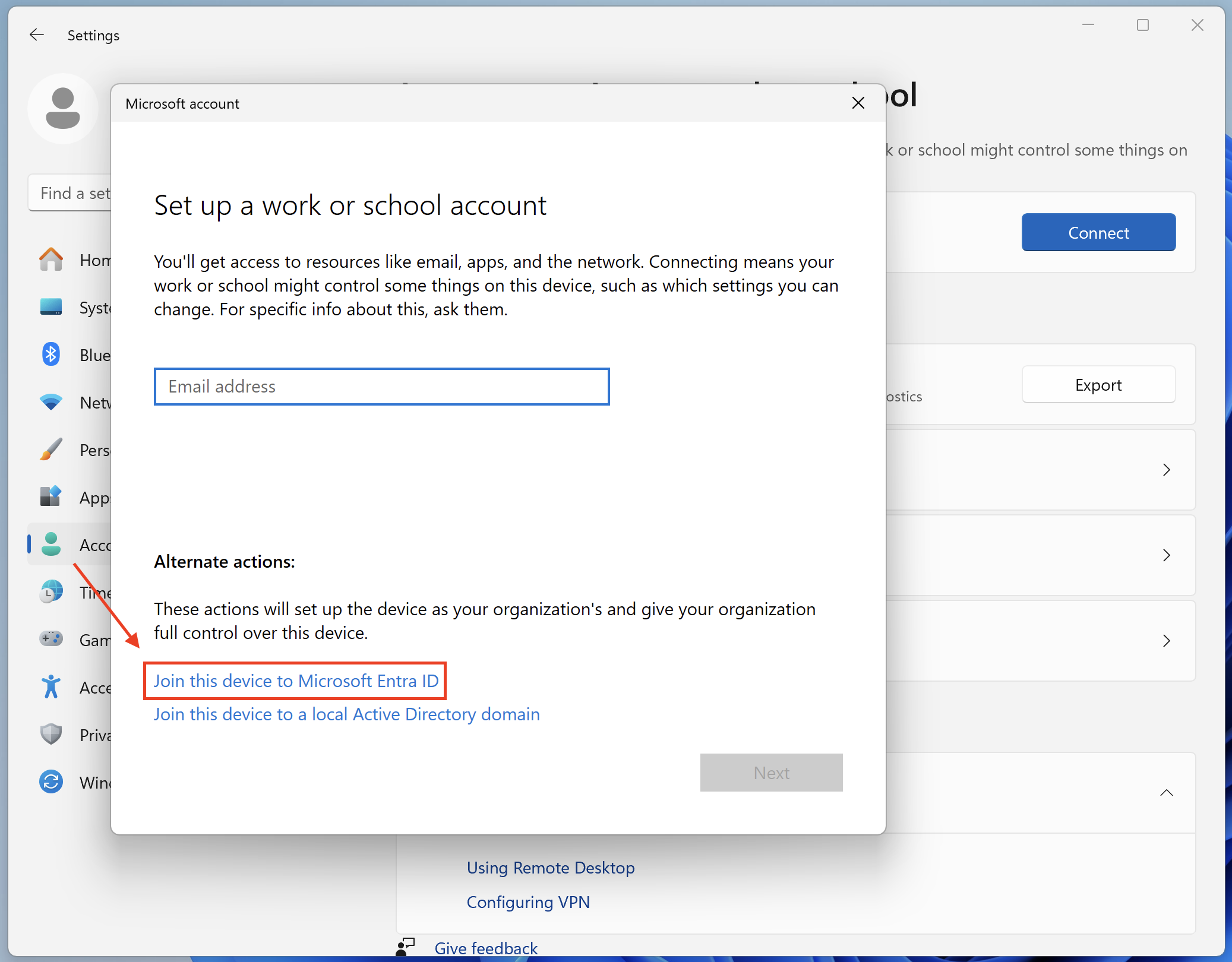
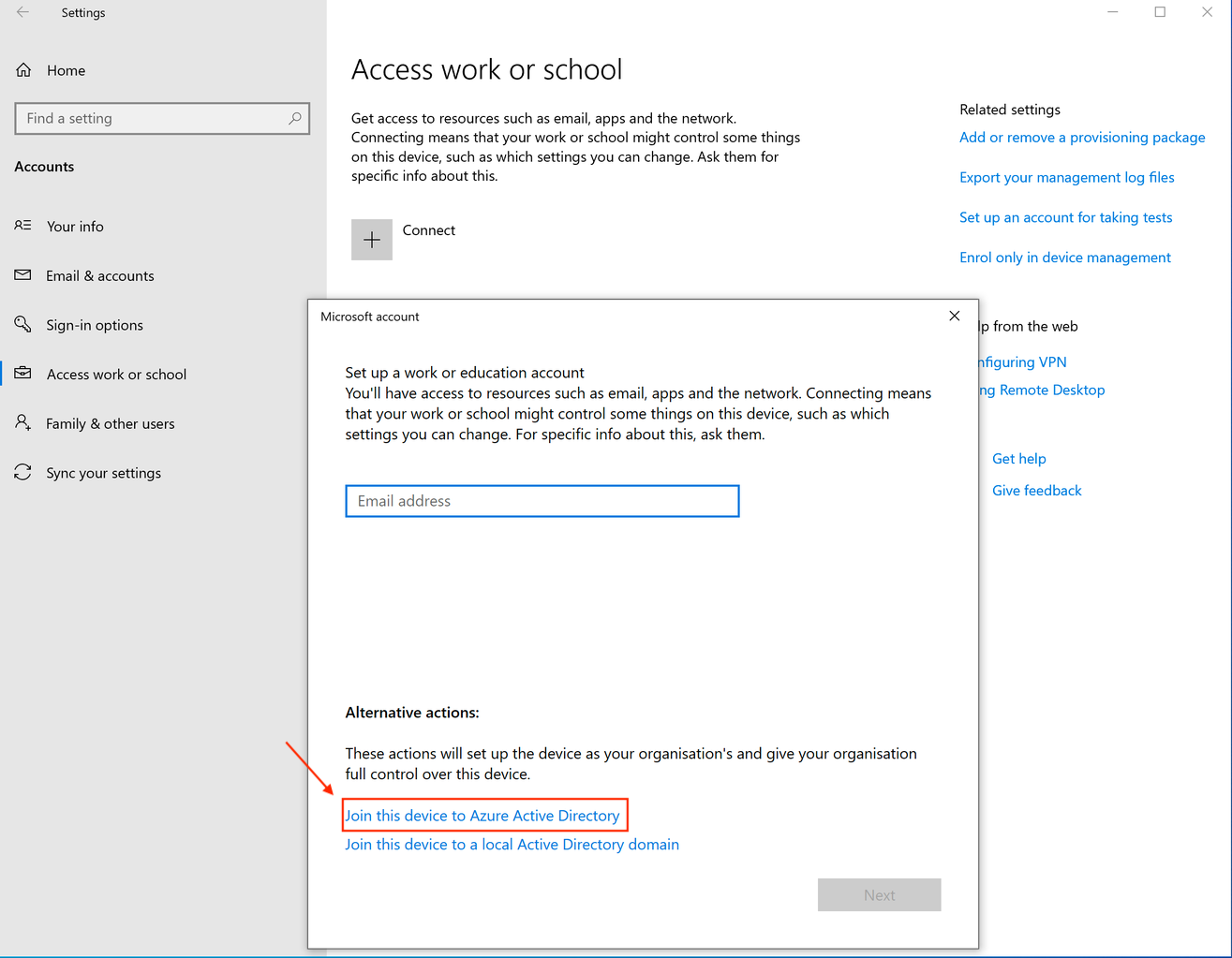
Under Alternate actions, select Join this device to Microsoft Entra ID. The layout varies by supported Windows release; the current and earlier layouts are shown below.
-
Enter the Microsoft Entra credentials for the user who will enroll the device, then complete the join wizard.
-
Back in Access work or school, select the connected account and open Info to review the MDM connection.
After a few minutes, a device without an existing FileWave record should appear as a new Client on the FileWave Server. Add it to the managed model.
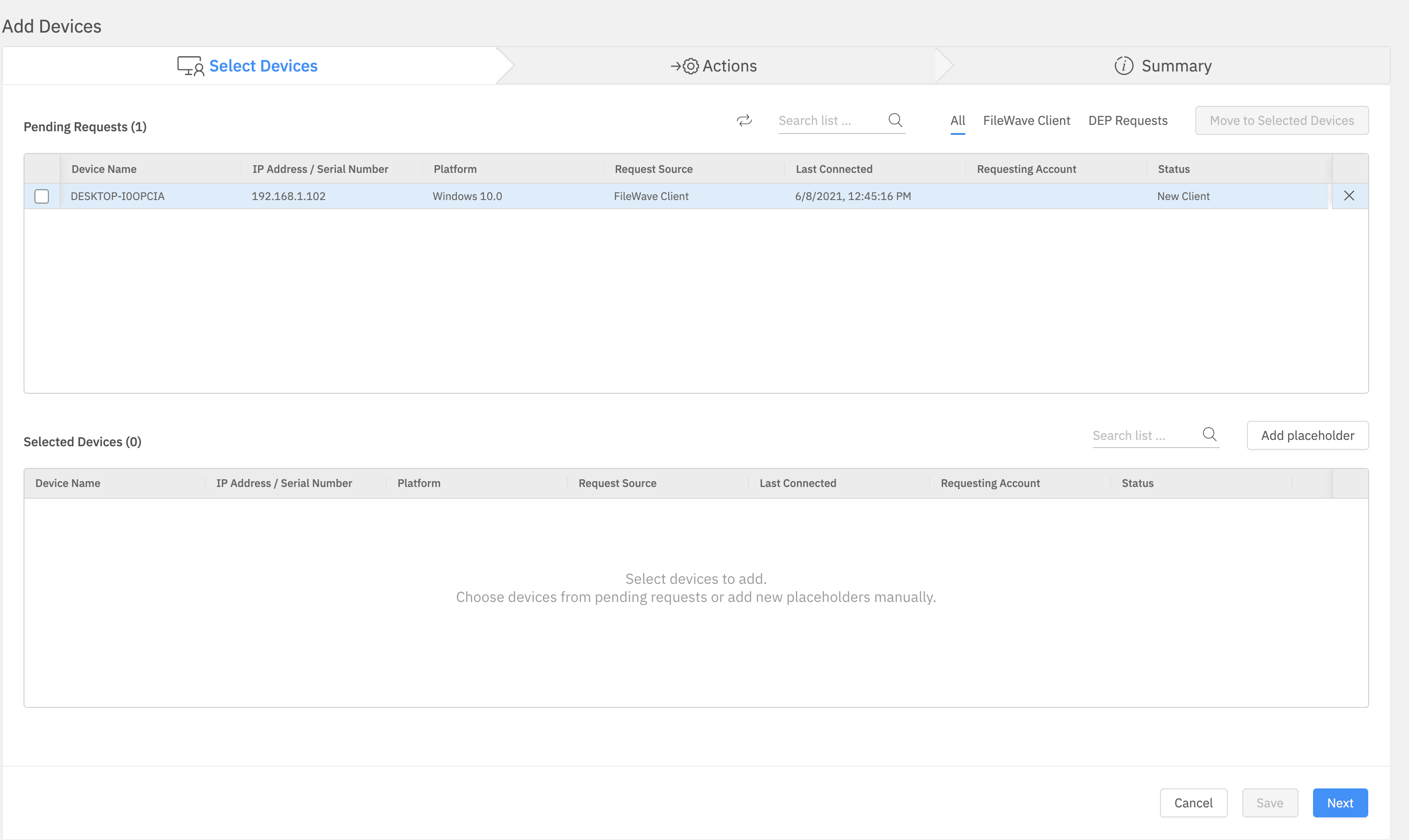
A computer that already reports through the FileWave Client does not appear as a second new Client. Its existing record is updated with the Windows MDM enrollment.
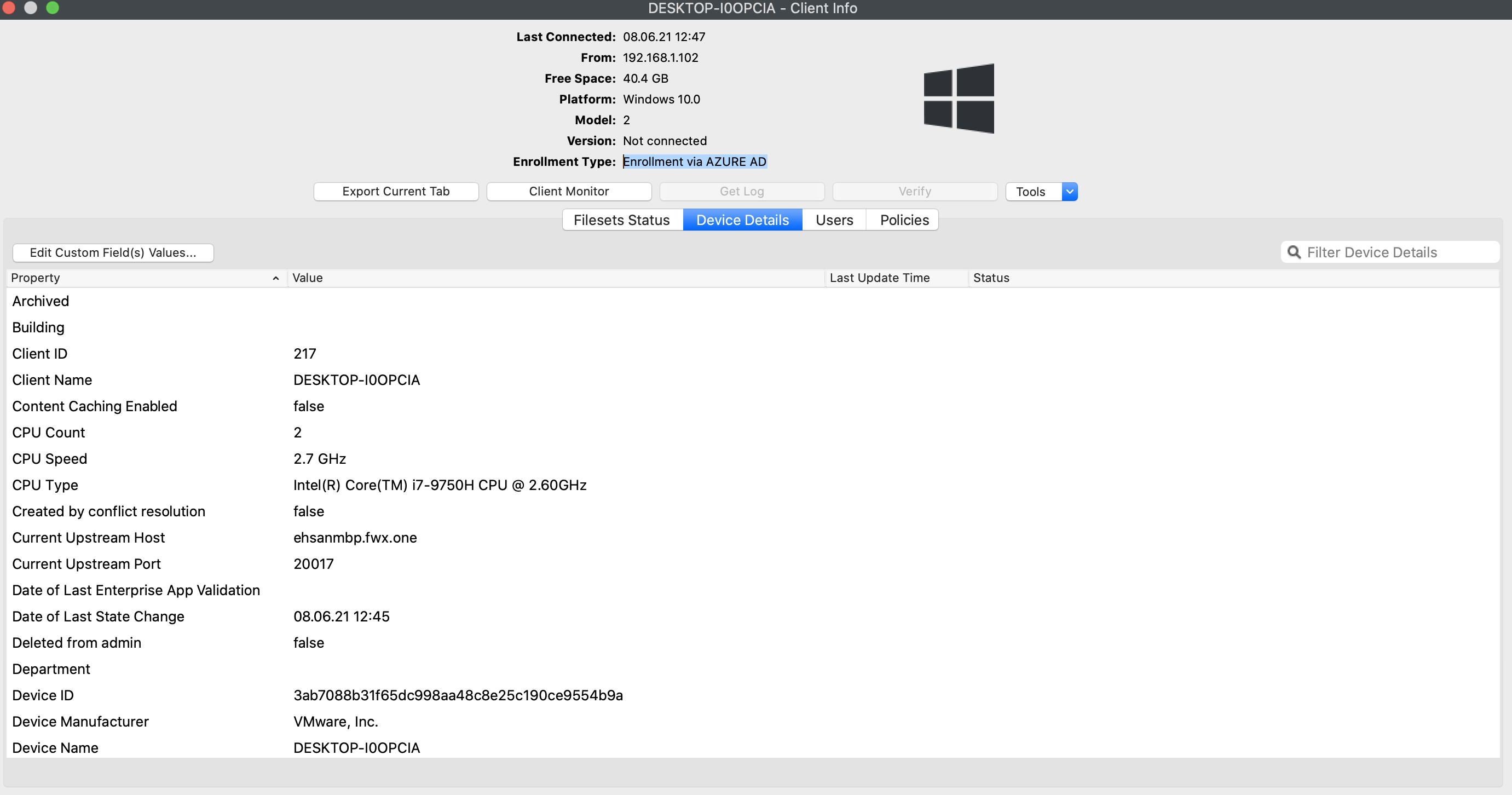
In FileWave Central, open the device details and confirm that the enrollment type reports Windows MDM:
No comments to display
No comments to display