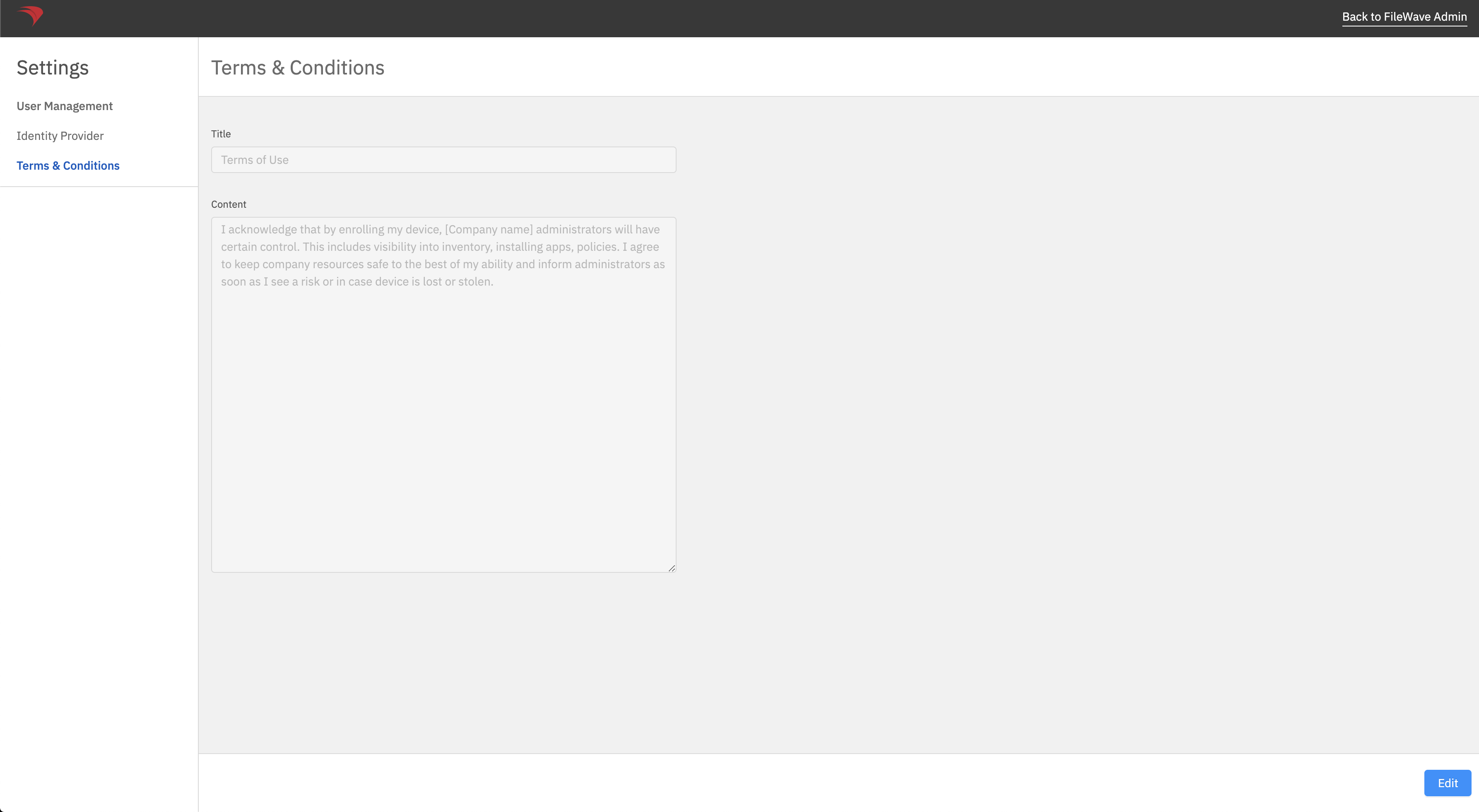
Part 2: Configure Windows MDM Terms and Conditions
What
WhenConfigure athe deviceTerms is& enrolledConditions inpage before users enroll Windows MDM,devices athrough customFileWave end-userWindows termsMDM. pageThe isenrollment requiredflow fordisplays the Microsofttitle applicationand we'llcontent beyou buildingpublish later.here.
When/Why
We'llUse needthis page to establishexplain ourwhat termsusers pagesare withinagreeing to and what management actions your organization may perform on an enrolled device. Have the FileWavefinal AnyWherewording (Webreviewed admin),under andyour they'llorganization's bepolicy used atbefore enrollment time. These terms pages can be customized for your environment with the terms you prefer. begins.
How
EditingEdit the page in FileWave Anywhere
FileWave Anywhere provides separate Title and Content fields for the enrollment page.
In FileWave Anywhere, open Settings.
Select Terms & Conditions.
TermsSelect &Edit, Conditions are for a page that are shows to users who are enrolling to your Server. You can customize this page viaupdate the FileWaveTitle Weband Admin.
Click on the gear button next to Model update in FileWave Web Admin.
Navigate to Terms & Conditions tab.
Edit the title and/or the content ofsave the page.
Test a Windows MDM enrollment and confirm that the final text is readable before inviting users to enroll.