
Expand the IVS Virtual Disk in VirtualBox

ImagingUse Appliancethis -procedure VirtualBoxto Resize HD
This guide will help you extendexpand the virtual disk attached to a FileWave Imaging Virtual ServersServer (IVS) hardrunning drivein space on Imaging forOracle VirtualBox.
Back up before resizing. Power off the IVS and preserve a copy of the original virtual disk. The resize value is the final total size in megabytes, not the amount to add.
ForResize the VirtualBox disk
The followingcommands stepsconvert willthe helporiginal youVMDK to VDI, resize the virtualVDI, hardand driveconvert forit back to VMDK. Replace every sample filename with the FileWaveactual Imagingpath Applianceto runningyour onIVS Oraclevirtual VirtualBox.disk.
1. Power off the virtual machine.
2. Open aCommand command command promptPrompt or a terminal and extend the vmdk usingrun the following commandscommands. (Replace replace source.vmdk with the path to yourthe vboxoriginal vmdk,VMDK and "(NUMBER OF MEGABYTES"MEGABYTES)according towith the FULLfinal sizetotal thatdisk you want the hard drive to be ) :size.
"C:\Program Files\Oracle\VirtualBox\VBoxManage.exe" clonehd "source.vmdk" "cloned.vdi" --format vdi
"C:\Program Files\Oracle\VirtualBox\VBoxManage.exe" modifyhd "cloned.vdi" --resize (NUMBER OF MEGABYTES)
"C:\Program Files\Oracle\VirtualBox\VBoxManage.exe" clonehd "cloned.vdi" "resized.vmdk" --format vmdk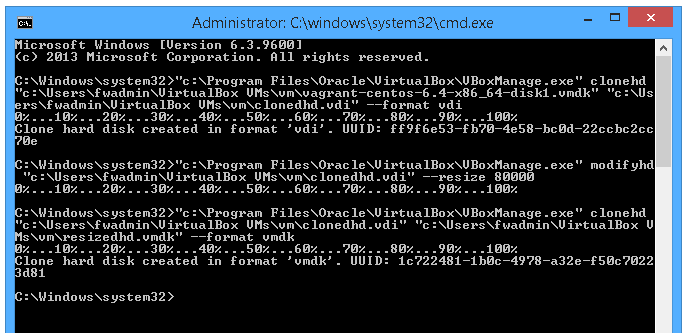
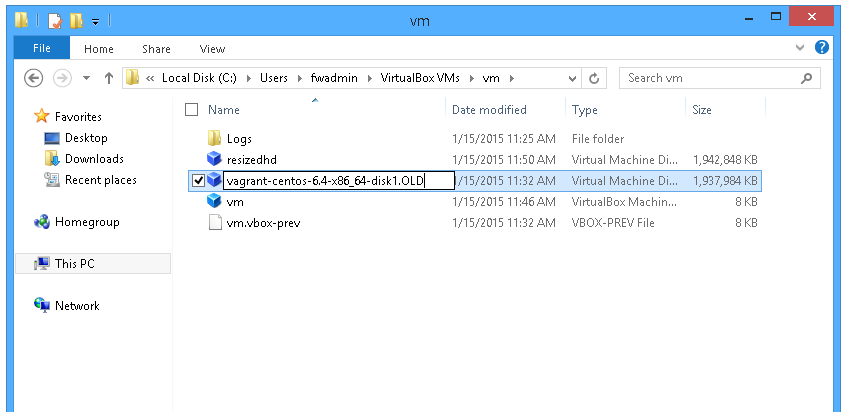
3. Rename the original vmdk file to "vagrant-centos-6.4-x86_64-disk1.OLD" and rename resized.vmdk to the original "vagrant-centos-6.4-x86_64-disk1"
4. In FileWave Imaging we created a imaging-control command for extending the virtual hard drive size. Power on the IVS and login.sign in to its console.
5. Run the belowFileWave imaging-controlImaging command tothat increaseexpands the hardappliance drive.filesystem to use the enlarged virtual disk:
imaging-control increase harddrive6. You will be asked "Have you extended the hard drive in the VM settings?". Answer "y".
7. YouPress willEnter thenwhen selectprompted. "ENTER", and it will restart yourThe IVS withrestarts after the increasedfilesystem Hard Drive. expansion.
8. After thisthe yourestart, areverify done.the available disk capacity from the IVS console before deleting the backup copy of the original virtual disk.