
Expand the IVS Virtual Disk in VirtualBox

Use this procedure to expand the virtual disk attached to a FileWave Imaging Virtual Server (IVS) running in Oracle VirtualBox.
Back up before resizing. Power off the IVS and preserve a copy of the original virtual disk. The resize value is the final total size in megabytes, not the amount to add.
Resize the VirtualBox disk
The commands convert the original VMDK to a dynamically allocated VDI, resize that VDI, and convert it back to VMDK. This intermediate format is required because Oracle documents VirtualBox disk resizing for dynamically allocated VDI and VHD images. Replace every sample filename with the actual path to your IVS virtual disk.
1. Power off the virtual machine.
2. Open Command Prompt or a terminal and run the following commands. Replace source.vmdk with the path to the original VMDK and (NUMBER OF MEGABYTES) with the final total disk size.
"C:\Program Files\Oracle\VirtualBox\VBoxManage.exe" clonehd "source.vmdk" "cloned.vdi" --format vdi
"C:\Program Files\Oracle\VirtualBox\VBoxManage.exe" modifyhd "cloned.vdi" --resize (NUMBER OF MEGABYTES)
"C:\Program Files\Oracle\VirtualBox\VBoxManage.exe" clonehd "cloned.vdi" "resized.vmdk" --format vmdk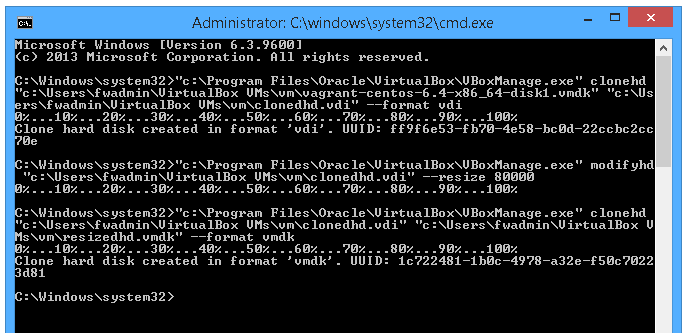
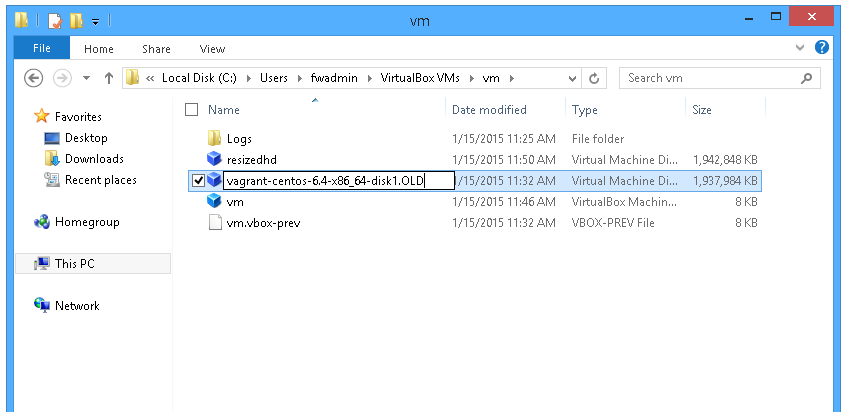
3. Keep the original VMDK as the backup: rename it by adding .OLD to its actual filename. Then rename resized.vmdk to the original VMDK filename exactly so the virtual machine continues to reference the expected disk.
4. Power on the IVS and sign in to its console.
5. Run the FileWave Imaging command that expands the appliance filesystem to use the enlarged virtual disk:
imaging-control increase harddrive6. When asked Have you extended the hard drive in the VM settings?, enter y.
7. Press Enter when prompted. The IVS restarts after the filesystem expansion.
8. After the restart, verify the available disk capacity from the IVS console before deleting the backup copy of the original virtual disk.
No comments to display
No comments to display