
Apple Profile: Apple Intelligence
What
FileWave can configure Apple Intelligence and related intelligence controls in the Apple Restrictions payload. Apple Intelligence restrictions first appeared in FileWave 15.5.0, and newer FileWave releases expose additional related options as Apple expands the payload.
When/Why
Use these restrictions when you want to delay or limit Apple Intelligence features on managed devices for privacy, compliance, or support-readiness reasons.
- Privacy and data handling: reduce exposure to features your organization has not approved yet.
- Compliance: align device behavior with internal policy or regulated environments.
- Support readiness: give your team time to test new features before users start relying on them.
How
- Open the Apple Profile editor. Create a new Profile Fileset or edit an existing one in FileWave Central or FileWave Anywhere.
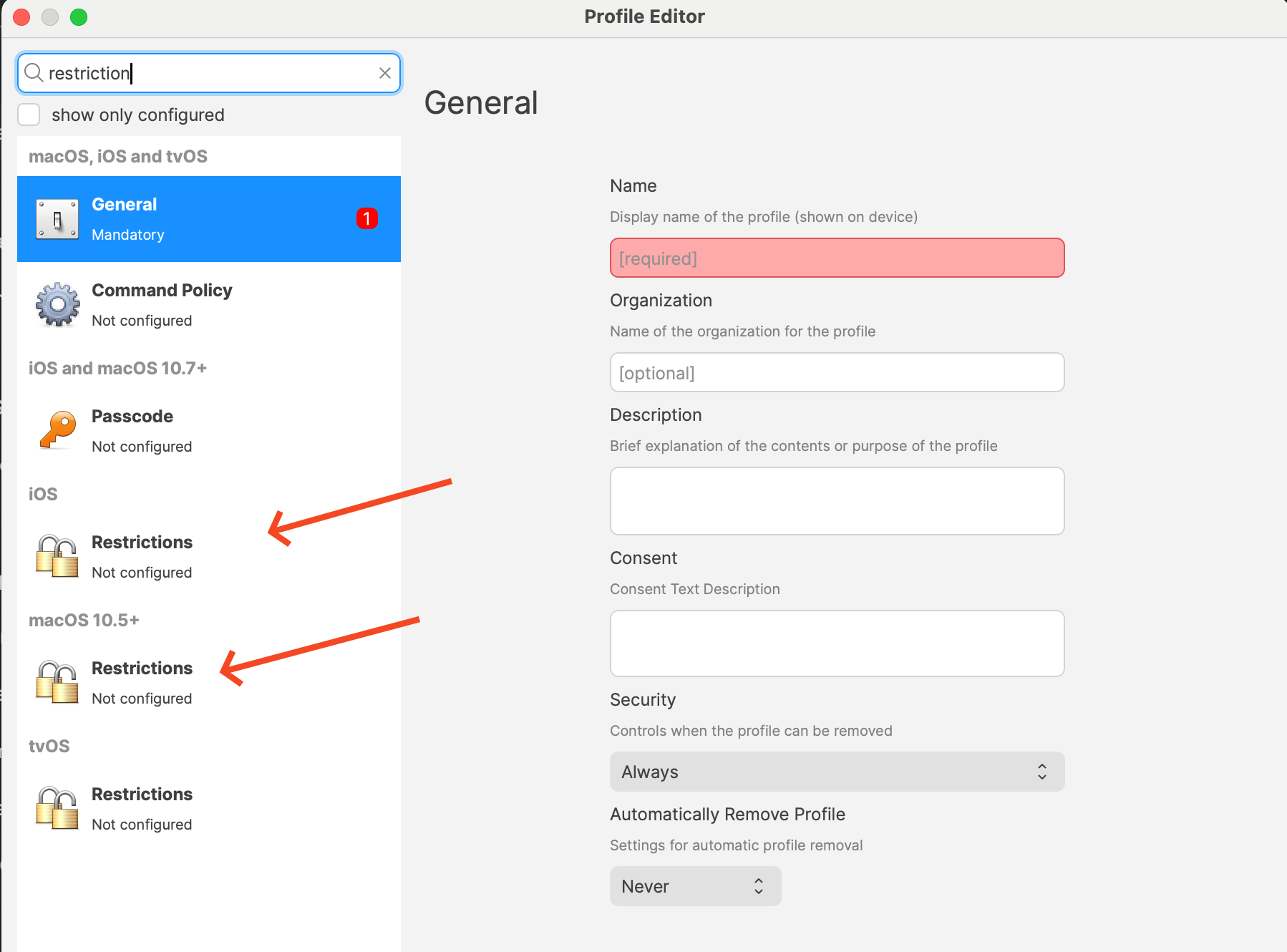
- Add the Restrictions payload for the target platform. The screenshot below shows where the platform-specific Restrictions payloads live.
- Configure the settings you want. The exact list depends on platform and FileWave version. Current payload labels include items such as:
- Allow creating new Genmoji
- Allow Image Playground
- Allow Apple Intelligence writing tools
- On supported platforms, options such as Notes transcription, Mail Smart Replies, manual email summaries, Image Wand, external intelligence integrations, Safari Summary, Visual Intelligence Summary, and Apple Intelligence Report
- Review the rest of the Restrictions payload before saving. Every restriction you set in that payload deploys together, so confirm you are not accidentally changing unrelated settings.
- Deploy the profile to the correct devices. Some options are supervised-only, and macOS, iOS, and iPadOS do not expose the exact same set of controls.
Related Content
Digging Deeper
Availability in this area depends on three things at once: the Apple platform, the OS/framework version, and the FileWave version exposing the payload.
That is why the Restrictions payload will not always show the same Apple Intelligence controls on macOS, iOS, and iPadOS. A missing toggle on one platform usually means Apple does not expose that control there yet, or it is not available for the OS/FileWave combination you are using, not that the profile editor is malfunctioning.
Many of the source-visible Apple Intelligence controls in FileWave are also marked Supervised devices only. If you are planning a cautious rollout, verify the exact labels on the target platform and test the profile on a supervised pilot device before you promise a specific control set to users or stakeholders.