
Configure Microsoft 365 OAuth for an Apple Exchange Profile
WhatConfigure Exchange Online with OAuth
Use the FileWave Exchange profile to configure an Exchange Online account on managed Apple devices with OAuth. Microsoft disabled Basic Authenticationauthentication hasfor beenExchange deprecatedOnline, asso ofcurrent DecemberMicrosoft 2022.365 Nowdeployments onlymust ause Modern Authentication method (using OAuth) will work. This KB article will guide on how to setup and get connected with FileWave's Exchange Profile.Authentication.
RequirementsYou are:need:
- FileWave Central with permission to create and deploy profiles
AdministrativeMicrosoft Entra administrative accesstoandyourtheMicrosofttenantAzureID for theURLMicrosoftand365Tenentorganization
When/WhyUser and email variables
MicrosoftThe hasExchange introducedprofile can populate the account user and email address with %username% or %email%. Confirm those inventory values for a newtest Modernuser Authenticationbefore methoddeploying (usingthe OAuth),profile. using FileWave’s Exchange Profile can be configured to connect to your Exchange services. If you have Users setup within Microsoft Azure directories, you may want to use variables that can be extracted and populated in for users or email addresses. For more information and other variables that can be used in iOS/macOS Profiles please review:See Using variables in iOS/macOS Profiles. for other supported profile variables.
How
Now let’s create the Exchange Profile. You will want to openIn FileWave Admin andCentral, create a newprofile Profilewith by selecting Filesets > Create New Desktop > Profile.Profile, then add the Exchange payload.
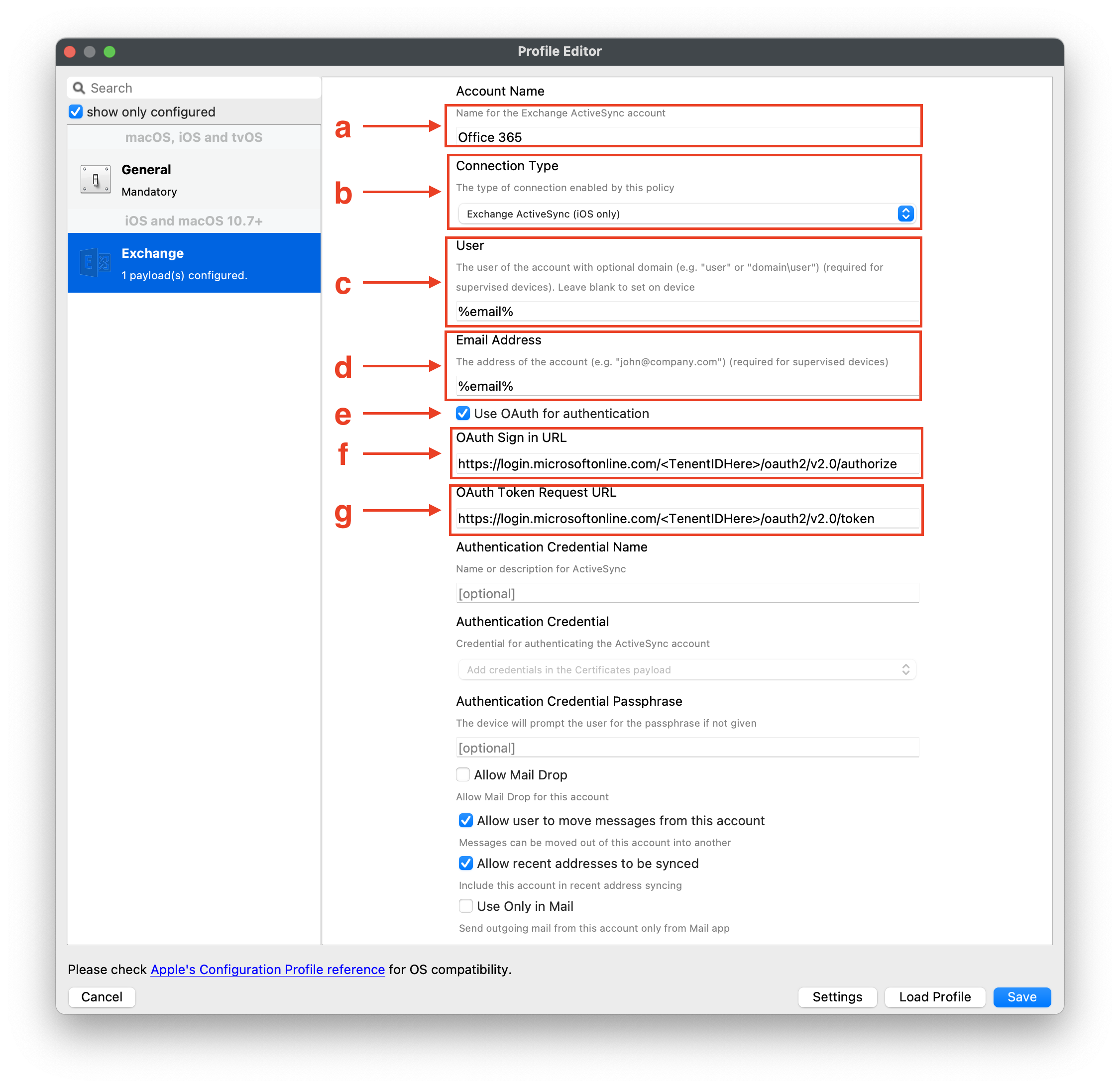
- Choose the Exchange Payload and then configure the following:
- Account Name - Name of your choice
- Connection Type - Choose iOS or macOS
- User - You may use the variable for the username or for email to populate in the user’s account; %username% or %email%
- Email Address - You may use the variable for email to populate in the email address; %email%
- Check the box ‘Use OAuth for authentication’ to enable OAuth method
- OAuth Sign in URL -
https://login.microsoftonline.com/<Tenent.ID.Heretenant-id>/auth2/oauth2/v2.0/authorize; be sure the Tenent ID matches from your Microsoft Azure account - OAuth Token Request URL -
https://login.microsoftonline.com/<TenentIDHeretenant-id>/oauth2/v2.0/token; be sure the Tenent ID matches from your Microsoft Azure account - Exchange
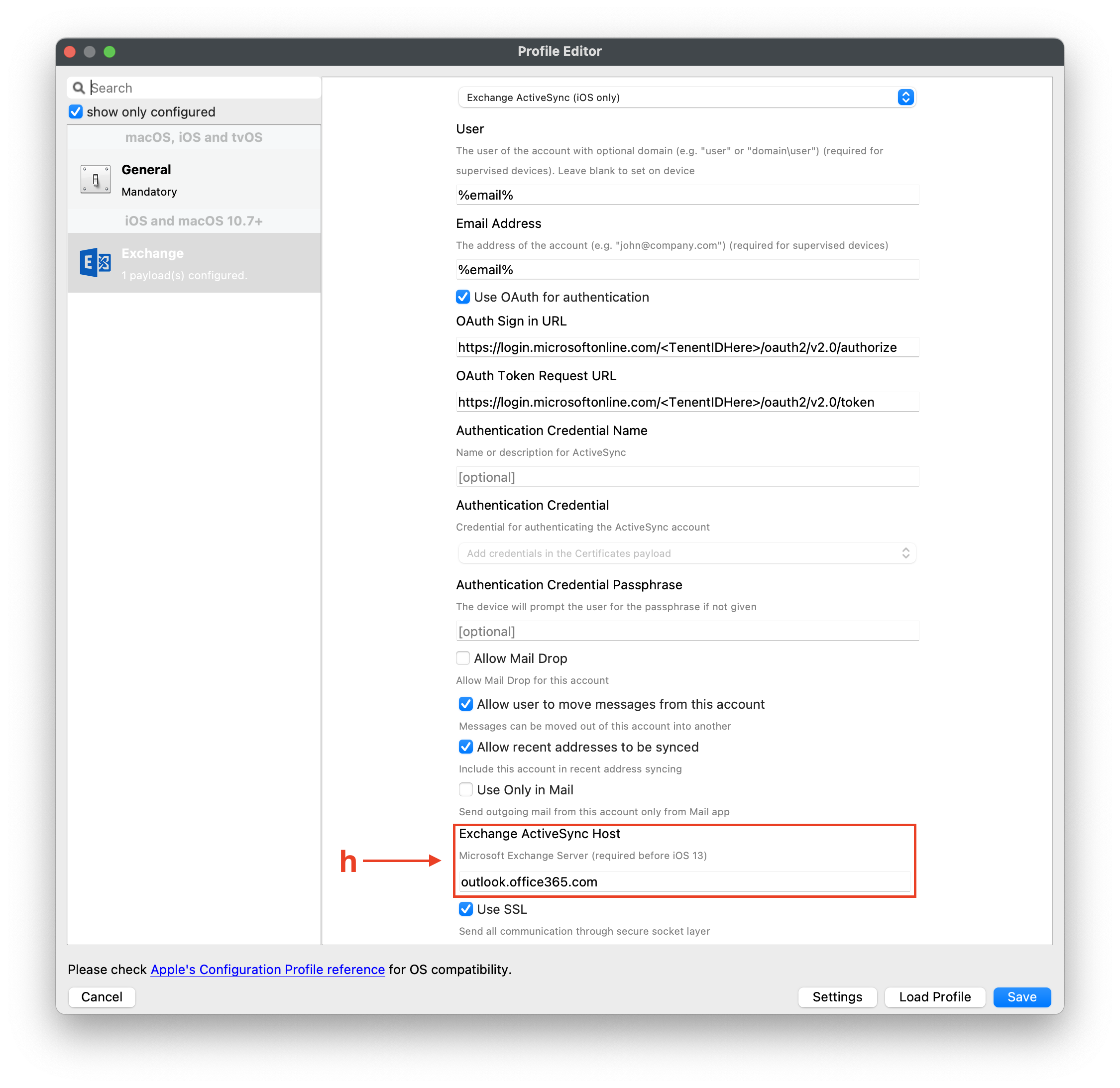
ActiveActiveSync HostURL-outlook.office365.com - Optional settings - you may check based on your desired settings for the mail account
BelowThe isscreenshots anshow examplethe screenExchange shot:payload fields and the correct /oauth2/v2.0/authorize and /oauth2/v2.0/token paths.
Related Content
- Deprecation of Basic authentication in Exchange Online | Microsoft Learn
- Be sure to review Microsoft Office documentation on setting up Exchange Online | Microsoft Learn