
Adobe Creative Cloud (Windows EXE)
Description
InThis today'srecipe digitalwalks age,through visualdeploying content plays a pivotal role in branding, marketing, and communication strategies for enterprises.an Adobe Creative Cloud offersfor Windows package, created in the Adobe Admin Console, as a robustFileWave suitedesktop of tools tailored for creative professionals, and its enterprise version brings forth additional functionalities to manage and streamline the creative workflow.fileset.
FileWaveAdobe's cancurrent helppackaging youworkflow is in deployingAdmin andConsole managing> these AdobePackages. Creative Cloud applications.Packager is still referenced in some Adobe tools/documentation, but Adobe notes that Creative Cloud Packager is no longer in development and recommends using the package workflows in the Admin Console.
Ingredients
- FileWave Central
- Adobe
CreativeAdminCloudConsoleforaccessEnterprisewith permission to create or download packages
Directions
Accessing the Admin Console:To initiate the deployment process, administrators must logLog in to the Adobe Admin Consoleusingandtheiropenauthorized credentials.Packages. TheadminAdminconsoleConsoleprovidesisawhererangeAdobeofmanagesmanagementpackaging,options,productincluding user provisioning, license management,selection, andapplicationdeploymentdeployment.
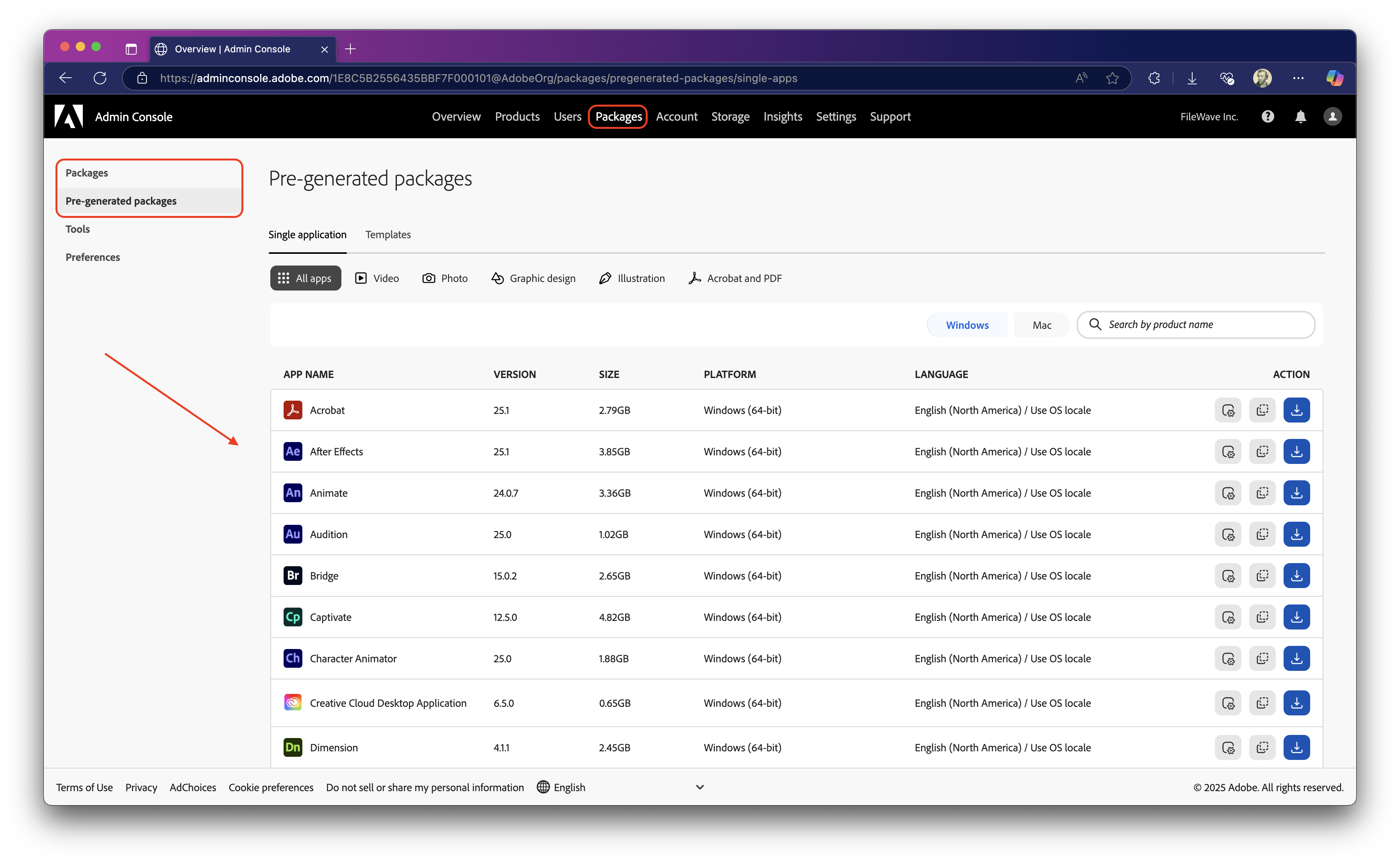
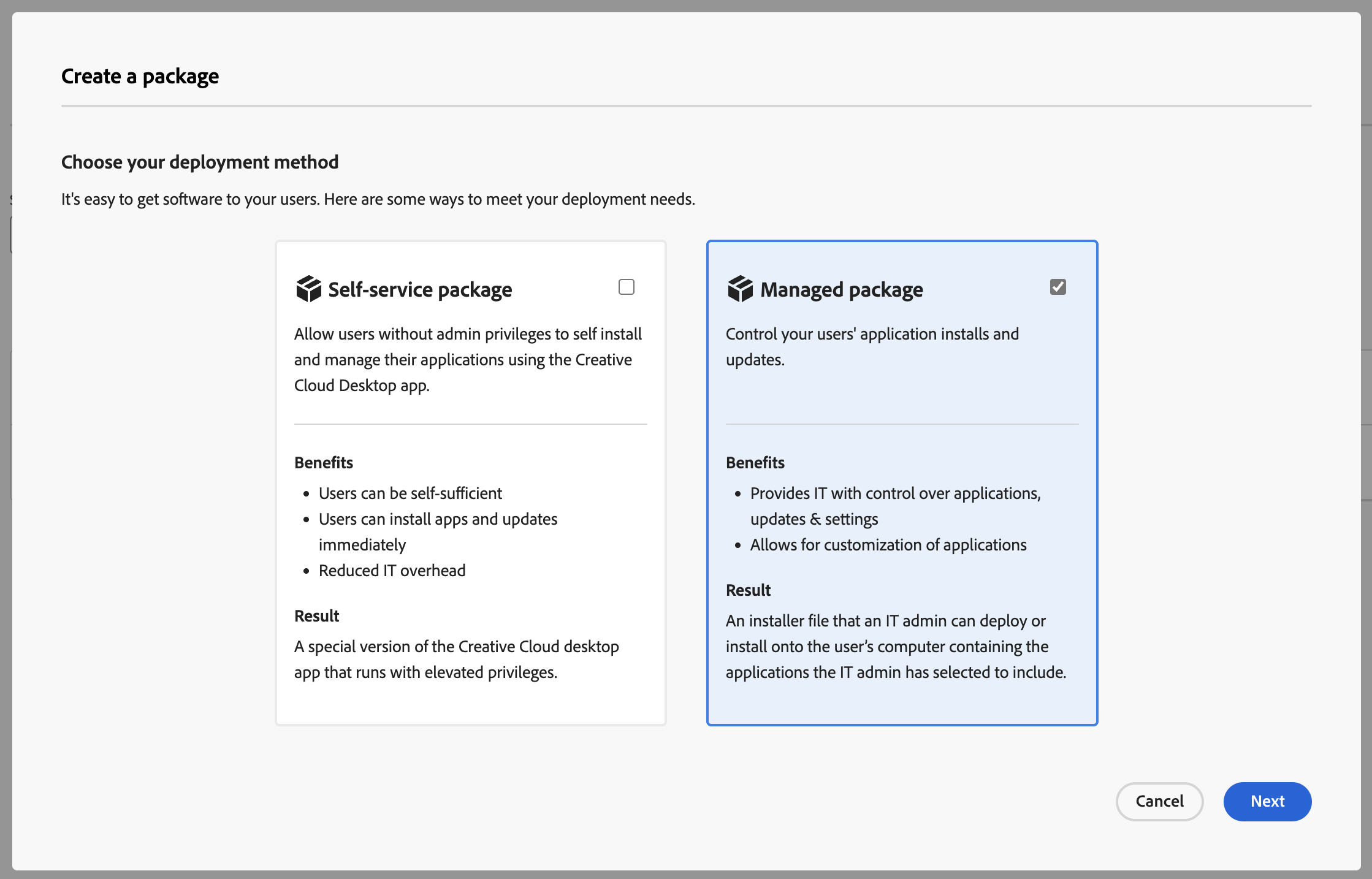 Select
 PleaseFor Note:Windows packages, Adobe Creativedocuments Cloudsetup.exe Packagerinside maythe bepackage's customizedBuild with settings for application updates directly fromfolder. Adobe andalso customnotes installthat directorydeploying fora Windowspackage andcontaining macOS.
Adobeby mayMSI needinstead of setup.exe can skip Acrobat, so use setup.exe unless you have a verified reason to setupdo andotherwise.
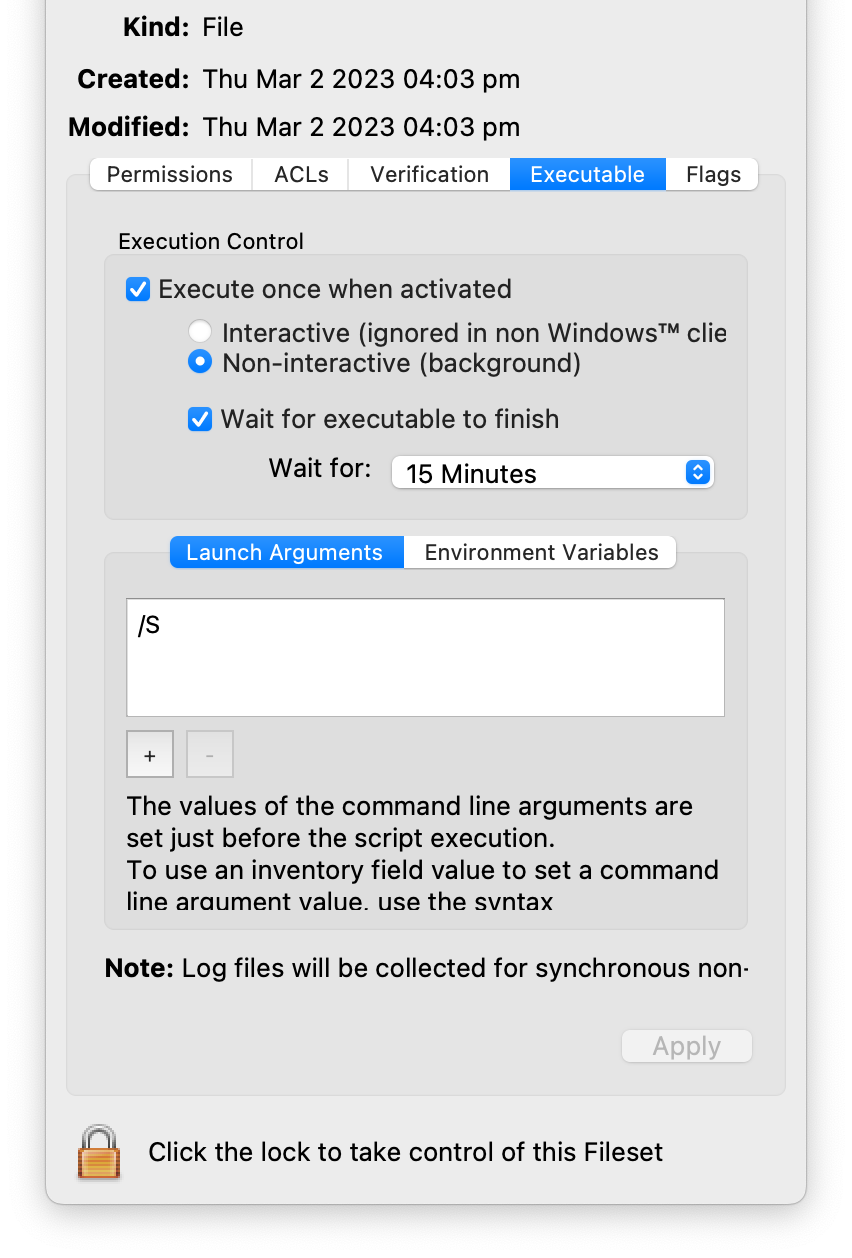
Configure the trigger of the EXE. Below are the steps to locate the Setup.EXE filein withinFileWave
After the Adobe Creativepackage Cloudhas been uploaded to the fileset, configure FileWave to run the Adobe setup.exe installer for Windows and be sure the EXE is executed during deployment.activation.
- Open FileWave Admin and navigate to
yourthe uploaded Adobe Creative Cloudinstaller.
fileset. - Double-click
onthenew Filesetfileset to openthe"FilesetContents"Contents. UncheckIf"needed, clear Hide unusedfolders"foldersif enabled.
Build folder and select setup.exe.
Choose Get Info from the menu bar.
Open the Executable tab.
Syntax:
setup [--silent] [--ADOBEINSTALLDIR=] [--INSTALLLANGUAGE=]

[ADOBEINSTALLDIR] is the installation directory where apps are to be installed on the client machine.
[INSTALLLANGUAGE] is the locale inused whichfor the appsinstalled are to be installed.apps.

Syntax example:
setup.exe --silent --ADOBEINSTALLDIR="C:\InstallDir" --INSTALLLANGUAGE=en_US- Click
"Apply"Apply to saveyourthechangesexecutableandsettings,Closethen close the"GetInfo"Info window. - Close
the"FilesetContents"window.Contents. YouTheshouldfilesetnowwillseeshowyourasEXEModifiedFileset inuntil the"Filesets"modelview.*isTheupdated.Fileset will be labeled as"Modified"indicatingUpdate theitmodelhaswhennotyouyetarebeen saved.
As always, test deploy the Filesetfileset to a few devices before mass deployment.
Related Content
- Adobe Creative Cloud:
Planning toDeploy and deliver apps and updates - Adobe Creative Cloud: Packaging
appapps via the Admin Console