
CrowdStrike Falcon Protection (Windows EXE)
Description
Needing to deploy to Crowdstrike Falcon antivirus to your Windows fleet? FileWave has you covered.
CrowdStrike's flagship product is called Falcon, which is a cloud-native platform that combines next-generation antivirus, endpoint detection and response (EDR), threat intelligence, and proactive threat hunting. Falcon aims to provide real-time visibility into endpoint activity, rapid threat detection, and automated response to security incidents.
Ingredients
- FileWave Admin Central
- Crowdstrike EXE installer
- Crowdstrike License code
- CrowdStrike Windows Installation.fileset.zip
Directions
Deploying the Crowdstrike Falcon to your devices
CrowdStrike deployment for Windows devices has one Fileset. This Fileset includes an EXE with launch arguments to be customized with your CrowdStrike license code.
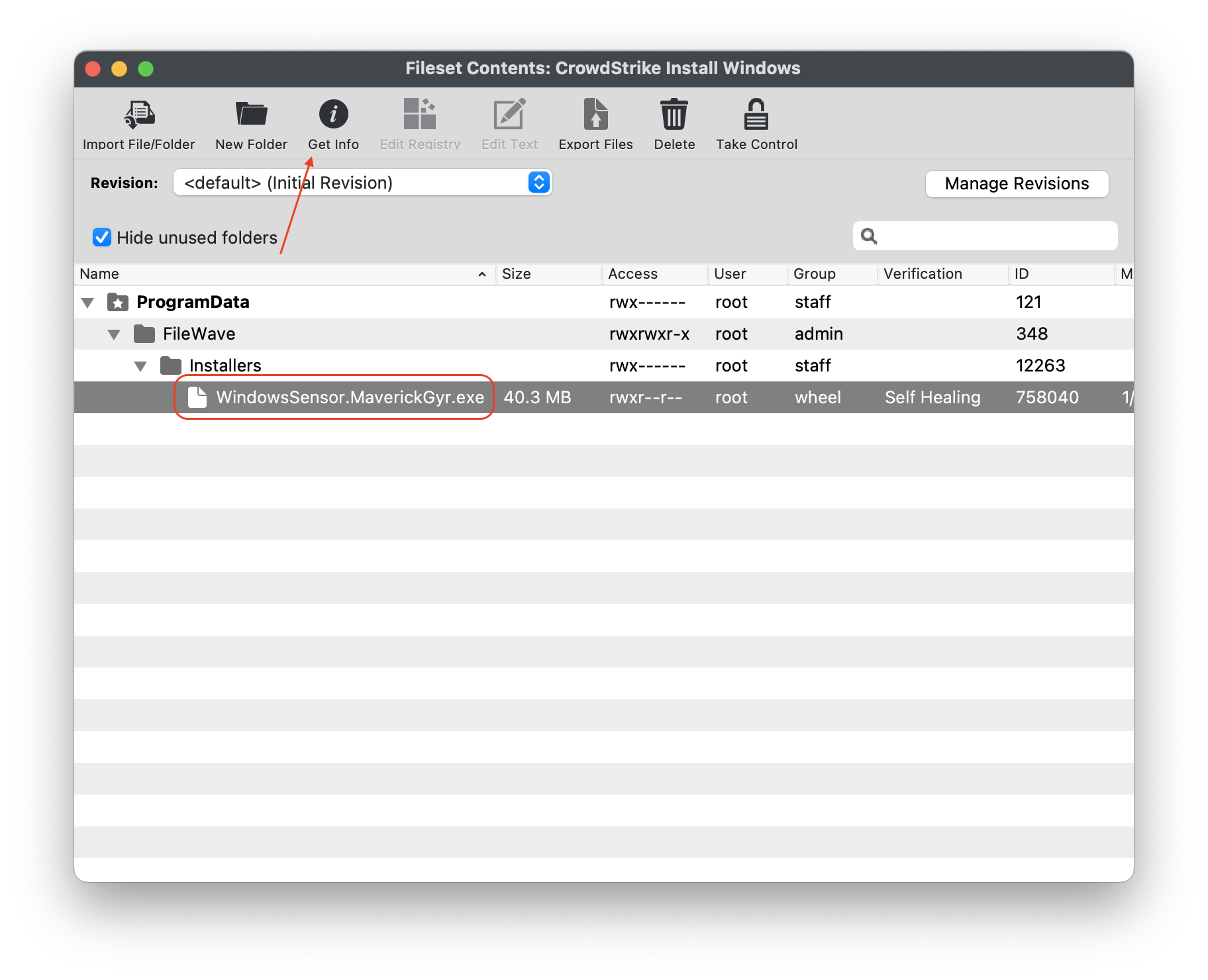
The Fileset included has a placeholder for your EXE installer. Be sure to replace with your EXE installer provided by CrowdStrike.
CrowdStrike Windows Installation.fileset.zip
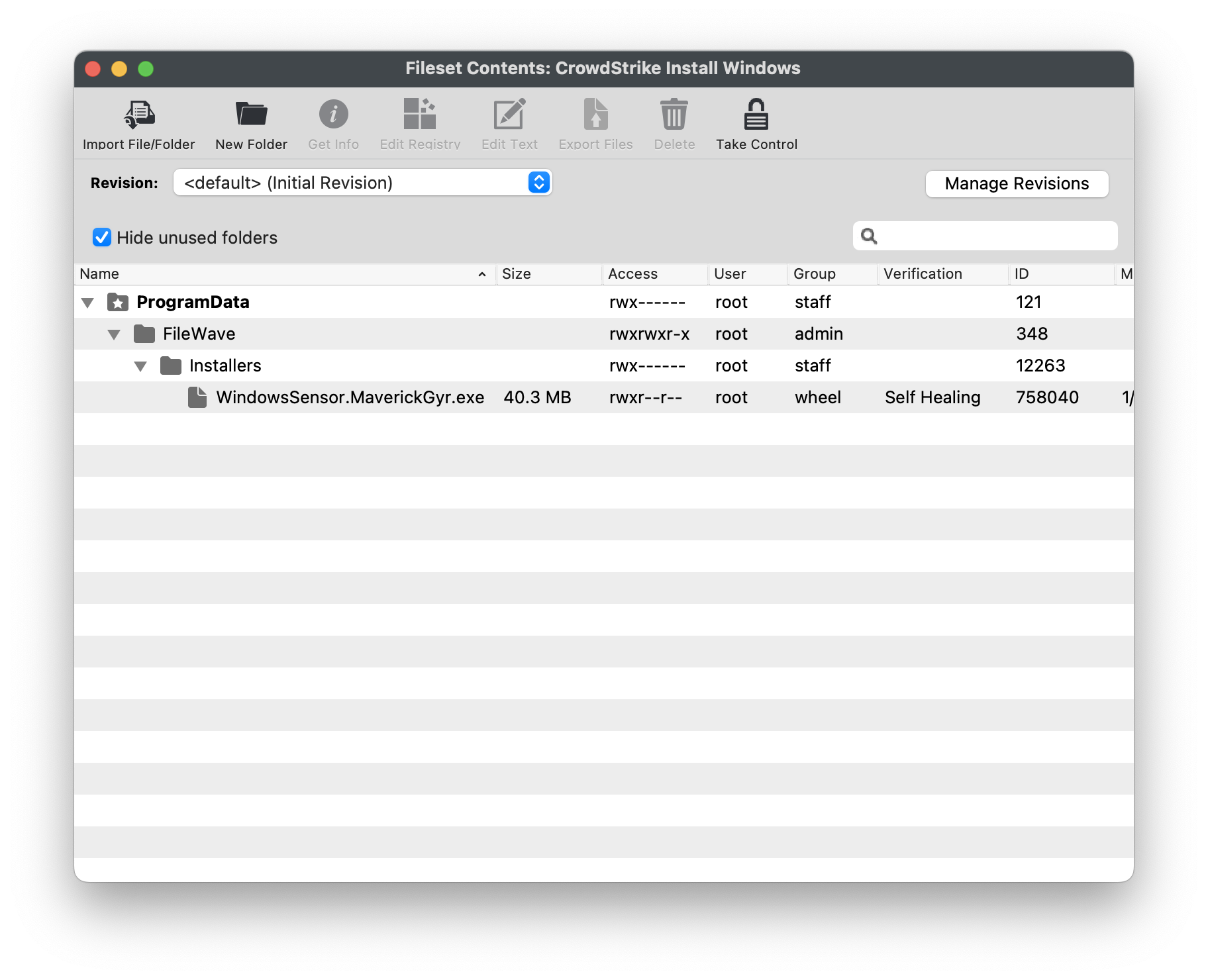
Customizing the Installation EXE
|
Editing the Fileset EXE
|
 |
|
Enter in your CrowdStrike License code
|
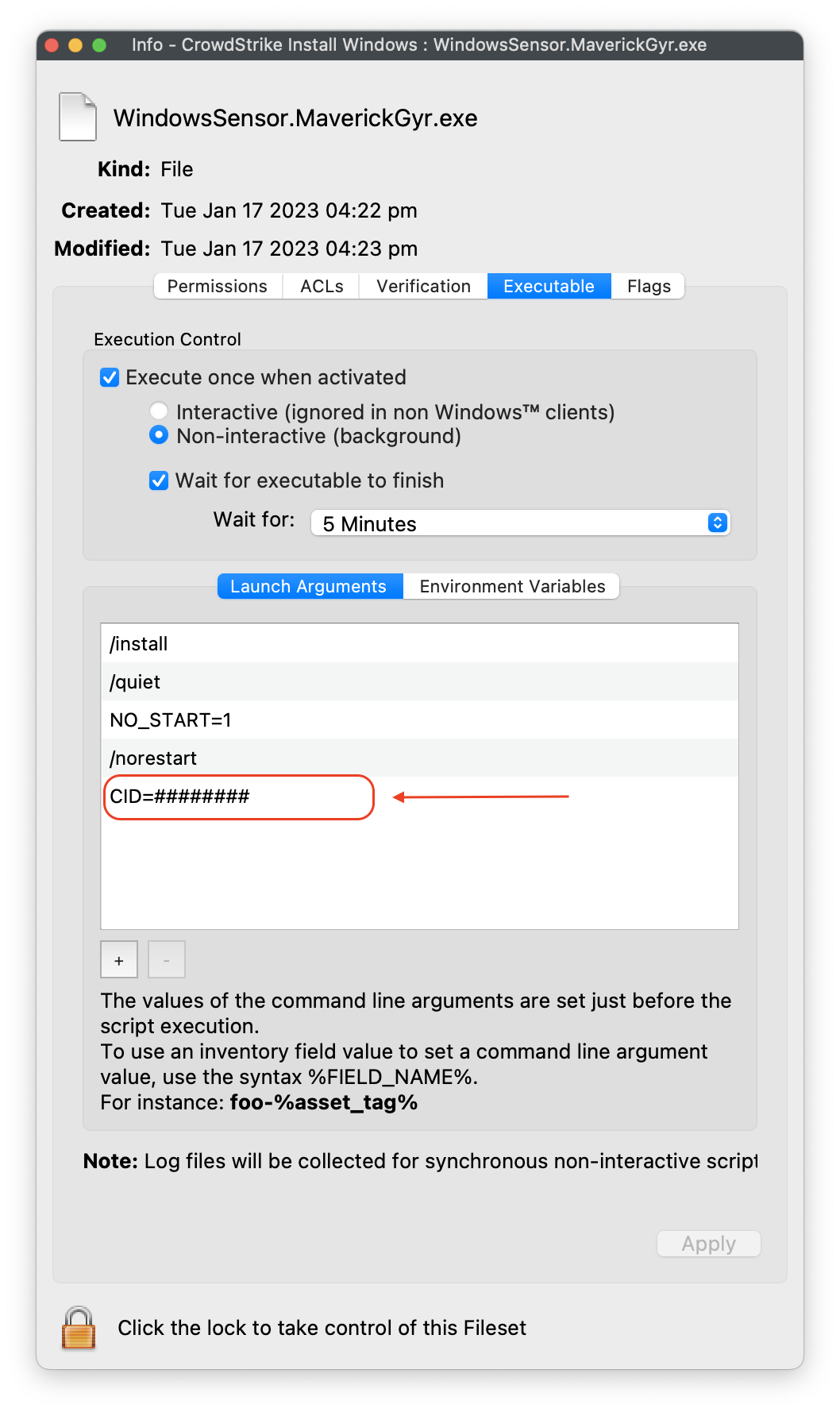 |
Please Note: Launch Argument NO_START=1 is intended if the desired outcome if you want CrowdStrike to start after the first reboot post-install. If not, remove NO_START=1 from the Launch Argument list.
Crowdstirke CLI switches
These CLI switches not case senstive:
| Switch | Required | Purpose |
|---|---|---|
| /install | Yes | Installs the CrowdStrike Falcon Sensor. |
| /passive | No | The installer shows a minimal UI with no prompts. |
| /quiet | No | Suppresses UI and prompts. |
| /norestart | No | Prevents the host from restarting after installation. |
| /log | No | Changes the default installation log directory from %Temp% to a new location. The new location must be contained in quotation marks (""). |
Crowdstrike CLI parameters
These parameters are case senstive:
| Parameter | Value | Required | Purpose |
|---|---|---|---|
| CID= | CID license | Yes | Uses customer identification (CID) to associate sensor to CrowdStrike Falcon Console. |
| NO_START= | 0 (Default) | No | Starts the sensor immediately after installation. |
| NO_START= | 1 | No | Prevents the sensor from starting after installation. The next time the host boots, the sensor is assigned an agent ID (AID). |
| VDI= | 1 | No | Configures sensor for a virtual desktop infrastructure (VDI) environment. Updates AID after system initialization. |
| APP_PROXYNAME= | proxy.domain.com | No | Configures sensor to use a proxy connection. Cannot be used with PACURL=. |
| APP_PROXYPORT= | 1234 | No | Specifies APP_PROXYPORT= port. |
| PACURL= | See Examples | No | Configures a proxy connection using a PAC file. Cannot be used with either APP_PROXYNAME or APP_PROXYPORT. |
| PROXYDISABLE= | 0 (Default) | No | Attempts to connect to CrowdStrike Falcon Console using any available proxy connections. |
| PROXYDISABLE= | 1 | No | The parameter ignores any automatic proxy connection. |
| ProvNoWait= | 0 (Default) | No | The parameter uninstalls the sensor if unable to connect to CrowdStrike Falcon Console within 10 minutes. |
| ProvNoWait= | 1 | No | The parameter prevents uninstall if unable to connect to CrowdStrike Falcon Console. |
Creating a Fileset Group
Keeping your Filesets organized is good practice, especially if there are multiple Filesets for software deployment or organziation based on specific platform of deployment.
You may create a New Fileset Group, label it CrowdStrike Falcon (Windows 2023), and move the Fileset you created into this Group. Then associate the Fileset Group labeled CrowdStrike Flacon (Windows 2023) to your devices versus individual Filesets.
When ready, associate the Fileset Group labeled CrowdStrike Falcon (Windows 2023) to a few devices as a test. This is to verify and confirm that the software is installed properly based on your license code configured.
For best practice, always test a few devices before mass deployment.