
Deploy 7-Zip with Custom MSI Parameters
DescriptionWhat this recipe does
ExampleUse recipeFileWave forCentral deployingto 7zipdeploy the 7-Zip MSI with newa custom installation directory. The custom MSI parametersoptions shown here remain available in current FileWave 15.2.0.versions.
Ingredients
-
FWFileWaveAdminCentral -
7zip7-Zip MSI installer
BeFileWave sureruns toMSI reviewFilesets 7zipsilently. FAQsCheck the 7-Zip FAQ before changing installer properties, because the vendor defines the supported INSTALLDIR syntax.
Deploy the MSI
Download the current MSI from the official 7-Zip download page.
In FileWave Central, choose New Fileset and create an MSI Fileset from the installer. Open the new Fileset and select Properties. Under Custom MSI install options, enterINSTALLDIR="C:\Program Files\7-Zip" to use the 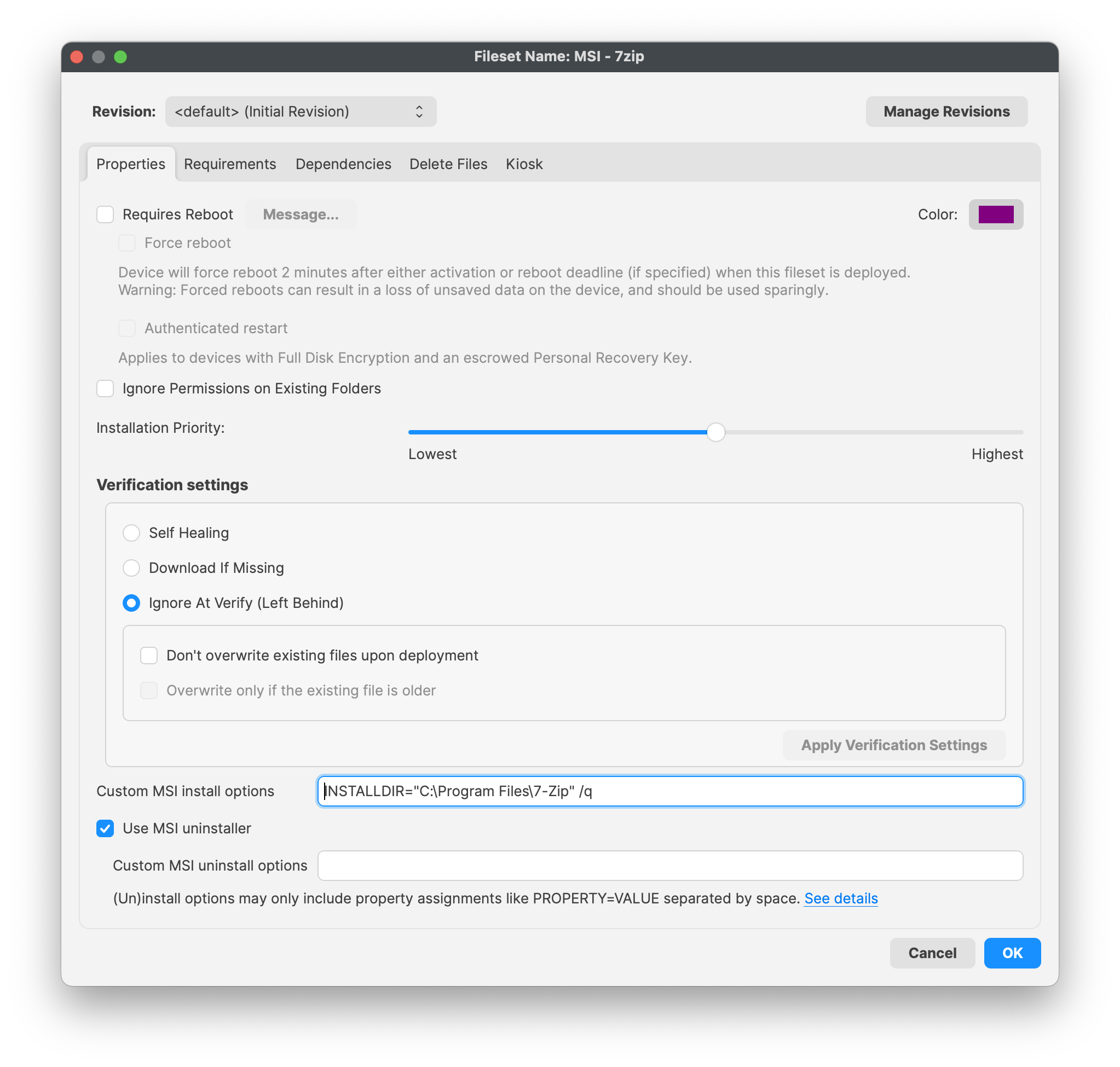
Directions
enabled Downloaduninstall test confirms the 7zippackage MSIremoves installer from 7zip: Download
Always test deployment for both successfulTest installation and uninstallations.removal Ifon youa wererepresentative assigningWindows viadevice Selfbefore Servicewider Kiosk,deployment. andThis thenis endespecially important when users decidescan toinstall uninstall,or wantremove to7-Zip bethrough sureFileWave it does uninstall successfully.Kiosk.
Assign tothe DevicesFileset
OnceAfter testingthe haspilot beensucceeds, completed and is successful, assign your Fileset to your devices. By way of either a 'Deployment' or 'Association' within FileWave, assignadd the Fileset to youra Deployment or Association for the intended Windows devices. Verify both the installed path and the Fileset status after activation.