
Prepare Android EMM Devices for TeamViewer Remote Support
What to deploy
FileWave'sTeamViewer remote support for an Android EMM device requires the current FileWave Companion app, TeamViewer integrationQuickSupport, requiresand endpointthe prerequisitesTeamViewer add-on that matches the device model.
Technician and device requirements
Install TeamViewer on each supportedlicensed platform.support technician's Inworkstation future versions, we may embed some of these prerequisites, but at this time, we erred onusing the sidecurrent of letting you control the elements. So, slightly more work but much greater control.
When/Why
TeamViewer’s full application for Windows candownload be found here:or https://www.teamviewer.com/en-us/download/windows/macOS download. ForTeamViewer macOS,licensing here:is https://www.teamviewer.com/en-us/download/mac-os/. You will needassigned to runsupport thattechnicians, onnot theto every managed device or end user.
On each Android device, verify that runs the FileWave AdministratorCompanion consoleapp orcan WebAdmin.report For your clients,to the belowserver, steps discuss the deployment.
We'll need to meet prerequisites for Android client devices for TeamViewer to work seamlessly. We'll need the FileWave companion app to be upgraded to at least 14.7, and we'll want tothen deploy the TeamViewer QuickSupport and the correct add-onon. applicationsFor asthe well.attended user prompts after setup, see TeamViewer Android EMM Remote Session Behavior.
| Component | Install? | Notes |
| Android EMM Companion App (FW Client App) | * Yes | Auto-deployed |
| TeamViewer QuickSupport App (Google Play Store) | * Yes | Details, which can be deployed as a FileWave Fileset: Play Store App - TeamViewer QuickSupport.fileset.zip |
| TeamViewer Add-On (Google Play Store) | * Yes | The add-on is required for device control (typing, screen clicks, etc)...and is specific to each type of Android device, reference the article linked to from the How section below for specifics about best practices for deployment |
FWThe ClientFileWave AppCompanion app must be able to both resolve the serverFileWave Server's DNS name and reachconnect the server since communication from this App is directdirectly to the server,server. notIf viait Google.cannot Withoutreport, thisFileWave communication,cannot confirm the Companion version of FW Client will not be updated on the server and the option to 'Open Remote Session'Session willremains be greyed out.unavailable.
HowBuild the Android deployment
ThereDeploy are two elements we need to deploy to supportthese TeamViewer oncomponents Androidafter EMMthe devices:FileWave Companion app is healthy:
TheTeamViewer QuickSupport for the remote-support session
ToA keeppractical the distribution simplegroup and elegant, we'll probably want to build aFileset structure that looks somethinglike this:
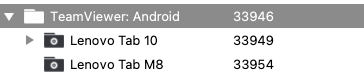
NoteYou that you could alsocan publish allthe of therequired apps needed toin the Play Store Kiosk on the devices as well,Kiosk, but wedirect feeldeployment thatavoids wouldasking be pretty cluttered for thedevice users ofto thechoose devices,among albeitmodel-specific simpler for the FileWave admin.add-ons.
In our structure, the top-level group is just a manual group, and we will assign the Fileset (Payload) for the TeamViewer QuickSupport app here. Below that top-level group we'll create groups for each type of Android device we have. The add-on is device-specific, therefore we will create a smart group for each device type based on the Device Product Name field.
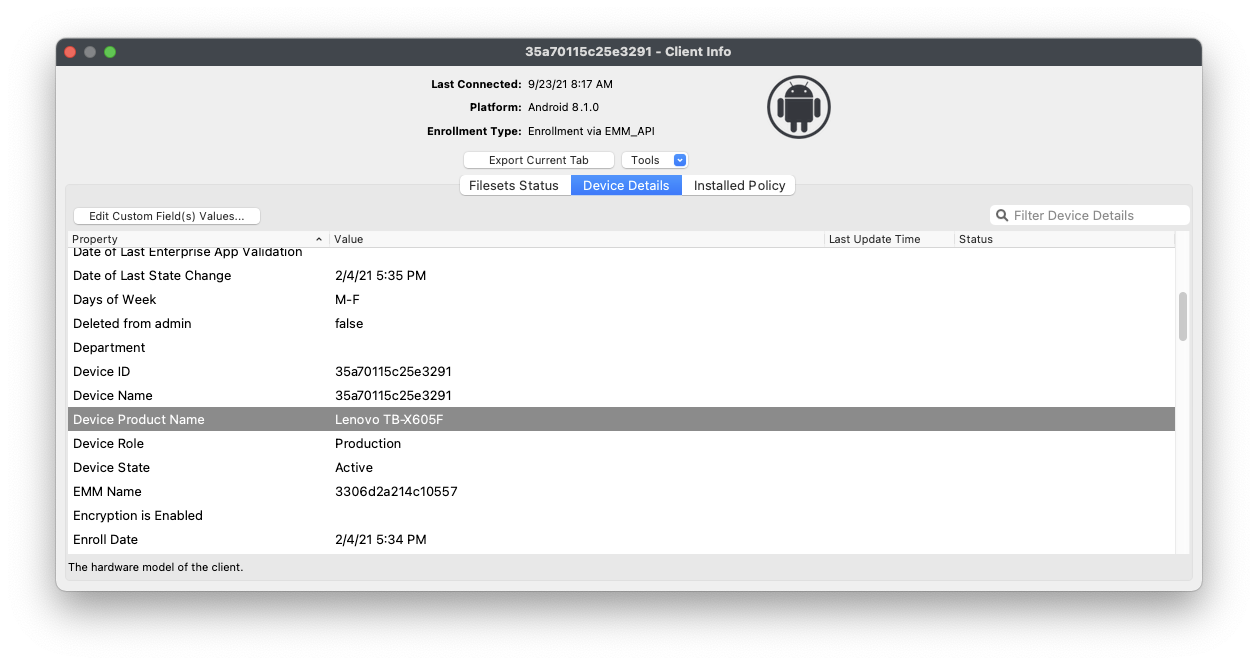
In the case of the Lenovo M10 tablet, the product name is "Lenovo TB-X605F", so we created a Smart Group based on Device Product Name matching that exact name. Because this group is a smart group all M10 tablets will automatically be included and, therefore will have the QuickSupport app assigned from the group above, which addresses our first pre-requisite.
Remember, you can duplicate a smart group by right-clicking and choosing "Duplicate"...this makes it much simpler to add multiple similar smart groups.
Now, for the Add-On installation...it is a bit more complicated because we don't know which add-on fits our device best. In this case, it is best just to cheat and let theUse TeamViewer QuickSupport app recommend the add-on to install on a sample device.device to Inidentify our case, it recommends anthe add-on recommended for that model. In this example, the x705F,Lenovo foundtablet here:uses the x705F add-on: https://play.google.com/store/apps/details?id=com.teamviewer.quicksupport.addon.lenovo_tb_x705fTeamViewer QuickSupport Add-On for Lenovo TB-X705F.
So, we'll now createCreate a Fileset for thatthe app.recommended andadd-on, assigndeploy it to the appropriatematching smartSmart group. Then, rinseGroup, and repeat the model check for each distinct device type, which hopefully won't be too many.type.
There is also a Universal Add-On available, but at least in our testing, the device-specific add-ons worked best.
OnInitial initial setup, the option for starting a remote control remote-session for an Androidavailability can be delayed towhile allowFileWave synchronizationand betweenManaged FileWave/Google.Google Play Thissynchronize. is only atConfirm the setupCompanion ofapp, QuickSupport, and model-specific add-on have all reported before troubleshooting the deviceremote-session though and should complete within 15-30 minutes maximum.button.