
TeamViewer Android EMM Remote Session Behavior
What the Android user sees
This article shows the attended-session prompts that appear after a FileWave administrator requests TeamViewer remote control for an Android EMM device. Complete the TeamViewer and Android EMM prerequisites before testing this user flow.
Android EMM remote sessions require the current FileWave Companion app and TeamViewer QuickSupport. TeamViewer licensing is assigned to support technicians, not to each managed device or end user.
Why the prompt sequence matters
Use this sequence to prepare the device user for the notification, one-time QuickSupport agreement, and attended-access approval. A remote-support request does not silently grant control; the user must open the notification and approve the session shown below.
Session sequence
The FileWave Companion app receives the remote-session request and posts an Android notification. Depending on the device's notification settings, the request may be easy to miss: it can appear as a sound and a status-bar icon rather than a full-screen prompt. The user must open that notification to continue:
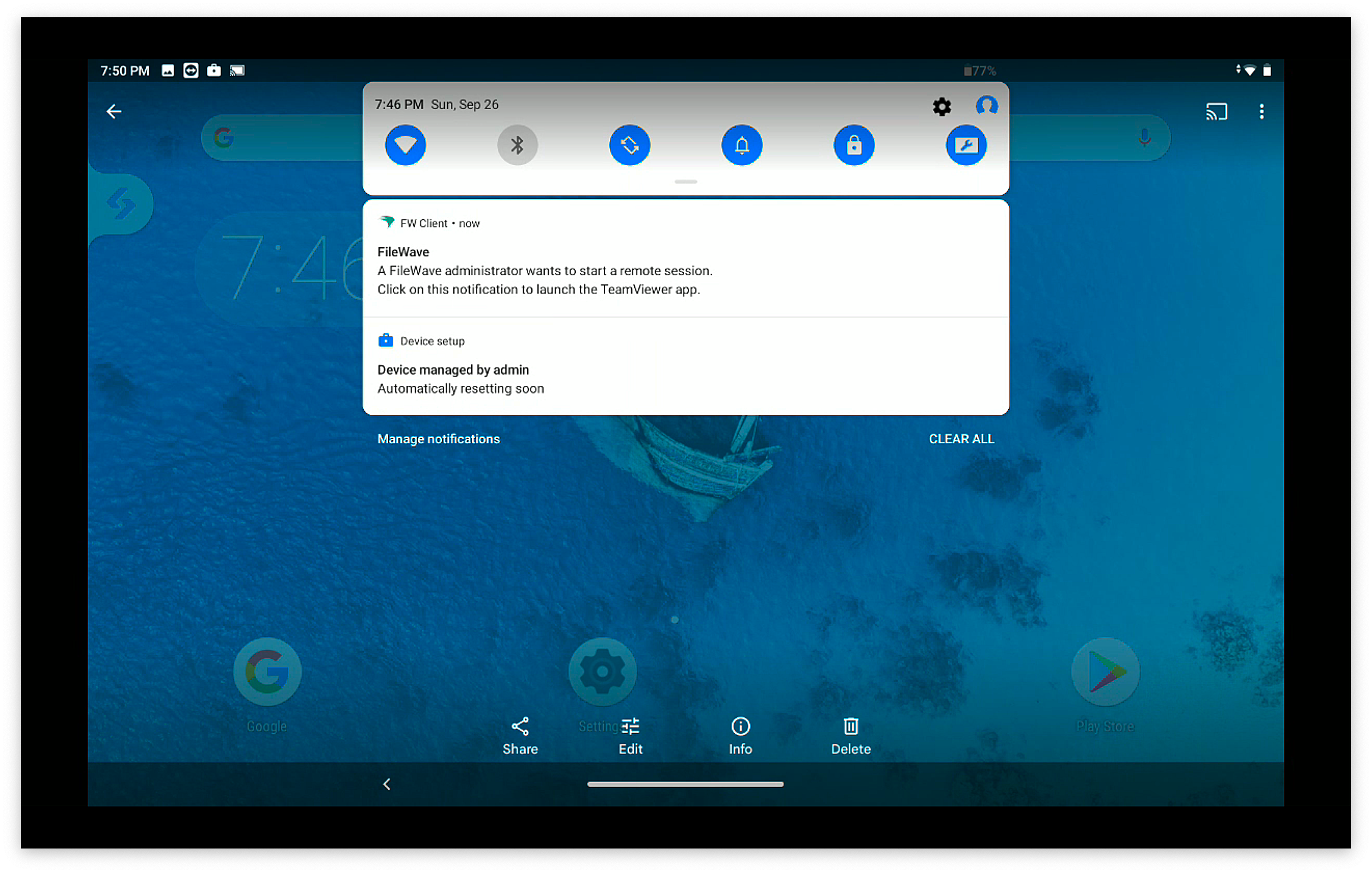
When that notification is acknowledged, the TeamViewer QuickSupport App will open to start a remote session.
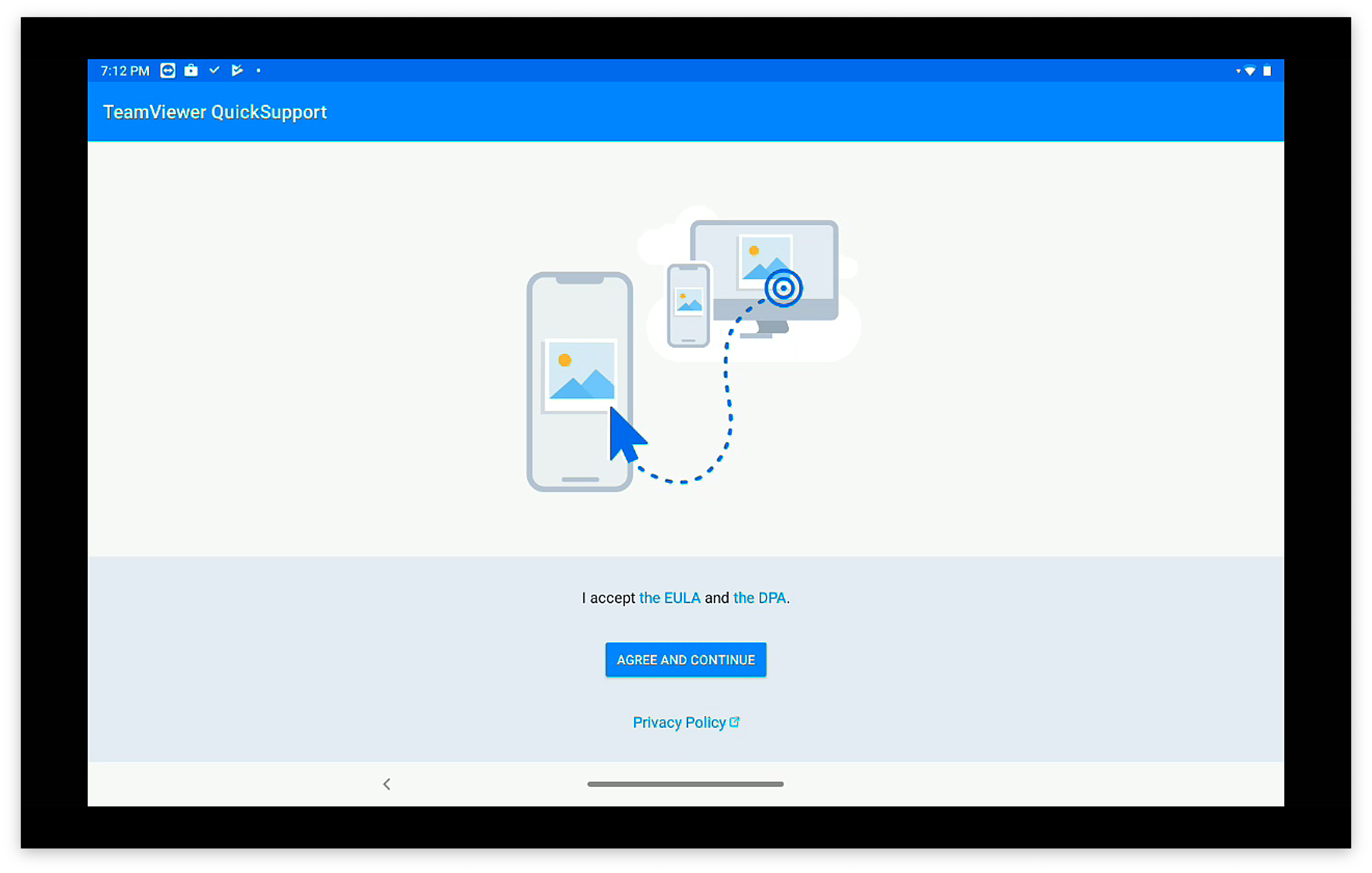
On first launch, the QuickSupport app will prompt the user to accept the EULA as shown above
The FileWave Companion app must be running for the device to receive the initial session notification.
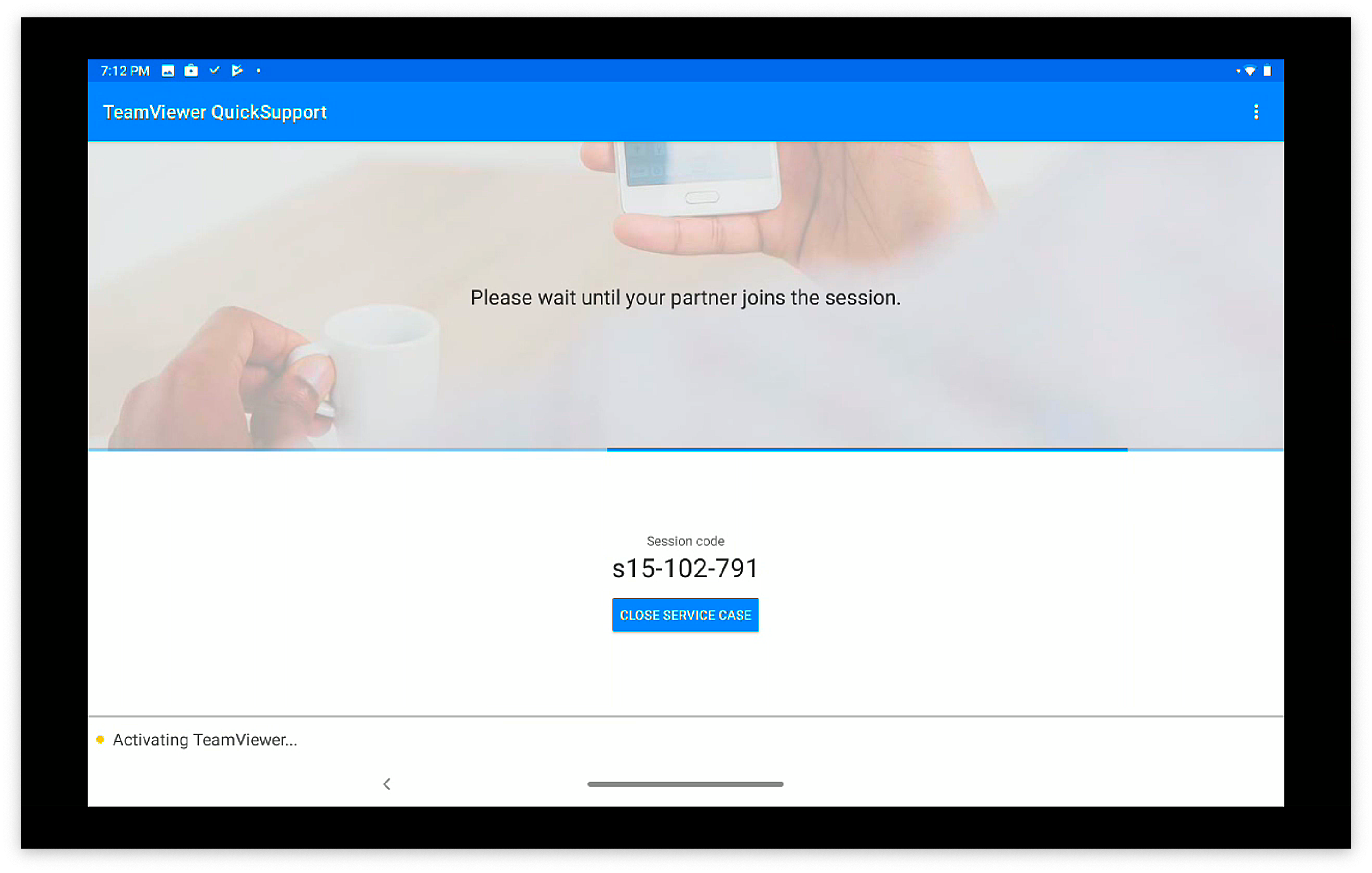
Once the EULA is agreed to (one time prompt), then the client-side session will begin:
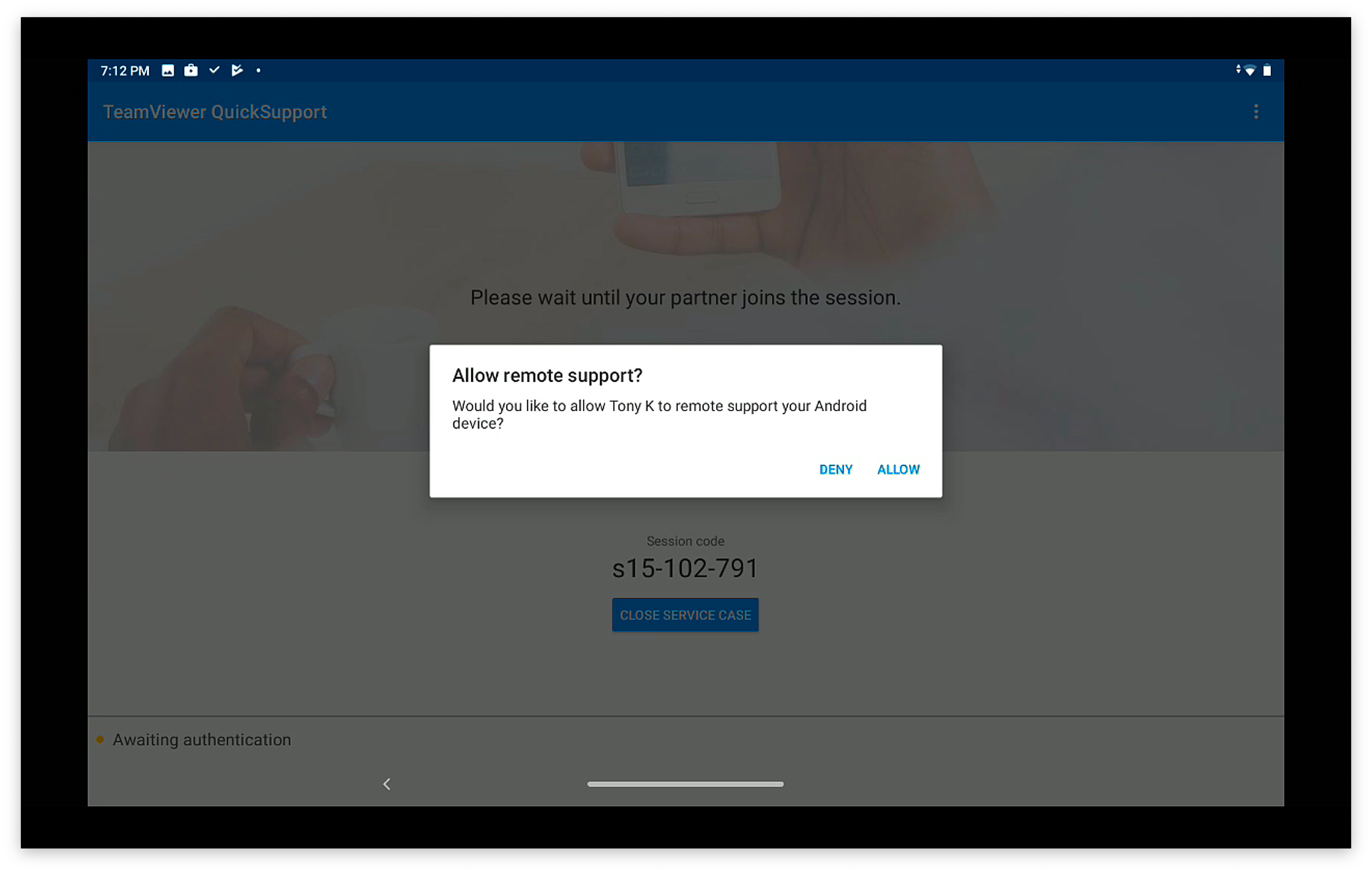
When the administrator's TeamViewer is also running, then the user will be prompted to allow this specific session (for attended access):
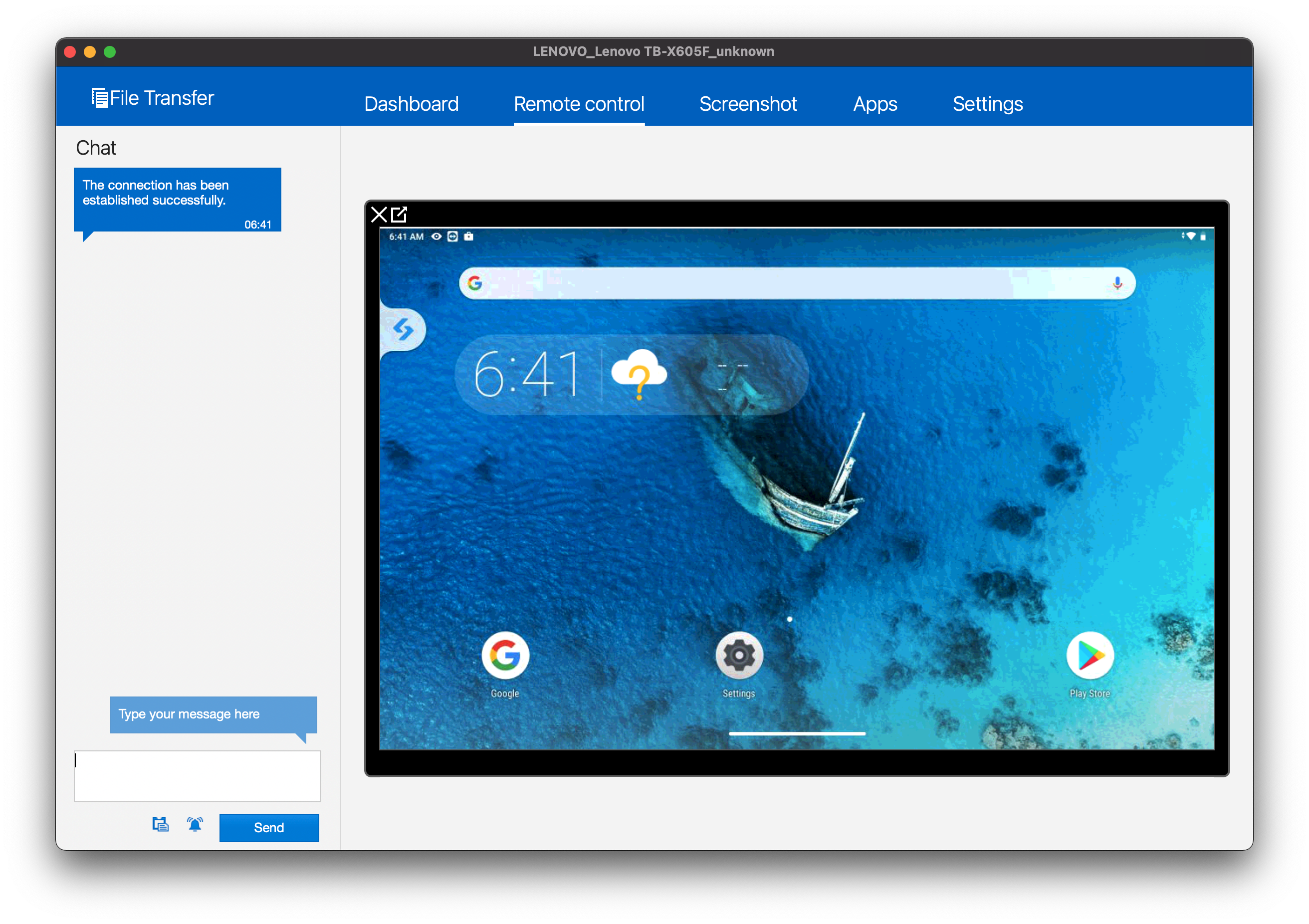
Once each of the above are completed, the remote session will look like this from the admin's machine:
No comments to display
No comments to display